Introduction
Managing multiple servers used to mean SSH-ing into a few machines, running some commands, and calling it a day. That world is gone.
In 2026, the average DevOps team juggles servers across AWS, DigitalOcean, Azure, and on-premise infrastructure, often simultaneously. 89% of enterprises now use multi-cloud strategies, according to recent industry reports. What was once an advanced approach has become standard operating procedure.
But here's the problem: the tools and workflows most teams use haven't kept up.
You're still memorizing IP addresses and still switching between five different applications just to check server health and still copy-pasting SSH keys into spreadsheets that live in someone's Google Drive. The complexity has multiplied, but the management approach hasn't evolved.
80% of organizations now practice DevOps, yet 33% cite skills shortage as their top challenge, according to the State of DevOps Report. For more data on industry trends, see our compilation of DevOps statistics and trends. Teams are expected to manage increasingly complex infrastructure with fewer experienced people. Something has to give.
This article covers how to manage multiple servers effectively in 2026 without the chaos, without the security risks, and without requiring a dedicated DevOps engineer for every five servers.
Why Managing Multiple Servers Is Getting More Complex in Modern DevOps?
Three forces are driving this complexity:
First, infrastructure sprawl. A startup that began on a single VPS now runs production, staging, databases, caching layers, and background workers each on separate servers. Multiply that across multiple projects or clients, and you're managing dozens of machines.
Second, cloud diversity. Teams don't just pick one provider anymore. They use AWS for compute, DigitalOcean for staging, and Azure for compliance-heavy workloads. Each has its own dashboard, its own authentication, its own quirks.
Third, security surface area. More servers mean more SSH keys, more access points, more potential vulnerabilities. 10% of discovered SSH keys grant root access according to SSH Communications Security, yet most organizations can't even inventory what keys exist in their environment.
The old approach, a terminal window here, a monitoring tab there, a Notion doc with IP addresses, doesn't scale. It creates what we call "credential chaos": scattered SSH keys, forgotten access, and no clear picture of who can do what on which server.
The Shift Toward Centralized and AI-Assisted Server Management
The teams solving this problem effectively have made two shifts:
Shift 1: Centralization. Instead of juggling terminal windows, SFTP clients, monitoring dashboards, and documentation, they use a single interface that shows all servers, their status, and provides direct access. Think of it like moving from a desk covered in sticky notes to a single, organized command center.
Shift 2: AI assistance. When something goes wrong at 2 AM, you shouldn't need to remember the exact flags for journalctl or dig through Stack Overflow. Modern tools let you describe the problem in plain English," Why is my API server slow?" and get actionable commands with explanations.
This isn't about replacing DevOps engineers. It's about reducing the cognitive load so teams can focus on building rather than firefighting. The result: faster deployments, fewer incidents, and engineers who aren't woken up at odd hours for problems that could have been diagnosed in seconds.
| Traditional Approach | Modern Centralized Approach |
|---|---|
| IP addresses in spreadsheets or sticky notes | Named servers in a unified dashboard |
| Multiple SSH terminal windows | Single interface with organized tabs |
| Separate SFTP tool for file transfers | Built-in file manager |
| Browser tabs for monitoring | Real-time metrics in one view |
| Google/ChatGPT for debugging help | AI assistant with server context |
| Shared SSH keys via Slack/email | Local credential storage with access control |
The shift is already happening. The question is whether your team adopts it proactively or waits until an incident forces the change.
Next, let's look at the specific challenges that make multi-server management painful in 2026, and then explore the solutions.
Challenges of Managing Multiple Servers in 2026
If you're managing more than three servers, you've probably experienced at least one of these scenarios:
- You need to connect to a server, but the IP address is in a spreadsheet someone else created two years ago
- You're running commands on what you think is staging, only to realize it's production
- A team member left six months ago, but their SSH key still works on every server
- You've got terminal windows, SFTP clients, monitoring dashboards, and ChatGPT open just to deploy one update
These aren't edge cases. They're the daily reality for most small and medium DevOps teams. Let's break down the four biggest challenges.
Credential Chaos (Scattered SSH Keys, Access Issues)
This is the silent security crisis most teams don't realize they have.
The problem: SSH keys multiply uncontrollably. Each developer creates keys for their machine. CI/CD systems get keys. Automation scripts get keys. Contractors get temporary keys that never get revoked.
The scale: According to SSH Communications Security, organizations often have more SSH keys than employees, sometimes by a factor of 100x. In one audit, a company found 3 million keys across 15,000 servers, with 90% no longer in use.
The risk: Here's what keeps security teams up at nightabout 10% of discovered SSH keys grant root access. That means if an attacker finds just one unused key in your environment, they have a 1-in-10 chance of complete control over a server.
The operational cost: Every time someone leaves, someone has to audit and remove their access manually. Most teams skip this. The keys pile up. The attack surface grows.
Tool Fragmentation Across Monitoring, Access, and File Management
The typical DevOps toolkit looks like this:
- Terminal for SSH access (PuTTY, Terminal.app, iTerm2)
- SFTP client for file transfers (FileZilla, WinSCP, Cyberduck)
- Monitoring dashboard for metrics (Grafana, CloudWatch, Datadog)
- Documentation for server info (Notion, Confluence, Google Sheets)
- AI assistant for debugging help (ChatGPT, Claude)
- Password manager for credentials (1Password, LastPass)
That's 4-6 tools just to do basic server work.
Each switch between tools is a context switch. Each context switch costs time and increases the chance of error. 85% of DevOps teams use more than one monitoring tool alone, adding to the complexity.
When you're troubleshooting at 2 AM, you don't want to be alt-tabbing between five windows trying to piece together what's happening. You want one view that shows everything.
Security Risks in Multi-Cloud and Remote Environments
Multi-cloud isn't just a trend; it's the new normal. 89% of enterprises use multi-cloud strategies, and 63% of DevOps teams use hybrid cloud models.
This creates security challenges that didn't exist a decade ago:
Expanded attack surface. Each cloud provider has its own security model, its own IAM system, and its own way of handling keys. The more providers you use, the more places things can go wrong.
Inconsistent access controls. Your AWS servers might have proper role-based access, but that DigitalOcean droplet someone spun up for testing? It probably has shared credentials floating around in Slack.
Compliance complexity. If you're handling sensitive data, each cloud provider and each server needs to meet your compliance requirements. Tracking this manually is nearly impossible.
Shadow IT. Developers spin up servers for testing without going through proper channels. These servers exist outside your security policies, often with weak credentials.
High Dependency on Manual Terminal Commands
Terminal commands are powerful. They're also fragile.
The knowledge bottleneck: Only certain team members know the right commands for specific tasks. When they're unavailable, everyone else waits. 73% of teams take several hours to resolve production issues, according to Logz.io research, often because the right person isn't available to run the right commands.
The typo risk: One wrong character in a command can have catastrophic consequences. A junior developer running rm -rf in the wrong directory is a story that plays out too often.
The documentation gap: Commands that worked six months ago might not work today. Server configurations change, but the documentation rarely gets updated.
The cognitive load: Remembering the right flags, paths, and sequences for dozens of different operations isn't a good use of human brainpower. Yet most teams still operate this way.
| Challenge | Real-World Impact | Teams Affected |
|---|---|---|
| Credential chaos | Security breaches, access audit failures | 60-90% lack key inventory |
| Tool fragmentation | Context switching, slower response time | Most small teams |
| Multi-cloud security | Inconsistent policies, compliance gaps | 89% of enterprises |
| Manual commands | Bottlenecks, errors, and knowledge silos | 73% slow incident response |
These challenges compound each other. Credential chaos makes multi-cloud security harder. Tool fragmentation slows incident response. Manual command dependency creates bottlenecks that amplify everything else.
The good news? Each challenge has a clear solution. Let's look at the best practices that address them.
Best Practices for Multi-Server Management
The teams that manage servers well don't have superhuman memory or unlimited budgets. They follow a set of practices that reduce complexity, improve security, and speed up operations.
Here are the seven practices that make the biggest difference.
Use a Centralized Server Management Dashboard
The single biggest improvement you can make: stop context-switching.
A centralized dashboard shows all your servers in one place: their names, their status, and their key metrics. Instead of remembering IP addresses or hunting through documentation, you see everything at a glance.
What this looks like in practice:
- You name servers by function: "prod-api", "staging-db", "client-acme-frontend."
- Connection status is visible: green = healthy, red = issue
- One click connects you, no typing IPs, no hunting for credentials
- You can export and share server lists with team members
This approach follows SSH best practices (host aliases) but makes them visible and shareable. It's what experienced DevOps engineers set up manually; a good tool does it automatically.
Automate Repetitive Tasks with DevOps and IaC Tools
CI/CD and version control lead to 2.5x faster delivery, according to DORA research. That's not a marginal improvement, it's transformational.
The key is identifying what can be automated:
- Deployments: Should never require manual SSH commands
- Server provisioning: Use Infrastructure as Code (Terraform, Pulumi)
- Configuration management: Ansible, Chef, or Puppet for consistency
- Backup schedules: Should run automatically, not when someone remembers
- SSL renewals: Certbot with auto-renewal, or managed SSL
Automation doesn't replace human judgment. For more on building effective automation pipelines, see our guide on DevOps automation strategies. It removes the repetitive, error-prone tasks so humans can focus on decisions that require judgment.
Implement Real-Time Monitoring and Alerts
You shouldn't discover server problems when users complain.
Real-time monitoring gives you visibility into:
- CPU usage: Is a process spinning out of control?
- Memory: Are you approaching swap territory?
- Disk space: Will you run out tomorrow or next week?
- Process health: Are critical services running?
The monitoring trap: Many teams set up monitoring, but then ignore it. The alerts pile up, people get notification fatigue, and real issues get missed.
The solution:
- Show metrics in a place you actually look (your server management tool)
- Alert only on conditions that require action
- Make it easy to drill down from an alert to a diagnosis
Reduce Terminal Dependency with UI-Based Operations
Not everyone on your team needs to be a Linux expert. And even experts make mistakes.
UI-based operations help in several ways:
- File management: Browse, upload, download, and edit files without commands
- Log viewing: See recent logs with one click, not tail -f /var/log/...
- Service management: Restart services through a button, not systemctl restart
- Configuration edits: Make changes with syntax validation
This isn't about avoiding the Terminal. It's about reserving the Terminal for tasks that actually require it, and using UI for the routine operations that don't.
Use AI Assistance for Troubleshooting and Optimization
Here's where server management is heading in 2026.
Instead of:
- Noticing a problem
- Googling for the right commands
- Copy-pasting into Terminal
- Hoping it works
You can:
- Describe the problem in plain English: "Why is my API returning 502 errors?"
- Get the relevant diagnostic commands, explained
- Review and approve before execution
- Understand what happened and why
The key difference from generic AI: context-aware assistance that knows your server's current state, processes, logs, and metrics, rather than guessing.
Standardize Workflows Across Teams
Every team has that one person who "just handles the servers." This creates a bus factor of one.
Standardization means:
- Documented processes: Runbooks for common operations
- Consistent naming: Everyone knows which server is which
- Shared access: Team members can do routine tasks without escalation
- Version-controlled configurations: Changes are tracked and reversible
The goal isn't bureaucracy. It's resilient, so the team can function even when the "server person" is on vacation.
Security-First Strategies
Security can't be an afterthought. It needs to be built into how you operate.
IAM and Role-Based Access Control
Not everyone needs access to everything. Implement:
- Roles: Developer, DevOps, Admin with different permissions
- Least privilege: Grant minimum access required for each role
- Audit trails: Know who did what and when
Command Approval Systems
For sensitive operations, require approval before execution:
- AI-generated commands should show exactly what will run
- Human review before destructive operations
- Option to enable auto-run for trusted users
Secure Credential Storage
No more SSH keys in Slack or passwords in Google Docs:
- Local-only storage: Credentials never leave your machine
- Encrypted at rest: Even if someone accesses your computer, they can't read keys
- Centralized management: One place to audit and revoke access
| Practice | Priority | Impact | Effort |
|---|---|---|---|
| Centralized dashboard | High | High | Low |
| Task automation | High | High | Medium |
| Real-time monitoring | High | High | Low |
| UI-based operations | Medium | High | Low |
| AI assistance | Medium | High | Low |
| Workflow standardization | Medium | Medium | Medium |
| Security-first approach | High | High | Medium |
These practices work together. A centralized dashboard makes monitoring visible. UI-based operations reduce errors. AI assistance helps with troubleshooting. Security protects everything else.
Next, let's look at the tools that help you implement these practices.
Top Server Management Software Comparison 2026
Choosing the right tool depends on your team's size, technical expertise, and specific needs. Here's how the main categories stack up.
Tools Covered (CtrlOps, CLI Tools, Webmin, cPanel, RunCloud, ServerPilot, AI DevOps Tools)
Traditional CLI Tools: OpenSSH, PuTTY, iTerm2
- Pros: Free, universally available, maximum control
- Cons: Requires memorizing commands, high learning curve, no visual overview
- Best for: Individual experts who prefer full terminal control
Web-Based Control Panels: cPanel, Webmin, Plesk
- Pros: Browser-based, good for hosting providers, and user management
- Cons: Requires installation on servers, security surface, and often dated UI
- Best for: Shared hosting, agencies managing client websites
Modern SSH Clients: Termius, SecureCRT, Royal TS
- Pros: Cross-platform, some sync features, better than raw Terminal
- Cons: Cloud-dependent (Termius), expensive (SecureCRT), limited features
- Best for: Engineers who primarily need SSH access with the organization
AI-Enhanced Terminals: Warp
- Pros: Modern Terminal, AI command generation, fast
- Cons: Terminal-focused (not server management), cloud account required
- Best for: Developers who live in Terminal
All-in-One Server Management: CtrlOps
- Pros: Centralized dashboard, AI terminal with approval gates, file manager, monitoring, local-only security
- Cons: no mobile app yet
- Best for: SMBs, startups, agencies without a dedicated DevOps team
Feature Comparison Table (Ease of Use, Automation, Monitoring, Security, Multi-Server Support)
| Feature | CtrlOps | Termius | Warp | SecureCRT | cPanel |
|---|---|---|---|---|---|
| Centralized Dashboard | ✅ Full | ✅ Server list | ❌ | ✅ | ✅ |
| AI Terminal | ✅ With approval | ❌ | ✅ Auto-run | ❌ | ❌ |
| File Manager GUI | ✅ Full | SFTP only | ❌ | ❌ | ✅ |
| Real-time Monitoring | ✅ Built-in | ❌ | ❌ | ❌ | ✅ Basic |
| One-Click Deploy | ✅ Node/React/Next.js | ❌ | ❌ | ❌ | ❌ |
| Local-First Security | ✅ | ❌ Cloud sync | ❌ Cloud | ✅ | ❌ |
| SSH Key Storage | ✅ Encrypted local | ✅ Cloud vault | ❌ | ✅ | ❌ |
| Multi-Cloud Support | ✅ Any SSH server | ✅ | ✅ | ✅ | Server install |
| Price/month | ₹299 (~$3.60) | $10-30 | Free/$15 | $119+ one-time | $15-45 |
| Best For | SMBs, startups, agencies | SSH-focused teams | Terminal lovers | Enterprise | Web hosting |
CtrlOps vs Competitors (Real Workflow Comparison)
Let's compare a real workflow: deploying a Node.js application to a production server.
With Termius:
- Open Termius, find the server in the list
- SSH into the server
- Navigate to the application directory
- Run git pull
- Run npm install
- Run pm2 restart app
- Check logs with pm2 logs
- Monitor with htop and df -h
- Switch to SFTP for any file changes
Time: 10-15 minutes for someone experienced. Much longer if something goes wrong.
With CtrlOps:
- Open CtrlOps, click server
- Click "Add Application" in File Manager
- Paste the GitHub URL, select Node.js, and add environment variables
- Click Create
- View real-time metrics in the Infra Details tab
- Use the AI terminal to check logs: "show me recent errors."
Time: 5 minutes. Same result. Less room for error.
The key differences:
| Aspect | Termius/Traditional | CtrlOps |
|---|---|---|
| Deployment approach | Manual commands | Guided wizard |
| File operations | Separate SFTP tool | Integrated file manager |
| Monitoring | Terminal commands | Visual dashboard |
| Troubleshooting | Manual + Google | AI assistant with context |
| Security model | Cloud sync | Local-only |
| Knowledge required | Linux commands | Basic understanding |
The comparison isn't about one tool being universally better. It's about fit:
- Termius wins if you need mobile access and cloud sync
- Warp wins if you want a modern terminal experience
- SecureCRT wins for enterprise compliance requirements
- CtrlOps wins if you want centralized management with AI assistance and local security
For teams managing multiple servers without a dedicated DevOps engineer, CtrlOps offers the right combination: organization, automation, and assistance in one tool.
Why is CtrlOps the Ultimate Centralized Server Management Tool?
CtrlOps was built to solve a specific problem: small and medium teams managing servers without dedicated DevOps expertise. The result is a tool that combines organization, automation, and assistance in one desktop application.
Here's what makes it different.
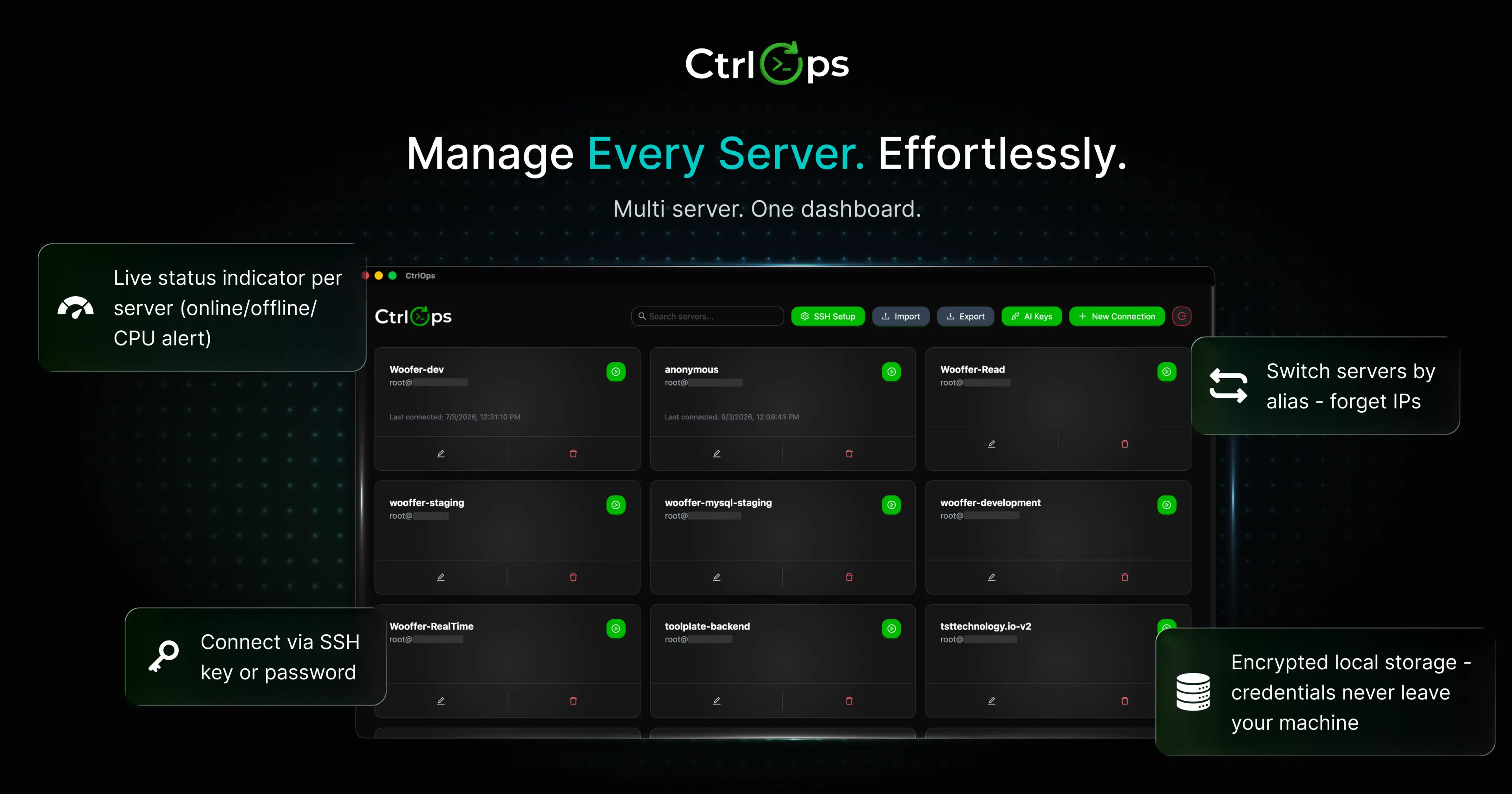
Manage Multiple Servers from One Dashboard
The foundation of CtrlOps is simple: see all your servers in one place.
How it works:
- Add servers by name: "prod-api", "staging-db", "client-acme-frontend."
- Each server card shows the connection status and the last connected time
- One-click connect, no typing IP addresses
- Support for SSH keys and .pem files
- Export/import server lists for team sharing
The impact: No more spreadsheets. No more "what was the staging server IP again?" No more digging through Slack history for credentials.
This follows the SSH host alias best practice that experienced engineers set up manually, but makes it visible and shareable for the whole team.
Simplified Server Onboarding (Add Servers in Minutes)
Adding a new server shouldn't be a project.
With CtrlOps:
- Click "+ New Connection."
- Enter server name, IP, and username.
- Choose SSH key or upload .pem file
- Click Connect
Time to add a server: Under 2 minutes.
What you don't need:
- Root access on the server
- Any software installed on the server
- Cloud provider credentials (AWS IAM, GCP service accounts)
CtrlOps works over standard SSH. If you can SSH into it, CtrlOps can manage it. This includes AWS EC2, DigitalOcean Droplets, Linode, Vultr, bare metal servers, and even Raspberry Pis.
UI-Based File Management Without Terminal Dependency
File operations are some of the most common server tasks and some of the most tedious in Terminal.
CtrlOps File Manager lets you:
- Browse the entire server directory tree visually
- Upload files and entire directories
- Download files to your local machine
- Edit files directly in the UI (configs, scripts, etc.)
- Create and delete folders
- Toggle hidden files on/off
- Search for files by name
Real example: You need to update an Nginx configuration. Instead of:
ssh user@server
cd /etc/nginx/sites-available
sudo vim mysite.conf
# make edits
sudo nginx -t
sudo systemctl reload nginx
You:
- Open File Manager in CtrlOps
- Navigate to /etc/nginx/sites-available
- Click the config file
- Edit in the UI
- Save
No vim. No remembering paths. No typos.
AI-Assisted Terminal with Approval-Based Execution
This is where CtrlOps moves beyond traditional SSH clients.
How the AI Terminal works:
- You type a question in plain English: "Why is my server slow?" or "Show recent error logs"
- The AI generates the appropriate diagnostic commands
- You review the commands and click "Run" to approve
- Commands execute on your server via live SSH
- You get a human-readable summary of the results
Quick actions available:
- Check memory and CPU
- Show recent error logs
- List running services
- Check disk space
- Restart the crashed service
The safety difference: Unlike other AI terminals that auto-execute, CtrlOps always shows you what will run before it runs. This "approve-before-execute" model creates a security checkpoint for every action.
Bring your own AI: Use your own API keys from OpenAI, Google Gemini, Anthropic Claude, or any OpenAI-compatible provider. You control the AI, the costs, and the data.
Real-Time Infrastructure Monitoring (CPU, Memory, Disk, Processes)
Server health shouldn't require running htop, free -h, and df -h in different windows.
CtrlOps Infra Details shows:
| Metric | What You See |
|---|---|
| CPU | Live load percentage, uptime, core count |
| Memory | Used/total GB, available, swap usage |
| Disk | Used/total space, available percentage |
| Processes | Table with PID, name, CPU%, Memory% |
Quick actions:
- Refresh metrics on demand
- Clean cache with one click
- Clear old buffers
This turns server health monitoring into something anyone on the team can understand, not just the Linux expert.
Centralized Credentials and Secure Access Control
Security isn't optional. CtrlOps takes a "local-first" approach.
What this means:
- No cloud sync: All server credentials are stored on your machine
- No third-party servers: CtrlOps doesn't see your SSH keys
- Encrypted at rest: AES-256 encryption for stored credentials
- SSH-based access: No agents, no plugins needed on servers
Why this matters:
Many compliance requirements (SOC2, HIPAA, client contracts) prohibit storing credentials on third-party infrastructure. Tools that sync keys to the cloud create liability. CtrlOps keeps everything local by design.
Access control features:
- Import/export server lists for controlled sharing
- SSH Setup Wizard for guided key management
- Clear visibility into which keys exist and where they're used
| CtrlOps Feature | Benefit |
|---|---|
| Named server directory | Never memorize IPs again |
| One-click connect | Seconds to access any server |
| File Manager GUI | Terminal-free file operations |
| AI Terminal with approval | Troubleshoot without memorizing commands |
| Infra monitoring dashboard | Real-time health visibility |
| Local-only credential storage | Compliance-friendly security |
CtrlOps combines what would otherwise require 4-6 separate tools into one application.
The result: less context-switching, fewer security risks, and faster operations.
Step-by-Step: How We Manage Multiple Servers Using CtrlOps
Let's walk through a typical workflow, how an actual team uses CtrlOps to manage their server infrastructure.
Download and Install
Download CtrlOps (Mac, Windows, or Linux) and activate with your license key (28-day free trial available).
Add Your Infrastructure
Click "+ New Connection" for each server. Name them logically (e.g., "prod-api", "staging-db") and upload your SSH keys.
Share with Team
Export the server list and share the configuration with your team members for instant, secure access.
Step 2: Monitor All Servers from a Unified Dashboard
The daily check: Before starting work, you want to see if anything needs attention.
What you do:
- Open CtrlOps
- See all servers at a glance in the main directory
- Green status = healthy, red = issue
- Click any server to see detailed metrics
What you're looking for:
- Disk space warning: A server approaching 80% capacity
- Unusual memory usage: Something might be leaking
- Connection issues: A server that should be online but isn't
This replaces the morning ritual of SSH-ing into each server and running htop, df -h, and free -m individually.
Step 3: Perform File Operations Without CLI
The scenario: A client needs a config file updated on their production server.
Traditional approach:
- SSH into the server
- Navigate to the right directory
- Open the file in Vim or nano
- Make edits
- Save and exit
- Verify the changes
- Restart service if needed
CtrlOps approach:
- Open CtrlOps, click the server
- File Manager opens automatically
- Navigate to the directory visually (breadcrumb trail shows path)
- Click the file to edit
- Make changes in the editor
- Save
No terminal commands. No vim keybindings to remember. The file is edited and saved in seconds.
Upload scenario: You need to deploy a new static asset.
- In File Manager, navigate to the target directory
- Click "Upload"
- Select a file from your computer
- Done
No scp commands. No SFTP client. One interface for everything.
Step 4: Use AI-Assisted Terminal for Debugging and Optimization
The scenario: At 11 PM, you get an alert that the API is returning errors.
Traditional approach:
- SSH into the server
- Run pm2 logs or journalctl -u api
- Try to interpret the output
- Google the error message
- Try various fixes
- Hope you didn't make it worse
CtrlOps approach:
- Open CtrlOps, connect to the server
- Type in AI Terminal: "Why is my API returning 502 errors?"
- AI runs diagnostics: checks processes, memory, logs
- AI returns: "Nginx can't reach the Node.js app. The app crashed due to memory limits. Current memory at 94%."
- AI suggests: "Restart the app and clear old log files to free memory"
- You review the commands, click "Run" to approve
- Problem solved
Time difference: 45+ minutes of stress → 5 minutes of clarity.
Step 5: Track Server Health and Performance in Real-Time
The ongoing monitoring: During a product launch, you want to watch server performance.
What you do:
- Keep CtrlOps open on the Infra Details tab
- Watch CPU, memory, and disk update in real-time
- See the process list sorted by resource usage
When you notice an issue:
- High CPU? Click the process to see what it is
- Memory filling up? Click "Clean Cache" to free space
- Disk getting full? Use the AI Terminal to clean old logs.
The key: You see problems as they develop, not after they become emergencies.
| Step | Traditional Method | CtrlOps Method |
|---|---|---|
| Add servers | Manual SSH config | 2-minute guided setup |
| Monitor health | SSH + commands per server | One dashboard view |
| File operations | SFTP tool + terminal commands | Visual file manager |
| Debug issues | Google + manual commands | AI assistant with context |
| Track performance | Multiple monitoring tools | Real-time built-in dashboard |
This workflow transforms server management from a specialist skill into something any team member can handle. The DevOps expert becomes a force multiplier instead of a bottleneck.
Real Workflow Example (Before vs After Using Centralized Tools)
Let's compare a real scenario: a 5-person startup managing 6 servers across 2 clients.
Traditional Server Management Workflow (CLI + Multiple Tools)
The team's setup:
- Server IPs in a shared Google Sheet
- PuTTY for SSH access (everyone has their own session configs)
- FileZilla for file transfers
- Grafana dashboard (separate browser tab) for monitoring
- ChatGPT in another tab for debugging help
- Slack for "what's the production server IP again?" questions
Typical deployment scenario:
- Open the Google Sheet to find the production server IP
- Open PuTTY, type the IP, username, and connect
- Navigate to application directory: cd /var/www/myapp
- Pull latest code: git pull origin main
- Install dependencies: npm install --production
- Restart app: pm2 restart myapp
- Check if it's running: pm2 status
- Check logs: pm2 logs myapp --lines 50
- If something's wrong, Google the error
- If still stuck, ask the "server guy" on Slack
Problems encountered:
- The Google Sheet is outdated. Someone put the staging IP in the production row
- You accidentally ran pm2 restart on staging instead of production (both terminal windows look the same)
- The error logs are cryptic, and you spend 20 minutes on Stack Overflow
- The "server guy" is in a meeting, and deployment is blocked
- Total time: 45 minutes, with elevated stress
Modern Workflow Using Centralized Dashboard + AI
The team's setup:
- CtrlOps is installed on everyone's machine
- Servers imported from the shared config file
- AI assistant connected to the team's OpenAI API key
Same deployment scenario:
- Open CtrlOps
- Click "prod-api" server (you can see it's production from the name)
- File Manager opens, navigate to /var/www/myapp
- Click the "Console" tab, type: "deploy latest changes from main branch"
- AI generates: git pull origin main && npm install --production && pm2 restart myapp
- You review the commands and click "Run"
- AI summarises result: "Deployed successfully. App running on port 3000."
- Switch to Infra Details to verify that memory and CPU look normal
What's different:
- No IP lookup, the server is named and visible
- No wrong-server risk, you know exactly which server you're on
- No command memorization, AI handles the sequence
- No bottleneck, any team member can do this
- Total time: 8 minutes, with confidence
Time Saved, Errors Reduced, Productivity Improved
| Metric | Before (Traditional) | After (CtrlOps) | Improvement |
|---|---|---|---|
| Deployment time | 30-45 minutes | 5-8 minutes | 80% faster |
| Wrong server incidents | 2-3 per year | 0 | Eliminated |
| SSH key audit time | Days (manual) | Minutes (centralized view) | 90% faster |
| Onboarding new dev | 2-3 hours | 30 minutes | 75% faster |
| After-hours incidents | 45 min avg resolution | 10 min avg resolution | 78% faster |
| Tools needed | 4-6 | 1 | 83% reduction |
The intangible benefits:
- Reduced anxiety: Team members can handle server issues without panic
- Better sleep: Fewer after-hours emergencies, faster resolution when they happen
- Improved collaboration: Everyone has the same view of infrastructure
- Knowledge sharing: No "bus factor" around server access and procedures
Real quote from a team lead:
"Before CtrlOps, every server issue meant waiting for our one DevOps person. Now, my front-end developer diagnosed and fixed a memory issue in 10 minutes while the DevOps person was on vacation."
The comparison isn't just about time saved. It's about transforming server management from a specialized, stressful activity into a routine operation that any team member can handle competently.
Future of Server Management in 2027
The way teams manage servers today will look primitive in a few years. Three trends are reshaping the landscape.
Rise of AI in DevOps and Infrastructure Automation
AI in DevOps isn't hype; it's becoming table stakes.
What's changing:
- Troubleshooting: AI can diagnose issues faster than humans searching documentation. The advantage grows as models get better and more context-aware.
- Predictive maintenance: Instead of reacting to failures, AI will predict them. "Your disk will be full in 14 days based on current growth" becomes a standard alert.
- Automated remediation: For common issues, AI will fix problems without human intervention within defined safety boundaries.
- Natural language operations: Teams will interact with infrastructure through conversation, not commands. "Scale up the API cluster by 2 servers" will work across providers.
The key distinction: AI will handle routine operations, but humans will approve and oversee. The goal isn't autonomous infrastructure, it's augmented infrastructure where AI handles the tedious parts.
Shift Toward No-CLI Workflows
The Terminal isn't going away. But it's becoming a specialist tool.
What this means:
- Routine operations (file edits, log checks, service restarts) will happen through visual interfaces
- Complex operations will have guided wizards instead of command sequences
- Debugging will start with AI assistance, not manual log diving
- Team members won't need Linux expertise for basic server tasks
Why this matters:
80% of organizations practice DevOps, but 33% cite skills shortage as their top challenge. The gap between demand and expertise won't close through training alone. Tools need to make DevOps accessible to people who aren't Linux experts.
The teams that embrace visual, AI-assisted workflows will move faster than those clinging to terminal-only approaches.
Fully Integrated DevOps Workspaces
The era of 6 separate tools for server management is ending.
The convergence:
- SSH access + file management + monitoring + deployment → single application
- Local development environment + production access → unified view
- Team collaboration + credential management + audit logs → integrated platform
What this looks like:
- Open one application to see your entire infrastructure
- Click to access any server, view its metrics, and manage its files
- Use AI to troubleshoot, with full context about the specific server
- Deploy applications through guided wizards
- Monitor everything in real-time, with proactive alerts
The efficiency gain: Less context-switching, fewer security risks from scattered credentials, faster onboarding, better team collaboration.
| Era | Primary Interface | Knowledge Required | Team Size Needed |
|---|---|---|---|
| 2010s | Terminal | Linux expert | Dedicated admin |
| 2020s | Terminal + Web dashboards | Some Linux knowledge | DevOps person + developers |
| 2027+ | Integrated AI-assisted workspace | Basic infrastructure understanding | Self-serve team |
The future isn’t about replacing humans. It’s about giving them better tools.
With the right tools, teams can handle more infrastructure with less effort and fewer headaches. The teams that adopt early will move faster, build stronger systems, and spend more time creating instead of constantly fixing.
Why Centralized + AI-Based Server Management Is the Future?
Three forces are driving this shift:
Efficiency. When deployment takes 5 minutes instead of 45, teams ship faster. When any team member can diagnose a server issue, the DevOps expert becomes a multiplier instead of a bottleneck.
Security. Scattered SSH keys and cloud-synced credentials create liability. Centralized, local-only storage with clear access control reduces risk while improving compliance.
Accessibility. The gap between infrastructure complexity and available expertise won't close through hiring. Tools that make server management approachable for
Non-specialists are the only scalable solution.
Key Takeaways for Teams Managing Multiple Servers
- Centralize first. If you're still using spreadsheets for server information, that's your immediate priority. A unified dashboard is the foundation for everything else.
- Automate the routine. Deployments, backups, SSL renewals- these should never require manual intervention. Each automated task is one less opportunity for human error.
- Embrace AI assistance. Not as a replacement for human judgment, but as an accelerator. AI that suggests commands with your approval is safer than AI that runs automatically or no AI at all.
- Prioritize security by design: local-only credential storage, approval gates for sensitive operations, and clear access control. Security built into the workflow is more effective than security bolted on afterward.
- Reduce tool sprawl. Every separate tool is a context switch, a credential to manage, a potential security gap. Consolidation improves both efficiency and security.
The teams managing servers effectively in 2027 won't be the ones with the most complex infrastructure. They'll be the ones using tools that turn complexity into simplicity, centralized dashboards, AI assistance, and security-first design.
If you're spending more time fighting with server management tools than building your product, it's time to reconsider your approach. The tools exist. The question is whether you adopt them now or wait until an incident forces the change.
Ready to see what centralized server management looks like? Try CtrlOps free for 28-day, no credit card required: your servers, your data, your control.
Conclusion
The challenges of managing multiple servers in 2026 aren't going away. Multi-cloud environments are now standard, 89% of enterprises use multi-cloud strategies. Infrastructure complexity keeps growing. The skills gap persists, with 33% of organizations citing it as their top DevOps challenge.
What's changing is how teams respond.
The teams that thrive aren't the ones with the most DevOps engineers or the biggest budgets. They're the ones using better tools: centralized dashboards that eliminate context-switching, AI assistance that makes troubleshooting accessible, and local-first security that protects credentials without slowing operations.