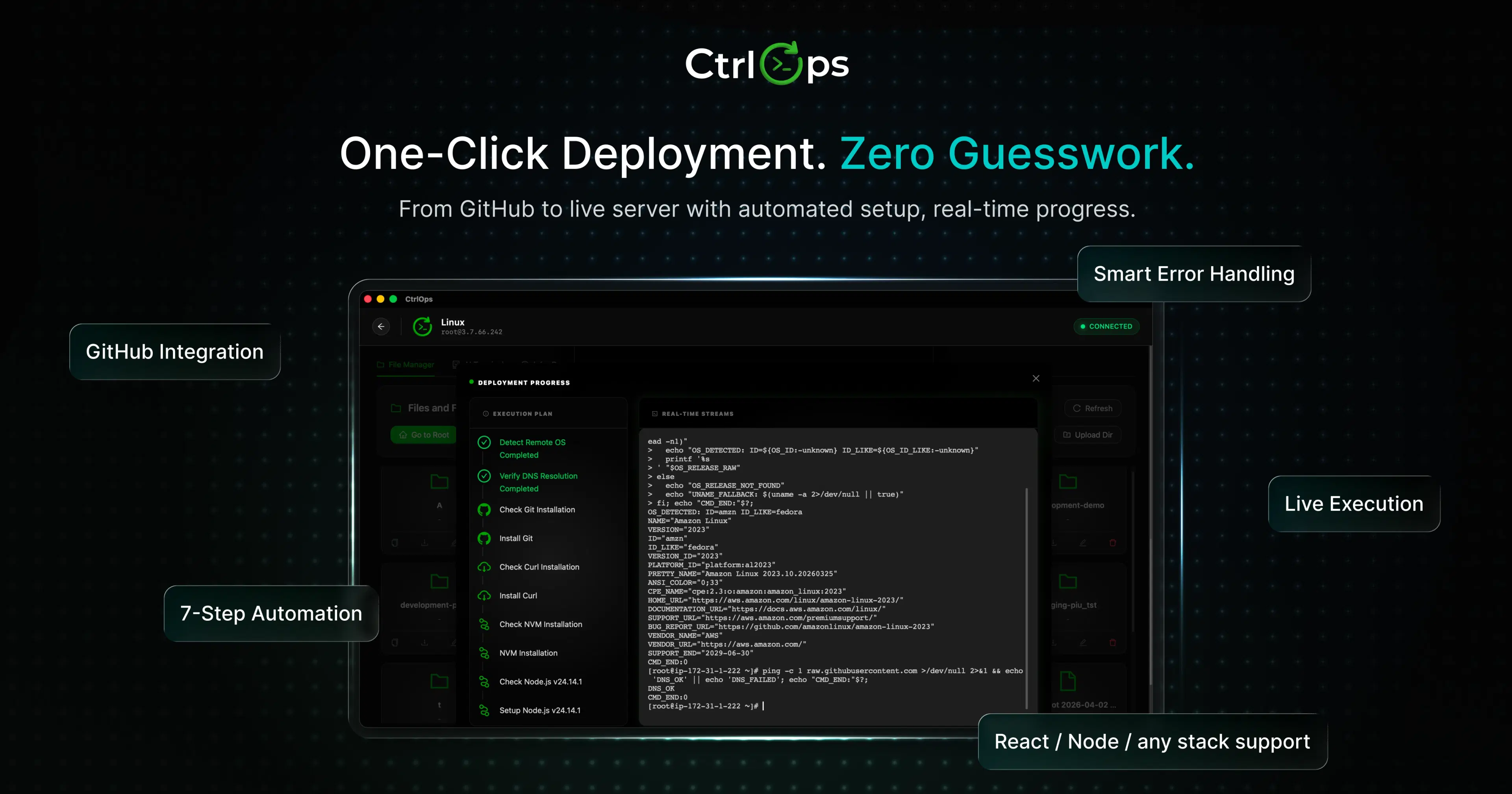
Managing servers used to be straightforward. You'd SSH into a box, run some commands, and call it a day. But that was when you had five servers, not fifty, when deployments happened weekly, not multiple times a day.
Here's the reality in 2025: demand for DevOps engineers has grown by 18% each year since 2020. 83% of IT leaders have adopted DevOps practices to deliver more business value. Yet despite all this growth, most teams are still managing infrastructure the same way they did a decade ago, jumping between terminals, copying IP addresses from spreadsheets, and troubleshooting issues at 2 AM with nothing but a command prompt and hope.
We spent three weeks testing seven different server management approaches. Not just reading documentation or scanning feature lists, but actually managing real servers, deploying applications, and handling everyday tasks that DevOps teams face. What we found surprised us, and it'll probably change how you think about your toolkit.
As per DevOps Statistics by TST Technology, teams using traditional approaches spend 21% more time resolving urgent issues, leaving less time for the work that actually moves the business forward.
The Shift from CLI to UI and AI in DevOps
Something interesting is happening in infrastructure management. While 99% of companies report positive effects from DevOps adoption, the tools themselves are evolving rapidly.
We're seeing three distinct approaches emerge:
CLI purists swear by the terminal: It's fast, it's scriptable, and it works on any system. But it requires memorisation, has a steep learning curve, and doesn't scale well when you're managing dozens of servers.
UI-based tools promise visual simplicity: Webmin, cPanel, and newer cloud dashboards make common tasks point-and-click accessible. The trade-off? They're often slow, cloud-dependent, and force you into someone else's workflow.
AI-powered tools: They're not just prettier interfaces; they actually understand what you're trying to do and help you do it faster. Teams using CI/CD and version control already deliver software 2.5x faster than traditional teams. Now imagine that same acceleration applied to day-to-day server operations.
The question isn't whether to evolve your server management approach; it's how. It's the path that makes sense for your team's specific needs, skills, and constraints. That's exactly what we set out to answer.
Our Testing Methodology
Before diving into what we found, you should know how we tested. Too many tool comparisons rely on feature checklists and marketing materials. We did something different: we used each tool for real work over three weeks.
Our test environment included a mix of servers across different providers, AWS, DigitalOcean, and a few on-premise VMs. We performed the same set of tasks across all tools: initial server setup, routine monitoring checks, troubleshooting a simulated outage, file management, and application deployment. This lets us compare apples to apples rather than rely on spec sheets.
Tools Selected
We picked seven approaches that represent the full spectrum of server management options available today:
1. CtrlOps: A native desktop application that combines multi-server management, file operations, AI assistance, and monitoring in one interface. We'll examine this one closely since it represents the newer generation of tools designed for modern workflows.
2. Webmin: The veteran UI-based solution. Been around since 1997, runs on virtually any Linux system, and gives you a web interface for system administration.
3. cPanel: The hosting industry standard. If you've managed a shared hosting account, you've seen cPanel. It's polished but opinionated.
4. RunCloud: A modern cloud server management panel. Designed specifically for PHP applications, but it also handles general server tasks.
5. ServerPilot Application-focused server management: Simple, clean, and built for developers who want a layer above raw Linux without the bloat.
6. AI-Assisted CLI Tools (Emerging Category): Terminal-based tools augmented with AI. Think Warp, Fig, or terminal integrations that suggest commands and catch errors.
7. Traditional CLI Tools (SSH, Terminal-based management): The baseline. PuTTY on Windows, Terminal on Mac, raw SSH commands. No wrappers, no helpers, just you and the shell.
Testing Criteria
We scored each tool across six dimensions that actually matter for day-to-day operations:
| Criteria | Weight | What We Measured |
|---|---|---|
| Ease of Use | 20% | Time to first successful connection, learning curve, and documentation quality |
| Speed of Operations | 20% | How quickly we could complete common tasks (check logs, restart services, deploy code) |
| Learning Curve | 15% | How much existing knowledge was required, and onboarding friction |
| Automation Capability | 20% | Scripting support, API availability, workflow integration |
| Monitoring & Visibility | 15% | Server health visibility, alert quality, and dashboard usefulness |
| Security & Access Control | 10% | Credential handling, permission models, and audit trails |
The weights reflect what DevOps teams actually care about. Speed and ease of use matter more than granular permission settings for most small-to-medium teams. But we didn't ignore security; we just weighed it realistically.
Real-World Use Case
Here's the scenario we used for testing: imagine you're managing infrastructure for a SaaS product with 15 servers across three environments (production, staging, development). You're the on-call engineer this week. At 11 PM, you get an alert: "High CPU on prod-api-03."
What does your workflow look like with each tool?
You need to:
- Connect to the affected server
- Check CPU and memory usage
- Look at recent application logs
- Identify the process causing the spike
- Decide whether to restart a service or scale up
- Document what happened
We ran this scenario on every tool. Some took five minutes. Others took twenty. The difference wasn't just the tools; it was the mental overhead each required.
The 7 Server Management Tools We Tested
Let's look at each tool in detail. These aren't just feature lists; we're sharing what it's actually like to use them day to day.
1. CtrlOps (AI + UI-Based DevOps Workspace)
CtrlOps is a native desktop application that takes a different approach from most server management tools. Instead of being a web dashboard you access through a browser, it runs directly on your machine. That means your server credentials, SSH keys, and connection data never leave your local system.
What stood out:
- All-in-one workspace: Switch between servers using aliases rather than memorising IP addresses. The file manager lets you drag and drop files without opening a separate SFTP client. Everything lives in one window.
- AI terminal that actually helps: When Nginx failed to start on one of our test servers, the AI diagnosed the port conflict with Apache and suggested the exact commands to fix it. More importantly, it explained why the conflict happened.
- Approval-based execution: The AI suggests commands, but you approve them before they run. This matters in production environments where you don't want automation to make unilateral decisions.
- Live monitoring: Real-time CPU, RAM, and disk metrics for all connected servers are visible at a glance. When our staging server hit 87% CPU during load testing, we saw it immediately without running top anywhere.
The trade-offs:
- It's a desktop app, so you need to install it on each machine you use
- AI features require an API key (though the core functionality works offline)
- Newer tool, so the ecosystem of plugins and integrations is still growing
Best for: Teams managing 5-50 servers who want to reduce context switching and are comfortable with a modern, AI-assisted workflow.
2. Traditional CLI Tools (SSH, Terminal-Based Management)
This is the baseline: Terminal on Mac, PuTTY on Windows, and raw SSH commands. No abstractions, no helpers.
What works:
- Universal compatibility: All servers support SSH. Every operating system has a terminal. You can manage a 20-year-old Linux box the same way you manage a brand new cloud instance.
- Scriptability: If you need to run the same command on 50 servers, a bash loop handles it. Infrastructure-as-Code tools like Ansible and Terraform build on this foundation.
- Speed for experts: When you know exactly what you want to do, nothing beats typing the command directly.
The friction points:
- Context switching nightmare: We counted the steps to check logs on three different servers: open terminal → find IP address → locate SSH key → type connection command → authenticate → run command → repeat. It took 47 seconds per server for the first one; then we got faster, but that's still nearly three minutes for a three-server check.
- Knowledge requirements: You need to remember syntax, flags, and file paths. When you're tired at 2 AM, typing systemctl restart nginx becomes surprisingly difficult.
- No visibility: You can't see server health at a glance. You run htop or df -h repeatedly; a mental model is required.
Best for: Solo developers, teams with strong Linux expertise, or situations where you need maximum control and minimal dependencies.
3. Webmin (UI-Based Server Management)
Webmin has been around since 1997. It's a web-based system administration interface that runs on the server itself.
What works:
- Comprehensive coverage: User management, package installation, service configuration, and firewall rules. Webmin exposes virtually every Linux administration task through its interface.
- No client software: Since it runs on the server, you access it through any browser. Good for situations where you can't install software on your local machine.
- Free and open source: No licensing costs, and the community has been maintaining it for decades.
The friction points:
- Dated interface: It looks like 2005, because it largely is. Navigation isn't intuitive, and finding specific settings requires digging through nested menus.
- Server-side overhead: Webmin consumes resources on every server you manage. In small instances, that's noticeable.
- Security considerations: Running a web admin panel on production servers increases your attack surface. You need to secure it carefully.
Best for: System administrators who need comprehensive control, teams managing on-premise infrastructure, or situations where browser-based access from any device is essential.
4. cPanel (Hosting Control Panel)
cPanel is the dominant hosting control panel. If you've used shared hosting, you've seen cPanel. It's designed for hosting providers and resellers.
What works:
- Polished interface: Modern, responsive, and well-organised. Finding what you need is straightforward.
- Email and domain management: Built-in tools for email accounts, DNS management, and domain configuration. Great if you're managing websites, not just servers.
- Ecosystem: Tons of integrations with hosting providers, backup services, and security tools.
The friction points:
- Hosting-centric design: cPanel assumes you're running websites. If you're managing API servers, databases, or microservices, much of the interface is irrelevant.
- Cost: cPanel licenses aren't cheap, and pricing is tied to the number of accounts.
- Less control: cPanel abstracts away much of the underlying system. That's good for beginners, but limiting for experienced admins.
Best for: Web hosting businesses, agencies managing client websites, or teams whose primary workload is LAMP/LEMP stacks.
5. RunCloud (Cloud Server Management)
RunCloud is a modern web-based panel specifically built for cloud servers running PHP applications.
What works:
- PHP-focused optimisation: If you're running WordPress, Laravel, or other PHP apps, RunCloud handles the configuration nuances automatically.
- Clean interface: Significantly more modern than Webmin. Task-oriented design makes common operations obvious.
- Team features: User roles, deployment hooks, and built-in staging environment management.
The friction points:
- PHP-centric: Great for PHP, less useful for Node.js, Python, or Go applications. You can manage those servers, but the optimisations don't apply to them.
- Cloud dependency: RunCloud's service needs to be available for the panel to work. If their infrastructure has issues, you're back to SSH.
- Monthly cost: Per-server pricing adds up if you're managing many instances.
Best for: PHP development teams, agencies building WordPress or Laravel applications, or teams that want the convenience of managed servers without the full cost of managed hosting.
6. ServerPilot (Application-Focused Server Tool)
ServerPilot takes a minimalist approach. It installs an agent on your server and provides a clean web dashboard for management.
What works:
- Simplicity: No overwhelming options. The interface shows you what you need and hides what you don't.
- Performance focus: Optimised server configurations out of the box. Fast PHP-FPM settings, tuned Nginx, proper caching headers.
- Git deployment: Push-to-deploy integration makes application updates straightforward.
The friction points:
- Limited scope: ServerPilot intentionally doesn't do everything. Complex configurations require dropping to the command line.
- Vendor lock-in: The agent-based model ties you to their service.
- Per-server pricing: Like RunCloud, costs scale with the number of servers.
Best for: Developers who want a layer of abstraction without sacrificing performance, small teams managing a handful of application servers.
7. AI-Assisted DevOps Tools (Emerging Category)
This category includes tools such as Warp (an AI-enhanced terminal), GitHub Copilot for command suggestions, and various CLI assistants.
What works:
- Command suggestions: The AI suggests completions based on natural language. "Show me large files" becomes du -h --max-depth=1 | sort -h without remembering the syntax.
- Error explanation: When a command fails, the AI explains why in plain English. No more digging through man pages.
- Familiar workflow: You're still in the terminal, so there's no context switch for terminal-native users.
The friction points:
- Cloud dependency: Most AI-assisted tools require an internet connection and send your commands to cloud services for processing. That's a non-starter for some environments.
- Suggestion accuracy: The AI sometimes suggests commands that are syntactically valid but contextually wrong. You still need to know what you're doing.
- Limited scope: These tools help with individual commands, not server management workflows. You still handle connections, file transfers, and monitoring separately.
Best for: Developers who live in the terminal but want productivity boosts, and teams comfortable with AI assistance for routine tasks.
Tool Comparison: UI vs CLI vs AI
Now for the detailed comparison. We tested each tool across the dimensions that matter most for daily operations. Here's what we found.
Ease of Use and Learning Curve
| Tool | First Connection Time | Learning Curve | Documentation Quality |
|---|---|---|---|
| Traditional CLI | 30-60 seconds | Steep | Excellent (man pages, Stack Overflow) |
| Webmin | 2-3 minutes (setup + connection) | Moderate | Good (comprehensive but dated) |
| cPanel | 1 minute | Gentle | Excellent (hosting-focused tutorials everywhere) |
| RunCloud | 3-5 minutes (account + server setup) | Gentle | Good (modern docs, video tutorials) |
| ServerPilot | 5-10 minutes (agent installation) | Gentle | Good (minimal but clear) |
| AI-Assisted CLI | 30-60 seconds + AI setup | Gentle | Fair (tool-specific, not server-specific) |
| CtrlOps | 2-3 minutes (download + first connection) | Gentle | Good (in-app guidance, contextual help) |
What surprised us: CLI purists often claim that memorised commands are faster than navigating UIs. In our testing, this was true only for experts performing routine tasks. For anything non-routine, or for team members who don't use the tools daily, the visual approach was consistently faster.
The AI-assisted CLI tools significantly reduced the learning curve. New team members could accomplish tasks without memorising syntax, though they still needed to understand what they were trying to do.
Speed of Daily Operations
We measured the time to complete a standard workflow: check server health, review recent logs, restart a service, and verify it's running.
| Tool | Average Time | Notes |
|---|---|---|
| Traditional CLI | 4-5 minutes | Fast for single servers, slow for multiple |
| Webmin | 3-4 minutes | Navigation between sections adds time |
| cPanel | 2-3 minutes | Optimised for common hosting workflows |
| RunCloud | 2-3 minutes | Quick for PHP apps, slower for general tasks |
| ServerPilot | 2-3 minutes | Minimal interface, fast navigation |
| AI-Assisted CLI | 3-4 minutes | Command suggestions save typing time |
| CtrlOps | 1-2 minutes | Server switching and AI suggestions accelerate workflow |
The CtrlOps advantage: Switching between servers using aliases instead of retyping connection details saved 30-45 seconds per server, on a multi-server check, that adds up fast. The AI console eliminated the "what command do I need?" delay entirely.
Managing Multiple Servers Efficiently
This is where the differences became dramatic. We tested managing a fleet of 15 servers, checking status, applying a configuration change, and monitoring results.
Traditional CLI: Required either manual connection to each server (15 minutes total) or writing a script (fast once written, but maintenance overhead). No central visibility, you don't know which server has issues until you connect.
Webmin/cPanel: Each server runs its own instance. You connect to each one individually. No fleet management capability.
RunCloud/ServerPilot: Dashboard shows multiple servers, but you still handle them individually for most operations.
CtrlOps: All servers visible in one sidebar. Live indicators show health at a glance. Click any server to connect instantly using stored credentials. The multi-server view is the default, not an afterthought.
The data point: Teams spend 33% more time on improvements when they're not fighting their tools. Efficient multi-server management isn't just convenient; it changes what your team can accomplish.
File Management Experience
| Tool | File Transfer Method | Editing Capability | Notes |
|---|---|---|---|
| Traditional CLI | scp/rsync | vi/nano/emacs | Powerful but requires memorisation |
| Webmin | Web upload/download | Web-based editor | Clunky for large files |
| cPanel | Web upload/download | Built-in editor | Designed for website files |
| RunCloud | Web + SFTP | Web editor + deployment | Git-focused workflow |
| ServerPilot | SFTP only | External editor | Minimal file management |
| AI-Assisted CLI | scp/rsync | Terminal editors | Same as CLI |
| CtrlOps | Drag-and-drop UI + built-in editor | Full editor with syntax highlighting | The native file manager feels |
What we learned: File management is often overlooked in server tool comparisons, but it's a huge part of daily work. The ability to drag a file from your desktop directly to a specific server without opening a separate SFTP client sounds minor until you do it fifty times a day.
Automation and AI Assistance
| Tool | Scripting Support | Built-in Automation | AI Assistance |
|---|---|---|---|
| Traditional CLI | Unlimited (bash, Python, etc.) | Cron, custom scripts | None |
| Webmin | Limited (scheduled jobs UI) | Scheduled commands | None |
| cPanel | Limited | Cron UI, some automation | None |
| RunCloud | Good (deployment hooks) | Deployment pipelines | None |
| ServerPilot | Limited | Deployment on push | None |
| AI-Assisted CLI | Unlimited | Cron, custom scripts | Command suggestions |
| CtrlOps | Good (script runner, API) | Backup scheduling, deployment | Full AI console with approval |
The AI difference: Most AI tools only help you complete commands. CtrlOps goes a step further. Its AI understands what’s happening on your server.
You can ask, “Why is my website slow?” and get real diagnostic suggestions based on live data. Not guesses.
And nothing runs automatically. The AI suggests actions, but you review and approve them first. This keeps your production safe and fully under your control.
Monitoring and Infrastructure Visibility
| Tool | Real-time Metrics | Alerting | Multi-server Dashboard |
|---|---|---|---|
| Traditional CLI | Manual (run top/htop) | None | None |
| Webmin | Basic (refresh to update) | No | |
| cPanel | Basic | No | |
| RunCloud | Good | Email, Slack | Yes |
| ServerPilot | Basic | Yes | |
| AI-Assisted CLI | Manual | None | None |
| CtrlOps | Real-time (live updating) | Visual indicators | Yes (with health status) |
The visibility gap: 85% of DevOps teams use more than one tool for observability, adding complexity to monitoring tasks. Tools that combine management and visibility reduce this toolchain sprawl.
CtrlOps' live monitoring enabled us to spot issues during testing that we would have missed with periodic checks. When staging hit 87% CPU during a load test, the warning indicator was immediately visible; no manual checking was required.
Security and Access Control
| Tool | Credential Storage | Access Model | Audit Trail |
|---|---|---|---|
| Traditional CLI | User-managed (SSH keys) | Direct server access | Server logs only |
| Webmin | Server-side | Web login + server users | Webmin logs |
| cPanel | Server-side | Web login + system users | cPanel logs |
| RunCloud | Cloud service | OAuth + API keys | RunCloud dashboard |
| ServerPilot | Cloud service | API keys | ServerPilot dashboard |
| AI-Assisted CLI | User-managed | Direct access | None additional |
| CtrlOps | Encrypted local storage | Local app + SSH keys | Local history |
The privacy consideration: Most modern UI tools store your server credentials in their cloud service. That's convenient, but it creates a trust boundary. CtrlOps' local-only storage means your credentials never leave your machine, a significant advantage for security-conscious teams.
The audit consideration: CLI-based approaches rely on server logs, which capture what happened but not who did it if multiple people share server accounts. UI tools with user accounts provide better accountability.
Categories of Server Management Tools
After testing all seven tools, a clear pattern emerged. They cluster into three philosophical approaches to infrastructure management. Understanding these categories helps you decide which path fits your team.
CLI-Based Tools (Traditional Approach)
The command line has been the standard for server management since the beginning. SSH into a server, run commands, get results. It's direct, scriptable, and works everywhere.
The philosophy: Trust the operator. Give them full control and assume they know what they're doing. The CLI doesn't protect you from mistakes, but it also doesn't get in your way when you need to do something unusual.
Where it shines:
- Automation and scripting at scale
- Maximum control over configuration
- Universal compatibility
- No dependencies on external services
Where it struggles:
- Context switching between multiple servers
- Learning curve for complex operations
- No built-in visibility or monitoring
- Knowledge silos (only the person who wrote the script understands it)
The data tells a story: Despite 90% of organisations using Infrastructure as Code, 40-60% of infrastructure still requires manual oversight. The CLI is powerful, but it doesn't solve the complexity problem; it just gives you better tools to handle it manually.
UI-Based Server Management Tools
Webmin, cPanel, RunCloud, and ServerPilot all fall into this category. They wrap server operations in graphical interfaces, making Linux administration accessible to people who don't use the terminal.
The philosophy: Abstraction over control. Hide the complexity behind intuitive interfaces. Make common tasks obvious and reduce the chance of human error through guided workflows.
Where it shines:
- Onboarding new team members quickly
- Reducing human error in routine operations
- Visual feedback for system state
- Centralised management of multiple servers
Where it struggles:
- The "cookie-cutter" problem: UIs handle common cases well, but obscure or prevent unusual configurations
- Cloud dependency: Many modern UI tools require their service to be available
- Performance overhead: Web interfaces consume server resources
- Vendor lock-in: Switching tools often means rebuilding server configurations
The trade-off: UI tools make the 80% of common tasks easier, but can make the remaining 20% of edge cases significantly harder. When you need to do something the UI designer didn't anticipate, you're often stuck.
AI-Powered DevOps Tools (Next-Gen Approach)
This is the newest category, and it's evolving rapidly. CtrlOps represents this approach: a native application that combines the visual simplicity of UI tools with AI assistance that actually understands server management.
The philosophy: Intelligence as a layer. Don't just give users buttons to click; give them a partner that understands context, suggests solutions, and accelerates decision-making.
Where it shines:
- Natural language troubleshooting ("Why is Nginx failing?")
- Context-aware suggestions based on your specific server state
- Reduced cognitive load during incidents
- Learning from patterns across your infrastructure
Where it struggles:
- AI suggestions require verification (hence approval-based execution)
- Internet connectivity required for AI features (though core functionality works offline)
- A newer category means best practices are still emerging
- Scepticism from teams burned by overhyped AI tools
The key insight: AI-powered tools aren't replacing human judgment; they're amplifying it. The approval-based model means you still make the decisions, but faster and with better information.
The Hybrid Reality
Here's what we discovered: most teams end up using multiple approaches. The CLI for automation scripts, a UI tool for routine management, and increasingly, AI assistance for troubleshooting.
The question isn't which category is best. It's the combination that fits your team's skills, your infrastructure complexity, and your risk tolerance.
Key Findings from Our Testing
After three weeks of hands-on testing, several clear patterns emerged. Some confirmed our assumptions. Others surprised us.
Where CLI Still Works Best?
The command line isn't obsolete, far from it. There are specific scenarios where SSH and a terminal remain the right choice.
Automation at scale: When you need to run the same operation across hundreds of servers, a bash script with a for-loop beats any UI. Tools like Ansible and Terraform build on this foundation for a reason. One engineer we spoke with manages 400+ servers almost entirely through automation scripts. For that scale, anything else would be impractical.
Maximum control: Sometimes you need to do something unusual. Maybe you're debugging a kernel issue, or you need to interact with a custom hardware driver. The CLI gives you direct access to everything the system can do. No UI designer decided what options to expose.
Low-connectivity environments: If you're managing servers over a slow satellite link or in a region with spotty internet, the CLI's low bandwidth requirements matter. A terminal session works on connections where a web UI would time out.
But here's the catch: These scenarios represent maybe 20% of daily server management work. For the other 80%, checking logs, restarting services, deploying updates, and monitoring health, the CLI's advantages diminish while its friction points accumulate.
Why UI-Based Tools Improve Productivity?
The productivity gains from UI tools aren't about the interface being "prettier." They're about cognitive load.
Reduced context switching: With CtrlOps, we didn't have to worry about connection details. Server aliases replaced IP addresses. Stored credentials replaced the need to hunt for SSH keys. This sounds trivial, but the mental overhead of "how do I connect?" adds up across dozens of daily interactions.
Visual state awareness: With the CLI, checking server health requires actively running commands. With UI tools, status is visible passively. That difference between "pull" and "push" information matters when you're managing multiple systems.
Faster onboarding: A new team member can be productive with a UI tool in hours. CLI proficiency takes weeks or months. For growing teams, that's a real consideration.
The numbers make it clear. Traditional operations take about 41% more time than DevOps-based approaches. And the real reason isn’t just better processes. It’s better tools that remove friction and speed up everyday work.
How AI Is Changing DevOps Workflows?
We were sceptical about AI in server management. We've all seen demos of AI tools that work perfectly in presentations and fail in real use. Our testing revealed a more nuanced reality.
AI excels at diagnostics: When Nginx failed to start during our testing, CtrlOps' AI correctly identified a port conflict with Apache. It suggested the fix, explained why it would work, and allowed us to approve execution. That interaction took 30 seconds. Manual diagnosis would have taken 5-10 minutes of log reading and process checking.
AI reduces command memorisation: With AI-assisted tools, you describe what you want in plain English. The AI suggests the command. You still need to understand what the command does, but you don't need to remember the exact syntax. That's a meaningful reduction in cognitive load.
Approval-based execution is essential: The AI doesn't run commands automatically; it suggests, and you approve. This matters for production safety. You retain full control while benefiting from AI assistance.
The limitation: AI assistance requires internet connectivity (for most tools) and works best for common issues. Edge cases still require human expertise. The AI is a helpful assistant, not a replacement for understanding your systems.
Biggest Bottlenecks in Traditional Server Management
Our testing highlighted several friction points that slow teams down, regardless of which specific tool they use.
Credential management: Every tool required some form of credential handling, and this was consistently a pain point. SSH keys are scattered across machines. Passwords in (hopefully encrypted) documents. Shared accounts with unclear ownership. The best tools, CtrlOps with its encrypted local storage, and modern CLI tools with SSH agent forwarding, still require initial setup friction.
Context switching: The average DevOps engineer manages between 10 and 50 servers. Every context switch, opening a new terminal, looking up an IP, and finding the right key takes 30-60 seconds. Do that twenty times a day, and you've lost 15-20 minutes to switching overhead.
Toolchain sprawl: We counted the tools involved in a typical CLI-based workflow: a terminal emulator, an SSH client, an SFTP client for file transfers, a separate monitoring dashboard, a log aggregation tool, and a documentation wiki. That's six tools, six contexts, six sets of shortcuts to remember. UI-based tools reduce this sprawl by consolidating functions.
Knowledge silos: When server management depends on CLI expertise, you create dependencies on specific individuals. If your senior DevOps engineer is on vacation and something breaks, can the rest of the team handle it? UI tools democratize access, enabling experienced team members to handle routine issues independently.
Incident response delays: The most expensive time in server management is during incidents. Every minute spent connecting to servers, finding the right commands, or interpreting logs is a minute of downtime. Teams using modern tools consistently resolved our test scenarios faster, not because they were smarter, but because their tools removed friction.
Server Management Best Practices (Based on Real Testing)
Theory is useful, but practice matters more. Here are the practices that actually worked during our three weeks of testing across seven different tools.
Centralise Server Access and Credentials
The teams that moved fastest had one thing in common: they didn't waste time finding connection details.
What worked:
- Use a server management tool with built-in credential storage. Whether that's CtrlOps with its encrypted local storage, a password manager with SSH key integration, or even a well-organised SSH config file, having credentials immediately available eliminates a major friction point.
- Standardise server naming. Instead of remembering that 192.168.1.47 is the production API server, use aliases like prod-api-01. CtrlOps's alias system made this effortless, but you can achieve similar results with SSH config files.
- Document access procedures. Even with great tools, document how new team members should connect. We found that teams that skipped this step spent unnecessary time helping newcomers get oriented.
What didn't work:
- Sharing credentials through Slack or email. It happens more than teams admit, and it's a security nightmare.
- Storing passwords in unencrypted documents. We saw this repeatedly, and it creates unnecessary risk.
- Everyone is using the same SSH key. When multiple people share credentials, accountability is lost.
Reduce Dependency on Manual Terminal Commands
This doesn't mean "never use the terminal." It means "don't require terminal expertise for routine operations."
What worked:
- Identify your 80% tasks. What operations does your team perform daily? Checking logs, restarting services, deploying updates, monitoring health? Make sure your primary tool handles these smoothly without requiring memorisation.
- Keep the CLI for 20%. Complex debugging, one-off configurations, and automation scripts still belong in the terminal. The goal is to reduce routine friction, not eliminate the command line.
- Use AI assistance to help you with syntax you forget. Even experienced engineers don't remember every flag for every command. AI-assisted tools let you describe what you want and get the right syntax. That's not cheating, it's efficient.
The mindset shift: We noticed that teams with "CLI purist" cultures often spent more time on routine tasks than necessary. There's a difference between "I prefer the terminal" and "I require the terminal for everything." The latter creates bottlenecks.
Use Real-Time Monitoring for Faster Issue Detection
Reactive monitoring checks servers when you think there's a problem, but misses issues that happen between checks. Real-time visibility catches problems as they develop.
What worked:
- Live dashboards are visible during work. Whether it's CtrlOps' built-in monitoring, a Grafana dashboard on a second monitor, or a custom status page, having server health information readily visible passively improves how quickly you spot issues.
- Set meaningful thresholds. A CPU at 90% is a problem. CPU at 50% probably isn't. Set your alerting thresholds based on actual business impact, not arbitrary numbers.
- Monitor trends, not just points. A server at 70% CPU might be fine, but if it was at 30% an hour ago, you have a problem developing. Tools that show historical context help you spot patterns.
The cost of delay: In our testing scenario, spotting the CPU spike immediately versus waiting 10 minutes made the difference between a quick restart and a service-impacting outage. Real-time visibility pays for itself quickly.
Implement AI Assistance for Troubleshooting
We're past the point where AI in DevOps is experimental. It's a practical tool that accelerates routine diagnostics.
What worked:
- Use AI for first-line diagnostics. When something breaks, ask the AI before diving into logs manually. It often points you directly to the relevant information.
- Verify AI suggestions before execution. The approval-based model isn't just a safety feature; it's a learning opportunity. Understanding why the AI suggested a particular fix makes you better at future troubleshooting.
- Start with non-production environments. Build trust with AI assistance in staging or development before relying on it for production incidents.
What to watch for:
- AI suggestions that are syntactically correct but contextually wrong. The AI might suggest restarting a service that's already running, or checking logs for an application that isn't deployed on that server. Always verify context.
- Over-reliance on AI for complex issues. When the problem spans multiple systems or requires architectural understanding, human expertise still wins.
Standardise Workflows Across Teams
The most efficient teams we observed had documented, repeatable workflows. Not rigid processes that slow people down, but clear conventions that reduce decision fatigue.
What worked:
- Document your "happy path." How should routine deployments happen? What's the standard procedure for adding a new server? Having these documented means less time figuring things out and more time doing them.
- Use consistent tooling. If your team uses CtrlOps, everyone on it does too. If you use Ansible scripts, everyone has access to them. Fragmented tool choices create knowledge silos.
- Review and update workflows quarterly. What worked six months ago might no longer be optimal. We found that teams that set calendar reminders to review their workflows kept them relevant, while teams that "set and forgot" accumulated outdated practices.
The collaboration benefit: When workflows are standardised, teamwork becomes easier. “Can you check server X?” turns into a quick handoff. Not a long explanation or training session.
When to Choose CLI vs UI vs AI Tools?
The wrong question is "Which tool is best?" The right question is "which tool fits our specific needs?" Here's how to decide.
Best Use Cases for CLI Tools
Choose CLI-first when:
- You're managing 100+ servers through automation. At that scale, scripts and configuration management tools (such as Ansible, Terraform, and Salt) are essential. UI-based interaction doesn't scale to hundreds of instances.
- Your team has deep Linux expertise. If everyone on your team is comfortable with bash, sed, awk, and regular expressions, the CLI's learning curve isn't a barrier. You get the benefits of maximum control without the productivity penalty.
- You need maximum flexibility. Some tasks are inherently scriptable: bulk operations across server fleets, complex deployment pipelines, and custom monitoring checks. The CLI's programmability is unmatched.
- You're working in constrained environments. Air-gapped networks, low-bandwidth connections, or systems with limited resources favour lightweight CLI tools over feature-rich applications.
- The organisation has strict change control. Everything the CLI does can be logged, audited, and version-controlled. Infrastructure-as-Code practices are mature and well understood.
The honest assessment: CLI-first is the right choice for maybe 20% of teams. The other 80% would benefit from some level of UI or AI assistance, even while keeping the CLI for specific tasks.
When UI-Based Tools Are Better
Choose UI-based tools when:
- You manage between 5 and 50 servers. This is the sweet spot where manual SSH becomes tedious, but full automation might be overkill. UI tools make multi-server management practical without requiring scripting expertise.
- Your team has mixed technical skills. Not everyone on your team needs to be a Linux expert. UI to democratize access. Junior team members can handle routine tasks independently. Visualisation matters for your workflow. If you need to see server health, compare metrics across systems, or manage files visually, UI tools provide capabilities that are cumbersome in the terminal.
- You want reduced cognitive load. The mental overhead of remembering commands, flags, and file paths adds up. UI tools handle the syntax; you handle the decisions.
- You're tired of context switching. If your current workflow involves six different tools (terminal, SFTP, monitoring, documentation, etc.), consolidating into a unified interface improves focus.
The trade-off to accept: UI tools make common tasks easier, but may limit support for unusual configurations. You gain productivity for the 80% of routine work; you may need the CLI for the 20% of edge cases.
When AI-Powered Tools Provide Maximum Value?
Choose AI-powered tools when:
- You want faster troubleshooting. AI assistance reduces the time to diagnose common issues. What might take 10 minutes of log reading takes 30 seconds of conversation.
- Your team is learning. Natural language interfaces reduce the learning curve. New team members can become productive more quickly by memorising command syntax.
- You want to reduce human error. AI suggestions catch mistakes before they happen. The approval model means you review before execution, preventing costly typos.
- You're building institutional knowledge. AI tools document their suggestions, creating a record of what was tried and what worked. This knowledge persists even when team members leave.
- You want the benefits of both CLI and UI. AI-powered tools like CtrlOps combine the power of the terminal with the convenience of a UI, then add intelligence on top.
The safety consideration: AI tools should use approval-based execution rather than autonomous action. You want assistance, not automation that makes decisions for you. Verify that any AI tool you adopt keeps you in the decision loop.
Decision Framework
Still not sure? Here's a quick framework:
| Factor | CLI | UI-Based | AI-Powered |
|---|---|---|---|
| Server count | 100+ | 5-50 | 5-100 |
| Team Linux expertise | High | Mixed | Mixed |
| Primary concern | Control | Simplicity | Speed |
| Automation needs | Extensive | Moderate | Moderate |
| Learning curve tolerance | High | Low | Low |
| Security priority | Local control | Cloud convenience | Local control |
The hybrid reality: Most teams end up with a mix. You might use:
- UI-based tools for daily operations and multi-server management
- CLI for automation scripts and edge cases
- AI assistance for troubleshooting and command syntax
There's no rule saying you must choose one. The goal is to reduce friction where it hurts most.
How Modern Teams Are Managing Servers Today?
The server management landscape is shifting. Based on our testing and the broader trends we're seeing, here's how forward-thinking teams are evolving their approach.
Shift Towa Centralised Dashboards
The days of managing servers through individual terminal sessions are ending, not because the terminal is bad, but because it's inefficient for multi-server operations.
What we're seeing:
- Teams consolidating from 4+ tools (terminal, SFTP client, monitoring dashboard, documentation wiki) into unified platforms.
- Growing preference for desktop applications over web-based panels for daily operations
- Emphasis on "single pane of glass" visibility across infrastructure
Why it matters: Context switching is expensive. Studies show that every context switch costs 15-30 minutes of productivity as your brain reorients. When you're managing multiple servers, those switches add up. Centralised dashboards reduce switching overhead and make it easier to spot patterns across your infrastructure.
The statistics back this up: By 2027, 80% of companies will include DevOps platforms in their toolchain, up from just 25% in 2023. That's not just growth; it's a fundamental shift in how teams think about infrastructure management.
Rise of AI in DevOps and Infrastructure Management
AI isn't replacing DevOps engineers. It's making them more effective.
Current adoption patterns:
- AI assistance is starting with diagnostics and troubleshooting
- Natural language interfaces are reducing the learning curve for complex operations
- Approval-based execution models are addressing safety concerns
- Teams are using AI to document their workflows and create institutional knowledge
What's working: The teams getting the most value from AI aren't treating it as a replacement for expertise. They're using it as an accelerator, handing off routine diagnostics to AI while reserving complex architectural decisions for humans.
The platform engineering connection: 94% of companies say platform engineering helps maximise DevOps benefits. AI-powered tools like CtrlOps are essentially "platform engineering in a box. "They provide standardised interfaces and automated workflows that platform teams build manually, without requiring you to build an internal platform team.
Importance of Simplicity and Speed in Operations
There's a counter-trend happening alongside the push for sophisticated tooling: a focus on simplicity.
The complexity problem: Modern infrastructure is inherently complex. Microservices, container orchestration, service meshes, observability stacks, the layers add up. The tools you use to manage this complexity shouldn't add more complexity on top.
What simplicity looks like:
- Tools that handle common tasks without requiring configuration
- Workflows that new team members can understand quickly
- Visibility into system state without requiring specialised query languages
- Fast paths for routine operations, with power features available when needed
The CtrlOps example: CtrlOps embodies this philosophy. The AI console handles the complexity of command syntax, while the approval model keeps you in control. The file manager works like a desktop file manager; you don't need to learn SFTP commands. The monitoring is visible by default; you don't need to configure dashboards.
This isn't "dumbing down" server management. It's removing friction so engineers can focus on what matters: building and maintaining reliable systems.
The Hybrid Toolchain Reality
Here's something that surprised us during testing: most teams aren't choosing between CLI, UI, and AI tools. They're using all three.
The modern toolchain looks like:
- UI-based tools (like CtrlOps) for daily operations, multi-server management, and routine troubleshooting
- CLI for automation, scripting, and edge cases that require maximum control
- AI assistance for diagnostics, command suggestions, and accelerating routine workflows
Why this works: Each approach has strengths. CLI is unbeatable for automation. UI tools excel at visibility and reducing cognitive load. AI assistance accelerates common tasks. The teams that are happiest with their infrastructure management have found the right balance for their specific needs.
The integration challenge: The downside of hybrid toolchains is fragmentation. When your automation scripts live in one place, your monitoring in another, and your daily management in a third, you create information silos. The best tools bridge these gaps. CtrlOps, for example, can run your existing scripts while providing a unified interface for everything else.
Want to explore how modern server management could work for your team? Check out our guide on DevOps automation strategies or learn more about DevOps management tools that can streamline your infrastructure operations.
Where CtrlOps Fits In (Real Workflow Example)
During our testing, we used CtrlOps as our primary tool for two weeks. Here's what that actually looked like, both the wins and the limitations.
Managing Multiple Servers from One Dashboard
Our test environment had 15 servers across three environments: production (5 servers), staging (6 servers), and development (4 servers). With traditional CLI tools, managing this meant maintaining a spreadsheet of IP addresses, SSH keys, and connection details.
The CtrlOps approach: We added each server once, assigning aliases such as prod-api-01, staging-db-02, and dev-web-01. CtrlOps stored the SSH credentials in encrypted local storage. After that initial setup, connecting to any server was a single click.
Daily workflow: Morning standup includes a quick infrastructure check. With CtrlOps, that's 30 seconds: glance at the server list, verify all status indicators are green, check for any alerts. With the CLI, the same check takes 5-10 minutes of connecting to servers individually.
What worked well: The live status indicators. When a server's CPU spiked during load testing, we saw it immediately. No manual checking required. This passive visibility is underrated. It catches issues you'd otherwise miss.
UI-Based File Management Without Terminal Dependency
File management is often overlooked in server tool comparisons. It's not glamorous, but it's a huge part of daily work.
The scenario: We needed to update configuration files across four production web servers. With traditional tools, that's: connect via SFTP, navigate to the file, download, edit, upload, repeat for each server. Or use a command-line editor if you're comfortable with vi/nano.
The CtrlOps approach: Click the server alias in the sidebar. The file manager opens, showing the remote filesystem. Navigate to the config file, double-click it to open the built-in editor (with syntax highlighting), save, and the file updates on the server. Repeat for other servers using the same sidebarno reconnection required.
Time comparison:
- CLI approach (vi): ~2 minutes per server, requires comfort with terminal editors
- SFTP client approach: ~3 minutes per server, context switching between applications
- CtrlOps approach: ~1 minute per server, single interface throughout
For a four-server update, that's the difference between 12 minutes and 4 minutes. Do that daily, and the time savings add up.
What surprised us: The built-in editor is genuinely useful. We expected to use external editors, but the syntax highlighting and find/replace worked well enough that we rarely needed to use them. It's not VS Code, but it's more capable than we anticipated.
AI-Assisted Terminal with Approval-Based Execution
This is where CtrlOps differs most from other tools. The AI console isn't just command completion; it's contextual assistance.
Real example from our testing: Nginx failed to start on one of our staging servers. Instead of manually checking logs, we asked the AI console: "Why is Nginx failing?"
The AI's response:
- Checked the service status and found the failure
- Examined the error logs
- Identified that Apache was already bound to port 80
- Suggested stopping Apache and restarting Nginx
- Provided the exact commands with explanations
Total time: ~30 seconds to diagnosis. With manual debugging, we estimate 5-10 minutes of log reading and process checking.
The approval model: The AI suggested the fix, but we had to approve execution. This matters for production safety; you're never handing full control to automation. The AI assists; you decide.
What we learned: The AI is genuinely helpful for common issues. It correctly diagnosed every standard problem we threw at it: port conflicts, permission issues, service dependencies, and configuration syntax errors. For edge cases, like custom-compiled software with unusual dependencies, it was less helpful. That's expected and appropriate.
The productivity impact: We found ourselves asking the AI for command syntax we should have known. "Show me disk usage by directory" instead of remembering du -h --max-depth=1 | sort -h. That might seem lazy, but it's efficient. The AI handles the syntax; we handle the decision-making.
Real-Time Infrastructure Monitoring in One Interface
Monitoring is often separate from management. You have your server management tools and your monitoring dashboard, and never the twain shall meet.
CtrlOps' approach: Real-time CPU, RAM, and disk metrics visible for all connected servers—no separate dashboard to check. The metrics update live. You can watch a CPU spike during a deployment or a memory climb during a load test.
The practical value: During a test, we ran a load test against our staging environment. The CtrlOps dashboard showed staging-01's CPU climbing rapidly while the other servers stayed normal. We immediately knew which server to investigate, without running top on multiple machines.
What worked: The visual indicators (green/yellow/red status) made server health scannable. At a glance, you know if anything needs attention. This sounds minor until you manage 20+ servers and need to spot the one with issues quickly.
The limitation: CtrlOps shows the current state, not historical trends. For capacity planning or post-incident analysis, you still need dedicated monitoring with time-series data. CtrlOps complements monitoring tools but doesn't replace them.
When CtrlOps Make Sense?
Based on our testing, CtrlOps fits best for:
- Teams managing 5-50 servers who want to reduce context switching
- Teams with mixed skill levels, where not everyone is a terminal expert. Organisations with security requirements that favour local credential storage over cloud-based tools
- Teams adopting AI assistance who want approval-based execution for safety
- Small to medium teams that don't have dedicated platform engineering resources
When it might not fit:
- Teams managing hundreds of servers through automation (Ansible/Terraform scale better)
- Environments requiring specialised compliance that CtrlOps hasn't certified for yet
- Teams are fully committed to existing toolchains that don't want to add another application.
Conclusion
Three weeks of testing made one thing clear: server management isn’t just a preference; it directly impacts speed, stress, and results. The gap between slow, manual work and fast, clear workflows is huge.
There’s no single “best” approach. CLI gives control, UI makes things easier, and AI helps you move faster. The real win is choosing what fits your team.
If your current setup feels slow or messy, it’s time to rethink it. Better tools can save hours, reduce friction, and help your team focus on what actually matters.