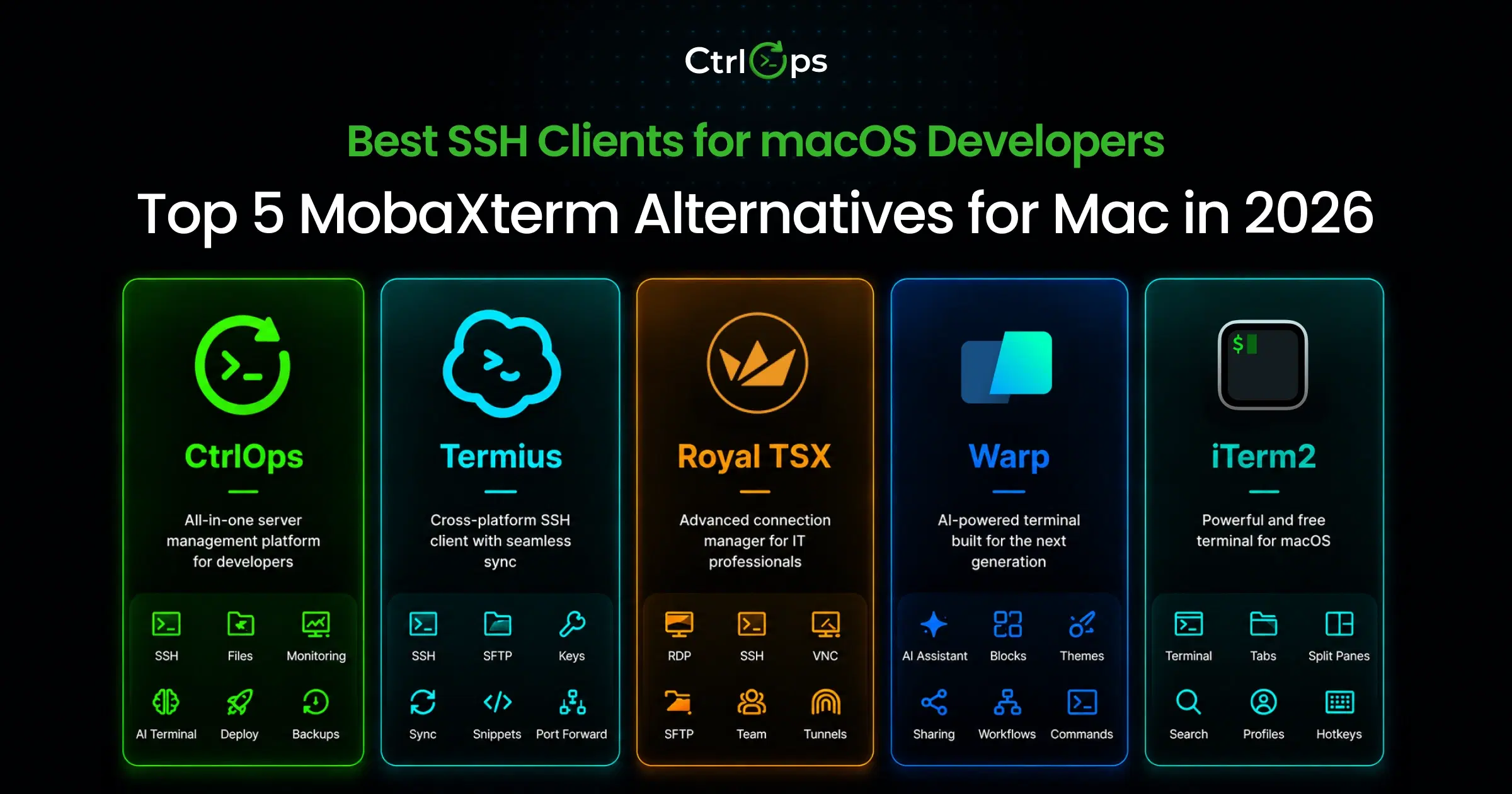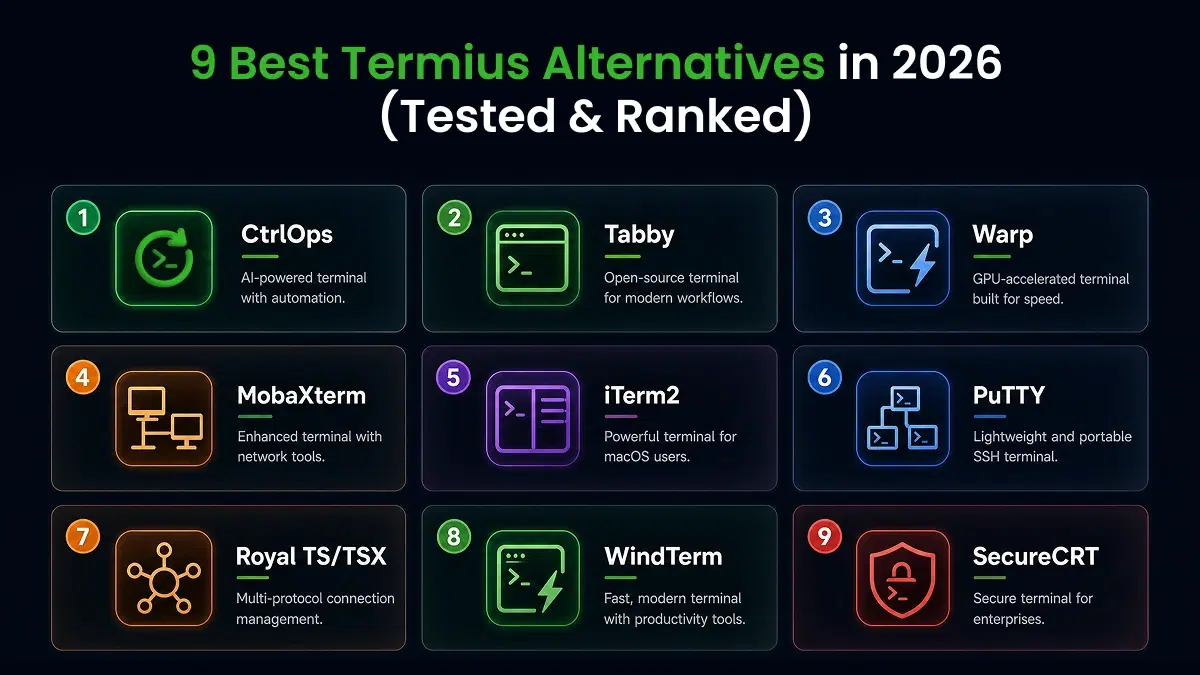

The best SSH client for Mac in 2026 is CtrlOps for anyone managing more than one server - it's the only tool on this list that combines SSH, a GUI file manager, live infrastructure monitoring, AI diagnostics, and one-click deployment in a single desktop app ($7/user/mo). For a free terminal, iTerm2 is the strongest option. For cross-device sync, choose Termius. For an AI-first coding terminal, choose Warp. For a fully scriptable, no-install setup, OpenSSH is built into macOS.
6 Best SSH Clients for Mac in 2026
The 6 best SSH clients for Mac in 2026 are CtrlOps (all-in-one server management), macOS Terminal (built-in baseline), iTerm2 (free power terminal), Termius (cross-device sync), Warp (AI-first coding terminal), and OpenSSH + custom setup (full terminal control). We tested each against the same real-world scenarios.
| Tool | Best For | Price | AI | File Manager | Local Credentials |
|---|---|---|---|---|---|
| CtrlOps | All-in-one server management | $7/user/mo (1 mo free) | ✓ Approval-gated | ✓ Full GUI | ✓ Local-only |
| macOS Terminal | Single-server basics | Free (built-in) | ✗ | ✗ | ✓ Local |
| iTerm2 | Power terminal users | Free | ✗ | ✗ | ✓ Local |
| Termius | Cross-device sync | $10/user/mo | Partial (autocomplete) | ✓ SFTP | ✗ Cloud |
| Warp | AI-first coding terminal | $20/mo | ✓ Auto-run | ✗ | ✗ Cloud |
| OpenSSH + Custom | Full terminal control | Free (built-in) | ✗ | ✗ | ✓ Local |
Full breakdown with real workflow comparisons, security analysis, and pricing details below.
Prefer to watch instead? The full comparison - all six tools, the deploy race, and the SSH key security question - in about 6 minutes:
1. CtrlOps: Best for AI-Powered Server Management
CtrlOps takes a fundamentally different approach from every other tool on this list.
Instead of being a better terminal, it replaces your entire server management stack: terminal, file manager, monitoring dashboard, and deployment system. All-in-one desktop app.
Pros of CtrlOps:
- Named server cards: Connect to "Prod-Backend" or "Client-XYZ-Staging" instead of grepping through
~/.ssh/config. One click, you're in. - Full GUI file manager: Upload, download, edit, and delete remote files without
scpcommands or a separate SFTP tool. Drag-and-drop works. - Approval-gated AI terminal: Type "why is my server slow?" and get diagnostic commands shown before anything runs. You review, approve, then execute. No auto-run.
- Modern terminal UX: Open several terminals per server, each tab named after the command you ran. Block view keeps every command with its own output so you can copy, filter, or re-run it, and command suggestions are configurable down to what Tab does.
- Streamlined application deployment: Pick your stack (React, Next.js, Node.js), link GitHub, set environment variables. CtrlOps handles cloning, dependencies, PM2, Nginx, and Certbot SSL automatically.
- Instant infrastructure monitoring: CPU, RAM, disk, and running processes visible inside the app. No more
htopin a separate window. - Cron Jobs: Schedule jobs without cron syntax and get a Slack or Telegram alert when one fails, or when CPU or disk crosses a limit.
- Local-first security: Credentials, SSH keys, and server configs stay on your machine. AES-256 encrypted. No cloud sync.
- Security Audit: Run 25 audits over SSH (server, database, web server, Docker) and get a hardening score, a PDF report, and AI-written fixes you approve before they run.
- Script Directory: Save reusable scripts with
{{variable}}placeholders. Reuse them on any server you open. - Port forwarding: Save local, remote, or SOCKS tunnels as named forwards and start one in a click, instead of retyping
ssh -L. - MCP Server integration. Connect Context7, GitHub, Filesystem, or custom MCP servers via JSON config. The AI reads your actual codebase before generating commands.
Explore all features: Beyond these capabilities, CtrlOps provides many other features like a PM2 process manager, a Visual File Manager, and more. If you want information about all the features, please visit the CtrlOps features page.
CtrlOps Limitations:
- No mobile app
- No serverless or Kubernetes support
Pricing: $7/user/month or $70/user/year (unlimited servers). 1 month free trial, no credit card required.
Platforms: macOS (Apple Silicon + Intel), Windows, Linux.
2. macOS Terminal (Baseline)
macOS Terminal is already on your Mac. For quick one-off connections, ssh user@ip and you're in.
Pros of macOS Terminal:
- Already on your machine. Open Terminal, type
ssh user@ip, done. - Scriptable: pipes, aliases,
ssh-agent, pairs withtmuxfor session management - Zero overhead: no download, no account, no RAM footprint beyond the connection
macOS Terminal Limitations:
- No server directory. You memorize IPs or keep a notes file open.
- No file transfer GUI. SCP commands with exact paths every time.
- No monitoring. You run
htop,df -h,free -mmanually. - No AI. You Google errors or paste them into ChatGPT in a separate tab.
- No session persistence. Close the window and everything's gone.
Pricing: Free (built into macOS).
Platforms: macOS only.
The right choice if you manage 1 - 2 servers and don't want to install anything. Beyond that, you'll end up supplementing it with 3 - 4 other tools.
3. iTerm2: Best Free Power Terminal
iTerm2 is the most popular terminal replacement on Mac. Split panes, hotkey windows, search, autocomplete, triggers, and profiles.
Pros of iTerm2:
- Free and mature with 20+ years of development
- Split panes: monitor multiple servers side by side
- Hotkey window: drop into a terminal from anywhere with one shortcut
- Profiles: save connection details and terminal preferences per server
- Search and autocomplete: find output instantly, complete commands faster
- GPU-accelerated rendering: fast and responsive
iTerm2 Limitations:
- No file manager. SCP commands or a separate SFTP tool for every file transfer.
- No server directory. Profiles help, but no visual fleet view or one-click connect.
- No AI. No command generation, no diagnostics.
- No monitoring or deployment.
- Steep learning curve. Extensive config options that most developers never fully use.
Pricing: Free, open-source.
Platforms: macOS only.
iTerm2 is the best terminal emulator on Mac. But it's still just a terminal. If your problems involve file management, monitoring, and multi-server organization, iTerm2 doesn't solve them.
4. Termius: Best for Cross-Platform Teams
Termius is the most polished dedicated SSH client on the market. It syncs servers, credentials, and snippets across Mac, Windows, Linux, iOS, and Android. The only tool on this list with full-featured mobile apps.
Pros of Termius:
- Cross-device sync: servers and credentials follow you everywhere, E2E encrypted
- Clean UI: named hosts, groups, tags, one-click connect
- Built-in SFTP: file transfers without a separate tool
- AI-powered autocomplete: suggests commands as you type
- Mobile apps: SSH from your phone during a production incident
- Team vault: shared server access with role-based controls
Termius Limitations:
- SSH keys sync to Termius's cloud. E2E encrypted, yes, but they live on third-party infrastructure. Some client contracts prohibit this.
- No infrastructure monitoring. You SSH in and run
htopmanually. - No one-click deployment. Manual repo clones, PM2, Nginx setup.
- AI is autocomplete, not diagnostics. Suggests completions, doesn't understand server state.
- Pricing scales per user. Pro: $10/user/month. Team: $20/user/month. 5-person Team plan costs $100/month ($1,200/year).
Pricing: Free (Starter, local vault only). Pro: $10/user/month. Team: $20/user/month. Business: $30/user/month (all when billed annually).
Platforms: macOS, Windows, Linux, iOS, Android.
Termius wins if you need the same SSH setup on every device, including your phone. The trade-off: cloud credential storage and per-user pricing that gets expensive at team scale. See CtrlOps vs Termius for a direct comparison. If the cloud storage is a dealbreaker, see best Termius alternatives across all platforms or the Mac-specific breakdown.
5. Warp: Best AI-First Coding Terminal
Warp is the most well-funded AI terminal on the market. Backed by Sequoia Capital with $73M+ in funding, built in Rust. Block-based output, IDE-like editing, and AI Agent Mode that converts natural language into shell commands.
Pros of Warp:
- AI Agent Mode: type natural language, get shell commands generated and executed
- Block-based output: each command result is a selectable, searchable block
- IDE-like editing: select, copy, edit previous commands like text
- Rust-based performance: GPU-accelerated, no Electron lag
- Warp Drive: save and share command sequences across teams
- BYOK support: bring your own OpenAI, Anthropic, or Google API key
Warp Limitations:
- It's a coding terminal, not a server manager. No server directory, no file manager, no monitoring, no deployment.
- AI auto-runs commands by default. On production, one misinterpreted prompt can cause real damage. No approval gate.
- Cloud account required. Can't use Warp without signing in.
- Free tier is limited. 150 AI credits for 2 months, then 75/month. Build plan: $20/month with 1,500 credits.
- Not designed for multi-server fleet management.
Pricing: Free (75 - 150 AI credits/month). Build: $20/month. Business: $50/user/month.
Platforms: macOS, Windows, Linux.
Warp is the best terminal on Mac for local development. For remote server management, Warp's AI lacks server context and auto-executes without review. See CtrlOps vs Warp for a direct comparison.
6. OpenSSH + Custom: Best for Full Terminal Control
OpenSSH is built into macOS. Combined with ~/.ssh/config, bash aliases, and tmux, it gives you a free, fully scriptable SSH workflow with zero vendor lock-in.
Pros of OpenSSH + Custom:
- Pre-installed on macOS. No download, no account.
~/.ssh/configfile: define named hosts, custom ports, and identity files for one-command connections- Total control: shell scripts, aliases, tmux layouts, anything you can script
- Rock-solid security: 25+ years of community audits, the protocol standard itself
- Zero overhead: no GUI, no Electron, no RAM footprint beyond the connection
OpenSSH Limitations:
- 4 - 8 hours of initial setup. SSH config, bash aliases, tmux layouts, deployment scripts.
- No GUI. Everything is command-line. File transfers mean
scporrsyncin a separate command. - No server directory. You maintain
~/.ssh/configby hand. No visual grouping, no search. - No AI, no monitoring, no deployment automation.
- Not shareable. Onboarding a new team member means walking them through your entire configuration.
Pricing: Free, open-source (BSD license).
Platforms: Pre-installed on macOS. Also available on Linux and Windows.
The custom setup works for senior engineers who love the terminal. For teams, junior developers, and agencies, the maintenance overhead outweighs the flexibility.
How We Compared the 6 Best SSH Clients for Mac?
We compared 6 SSH clients for Mac across four real-world tasks: connecting to a 5-server fleet, deploying a Next.js app, debugging a production issue under time pressure, and transferring config files mid-session. Scored on task performance, not marketing claims.
You're managing five client servers from your MacBook. A production Node.js app is throwing 502 errors.
You open Terminal, dig through a notes file for the IP, connect. The config file needs updating, so you open Cyberduck, re-enter the same credentials. Then you check a browser tab for CPU spikes.
Three tools. Four context switches. Twenty-five minutes. The client is still calling.
If you're a freelance developer juggling client servers, a startup CTO tired of 45-minute deployments, or an agency engineer managing staging and production across projects: you've lived this.
What Makes a Great SSH Client for Mac in 2026?
A great SSH client for Mac consolidates your workflow. It minimizes the tabs and tools needed to manage live servers while maintaining strict security standards.
Six criteria separate a useful Mac SSH client from another terminal tab:
1. Multi-server organization. Find and connect to the right server in under 10 seconds. Named hosts, one-click connect, visual grouping by environment. Not raw IPs in a text file.
2. Integrated file management. Uploading a config shouldn't require opening Cyberduck in a separate window. A built-in file browser eliminates one full context switch per session.
3. Credential security. Where do your SSH keys live: on your machine or a vendor's cloud? For client work and regulated industries, the answer matters.
4. AI assistance. AI that drafts diagnostic commands can save nearly an hour on unfamiliar environments. Key distinction: does it auto-run commands or show them for approval first? A built-in AI that can see live server metrics is a different tool from a chatbot in a browser tab.
5. Deployment and automation.
If you manually run git pull, npm install, pm2 restart, and configure Nginx every time you deploy, your SSH client isn't doing enough.
6. Real price transparency. Per-user pricing adds up fast. A $10/user/month tool costs $600/year for a 5-person team. Know the true cost at your team size before committing.
Bottom line: The best SSH clients for Mac in 2026 are not just terminals. They're server management tools. Evaluating them purely on "can it open an SSH connection?" solves the wrong problem: your default terminal already does that.
Why Most SSH Clients on Mac Fail in Real Workflows
Most SSH clients on Mac fail in real workflows because they only solve the connection - not the job around it. The moment you manage more than one server, you bolt on a separate SFTP app for files, a browser dashboard for monitoring, and ChatGPT for debugging, cobbling together 4 - 6 disconnected tools. macOS Terminal, iTerm2, Termius, and Warp each cover only a slice of that workflow.
When you're actually managing servers - deploying at midnight, debugging under pressure, juggling five different machines - the cracks show fast.
The hidden cost of switching between terminal, FTP, and monitoring tools
Every tool you add to a server workflow carries a tax that never shows up on the invoice: the seconds lost re-authenticating, re-navigating, and rebuilding focus each time you switch windows.
Here's what a typical server management session looks like for most developers:
- Open Terminal to SSH into the server
- Open a separate SFTP client (Cyberduck, Transmit, WinSCP) to upload a config file
- Switch to a browser tab to check server metrics on a cloud dashboard
- Open ChatGPT in another tab to ask about an error message
- Copy-paste the error back into Terminal
- Repeat steps 1 - 5 for the next server
That's not a workflow. That's a scavenger hunt. And the cost is real: task-switching research shows the mental blocks created by shifting between tasks can cost up to 40% of someone's productive time (American Psychological Association), and UC Irvine research found it takes an average of 23 minutes to fully refocus after an interruption (Mark et al., The Cost of Interrupted Work).
If you manage multiple servers daily, you're not just losing time - you're burning mental energy on tool management instead of actual problem-solving. The average knowledge worker toggles between applications over 1,200 times per day, according to Harvard Business Review research. For developers managing infrastructure, that number is likely higher.
Bottom line: Tool fragmentation isn't a productivity problem - it's a focus problem. Each context switch resets your working memory; do it 100+ times a day and you're operating at a fraction of your capacity even when you "feel productive." The real fix isn't faster tools; it's fewer tools doing more.
Where macOS Terminal breaks in production use
macOS Terminal (or even iTerm2) works fine when you're connecting to a single server, running a few commands, and logging out. But real production use exposes three critical gaps:
Multi-server handling, file transfers, debugging limitations
Multi-server management doesn't exist. Terminal gives you tabs. That's it. No server directory, no named aliases, no visual status indicators. When you have 8 servers across staging and production, you're relying on memory or a sticky note to know which tab is which. One wrong command on the wrong server can mean downtime.
File transfers require a separate tool. Need to upload an Nginx config file? You can't do it in Terminal without SCP commands and exact paths. So you open Cyberduck or FileZilla, re-enter the same credentials, navigate to the right directory, and transfer. That's a 5-minute detour for a 10-second task.
Debugging is manual and slow. When something breaks at 2AM, you're running top, df -h, journalctl, tail -f - one command at a time, interpreting raw output, with no context about what changed since last time. There's no dashboard. No history. No AI to ask "why is this server slow?" - just you and a blinking cursor.
The result? Most developers cobble together a patchwork of 4 - 6 tools just to manage their servers. And they accept this as normal. It isn't.
AI-Powered SSH Clients for Mac: What's Actually Different in 2026
What's actually different in 2026 is that AI terminals split into two models: AI that auto-runs commands (Warp's Agent Mode) and AI that shows commands for approval before running (CtrlOps' AI Terminal). On a production server, that difference matters more than the branding - one misread prompt with auto-run has no undo, while an approval gate stops 2 AM mistakes before they execute.
"AI terminal" has become a marketing phrase that gets slapped on anything with an autocomplete suggestion. In practice, AI SSH clients split into two models:
Model 1: AI that executes for you (Warp Agent Mode)
Type "deploy my Next.js app" and Warp figures out the commands and runs them. No confirmation step. Fast. Convenient on your local machine. On a production server, a single misread prompt can trigger pm2 delete all or worse. There's no undo.
Model 2: AI that shows and asks (CtrlOps AI Terminal)
Type "why is my server slow?" and CtrlOps generates the diagnostic commands - then shows them to you before anything runs. You review, click Run, and it executes. Slower by one click. Safer by an order of magnitude when you're on live infrastructure.
This is the difference that most "AI SSH client" comparisons miss entirely.
How Each SSH Client Handles AI
| SSH Client | AI Feature | Auto-Executes? | Server Context Aware? | Approval Gate | AI Provider |
|---|---|---|---|---|---|
| macOS Terminal | ✗ None | - | - | - | - |
| iTerm2 | ✗ None | - | - | - | - |
| Termius | Partial (Gloria autocomplete) | ✗ | ✗ | N/A | Proprietary |
| Warp | ✓ Agent Mode | ✓ Yes | ✗ | ✗ None | Warp AI |
| OpenSSH + Custom | ✗ None | - | - | - | - |
| CtrlOps | ✓ AI Terminal | ✗ No | ✓ Live metrics | ✓ Built-in | OpenAI / Gemini / Claude / OpenRouter |
Why CtrlOps Is the AI-Native Option
Most ssh clients for mac bolt AI on top of an existing terminal. CtrlOps built AI around server operations from the start. The distinction shows in three places:
1. Live server context. When you ask "check memory and CPU," CtrlOps' AI already knows what server you're connected to, its current state, and the last commands run in the session. ChatGPT in a browser tab knows none of this.
2. Pre-built server operations. The AI panel ships with quick-action prompts mapped to the actual tasks you do daily: "Why is my server slow?", "Show recent error logs", "Restart crashed service", "Check disk space." These aren't generic prompts - they're tuned for Linux server ops.
3. Bring your own AI key. OpenAI, Anthropic Claude, Google Gemini, or any OpenRouter-compatible model. Your API key is stored locally on your machine - never on CtrlOps servers. This also means you're not locked into one model's quality ceiling.
"What stands out from an engineering perspective is the approval gate on the AI terminal. Most AI tooling here either runs blind or needs too much manual intervention to be useful. This sits in the right place: the AI does the thinking, the engineer makes the call."
- Drijesh P., Engineering Manager at IBM (original post on LinkedIn)
The production server rule: Any AI that auto-runs commands without a review step is a developer-machine feature, not a server management feature. Warp's Agent Mode is excellent when you're building locally. On a production server with real traffic and real data, the one-click approval gate in CtrlOps is the feature that stops 2 AM mistakes from becoming incidents.
Real Workflow Comparison (What Changes in Practice)
In practice, the same Next.js deployment takes 25 - 50 minutes with macOS Terminal plus a separate SFTP client, a browser dashboard, and ChatGPT - four to five tool switches - versus 5 - 8 minutes in CtrlOps, where named server cards, a GUI file manager, one-click deployment, a live monitoring dashboard, and approval-gated AI all live in one window.
Feature lists don't tell you how a tool feels in daily use. Workflow comparisons do. Let's walk through the same task - deploying a Next.js app to a production server - using both approaches.
Traditional Workflow
This is what most developers do today. If you're using Terminal + separate tools, here's your deployment:
Terminal + SFTP + monitoring tools + manual steps
- Find the server IP from your notes or spreadsheet (2 minutes)
- Open Terminal, type
ssh user@ip, enter password or key path (1 minute) - Pull the latest code:
git pull origin main(2 minutes) - Install dependencies:
npm install(3 - 5 minutes, depending on project size) - Build the application:
npm run build(2 - 3 minutes) - Restart the process:
pm2 restart app(30 seconds) - Open SFTP tool (Cyberduck/FileZilla), reconnect to the same server (2 minutes)
- Upload updated config file if needed (1 minute)
- Switch to browser, check cloud dashboard or run
htopto verify server health (2 minutes) - Check logs:
pm2 logsortail -f /var/log/nginx/error.log(1 - 2 minutes) - If something breaks, Google the error, paste it into ChatGPT, try the suggested fix (10 - 30 minutes)
Total time: 25 - 50 minutes per deployment, with 4 - 5 tool switches and multiple context jumps.
Unified Workflow (CtrlOps)
Here's the same Next.js deployment to a production server, this time using a unified tool (CtrlOps in this example):
Unified interface + automation + reduced context switching
- Open CtrlOps, click the named server card for "prod-frontend" (10 seconds)
- Click "Add Application" in the File Manager (5 seconds)
- Fill in the form: paste GitHub repo URL, select Next.js, paste
.envvariables (bulk), add domain, toggle SSL (2 minutes) - Click Create. CtrlOps handles git clone, npm install, npm build, PM2 setup, Nginx configuration, and Certbot SSL - automatically (3 - 5 minutes)
- Check Infra Details tab - live CPU, RAM, disk metrics, no commands needed (30 seconds)
- Check logs in the Console tab if needed (30 seconds)
- If something breaks, type "why is my server slow?" in the AI panel - it runs diagnostics and shows results before executing (2 - 3 minutes)
Total time: 5 - 8 minutes per deployment, zero tool switches, everything in one window.
Time and cognitive load comparison
| Task | Traditional Setup | Unified Tool (CtrlOps) | Time Saved |
|---|---|---|---|
| Find & connect to server | 2 - 3 min (IP lookup + SSH) | 10 sec (one-click) | ~2.5 min |
| Deploy a Next.js app | 30 - 45 min (manual steps) | 5 min (guided form) | ~35 min |
| Upload a config file | 5 min (open SFTP + navigate) | 30 sec (File Manager) | ~4.5 min |
| Check server health | 3 - 5 min (run htop, df, free) | 30 sec (dashboard) | ~4 min |
| Debug a production issue | 30 - 60 min (manual + ChatGPT) | 5 - 10 min (AI terminal) | ~40 min |
| Per-deployment total | 45 - 80 min | 8 - 15 min | ~50 min |
The difference isn't just time. It's the mental energy spent context-switching between tools, re-entering credentials, and trying to remember which window has which server. A unified workflow means you stay focused on the problem instead of managing the tools.
Research confirms this: context switching costs developers an average of 2 - 3 hours of productivity daily (Atlassian: The Cost of Context Switching). Every tool switch is a potential task abandonment.
Best FREE SSH Clients for Mac
The best free SSH client for Mac depends on what "free" actually costs you in time.
Free SSH clients for Mac range from zero-setup to fully customized, but none replace the full server management stack without trade-offs.
| Tool | Price | File Transfer | AI Help | Multi-Server View | Local Credentials |
|---|---|---|---|---|---|
| macOS Terminal | Free | SCP (manual) | ✗ | ✗ | ✓ |
| iTerm2 | Free | SCP (manual) | ✗ | Tabs only | ✓ |
| OpenSSH + Custom | Free | rsync/SCP | ✗ | SSH config | ✓ |
| CtrlOps | 1-month free trial | ✓ GUI | ✓ (approval-gated) | ✓ Fleet view | ✓ |
iTerm2 is the strongest free option for most developers. It upgrades the default Terminal with split panes, search, and connection profiles - no cost, no account, no cloud dependency. Your SSH keys stay on your machine.
macOS Terminal is already on your Mac and handles one-off connections without installing anything. That's its ceiling.
OpenSSH + a custom SSH config file gives you named hosts and one-click-style aliases, but requires manual setup. Nobody sets this up because they enjoy it - they do it because they need it.
CtrlOps is not permanently free, but the one-month free trial (no credit card required) gives you enough runway to validate whether unified server management is worth $7/user/month. For most developers managing 3+ servers, the answer is yes after the first deployment.
Bottom line: For zero cost, iTerm2 is the best free SSH client on Mac. It beats macOS Terminal in every way that matters and costs nothing. If your work involves more than SSH - file transfers, monitoring, deployments - the CtrlOps free trial is worth running before you commit to any paid tool.
Best GUI SSH Clients for Mac
A GUI SSH client saves the most time on tasks that are hard to do in plain text: navigating remote directories, monitoring live server metrics, and configuring deployments without memorizing every flag.
The best GUI SSH clients for Mac reduce the time spent on file transfers, server health checks, and deployments from minutes to seconds.
| Tool | GUI File Manager | Live Server Metrics | One-Click Deploy | Server Directory | Price |
|---|---|---|---|---|---|
| Termius | ✓ SFTP | ✗ | ✗ | ✓ | $10/mo |
| CtrlOps | ✓ Full GUI | ✓ CPU/RAM/Disk | ✓ | ✓ | $7/user/mo |
| macOS Terminal | ✗ | ✗ | ✗ | ✗ | Free |
| iTerm2 | ✗ | ✗ | ✗ | ✗ | Free |
| Warp | ✗ | ✗ | ✗ | ✗ | $20/mo |
Termius has the most polished GUI SSH experience for pure connection management. The server directory is clean, the SFTP file browser works well, and the interface is the same on Mac, Windows, iOS, and Android. If you need cross-device access with a GUI, Termius is the benchmark.
CtrlOps goes further. The GUI covers the full workflow: connect to a named server, open the file manager, check live CPU and disk metrics, and deploy a Node.js or Next.js app - all inside one window. No terminal-to-SFTP-to-browser round trip.
For developers who spend time daily on file transfers, health checks, and deployments, that consolidation is the practical difference between a 30-minute task and a 5-minute one.
Terminal and Warp are CLI-first tools. They have no GUI file manager and no visual monitoring - not because it's technically impossible, but because that's not what they're built for.
Reality check: GUI does not mean "no terminal access." Both Termius and CtrlOps give you a full terminal alongside the GUI features. The value of a GUI SSH client is not that it hides the command line - it's that you stop being forced into the command line for tasks where clicking is faster.
Feature & Capability Comparison Table
Here's the full breakdown across every capability that matters for real server management. Not marketing features - actual things you do daily.
Multi-server handling
If you manage more than 2 servers, this is where most tools fall apart. Only Termius and CtrlOps offer a proper server directory with one-click connections. iTerm2 and Warp give you tabs, but you're still memorizing IPs or maintaining SSH config files manually.
| Tool | Server Directory | Named Hosts | One-Click Connect | Fleet Overview | Group by Environment |
|---|---|---|---|---|---|
| macOS Terminal | ✗ | ✗ | ✗ | ✗ | ✗ |
| iTerm2 | ✗ (profiles only) | Partial | ✗ | ✗ | ✗ |
| Termius | ✓ | ✓ | ✓ | ✗ | ✓ |
| Warp | ✗ | ✗ | ✗ | ✗ | ✗ |
| OpenSSH + Custom | Partial (SSH config) | ✓ (manual) | ✗ | ✗ | ✗ (manual) |
| CtrlOps | ✓ | ✓ | ✓ | ✓ | ✓ |
File management & GUI support
This is the biggest gap in most "best SSH client" comparisons. Moving files is something you do constantly - and most tools force you to open a separate application for it.
| Tool | Built-in File Manager | Upload/Download | Edit Remote Files | Directory Upload | Drag & Drop |
|---|---|---|---|---|---|
| macOS Terminal | ✗ (SCP only) | SCP commands | ✗ | ✗ | ✗ |
| iTerm2 | ✗ | SCP commands | ✗ | ✗ | ✗ |
| Termius | ✓ (SFTP) | ✓ | ✗ | ✗ | ✗ |
| Warp | ✗ | SCP commands | ✗ | ✗ | ✗ |
| OpenSSH + Custom | ✗ (SCP/rsync) | CLI only | ✗ | rsync | ✗ |
| CtrlOps | ✓ | ✓ | ✓ | ✓ | ✓ |
Monitoring & debugging
Running htop and df -h isn't monitoring - it's checking. Real monitoring means a visual dashboard that shows you server health without typing commands. Only CtrlOps offers this natively.
| Tool | Live Metrics Dashboard | Process Management | Log Viewer | One-Click Cache Clear | AI Diagnostics |
|---|---|---|---|---|---|
| macOS Terminal | ✗ | top/htop | tail -f | ✗ | ✗ |
| iTerm2 | ✗ | top/htop | tail -f | ✗ | ✗ |
| Termius | ✗ | SSH commands | SSH commands | ✗ | Partial (autocomplete) |
| Warp | ✗ | SSH commands | SSH commands | ✗ | ✓ (Agent Mode) |
| OpenSSH + Custom | ✗ | Scripts | Scripts | Scripts | ✗ |
| CtrlOps | ✓ | ✓ | ✓ | ✓ | ✓ (with approval) |
Automation & AI support
Warp has the strongest AI but auto-runs commands. CtrlOps has approval-gated AI. Termius has basic autocomplete. The rest have none.
| Tool | AI Command Generation | AI Auto-Execute | Human Approval Gate | One-Click Deploy | Deployment Templates |
|---|---|---|---|---|---|
| macOS Terminal | ✗ | ✗ | N/A | ✗ | ✗ |
| iTerm2 | ✗ | ✗ | N/A | ✗ | ✗ |
| Termius | Partial (Gloria) | ✗ | N/A | ✗ | ✗ |
| Warp | ✓ (Agent Mode) | ✓ | ✗ | ✗ | ✓ (Workflows) |
| OpenSSH + Custom | ✗ | ✗ | N/A | Scripts | Scripts |
| CtrlOps | ✓ | ✗ | ✓ | ✓ | ✓ |
Pricing comparison
Price matters - especially when you're paying per user for a team. Here's what you actually pay annually.
| Tool | Free Tier | Individual/Month | Annual Cost (Individual) | Team (5 users/month) | Cloud Account Required |
|---|---|---|---|---|---|
| macOS Terminal | ✓ Free | $0 | $0 | $0 | ✗ |
| iTerm2 | ✓ Free | $0 | $0 | $0 | ✗ |
| Termius | Limited | $10 | $120 | $100 ($20/user) | ✓ |
| Warp | Limited | $20 | $240 ($216 billed annually) | $100 ($20/user) | ✓ |
| OpenSSH + Custom | ✓ Free | $0 | $0 | $0 | ✗ |
| CtrlOps | 1-month trial | $7 | $84 | $35 ($7/user) | ✗ |
The per-seat difference adds up fast: Termius and Warp team plans are $20/user, so a 5-person team costs $100/month on either. CtrlOps is $7/user/month with unlimited servers, so the same team costs $35/month - roughly a third of the price.
One important note on pricing: free tools (Terminal, iTerm2, OpenSSH) are genuinely free, but they come with a hidden cost - the time you spend managing workarounds, maintaining scripts, and switching between supplementary tools. That time has a real dollar value, especially for freelancers and agencies billing by the hour.
Head-to-Head: Termius vs iTerm2 vs Warp vs CtrlOps
If you're choosing between the four main options that come up in every "best ssh client for mac" search, here's the no-fluff breakdown of what each one actually does - and where it stops.
| iTerm2 | Termius | Warp | CtrlOps | |
|---|---|---|---|---|
| Best for | Terminal power users | Cross-device SSH sync | AI-first terminal | All-in-one server management |
| Price | Free | $10/mo per user | $20/mo per user | $7/mo per user |
| Multi-server directory | ✗ | ✓ | ✗ | ✓ |
| One-click connect | ✗ | ✓ | ✗ | ✓ |
| File manager (GUI) | ✗ | ✓ (SFTP) | ✗ | ✓ (full GUI) |
| Infrastructure monitoring | ✗ | ✗ | ✗ | ✓ (live CPU/RAM/disk) |
| One-click app deployment | ✗ | ✗ | ✗ | ✓ |
| AI terminal | ✗ | Partial (autocomplete) | ✓ (auto-executes) | ✓ (approval-gated) |
| AI approval gate | N/A | N/A | ✗ | ✓ |
| Cloud account required | ✗ | ✓ | ✓ | ✗ |
| SSH keys stored | Local | Cloud (Termius servers) | Cloud (Warp servers) | Local only |
| Mobile app | ✗ | ✓ (iOS + Android) | ✗ | ✗ |
| Team pricing | Free | $20/user/mo | $20/user/mo | $7/user/mo |
The honest summary:
- iTerm2 wins if you want the best free terminal emulator and nothing else. It doesn't manage servers - it gives you a better window to manage them yourself.
- Termius wins if you need the same SSH setup on your laptop, desktop, and phone. The cross-device sync is genuinely useful. Cloud credential storage is the trade-off, and CtrlOps vs Termius walks through exactly what that costs you.
- Warp wins if you live in the terminal all day and want AI that moves at your speed. Keep it off production servers unless you're comfortable with auto-execute.
- CtrlOps wins if your daily work involves more than SSH - file transfers, deployments, monitoring, debugging under pressure. It's the only tool in this table that replaces 4+ apps.
No single tool is best for every developer. The question is which column matches how you actually spend your time.
GUI vs Terminal: What Actually Works
There's a strange tribalism around this topic. Some developers treat GUI tools as a sign of weakness. Others can't imagine typing scp -r user@server:/var/www/html/config /tmp/backup by hand. The truth is simpler: each has a place, and knowing when to use which matters more than picking a side.
When CLI is faster and more flexible
The terminal wins when you know exactly what you want to do and how to do it:
- Quick one-off commands.
systemctl restart nginxis faster to type than navigating a UI. - Scripting and automation. Bash scripts and CI/CD pipelines - all CLI. No GUI can replace this.
- Piping and chaining.
cat access.log | grep "404" | sort | uniq -c | sort -rn | head -20- try that in a GUI. - Batch operations. Running the same command across 10 servers with a for-loop beats clicking through 10 GUI screens.
- SSH tunnels and port forwarding. The
-Land-Rflags are second nature for anyone who's used them before. If you would rather not retype them, CtrlOps saves tunnels as named forwards.
If you're a senior engineer who lives in the terminal, CLI is always going to feel more natural. And that's fine - most SSH clients (including CtrlOps and Termius) still give you a full terminal alongside their GUI features.
When GUI saves hours of effort
The GUI wins when the task involves visual navigation, multi-step processes, or information that's hard to parse as raw text:
- Finding and uploading files. Navigating a remote directory tree in a GUI file manager takes seconds. Doing the same with
ls,cd, andscptakes minutes - and you need to remember exact paths. - Monitoring multiple servers. A dashboard showing CPU, RAM, and disk for 10 servers at a glance vs. opening 10 terminal tabs and running
htopin each one. There's no comparison. - Onboarding new team members. Teaching a junior developer to use a GUI is a 30-minute conversation. Teaching them bash, SSH config, and deployment scripts is a 2-week process.
- Deployment configuration. Filling in a form with your repo URL, environment variables, domain, and SSL toggle vs. writing and debugging a deployment script from scratch.
Real examples from deployments and debugging
The deployment example: You need to deploy a Next.js app to a fresh VPS. With CLI, you're running 12+ commands manually - git clone, npm install, npm run build, pm2 start, ecosystem.config.js setup, Nginx configuration, Certbot SSL. Miss one step and nothing works. With CtrlOps's GUI, you fill in a form and click Create. The same steps happen, but you don't have to remember them.
The debugging example: Your production server is slow at 2AM. With CLI, you run top, df -h, free -m, pm2 logs, and nginx -t - five separate commands, each giving you a piece of the puzzle. You connect the dots in your head. With a GUI dashboard, you see CPU at 94%, disk at 91%, and a spike in error logs - all on one screen in two seconds.
The verdict: Use both. A good SSH client gives you a terminal when you want it and a GUI when you need it. The problem with macOS Terminal and iTerm2 isn't that they're CLI - it's that they're only CLI. The problem with some GUI tools isn't the GUI - it's that they hide the terminal entirely.
Security Breakdown (What Most Developers Ignore)
Most SSH client comparisons barely mention security. They'll note "supports SSH key authentication" and move on. But how your SSH client handles credentials - where keys are stored, who can access them, what happens during a breach - is arguably the most important factor in your choice. Especially if you manage servers for clients or employers.
Local vs cloud-based SSH key storage
This is the single biggest security distinction between SSH clients, and most developers don't think about it until a client or auditor asks.
Cloud-based storage (Termius, Warp): Your SSH keys and server credentials sync to the vendor's cloud servers. This enables cross-device access - your phone, your laptop, your desktop all have the same connections. It's convenient. It also means your keys exist on someone else's infrastructure.
Local-only storage (CtrlOps, iTerm2, OpenSSH): Your credentials stay on your machine. No cloud sync. No third-party server holding your keys. You can't access them from another device, but nobody else can either.
Here's why this matters more than you think:
| Factor | Cloud Storage | Local-Only Storage |
|---|---|---|
| Third-party breach risk | If vendor is breached, your keys could be exposed | No third-party exposure - keys don't leave your device |
| Compliance | May violate client contracts, GDPR, HIPAA | Easier to comply - data never leaves your machine |
| Audit questions | "On a third-party server" | "On our local machine" |
| Cross-device access | ✓ Access from any device | ✗ Only from your machine |
| Account dependency | ✗ If vendor shuts down, access may be lost | ✓ Your data, your control |
Bottom line on storage: For internal projects with no compliance pressure, cloud storage is a fair convenience trade. For client work, regulated industries (SOC2, HIPAA, PCI), or any contract that mentions "third-party data handling" - local-only credential storage isn't a feature, it's a baseline requirement. Picking the wrong tool here turns into a contract violation discovered during an audit, not a security incident you can fix later.
Risks in client and production environments
If you're a freelancer or agency managing servers for clients, cloud-based key storage isn't just a theoretical risk - it can be a contract violation. Many enterprise clients explicitly forbid third-party credential storage.
If a client asks "where are our SSH keys stored?" and your answer is "on Termius's servers," you've got a problem.
The numbers back this up. Stolen credentials were involved in 16 - 20% of confirmed data breaches in 2024 - 2025 (Verizon DBIR). And per the IBM Cost of a Data Breach Report 2024, the average breach now costs $4.88 million.
Even if the breach doesn't happen through your SSH client, having credentials on a third-party server expands your attack surface.
For startup CTOs, there's another angle: offboarding. When a developer leaves, how quickly can you revoke their SSH access? With cloud-based tools, their account may still have access until you manually remove them - and their locally cached keys may persist even after removal. With local-only tools, credentials exist only on specific devices you control.
Credential management best practices
Regardless of which SSH client you choose, follow these rules:
- Never store private keys in cloud-synced directories. Not iCloud, not Dropbox, not Google Drive. If it syncs, it can leak.
- Use SSH key passphrases. An unencrypted private key on a stolen laptop is an open door. A passphrase-encrypted key buys you time.
- Rotate keys when team members leave. This should take minutes, not weeks. If your SSH client makes rotation hard, that's a problem.
- Audit who has access to what. If you can't answer "which developers have SSH access to the production database server?" in under 60 seconds, you have a visibility problem.
- Prefer tools that keep credentials local. This isn't paranoia - it's risk reduction. Every third party you add to your credential chain is another potential failure point.
- Use different keys for different servers. One key for everything means one compromise breaks everything. Yes, it's more to manage. That's the trade-off.
The security choice isn't about being paranoid. It's about being able to answer hard questions from clients, auditors, and your own team - without guessing. For the complete key lifecycle - generation, passphrases, rotation, and revocation - the SSH key management best practices guide goes deeper on every rule above.
Real Use Cases (Where Tools Succeed or Fail)
The real test of any SSH client is what happens in a specific scenario - not what its feature table says. Here are three real workflows where tools either save you or slow you down.
Managing multiple servers (5 - 20 servers)
The scenario: You manage 12 servers across staging, production, and three client projects. You need to connect to the right server quickly, check its status, and move on.
macOS Terminal / iTerm2: You've got 12 tabs open, each labeled with an IP address you can't remember. You keep a notes file with the mapping. Half the time, you connect to the wrong server first. When a client asks "what's the disk status on our production server?", you SSH in, run df -h, and report back - 3 minutes per server.
Termius: Better. Named servers in folders, one-click connect. But no fleet view - to check disk on 12 servers, you still connect to each one individually. You can't see all server statuses at a glance.
CtrlOps: All 12 servers as cards in one view. Live CPU, RAM, and disk metrics visible without connecting. Click into any server for details. One-click cache clear. The difference between "3 minutes per server" and "3 seconds per server" adds up fast when you do this daily.
Winner for multi-server: CtrlOps > Termius > iTerm2 > Terminal
Deploying applications quickly
The scenario: You need to deploy a Next.js app with environment variables, PM2 process management, Nginx reverse proxy, and SSL certificate.
macOS Terminal / iTerm2: You follow a 13-step deployment checklist (or a blog post). 12+ commands, each with potential failure points. If you miss the PM2 ecosystem config, your app restarts on reboot. If you skip the Nginx config, your domain doesn't resolve. If you forget Certbot, no HTTPS. Total time: 30 - 45 minutes if everything goes right. Much longer if something breaks.
Termius: Same manual process. Termius gives you a nicer connection experience but doesn't automate deployment. You're still running the same commands.
Warp: The AI can generate deployment commands for you, which saves looking them up. But it auto-runs them - and on production, that's risky. One misread prompt and you've overwritten the wrong config.
CtrlOps: Fill in a form - repo URL, framework, env variables, domain, SSL toggle. Click Create. CtrlOps handles git clone, build, PM2 setup, Nginx config, and Certbot. Total time: 5 minutes.
Winner for deployment: CtrlOps >> Warp > iTerm2 = Terminal = Termius
Debugging production issues under pressure
The scenario: It's 2AM. Your production server is down. You're half awake, on your laptop, trying to figure out what happened.
macOS Terminal / iTerm2: Find the server IP (where did you save it?), SSH in, run htop, df -h, pm2 logs, nginx -t, journalctl -u nginx. Read raw output. Try to remember what the numbers should be. Google error messages. Paste into ChatGPT. Try the fix. Hope it works.
Termius: Same debugging process. Named servers help you connect faster, but the investigation is still manual commands and raw output.
Warp: AI Agent Mode is actually helpful here. Type "production server is down, check what's wrong" and Warp generates diagnostic commands. But it auto-runs them - and at 2AM, auto-running commands on production is the last thing you want.
CtrlOps: Open the app, see the server card showing disk at 94% and CPU spiking. Click in, see the top processes and recent log errors in the Console tab. Ask the AI "why is this server slow?" - it generates diagnostic commands, but shows them to you first. You approve, then it runs. You stay in control.
Which tools hold up in real scenarios
| Scenario | Best Tool | Why |
|---|---|---|
| Quick one-off command on a single server | iTerm2 or Terminal | Fast, no overhead, you know the command |
| Managing 5+ servers daily | CtrlOps | Fleet view, one-click access, live metrics |
| First-time deployment of a web app | CtrlOps | Guided form replaces 12+ manual commands |
| Debugging at 2AM with pressure | CtrlOps | Dashboard + AI with approval gates |
| Team collaboration on server access | Termius or CtrlOps | Shared server directories, team features |
| Pure terminal power user workflow | iTerm2 + Warp | Best terminal experiences available |
| Maximum security, no third-party cloud | CtrlOps or OpenSSH | Credentials stay local, no vendor cloud account |
| Mobile SSH access | Termius | Only tool with mature iOS/Android apps |
No single tool wins every scenario. That's the point. The "best" SSH client for Mac depends on which of these scenarios you face most often.
What Actually Works (Direct Recommendations)
Here are direct recommendations for each developer type - no hedging, no "it depends on your needs" cop-outs.
Best for beginners
iTerm2. If you're new to server management and just need to connect, run commands, and learn the ropes, iTerm2 gives you a better terminal than macOS Terminal without overwhelming you with options. It's free, it works, and you won't outgrow it in a month.
Skip macOS Terminal - the lack of split panes and search makes learning harder than it needs to be. Skip the paid tools until you understand what you're missing. Once you're managing 3+ servers and opening Cyberduck for file transfers, it's time to upgrade.
Best for power users
Warp + iTerm2 as backup. If you live in the terminal all day, every day, Warp's AI-powered command generation and IDE-like editing are genuinely useful. The speed is real (Rust-based, no Electron lag), and the AI saves you from Googling syntax you've used a hundred times.
But keep iTerm2 as your fallback. Warp is tied to a cloud account and their service. When their login or service has an outage - and outages happen - you need a terminal that doesn't depend on a vendor. iTerm2 is that backup.
One caveat: if you ever run commands on production servers, be careful with Warp's auto-execute AI. It's fast but unforgiving. There's no undo on rm -rf.
Reality check on auto-running AI in production: Speed is a feature in development. It's a liability in production. Any AI terminal that runs commands without an approval gate is one misinterpreted prompt away from an incident. If a tool's selling point is "the AI just does it," that's a developer-machine feature - not a server-management feature. Always verify there's a review step before commands hit a live server.
Best for teams
Termius. The team features - shared server vaults, role-based access, and cross-platform sync - make it the most mature option for team SSH management. Every team member gets the same server list on every device. Onboarding a new developer takes minutes, not hours.
The trade-off is cloud credential storage. If your team handles sensitive client data or operates under compliance requirements (GDPR, HIPAA, SOC 2), storing SSH keys on Termius's servers may not be acceptable. For internal infrastructure with lower compliance sensitivity, Termius works well.
For teams that need local-first security, CtrlOps is the alternative - same organizational benefits, but credentials never leave team members' machines.
Best all-in-one solution
CtrlOps. This is the only tool that replaces your terminal, file manager, monitoring dashboard, and deployment scripts in one app. If your current setup involves switching between 3 - 5 tools for server management, CtrlOps eliminates that switching.
At $7/user/month with unlimited servers, it's also structurally cheaper than running Termius Pro per-seat for SSH + a separate monitoring tool + the time cost of manual deployments. The 1-month free trial lets you validate the workflow before committing.
Bottom line: If your daily work involves managing multiple servers, deploying applications, and debugging production issues - and you're tired of juggling tools - CtrlOps is the most complete answer available on Mac right now.
Final Verdict: Which SSH Client Should You Use?
There's no single "best SSH client for Mac" - only the best one for your situation. Use these three questions to cut through the noise.
Decision framework based on real use cases
Ask yourself these three questions:
1. How many servers do you manage?
- 1 - 2 servers: macOS Terminal or iTerm2 is enough. Don't over-tool a simple problem.
- 3 - 10 servers: You need organization. Termius or CtrlOps - both give you named hosts and one-click connections.
- 10+ servers: You need fleet visibility. CtrlOps is the only tool that shows live metrics for all servers at a glance without connecting individually.
2. What's your biggest daily friction?
- Remembering server details and connecting: Any dedicated SSH client (Termius, CtrlOps) solves this.
- Transferring files: You need built-in SFTP. Termius and CtrlOps have it; Terminal and Warp don't.
- Deploying applications: You need automation. CtrlOps is the only tool with one-click deployment.
- Debugging under pressure: You need monitoring + AI help. CtrlOps (dashboard + approved AI) or Warp (auto-run AI, riskier).
- Context switching between tools: You need consolidation. CtrlOps replaces terminal + SFTP + monitoring + deployment scripts.
3. What are your security requirements?
- Internal projects, no compliance pressure: Any tool works. Cloud sync (Termius, Warp) is convenient.
- Client projects or compliance requirements: Local-only storage is non-negotiable. CtrlOps or OpenSSH setups.
- Locked-down environments where no third-party service is allowed: OpenSSH is the only fully self-contained choice. CtrlOps keeps credentials local but the app itself needs internet access; Termius and Warp additionally require vendor cloud accounts.
Quick decision table
| You Are | Your Priority | Best Pick | Backup |
|---|---|---|---|
| Solo dev, 1 - 2 servers | Keep it simple | iTerm2 | macOS Terminal |
| Freelancer, 5 - 15 client servers | Organization + security | CtrlOps | Termius |
| Power user, terminal-first | Speed + AI | Warp | iTerm2 |
| Startup CTO, team of 5 - 15 | Visibility + control | CtrlOps | Termius (if cloud OK) |
| Agency, rotating clients | Security + consolidation | CtrlOps | OpenSSH + custom |
| Student, learning SSH | Free + beginner-friendly | iTerm2 | macOS Terminal |
| DevOps engineer, 20+ servers | Fleet management + automation | CtrlOps | iTerm2 + custom scripts |
One last thing: don't let tool choice become procrastination. The difference between any SSH client on this list and no SSH client is huge. The difference between the "perfect" SSH client and a "good enough" one is small. Pick one that fits your biggest pain point today, and switch if it stops fitting. The best tool is the one you actually use, consistently, without fighting it. Everything else is just another tab to manage.
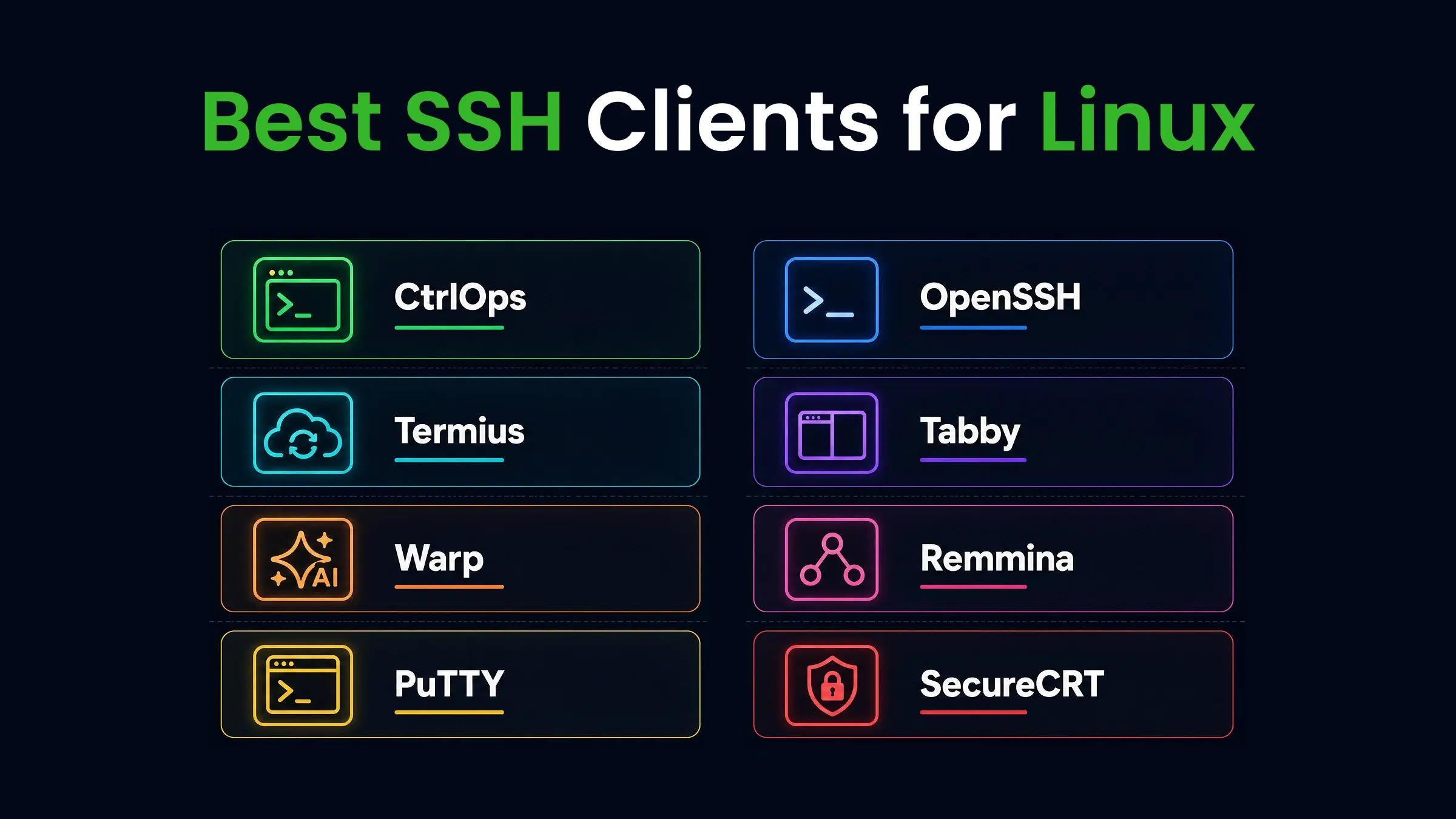
Not on a Mac all day? We've run the same real-workflow tests for the best SSH clients for Windows and the best SSH clients for Linux, so you can keep a consistent setup across machines.
Frequently Asked Questions (FAQs)
It depends on your workflow. For managing multiple servers with file transfers, monitoring, and deployments, CtrlOps is the most complete option. For pure terminal power users, Warp offers the best AI-enhanced experience. For team SSH management with cross-device sync, Termius is the most mature choice. For free, lightweight use, iTerm2 beats macOS Terminal in every way that matters. There's no single winner - only the right tool for how you work.
Not always. If you manage 1 - 2 servers and know your way around the command line, iTerm2 or macOS Terminal works fine. But if you regularly transfer files, check server health across multiple machines, or deploy applications, a GUI saves 15 - 30 minutes per session. The question isn't "is GUI better than CLI?" - it's "does my workflow involve tasks that GUI handles faster?" For most developers managing 3+ servers, the answer is yes.
Termius is a well-built product from a reputable company, and it encrypts your credentials in transit and at rest. However, it syncs your SSH keys to their cloud servers by design. This is a feature, not a bug - it enables cross-device access. But it also means your credentials exist on third-party infrastructure. For internal projects, this is usually fine. For client work with compliance requirements, it may not be acceptable. The security concern isn't about Termius's competence - it's about where your keys live.
Almost everything on this list. iTerm2 is the most direct upgrade - same terminal experience with split panes, search, and profiles, still free. If you want a modern SSH client with a server directory and file transfers, Termius is the most popular choice. If you want AI-assisted commands, Warp leads. If you want an all-in-one tool that replaces your entire server management stack, CtrlOps is the only option that covers SSH, file management, monitoring, and deployment in one app.
For server management, yes - by a wide margin. iTerm2 adds split panes, search, profiles, triggers, and autocomplete without changing the underlying terminal experience. It's still free, still local-only, and runs on the same Mac you already have. The one reason to stick with Terminal: you want the absolute minimum tool footprint and don't need any of iTerm2's features. For everyone else managing more than one server, iTerm2 is the strict upgrade.
Use it with caution. Warp's standout feature is AI Agent Mode, which generates and auto-executes commands from natural language requests. On a development machine, that speed is a feature. On a production server, it's a risk - there's no approval gate before commands run, so one misinterpreted prompt can do real damage. For production work, either disable Agent Mode and use Warp as a regular terminal, or pick a tool with an approval gate (CtrlOps shows generated commands before executing).
A few defaults that cover most teams: keep private keys in ~/.ssh/ with permissions 600 (the OS won't accept anything looser), always set a passphrase on private keys so a stolen laptop isn't an open door, never store keys in cloud-synced folders (iCloud, Dropbox, Google Drive), and prefer SSH clients with local-only credential storage for client work - cloud-sync tools like Termius and Warp move your keys to third-party servers. Rotate keys when team members leave and use different keys for different environments.
SSH (Secure Shell) gives you a remote terminal - you run commands on the server as if you were sitting at its keyboard. SFTP (Secure File Transfer Protocol) gives you remote file access - upload, download, navigate directories. Both use the same SSH connection underneath. Some tools do one well (PuTTY for SSH, Cyberduck for SFTP). Modern SSH clients like Termius and CtrlOps include both in one app, so you don't switch tools mid-task.
No. MobaXterm does not work on Mac - it is Windows-only software. MobaXterm is a popular all-in-one terminal for Windows users that bundles SSH, X server, RDP, VNC, and SFTP into one app. It has no macOS version and no announced plans to build one. If you're looking for an ssh client for mac like PuTTY or MobaXterm - tools that combine SSH with file transfer and multi-protocol support - the closest Mac equivalents are Termius (cross-platform, polished UI, built-in SFTP) or CtrlOps (SSH + file manager + monitoring + deployment in one local-first app). For pure terminal experience closest to MobaXterm's tab-based layout, iTerm2 with split panes is the free starting point. Mac developers generally don't need MobaXterm's X11 server, which was its biggest differentiator on Windows - macOS handles Unix tools natively via Terminal. For a full breakdown of the five strongest options, see our guide to the best MobaXterm alternatives for Mac.
Yes. macOS ships with OpenSSH pre-installed - that's what powers the ssh command in Terminal. It's the reference implementation of the SSH protocol and works for any server you have access to. The question isn't whether macOS has SSH (it does); it's whether the default ssh user@ip workflow scales when you manage multiple servers, transfer files, and want monitoring. For most developers managing 3+ servers, the answer is no - you'll want an SSH client with a server directory and file manager on top of OpenSSH.
They solve different problems, so the comparison depends on what you need. iTerm2 is a free, powerful terminal emulator - it gives you split panes, search, and profiles, but no server directory, no file transfers, and no cross-device sync. Termius is a dedicated SSH client with a polished server directory, built-in SFTP, and cross-platform sync across Mac, Windows, iOS, and Android. If you manage multiple servers and want named connections with one-click access, Termius does things iTerm2 simply can't. If you want the best free terminal experience and handle your own SSH config, iTerm2 wins. They are not direct competitors - iTerm2 is a terminal; Termius is a server management tool.
iTerm2 is the best free SSH client for Mac beginners. It is already designed for macOS, installs in minutes, and adds split panes, search, and connection profiles on top of the built-in terminal - all at no cost. macOS Terminal works but lacks the quality-of-life features that make learning easier. For beginners who quickly outgrow basic SSH and start transferring files or managing 3+ servers, CtrlOps offers a one-month free trial with a GUI that removes the need to memorize commands from day one.
Free options with file transfer: OpenSSH (via scp/rsync commands, no GUI). Among paid tools with a full GUI file manager: CtrlOps at $7/user/month is the lowest-cost option that includes drag-and-drop file management, AI terminal, and monitoring. Termius Pro at $10/user/month offers SFTP but no monitoring or deployment.