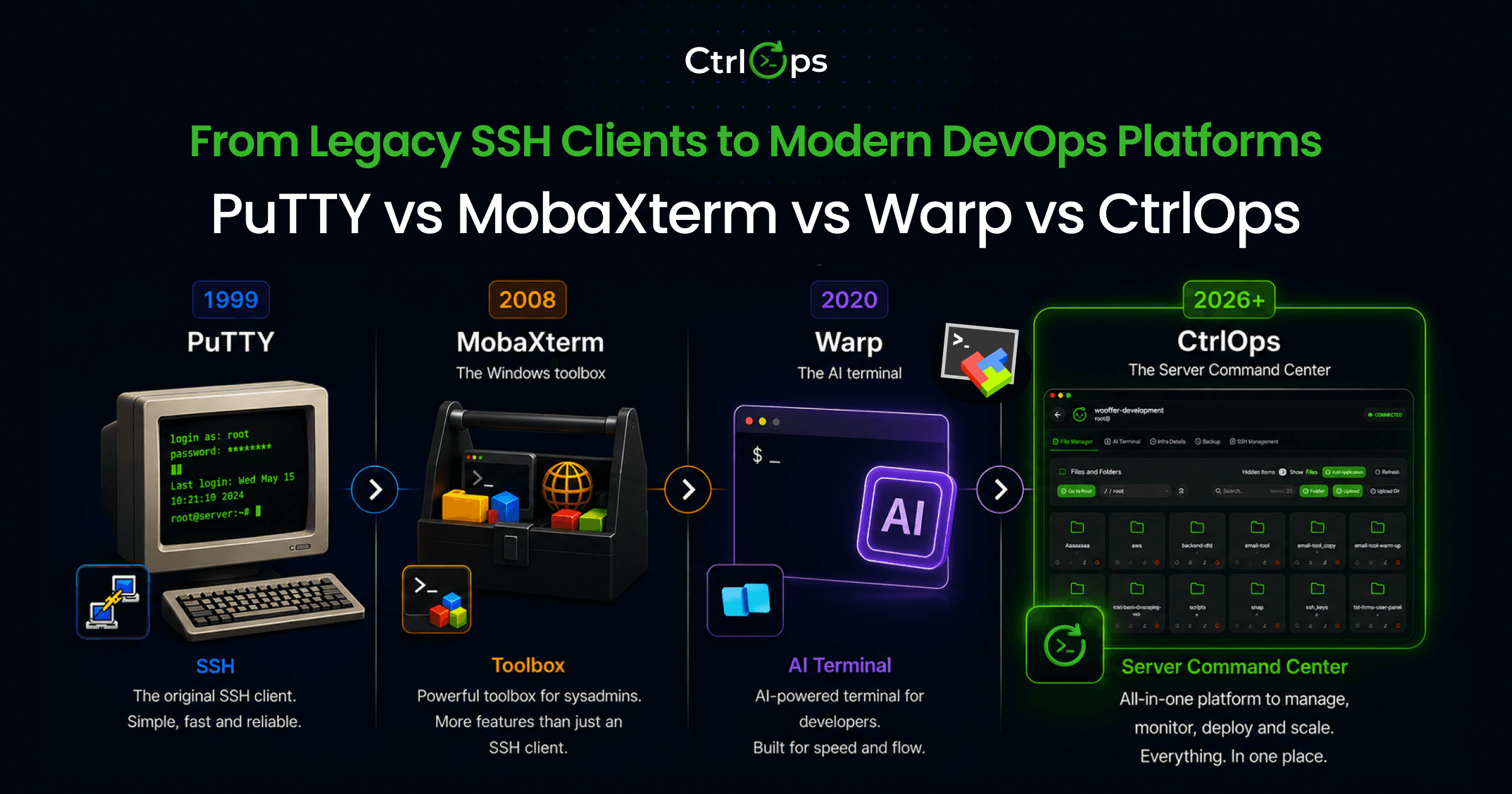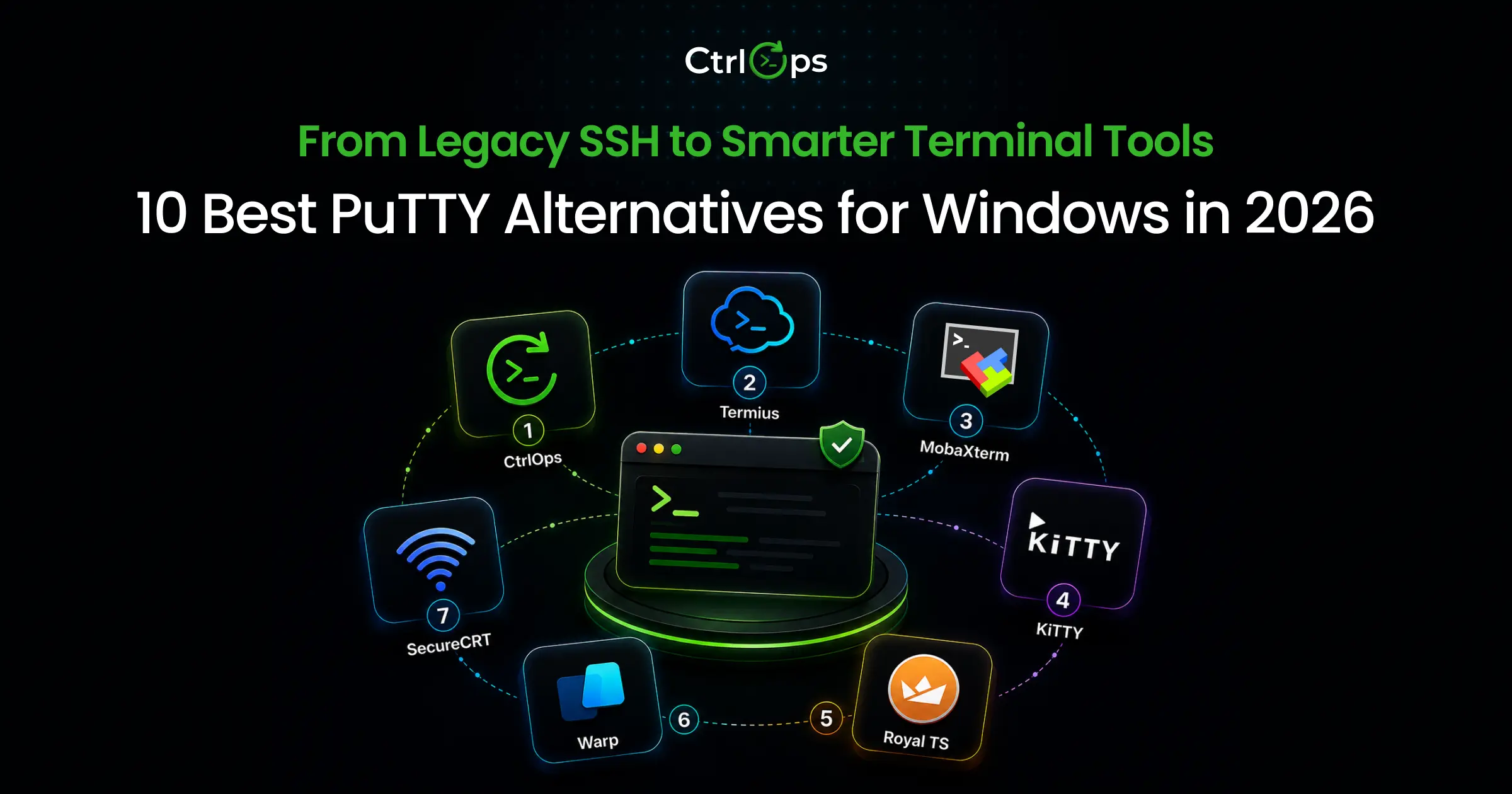

The best PuTTY alternatives for Windows in 2026 are CtrlOps (AI terminal + file manager + local-first security, $7/month per user with a 1 month free trial), Termius (cross-device sync with mobile apps), MobaXterm (best free option), and Windows Terminal + OpenSSH (built-in, no install). For teams managing 5+ servers, CtrlOps replaces the 3-app workflow: PuTTY forces SSH, file management, and AI diagnostics in one desktop app, cutting deployment time from 30-45 minutes to under 5.
10 Best PuTTY Alternatives for Windows in 2026
The 10 best PuTTY alternatives for Windows in 2026 are CtrlOps (all-in-one server management), Termius (cross-device sync), MobaXterm (best free Windows option), KiTTY (lightweight PuTTY fork), Royal TS (multi-protocol), Warp (AI coding terminal), SecureCRT (enterprise compliance), Windows Terminal + OpenSSH (built-in), Bitvise (free SSH + SFTP), and Tabby (open-source modern terminal). We tested each against the same real-world scenarios.
Here's how each handles real server tasks:
| Tool | Best For | Price | AI | File Manager | Local Credentials |
|---|---|---|---|---|---|
| CtrlOps | All-in-one server management | $7/mo per user (1 mo free) | ✅ Approval-gated | ✅ Full GUI | ✅ Local-only |
| Termius | Cross-device sync | $10/mo per user | Partial (autocomplete) | ✅ SFTP | ❌ Cloud |
| MobaXterm | Windows power users | Free / $69 one-time | ❌ | ✅ Basic SFTP | ✅ Local |
| KiTTY | Lightweight PuTTY fork | Free | ❌ | ❌ | ✅ Local |
| Royal TS | Multi-protocol IT teams | ~$40 - 60 one-time | ❌ | Limited | ✅ Local |
| Warp | AI-first coding terminal | Free / $20/mo | ✅ Auto-run | ❌ | ❌ Cloud |
| SecureCRT | Enterprise compliance | ~$119/license | ❌ | ❌ (SecureFX separate) | ✅ Local |
| Windows Terminal + OpenSSH | Built-in, no install | Free | ❌ | ❌ | ✅ Local |
| Bitvise | Free SSH + SFTP | Free | ❌ | ✅ SFTP GUI | ✅ Local |
| Tabby | Open-source modern terminal | Free | ❌ | ✅ SFTP/Zmodem | ✅ Local |
Pricing from vendor sites as of June 2026. SecureCRT is ~$119 alone or ~$129 bundled with SecureFX; volume and enterprise pricing is quoted per order.
Prefer to watch instead? The video walkthrough covers seven of the ten tools below, plus the approval-gated AI terminal and the 2 AM incident test, in under 9 minutes:
These ten tools cover every realistic PuTTY replacement scenario on Windows in 2026. Each is rated on what you actually do with it: connecting to a fleet, moving files, debugging incidents, and managing credentials safely.
1. CtrlOps: Best All-in-One with AI Terminal
CtrlOps takes a fundamentally different approach from every other tool on this list.
Instead of being a better terminal, it replaces your entire server management stack: terminal, file manager, monitoring dashboard, and deployment system. All-in-one desktop app.
Where CtrlOps shines:
- Named server cards: Connect to "Prod-Backend" or "Client-XYZ-Staging" instead of remembering raw IPs. One click, you're in.
- Full GUI file manager: Upload, download, edit remote files with drag-and-drop. No WinSCP, no re-entering credentials.
- Approval-gated AI terminal: Ask "why is my server slow?" and get diagnostic commands shown before execution. You review, approve, then it runs. No auto-run.
- Modern terminal UX: Several terminals per server, each tab named after the command you ran. Block view keeps every command with its own output for copying, filtering, or re-running, and suggestions are configurable down to what Tab does.
- One-click app deployment: Pick your stack (React, Next.js, Node.js), link GitHub, set environment variables. CtrlOps handles cloning, dependencies, PM2, Nginx, and Certbot SSL automatically.
- PM2 Process Manager: View and manage PM2 processes, monitor CPU/memory usage, and stream logs live in a clean GUI without typing commands.
- Security Audit: Run 25 security audits across SSH, firewalls, databases, web servers, and Docker. Get a hardening score, download PDF reports, and generate approval-gated AI fixes.
- Infrastructure monitoring: CPU, RAM, disk, and running processes visible inside the app. No more
htopin a separate window. - Cron Jobs: Schedule jobs without cron syntax and get a Slack or Telegram alert when one fails, or when CPU or disk crosses a limit.
- Local-first security: Credentials, SSH keys, and server configs stay on your machine. AES-256 encrypted. No cloud sync.
- Script Directory: Save reusable scripts with
{{variable}}placeholders. Reuse them on any server you open. - Port forwarding: PuTTY's Tunnels panel as a saved list. Build local, remote, or SOCKS forwards, test one before saving, and start it in a click.
Where CtrlOps falls short:
- No mobile app
- No serverless or Kubernetes support
Pricing: $7/month per user (unlimited servers). 1-month free trial, no credit card required.
Platforms: Windows, macOS (Apple Silicon + Intel), Linux.
"I recently bought the Lifetime Subscription of CtrlOps because it genuinely helps in daily workflows."
- Prince Sherasiya, Technical Lead at Spirex Infoways
2. Termius: Best for Cross-Device Sync
Termius is the most polished SSH client on the market. It syncs server credentials, SSH keys, and command snippets across Mac, Windows, Linux, iOS, and Android through an E2E encrypted cloud vault.
If you need SSH from your phone during a production incident, Termius is the only serious option on this list.
Where Termius shines:
- Cross-device sync - Mac, Windows, Linux, iOS, Android, all in sync
- Team vault with real-time collaboration
- AI-powered autocomplete (suggests commands as you type)
- SOC2 Type II compliance on the Business plan
- AWS, DigitalOcean, and Azure integrations for quick server imports
Where Termius falls short:
- No infrastructure monitoring dashboard
- No one-click application deployment
- AI is autocomplete - it doesn't understand your server's context or generate full diagnostic sequences
- Cloud vault means your credentials live on Termius' servers (E2E encrypted, but not locally isolated)
- Pricing scales per user - at 5 users on Pro that's $50/month, versus $35/month for CtrlOps at the same headcount ($7 per user)
Pricing: Free (Starter, limited), $10/month per user (Pro, billed annually), $20/user/month (Team).
Platforms: macOS, Windows, Linux, iOS, Android.
3. MobaXterm: Best Free Windows Option
MobaXterm is the most feature-packed free SSH client on Windows. One executable, no install required, gives you SSH, RDP, VNC, FTP, SFTP browser, embedded X server, and a built-in Unix terminal. For a Windows-only shop that needs a free PuTTY upgrade right now, it's the easiest answer.
The embedded X server is genuinely unique - if you run graphical Linux applications remotely (think database GUIs, IDE remote servers, or legacy apps), MobaXterm handles that natively where other tools can't.
Where MobaXterm shines:
- Completely free for home and light professional use
- No install required - runs from a single portable .exe
- Tabbed interface - manage multiple sessions in one window
- Built-in SFTP browser alongside your terminal
- Embedded X11 server for graphical remote apps
- One-time Pro license ($69/user) if you need unlimited sessions
Where MobaXterm falls short:
- Windows only - not an option for Mac or Linux developers
- No AI features whatsoever
- No cloud sync or team collaboration
- No infrastructure monitoring
- No app deployment capabilities
- UI feels dated compared to modern tools
Pricing: Free (Home edition, 12 sessions max). Professional: $69/user one-time.
Platforms: Windows only.
For a direct feature and pricing comparison, see CtrlOps vs MobaXterm.
4. KiTTY: Best Lightweight PuTTY Fork
KiTTY is a PuTTY fork - it takes PuTTY's codebase and adds the features users have been requesting for 20 years: automatic reconnection on session drop, session launcher, Zmodem file transfer, and URL hyperlinks in the terminal. If you love PuTTY's simplicity but are frustrated by its specific gaps, KiTTY patches exactly those gaps.
It's free, it's Windows-native, and it starts in under a second. No cloud accounts, no subscriptions, no learning curve if you know PuTTY.
Where KiTTY shines:
- Zero learning curve from PuTTY
- Auto-reconnect on dropped sessions (PuTTY's most annoying omission)
- Session launcher and session filter
- Zmodem for quick file transfer without a separate app
- Portable - single .exe, runs from a USB drive
- Free forever
Where KiTTY falls short:
- Windows only
- No AI features
- No file manager GUI
- No team collaboration
- No infrastructure monitoring
- Development has slowed - only minor updates since 2024, and it's built on the older PuTTY 0.76 core, so it lags behind PuTTY's recent releases and security fixes
- Still looks and feels like 2003 - functional, not modern
Pricing: Free and open-source.
Platforms: Windows only.
5. Royal TS: Best for Multi-Protocol IT Teams
Royal TS is a connection manager designed for IT professionals who manage mixed environments - SSH servers, RDP Windows machines, VNC endpoints, web consoles, and VMware all in one place. If your team manages Linux servers alongside Windows Remote Desktop, it's the most organized way to handle that.
Royal Server (sold separately) acts as a secure gateway - your team connects through Royal Server rather than directly to production machines, which is a solid security architecture for IT shops.
Where Royal TS shines:
- Multi-protocol: SSH, RDP, VNC, web, VMware, SFTP, and more
- Cross-platform: Windows, macOS, iOS, Android
- Team document sharing - share connection configurations as Royal TS documents
- Password manager integration
- Royal Server for secure gateway access
Where Royal TS falls short:
- No AI features
- Complex UI - steep learning curve for non-IT users
- No one-click app deployment
- No infrastructure monitoring dashboard
- Pricing is opaque - personal licenses are ~$40 - 60, team pricing is custom
- Overkill for developers who only need SSH
Pricing: Free (limited connections). Personal: ~$40 - 60 one-time. Business: custom pricing.
Platforms: Windows, macOS, iOS, Android.
6. Warp: Best AI-First Coding Terminal
Warp is the most funded AI terminal in the world - backed by Sequoia and Google Ventures - and it shows. It's a genuine reinvention of the terminal: block-based output, an IDE-like editing experience, AI Agent Mode that converts natural language into shell commands, and Warp Drive for sharing commands with your team.
Here's the important caveat: Warp is a local coding terminal, not a server management tool. Its AI understands your local shell, your local files, and your local environment. When you SSH into a remote server through Warp, you get Warp's terminal UI - but you lose all the AI context, because Warp's AI doesn't know what's running on that remote server.
Where Warp shines:
- Best-in-class terminal UI - block-based output, full search, multi-cursor
- AI Agent Mode: type natural language, get shell commands
- Warp Drive: share commands with your team
- Extremely fast (written in Rust)
- Available on Mac, Windows, and Linux
Where Warp falls short:
- No named server directory for fleet management
- No file manager GUI
- No infrastructure monitoring
- No one-click app deployment
- AI doesn't have remote server context - it doesn't know what's running on your VPS
- Cloud-dependent for AI features
- Free tier available; Build plan is $20/month for AI credits
Pricing: Free (core terminal). Build: $20/month.
Platforms: macOS, Windows, Linux.
For a deeper head-to-head of how Warp stacks up against the classic Windows tools, see the full PuTTY vs MobaXterm vs Warp comparison.
7. SecureCRT: Best for Enterprise & Compliance
SecureCRT by VanDyke Software has been the enterprise SSH client since 1995. It's FIPS 140-2 validated, government-approved, and supports advanced scripting in Python, VBScript, and Perl. If you're working in a regulated industry - government, defense, healthcare IT - SecureCRT is likely already on your approved software list.
Where SecureCRT shines:
- 31 years of reliability - enterprise trust is real
- FIPS 140-2 compliance for government and regulated industries
- Advanced scripting for automation
- Multi-protocol: SSH, Telnet, Serial, RDP
- One-time purchase model (no recurring subscription)
Where SecureCRT falls short:
- No AI features
- Legacy UI - functional but dated
- Expensive for SMBs: ~$119 - 129 per license + annual update fees for continued updates
- No infrastructure monitoring
- No one-click deployment
- Windows-centric ecosystem despite cross-platform availability
Pricing: $119 per license for SecureCRT alone (~$129 bundled with SecureFX) - one-time, including 1 year of updates, with optional maintenance after that.
Platforms: Windows, macOS, Linux.
8. Windows Terminal + OpenSSH: Best Built-In Option
Windows 10 and 11 ship with OpenSSH pre-installed. Combined with Windows Terminal, Microsoft's modern tab-based console, it replaces PuTTY for basic SSH with zero downloads - and it's the answer sysadmin communities give first when someone asks what to use instead of PuTTY.
Open Windows Terminal, type ssh user@your-server-ip, and you're connected. Add named hosts in ~/.ssh/config and you get one-command connections without touching the Windows registry.
Where Windows Terminal + OpenSSH shines:
- Already on your machine - nothing to install, nothing to get approved by IT
- Tabs, profiles, and split panes in a modern, GPU-accelerated console
- Named hosts in
~/.ssh/configreplace PuTTY's registry sessions - in plain files you control - Standard OpenSSH keys - no .ppk conversion needed
- WSL integration for a full Linux shell alongside your SSH sessions
Where Windows Terminal + OpenSSH falls short:
- No GUI file manager - file transfers mean
scpcommands with exact paths - No visual server directory - you maintain the config file by hand
- No AI, no monitoring, no deployment automation
- Config file typos fail silently with unhelpful errors
Pricing: Free (built into Windows 10 and 11).
Platforms: Windows.
9. Bitvise: Best Free SSH + SFTP Combo
Bitvise is a Windows-native SSH client that's free for all use - personal, commercial, and enterprise. No session limits, no feature gates, no per-user pricing. Its graphical split-pane SFTP browser is the fastest way to eliminate WinSCP from a PuTTY workflow.
Where Bitvise shines:
- Completely free, including commercial use, with no restrictions
- Graphical SFTP browser alongside the terminal - drag-and-drop file transfers
- Strong tunneling: SSH port forwarding, SOCKS proxy, FTP-to-SFTP bridge
- Windows-native, not Electron - fast and lightweight
- Automatic reconnection after dropped connections
Where Bitvise falls short:
- Windows only - no Mac, Linux, or mobile version
- No AI features
- Connection profiles exist, but no fleet view or environment grouping
- No monitoring, no deployment, no automation
- UI is functional but dated
Pricing: Free (SSH Client; Bitvise's SSH Server is a separate paid product).
Platforms: Windows only.
10. Tabby: Best Open-Source Modern Terminal
Tabby is a cross-platform, open-source terminal (MIT license) that modernizes SSH with tabs, split panes, a plugin ecosystem, and a built-in connection manager with SFTP. No subscription, no account required.
Where Tabby shines:
- Free and open-source - no feature gates, no vendor lock-in
- Cross-platform: Windows, macOS, Linux with an identical interface
- Built-in SSH profiles, SFTP, Zmodem transfers, and key management
- Split panes and saved workspaces, plus community plugins
- Encrypted local credential vault with a master passphrase
Where Tabby falls short:
- Electron-based - noticeably heavier on RAM than PuTTY or Bitvise
- No AI features, no monitoring, no deployment
- Extensive configuration options are a barrier for beginners
- Occasional stability issues with certain plugin combinations
Pricing: Free, open-source (MIT license).
Platforms: Windows, macOS, Linux.
How We Compared These PuTTY Alternatives
Imagine It's midnight. Your client's Node app is down. You open PuTTY, realize you forgot the IP address, dig through a sticky note, finally connect - and then spend 20 minutes Googling which command to run. Meanwhile, your client is watching their revenue ticker drop.
If you're a freelance developer, startup CTO, or agency engineer who still opens PuTTY as your go-to SSH client, that scenario is probably not unfamiliar. PuTTY was a good tool - in 2003. In 2026, managing production servers with it means juggling raw IP addresses, no session naming, no file management, no AI assistance, and zero workflow integration. You've outgrown it. You just haven't had a reason compelling enough to switch - until now.
We put 10 PuTTY alternatives for Windows through the same real-world scenarios - the jobs you actually do: connecting to a 5-server fleet, deploying a Node.js app, recovering from a 2 AM production incident, and managing SSH keys across a small team. We evaluated each tool on documented features, verified pricing, and real-world fit for those exact scenarios. Here's how they stack up.
Why Are Developers Leaving PuTTY in 2026?
Developers are leaving PuTTY in 2026 because it cannot do the three things modern server management requires: name servers, manage files, or help diagnose problems.
- Name your servers. PuTTY stores sessions by raw IP in the Windows registry. No aliases, no labels. You don't remember which IP is prod-backend versus staging-api at 2 AM.
- Manage files. Upload a config? That's a separate WinSCP session, re-entering credentials, re-authenticating.
- Help you diagnose problems. PuTTY gives you a blank terminal. When something breaks on an unfamiliar stack, you're alone with a cursor.
Research by Gloria Mark at UC Irvine found it takes an average of 23 minutes to fully refocus after a single context switch. PuTTY forces at least 4 switches per deployment: terminal, SFTP client, IP spreadsheet, and monitoring dashboard.
The 2025 Stack Overflow Developer Survey flagged tool sprawl as a real drag on developer productivity. PuTTY's latest release was version 0.84 (May 2026), but its core design hasn't evolved since the early 2000s.
There's also a security angle. PuTTY stores saved sessions in the Windows registry in plain text - hostnames, usernames, and ports. For a feature-by-feature comparison, see the full CtrlOps vs PuTTY breakdown.
Developers leaving PuTTY often outgrow web-based panels at the same time. If you are managing servers through a browser panel alongside PuTTY, the best aaPanel alternatives cover desktop-first tools that replace both.
What Makes a Good SSH Client for Windows in 2026?
The best SSH client for Windows in 2026 does more than open a terminal. It reduces the total number of tools you need to manage a server - and it doesn't create new security problems in the process.
Five criteria that actually matter:
- Named server directory - You need to find the right server in under 10 seconds, not by remembering an IP.
- Integrated file management - Uploading a config file or pulling a log shouldn't require opening a second app.
- Credential security - Keys stored locally and encrypted, not sitting in cloud vaults you don't control.
- AI or command assistance - When you SSH into an unfamiliar stack, something that can generate or explain commands saves 20 - 40 minutes per incident.
- Real price transparency - Per-user pricing on small teams adds up fast. Know the true cost at 3, 5, and 10 users.
Real Workflow Comparison: PuTTY vs Modern Tools
Switching tools isn't just about features - it's about how much time you lose on tasks that should be automatic. Here's the same deployment task, done two ways.
What managing 5 servers actually looks like with PuTTY
You need to deploy an updated Node.js app to production. Here's the real process:
- Open your IP spreadsheet (or sticky note). Find the right server. (2 - 3 minutes)
- Open PuTTY. Enter the IP. Select the saved session if you have one. (1 - 2 minutes)
- Authenticate. You've forgotten which key this server uses - dig through your key folder. (3 - 5 minutes)
- SSH in. Run
git pull. Something breaks. Google the error. (10 - 20 minutes) - Config file needs updating - open WinSCP, re-authenticate, navigate the filesystem. (5 - 8 minutes)
- Restart the service. Hope it worked. Check the browser. (2 - 3 minutes)
Total: 23 - 41 minutes for a deployment that should take 5.
You've used at minimum 3 separate apps, re-entered credentials twice, and navigated your filesystem twice without any UI.
The same deployment in CtrlOps
- Open CtrlOps. Click "Prod-Backend" server card. Connected instantly - no IP lookup, no key hunting. (20 seconds)
- Navigate to your app folder in the File Manager. Upload updated config if needed - drag and drop. (1 - 2 minutes)
- Open the AI Terminal. Type: "pull latest from git, restart PM2, check if the app is healthy." CtrlOps shows you the 3 commands it will run. You approve. (2 minutes)
- Infrastructure dashboard confirms CPU back to normal, no error spike. Done. (30 seconds)
Total: 4 - 5 minutes. You never left the app.
How to Choose: Which Tool Fits Your Situation?
The "best SSH client for Windows" depends entirely on what you actually need to do with it. Use the situational guide below to match a tool to your role, team size, and security constraints instead of defaulting to the most-recommended name.
You manage multiple client servers as a freelancer: CtrlOps. Named server directory, local credential storage (client NDAs stay clean), AI terminal for unfamiliar stacks. $7/month total for solo freelancers. If you need mobile access too, pair it with Termius Free.
You're a startup CTO with a 3 - 8 person dev team: CtrlOps. At $7/user it undercuts per-seat competition. A 5-person team costs $35/month vs Termius Pro at $50/month and includes monitoring, deployment, and a file manager Termius doesn't.
You're a solo developer on Windows who just wants "better PuTTY" for free: MobaXterm Home edition. Free, no install, tabbed sessions, built-in SFTP browser. Want to stay closer to PuTTY? KiTTY adds auto-reconnect and a session launcher.
You don't want to install anything at all:
Windows Terminal + OpenSSH. Already on your machine - add named hosts in ~/.ssh/config and you have a respectable zero-download setup. Bitvise is the free upgrade when file transfers become the pain point; Tabby if open-source and cross-platform matter most.
You manage a mixed Windows + Linux fleet as an IT admin: Royal TS handles multi-protocol (SSH + RDP + VNC) better than anything here. If your environment is SSH-only, it's overkill.
You work in government or a regulated environment requiring FIPS compliance: SecureCRT. Nothing else on this list is validated for that requirement.
You need mobile SSH access from your phone: Termius is the only real option. Its iOS and Android apps are genuinely polished - not an afterthought. But if Termius is only earning its place through the mobile app, the Termius migration guide shows how the built-in importer moves your saved hosts and SSH keys across in about 30 seconds.
How Do You Migrate from PuTTY? (Sessions and Keys in About 10 Minutes)
Migrating off PuTTY takes about 10 minutes: back up your saved sessions from the Windows registry, convert your .ppk keys to the standard OpenSSH format, test every connection in the new client, then remove the plain-text session data PuTTY leaves behind. Here's the exact process.
Step 1: Back up your PuTTY sessions (2 minutes).
PuTTY stores sessions in the registry, not in files. Open regedit, navigate to HKEY_CURRENT_USER\Software\SimonTatham\PuTTY\Sessions, right-click the key, and export it as a .reg file. That file is both your backup and your server checklist for the new tool. MobaXterm and KiTTY can read PuTTY's registry sessions directly; for other clients, work down the exported list as you add named hosts.
Step 2: Convert your .ppk keys to OpenSSH format (3 minutes).
PuTTY's .ppk format is PuTTY-specific - nearly every modern client expects standard OpenSSH keys. Convert in PuTTYgen (load the key, then Conversions → Export OpenSSH key), or use our free PPK to OpenSSH converter - it runs entirely in your browser, nothing is uploaded.
Step 3: Test every connection before deleting anything (3 - 5 minutes). Add your servers to the new client and connect to each one with the converted keys. Keep PuTTY installed until every server has connected successfully at least once.
Step 4: Remove PuTTY's plain-text session data (1 minute).
Once you've migrated, delete the Sessions key in the registry (you have the .reg backup). This removes the unencrypted hostnames and usernames that PuTTY stores in plain text in the Windows registry, readable to any process on the machine.
.reg backup contains the same plain-text session data. Once your migration is confirmed, store it encrypted or delete it - don't leave it sitting in your Downloads folder.Why Privacy-Conscious Developers Are Going Local-First in 2026
There's a shift happening among privacy-conscious teams. Termius - the most common "modern PuTTY replacement" recommendation - stores your SSH keys and server credentials in a cloud vault. It's end-to-end encrypted, yes. But it's still cloud storage.
For a growing segment of developers - agencies with client NDAs, startups in regulated spaces, freelancers who've had a client ask "where are my credentials stored?" - the answer "in Termius' cloud" is not acceptable. We break that trade-off down line by line in CtrlOps vs Termius.
Local-first isn't about paranoia. It's about being able to answer that question with confidence. CtrlOps stores every credential, every SSH key, and every server configuration on your local machine. AES-256 encrypted. No third-party access. No cloud sync that you didn't initiate.
If a client ever audits your tooling, that answer - "everything is on my machine, nothing in a cloud I don't control" - is a professional advantage.
You can learn more about SSH key management best practices and why local storage matters for credential security in our dedicated guide. If you also manage servers from a Mac, see how the best SSH clients for Mac in 2026 handle the same local-first question.
The AI Terminal Gap No One Is Talking About
Every article about PuTTY alternatives focuses on feature checklists: tabs, SFTP, session management. None of them talk about what happens when something goes wrong on a server and you don't know what to do next.
That's the real test. Not "can I open an SSH session?" - PuTTY does that. The test is: "I'm SSH'd in, my app is throwing a 502, my client is calling me, and I have no idea where to start."
With PuTTY, you open a browser, Google the error, find a Stack Overflow post from 2018, try a command, hope for the best.
With CtrlOps' AI Terminal - which is connected to real-time web search, not just a static model - you type the problem. It reads the latest documentation. It shows you exactly which commands to run. You review them. You approve. The fix runs. The web search documentation covers how it pulls current docs, error messages, and package versions live. Here's web search running inside the AI Terminal:
The difference isn't convenience. It's the 35 minutes between "my client is down" and "my client is fixed."
"What stands out from an engineering perspective is the approval gate on the AI terminal. Most AI tooling here either runs blind or needs too much manual intervention to be useful. This sits in the right place: the AI does the thinking, the engineer makes the call."
- Drijesh P., Engineering Manager at IBM
A real incident: a suspicious pull request in a client's repo
This isn't hypothetical for us.
A few days ago, one of our developers spotted something off in a client's GitHub repository - a pull request that looked like a routine code update at first glance. Looking closer, it had quietly added an unwanted third-party script set to run automatically after installation.
Someone had gained access to the repo and was trying to use it as a path onto the server.
That's not a bug. That's a security incident - and the clock starts the moment you find one.
Investigating with the AI Terminal
We opened CtrlOps, connected to the affected server, and went straight into the AI Terminal.
Instead of guessing commands one at a time, we described the situation in plain English: an unwanted script had been added, and we needed to know where it landed, whether it was running, what it had touched, and what to do next.
CtrlOps worked through it as an investigation - generating each diagnostic command, showing us what it intended to run, and waiting for approval before anything executed. Step by step, every command human-approved, it checked:
- Running processes
- Suspicious and temporary files
- Package files and dependency manifests
- Likely persistence points (cron, services, init scripts)
- Recent access patterns
The incident report
At the end, it produced a structured incident report covering:
- What was injected, and where
- When the suspicious change happened
- What was still running
- Whether the server showed active signs of compromise
Followed by concrete remediation steps - what to remove, what to revoke, which access to review, what history to clean, and which repository changes to audit.
Done by hand, that's hours of work: knowing every command, inspecting every file and log, then writing up a report for the team and the client.
With CtrlOps, we had the full investigation and the report in about ten minutes.
That's the part that never shows up in a feature checklist. An AI terminal isn't just for "check the CPU" or "restart the service" - when something suspicious happens and time matters, it helps you understand what actually happened and act on it, with a human approving every command before it touches anything.
Here's the full incident, start to finish:
For DevOps automation tools and how AI is reshaping server operations more broadly, our guide covers the full landscape.
Conclusion
PuTTY isn't broken. It does what it was designed to do in 2003. But managing production servers in 2026 requires named server directories, integrated file management, and AI assistance - none of which PuTTY offers.
For teams managing VPS fleets, CtrlOps replaces the 3-app workflow at $7/month per user with a 1 month free trial. For mobile SSH, Termius leads. For a free Windows upgrade, MobaXterm Home Edition. For regulated environments, SecureCRT.
Spending 40 minutes on a deployment that should take 5 is a choice you don't have to keep making.
Frequently Asked Questions
MobaXterm Home Edition is the best free PuTTY alternative for Windows. It's a single portable .exe with tabbed sessions, a built-in SFTP browser, an X11 server, and support for SSH, RDP, VNC, and FTP - all free. KiTTY is a close second if you want something closer to PuTTY with auto-reconnect added. Both are Windows-only. For a cross-platform free option, Termius Starter is available at no cost but limits you to local vault only (no sync).
PuTTY still works as a basic SSH client in 2026, but it has significant limitations compared to modern tools: no named server directory (sessions stored by raw IP in the Windows registry), no integrated file manager, no AI assistance, and no infrastructure monitoring. Its latest release (0.84) shipped in May 2026, but its core architecture hasn't changed meaningfully in over a decade. For individual developers connecting to 1 - 2 servers occasionally, it's fine. For anyone managing more than 2 - 3 servers regularly, the tool-switching overhead it creates costs 2+ hours per week.
Yes. Windows 10 and 11 include the OpenSSH client pre-installed - open Windows Terminal and type ssh user@your-server-ip. If it's missing, enable it under Settings → Apps → Optional Features → OpenSSH Client. For basic connections, this replaces PuTTY with zero downloads and uses standard OpenSSH keys instead of .ppk files. What it doesn't add: a GUI file manager, a named server directory, monitoring, or AI assistance - for those, you still need a dedicated tool like MobaXterm (free) or CtrlOps ($7/month per user, with a 1 month free trial).
Termius uses end-to-end encryption for its cloud vault - Termius itself does not have access to your decrypted credentials. However, your SSH keys do live in Termius' cloud infrastructure, which some security policies, client NDAs, and compliance frameworks prohibit. For developers who require that credentials never leave local storage, CtrlOps is local-only (AES-256 encrypted on your machine) and is a better fit. For most developers without specific compliance requirements, Termius' security model is sound. If local-only storage is a hard requirement, see the best Termius alternatives.
No. MobaXterm is Windows-only. This is its most significant limitation. If your team includes any Mac or Linux developers, MobaXterm will create fragmentation - those developers need a different SSH client, which means different session formats, different configuration exports, and different workflows. For cross-platform teams, Termius, CtrlOps, or Royal TS are better choices. Mac users can also see the dedicated comparison of Mac-specific MobaXterm alternatives.
CtrlOps is the only SSH client for Windows with a genuine AI terminal for server management in 2026. Its AI Terminal is approval-gated - it shows you the commands it plans to run before executing anything - and is connected to real-time web search so it reads current documentation before suggesting commands. Warp has AI features, but is optimized for local development workflows rather than remote server management. Termius has AI autocomplete, but it only suggests command completions - it doesn't understand your server context or generate diagnostic sequences.
Termius Pro costs $10/user/month (billed annually). For a team of 5, that's $50/month or $600/year. CtrlOps costs $7 per user per month for unlimited servers after a 1 month free trial - so the same 5-seat team is $35/month, the lower cost on a like-for-like comparison. CtrlOps also includes features Termius doesn't - an infrastructure monitoring dashboard, one-click app deployment, and a full GUI file manager - at that lower per-seat price. Full pricing and feature breakdown: CtrlOps vs Termius.
CtrlOps is not the right tool in three situations: (1) You need SSH access from your phone - CtrlOps is desktop-only; use Termius for mobile. (2) You manage serverless infrastructure (AWS Lambda, Google Cloud Functions) - CtrlOps is built for traditional VPS and bare-metal server management. (3) Your team requires Kubernetes/container orchestration tooling - CtrlOps doesn't support K8s. For all three of those specific needs, other tools fill the gap.
KiTTY is a fork of PuTTY that adds several features the original project never shipped: automatic session reconnection after a dropped connection, a built-in session launcher, Zmodem file transfer protocol support, and URL hyperlinking in the terminal. Its SSH core comes from PuTTY 0.76, the version it was forked from, and KiTTY's development has slowed (last update September 2024), so it lags behind PuTTY's more recent releases and security updates. If you like PuTTY but find yourself frustrated by dropped sessions and manual reconnection, KiTTY is a direct drop-in replacement. It's Windows-only and free.
Not if you switch to the right tool. PuTTY forces you to use WinSCP (or similar) because it has no file management capability. MobaXterm, CtrlOps, and Royal TS all have integrated file management - meaning you can upload, download, edit, and manage server files from the same app you use for SSH. CtrlOps' File Manager gives you a full GUI browser of your server's filesystem with drag-and-drop upload, download, and directory creation. For a row-by-row look at where a transfer client stops and a server workspace starts, see CtrlOps vs WinSCP.
The key is named server directories instead of raw IP lists. Tools like CtrlOps let you save servers as named cards (e.g., "Prod-Backend", "Staging-API", "Client-XYZ-DB") and connect with one click. Termius supports named hosts in its vault. Even MobaXterm lets you save named sessions. Any of these beats a Google Sheet of IPs. For a detailed guide on managing multiple servers efficiently, see our full guide on managing multiple servers without losing control.
CtrlOps is built for this exact scenario. You can name servers by client and environment ("ClientA-Prod", "ClientA-Staging", "ClientB-VPS"), store all credentials locally (important if your client NDAs restrict cloud storage), and use the AI terminal to debug unfamiliar stacks quickly. At $7 per user per month - and the first month is free - it's less than a single billable hour and pays for itself the first time you diagnose an incident in 5 minutes instead of 45.
No. SecureCRT has no AI features as of 2026. It's built for enterprise environments that prioritize protocol compliance, scripting (Python, VBScript, Perl), and FIPS 140-2 certification over modern UX or AI assistance. If you're looking for enterprise-grade tooling with AI, CtrlOps is the closest option - though it doesn't yet have the same compliance certifications (no SOC2 or SAML SSO). For fully regulated enterprise environments, SecureCRT remains the standard.