
PuTTY is a free SSH terminal with no tabs or file manager. MobaXterm bundles SSH, RDP, and SFTP but runs only on Windows. Warp is an AI-powered coding terminal built for local development, not remote server fleets. For developers managing five or more servers, a dedicated server management tool like CtrlOps combines terminal, file manager, monitoring, and deployment in one app.
What changed in this update (October 6, 2026):
- Added a Best MobaXterm Alternatives section covering CtrlOps, Tabby, and MobaXterm Professional for Mac, Linux, and Windows users.
- Updated the PuTTY FAQ to the current 0.85 release (August 16, 2026).
- Corrected Warp's free tier: it no longer bundles AI credits, and bring-your-own-key is now available on the Free plan.
- Re-verified every price against the MobaXterm, Warp, and PuTTY sites, and added two FAQs on PuTTY alternatives with a file manager and MobaXterm equivalents for Mac.
Key Takeaways
PuTTY is a free SSH terminal from 1999 with no tabs, no AI, and no file manager. MobaXterm is a Windows-only toolbox capped at 12 free sessions. Warp is an AI terminal built for local coding, not remote server fleets. CtrlOps is the only tool here built for managing 5-25 remote servers - with a GUI file manager, approval-gated AI terminal, infra dashboard, and one-click deployments at $7/month per user, after a 1 month free trial.
- Windows-only user needing a free SSH client - PuTTY (zero cost, raw SSH, nothing more)
- Windows sysadmin with mixed protocols - MobaXterm (SSH + RDP + X11 + SFTP in one app)
- Developer who lives in the local terminal - Warp (AI command help, IDE-like editing)
- Developer managing 5 or more remote servers - CtrlOps (AI terminal + file manager + deployment + infra dashboard in one app at $7/month per user, 1 month free trial)
How We Compared PuTTY, MobaXterm, and Warp
We tested PuTTY, MobaXterm, Warp, and CtrlOps against 6 identical server tasks: connecting, switching servers, running scripts, monitoring resources, deploying a Next.js app, and diagnosing a slow server. Each tool was evaluated on time-to-complete, tool-switching required, and whether it handled the full workflow or forced you into a second app.
Picture this. You are a freelance developer juggling seven client servers.
You click into PuTTY, hunt for the saved session, realize the IP is stale, open the Google Sheet, copy-paste it in, SSH into the wrong server, and then remember you still need WinSCP to upload the config file. Six minutes gone. Zero work done. You haven't even started debugging yet.
The PuTTY vs MobaXterm vs Warp alternative debate is not about terminal preferences for startup CTOs managing 20-server fleets, freelance developers hopping between client environments, or agency developers pushing to staging and production daily.
It is about which tool actually handles the full workflow without forcing you to open three more apps. We compared all three against the same real-world server tasks to find where each one wins, where each one breaks, and what to use when none of them fit.
Quick Comparison: PuTTY vs MobaXterm vs Warp vs CtrlOps
Before the deep dive, here is the side-by-side breakdown on the data points that actually decide which SSH client survives a 2026 server workflow - primary use, platforms, free tier, paid pricing, AI assistant, file manager, deployment, and credential storage.
| Feature | PuTTY | MobaXterm | Warp | CtrlOps |
|---|---|---|---|---|
| Primary use | Raw SSH terminal | Windows network toolbox | AI coding terminal | Multi-server management |
| Platforms | Win, Mac, Linux | Windows only | Mac, Win, Linux | Mac, Win, Linux |
| Free tier | Fully free, forever | Home: 12 sessions max | Terminal free, no bundled AI credits | 1 month free, no card |
| Paid plan | None | $69/user one-time | From $20/mo per user | $7/mo per user, unlimited servers (1 mo free) |
| AI assistant | None | None | Cloud-based AI | Approval-gated, BYOK |
| Terminal UX | Single window, no tabs | Tabbed sessions | Blocks, tabs, autocomplete | Blocks, tabs per server, tunable suggestions |
| Multi-server dashboard | Saved sessions list | Session list | Local terminal only | Named server cards |
| GUI file manager | None | SFTP browser | None | Full GUI browser |
| One-click app deploy | None | None | None | Node.js, React, Next.js |
| Real-time infra dashboard | None | Basic monitor | None | CPU, RAM, Disk live view |
| Credentials storage | Local files | Local | Local + optional cloud | Local-only, never syncs |
| Built for | 1999 Windows sysadmins | 2008 Windows admins | 2020 terminal developers | 2026 SMB DevOps |
What Is PuTTY and Who Still Uses It in 2026?
PuTTY is a free, open-source SSH and Telnet client originally released in 1999 by Simon Tatham. It runs on Windows, macOS, and Linux. Its job is exactly one thing: open a terminal connection to a remote server. No tabs. No file manager. No AI. No fleet view. It remains the default starting point for anyone who has Googled "how to SSH into a server" for the first time.
Where PuTTY works well:
- 100% free with no licenses and no accounts required
- Tiny binary (under 5 MB), portable, no installation needed
- Universally documented - every Linux tutorial assumes it is already installed
- Reliable for quick, one-off SSH sessions on Windows
Where PuTTY breaks down in 2026:
Each session opens a brand new window. Manage 6 servers and you have 6 windows stacked on your taskbar. Keys are converted with a separate tool called PuTTYgen, stored as .ppk files, and tracked entirely by hand. File transfer requires PSCP, WinSCP, or FileZilla - a second tool, a second login, a second window. Forgot the journalctl syntax? Open ChatGPT in a browser tab and copy the answer back. You cannot see CPU, RAM, or disk across your fleet without SSHing into each box one at a time. For a Windows-focused ranking of replacements, see the 7 best PuTTY alternatives for Windows.
What Is MobaXterm and What Are Its Real Limits?
MobaXterm is a Windows-only "network toolbox" released in 2008 by Mobatek, a French company. It bundles SSH, RDP, VNC, FTP, SFTP, an X11 server, and a Cygwin-based Unix shell into a single application. For Windows-only IT shops, it is the most popular all-in-one option available. But in 2026, its lack of AI features, macOS support, and the 12-session free tier cap create hard limits that most comparisons skip over.
MobaXterm's genuine strengths:
- Embedded X11 server - run remote Linux GUI apps directly on your Windows desktop
- Built-in SFTP browser auto-launches the moment you SSH in
- Multi-protocol support: SSH, RDP, VNC, Telnet, Serial, FTP
- Built-in scripting engine, macros, and a text editor for automating repetitive tasks
- Portable version runs from a USB stick with zero installation
- One-time license with no ongoing subscription
MobaXterm's hard limits in 2026:
The biggest fact most comparisons bury: MobaXterm is Windows only. There is no native macOS build and no Linux build. Any Mac developer searching "MobaXterm for Mac" will find this out the hard way - the MobaXterm alternatives for Mac guide covers the five tools that fill that gap. This single limitation disqualifies it for anyone on Apple Silicon or any modern Linux workstation.
The Home Edition free tier caps at 12 sessions and 2 SSH tunnels. Managing more than 12 servers means upgrading to the Professional edition, which is priced at $69 per user. That is a one-time fee, not a subscription, but it still adds up for teams. The product has also not added any AI features. There is no natural-language command generation and no integration with LLMs.
Does MobaXterm Have AI Features?
No. MobaXterm has no built-in AI features as of 2026. There is no natural-language command generation, no LLM integration, and no AI-assisted diagnostics. Developers who want AI help while using MobaXterm must switch to a separate browser tab with ChatGPT or a similar tool, copy their terminal output, paste it in, get the suggested command, switch back, and type it manually. CtrlOps and Warp both integrate AI directly into the terminal workflow - CtrlOps with approval-gated execution on your live server, Warp with local AI command generation.
Best MobaXterm Alternatives in 2026
MobaXterm's Windows-only limitation is the primary reason developers look for alternatives. The three strongest options depending on your workflow:
For Mac and Linux developers: CtrlOps provides the closest feature parity - tabbed SSH sessions, a built-in file manager, and multi-server management on macOS, Windows, and Linux. Unlike MobaXterm, it adds an AI terminal and one-click deployment at $7/month per user.
For free cross-platform SSH: Tabby (open-source, MIT license) offers tabs, split panes, and SFTP on Mac, Windows, and Linux. No AI features or server monitoring, but zero cost.
For Windows users who outgrew the free tier: MobaXterm Professional removes the 12-session cap for $69 one-time, with 12 months of updates included. If 12 sessions are enough, the free Home edition has no expiration.
For a full comparison, see our MobaXterm alternatives for Mac guide.
What Is Warp and Why Is It Not a Real PuTTY or MobaXterm Replacement?
Warp is an AI-native terminal launched in 2020 and built in Rust with GPU rendering. It replaces iTerm2 or the default macOS terminal with a block-based, IDE-like interface. It introduced AI Agent Mode in 2024, which converts plain English into shell commands. It added Windows support in February 2025 and has raised $73 million in total funding from Sequoia Capital, Google Ventures, and other investors.
Warp's genuine strengths:
- True AI command generation in natural language, built into the terminal
- Block-based UI where every command and its output is a separate editable block
- Warp Drive for shared team command libraries
- BYOK support for OpenAI, Anthropic, and Google keys, available on the Free plan for individuals and teams of 10 or fewer
- Free plan available with core terminal features, but no bundled AI credits: the agent needs pay-as-you-go credits or your own key
Where Warp falls short for server fleet management:
Warp is a local terminal. It runs on your laptop. It does not maintain a visual directory of remote servers as named cards you can click into. There is no GUI file manager - you still type scp or open a separate FTP client. There is no live infrastructure dashboard showing CPU, RAM, and disk across your fleet. Advanced AI agents in Warp rely on cloud platform infrastructure for execution, so credentials and session context do flow through their systems.
Pricing also moves fast. Warp's Build plan is $20 per user per month with 1,500 monthly AI credits. The Business plan is $50 per user per month. Add three teammates on Build and you are at $60 per month. CtrlOps is $7 per month per user with unlimited servers, and the first month is free with no credit card required.
PuTTY vs MobaXterm: Which Is Better in 2026?
PuTTY is better for developers who need a free, portable, cross-platform SSH client with zero setup. MobaXterm is better for Windows sysadmins who need SSH, RDP, VNC, SFTP, and X11 in a single app. PuTTY runs on Mac, Windows, and Linux. MobaXterm runs on Windows only. Neither tool includes AI features or one-click deployment.
| Factor | PuTTY | MobaXterm |
|---|---|---|
| Price | 100% free, forever | Free (12 sessions) / $69 one-time |
| Platforms | Windows, macOS, Linux | Windows only |
| Tabs | No (separate windows) | Yes |
| File transfer | Requires WinSCP or PSCP | Built-in SFTP panel |
| AI features | None | None |
| Best for | Quick SSH on any OS | Windows multi-protocol admin |
We tested both tools across 7 identical real-world server tasks, from connecting to 5 servers in under 60 seconds to deploying a Node.js app on a VPS. Read the full PuTTY vs MobaXterm head-to-head comparison for detailed test results, a scored breakdown, and our recommendation for each use case.
PuTTY vs MobaXterm vs Warp vs CtrlOps: The Same 6 Tasks, Side by Side
Here is how the same six real-world tasks play out across all four tools. These are the tasks every freelance developer and startup CTO performs weekly.
| Task | PuTTY | MobaXterm | Warp | CtrlOps |
|---|---|---|---|---|
| Connect to a saved server | ~15 sec | ~10 sec | ~30 sec (manual SSH) | ~3 sec (one click) |
| Switch between 5 servers | 5 separate windows | 5 tabs | 5 typed SSH commands | one dashboard |
| Run the same setup script on 3 servers | Write from scratch each time | Write from scratch each time | Write from scratch each time | Script Directory: write once, reuse on each server |
| Check CPU, RAM, and Disk | Run 3 separate commands | Run 3 separate commands | Run 3 separate commands | One dashboard view |
| Deploy a Next.js app from scratch | 30 to 45 min manual | 30 to 45 min manual | 30 to 45 min manual | 5 to 8 min guided |
| Diagnose a slow server | Switch to ChatGPT | Switch to ChatGPT | Ask Warp AI (local context only) | Ask AI inline with full server context |
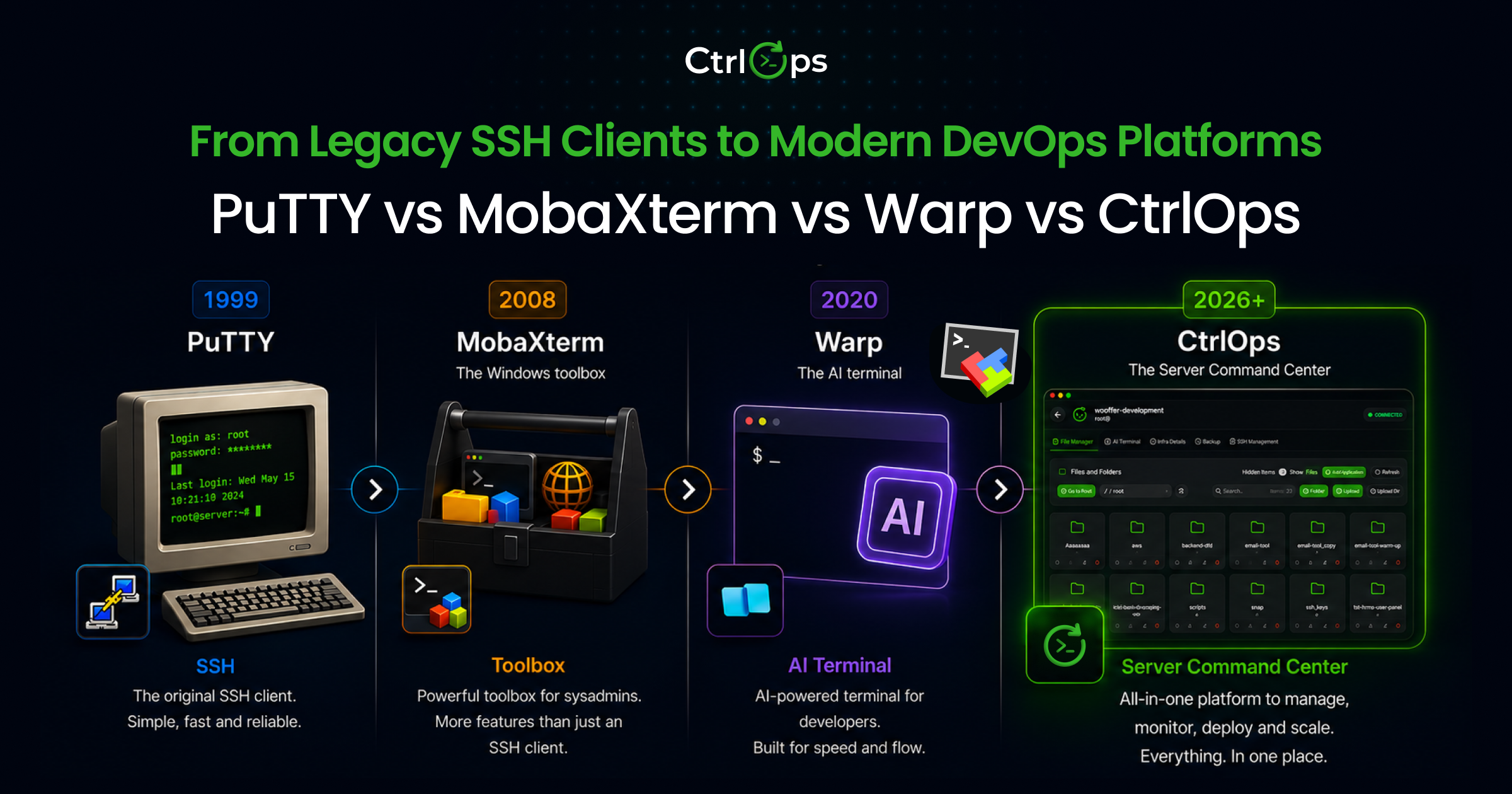
The three tools were never designed to be compared on the same axis. PuTTY is a 1999 SSH terminal. MobaXterm is a 2008 Windows toolbox. Warp is a 2020 local AI terminal. Asking which is "best" for server fleet management is like asking whether a hammer, a Swiss army knife, or a power drill is best for building a house. The answer is: none of them.
Why the Multi-Tool SSH Workflow Costs You Hours Every Week
The average developer managing 5+ remote servers uses 4 to 5 separate tools per session: a terminal, a file transfer client, a browser tab for AI help, a spreadsheet for server IPs, and a monitoring dashboard. This multi-tool workflow adds 15 to 30 minutes of context-switching overhead per deployment task.
Here is what most freelancers and startup teams actually run today:
- PuTTY or the native terminal for SSH
- WinSCP, FileZilla, or Cyberduck for file transfer
- A browser tab with ChatGPT for Linux commands they do not remember
- A Google Sheet with IPs, usernames, and key file paths
- A monitoring dashboard (or nothing at all)
Every server task bounces you between four or more tools. That friction is not just annoying; it's measurable.
Atlassian's State of Developer Experience 2025 report, based on a survey of 3,500 developers and managers across six countries, found that developers' top time-wasters are:
- Finding information (services, docs, APIs)
- Adapting to new technology
- Context switching between tools
This is not a tooling preference. It is a margin problem.
What a True PuTTY vs MobaXterm vs Warp Alternative Looks Like
A real alternative to all three tools needs to handle the entire server management workflow, not just the SSH connection. That means:
- A named server directory so there is no more IP spreadsheet
- A GUI file manager built into the same window with no second tool and no re-login
- An AI assistant that knows your actual server with no copy-pasting logs to ChatGPT
- A real-time infrastructure dashboard showing CPU, RAM, and disk at a glance
- One-click app deployment for Node.js, React, and Next.js without reading 7 tutorials
- Local-first credential storage where keys never sync to a cloud you do not control
- Cross-platform support on Mac, Windows, and Linux
This is the gap CtrlOps fills. It is not a faster terminal. It is a different category: a server management desktop app built for the developer who builds product but does not want to become an infrastructure specialist.
Prefer to watch before you read on? Here is a quick look at CtrlOps in action:
Use Case Decision Framework: Which Tool Fits Which Developer?
Use PuTTY for 1-2 servers that only need occasional SSH. Use MobaXterm for Windows-only sysadmins juggling SSH, RDP, and VNC. Use Warp for local AI-assisted coding with minimal remote server work. Use CtrlOps for managing 5 or more remote servers as a freelancer or small team at $7/month per user, with a 1 month free trial.
Most comparison articles list features and leave you to sort it out. Here is the cleaner framework, matched to who you actually are.
You Manage 1 to 2 Servers and Just Need SSH
Use PuTTY on Windows or the built-in Terminal on Mac and Linux. It is free, it works, and adding a paid tool for occasional SSH sessions is overengineering the problem.
You Are a Windows Sysadmin With Mixed Protocols
Use MobaXterm Professional. RDP, SSH, VNC, SFTP, and X11 in one app saves real time for Windows network administrators. The $69 per user one-time fee is fair for the scope. Just know it will never run on macOS.
You Code Locally and Want AI in Your Terminal
Use Warp. It is the best AI-native terminal available for local development. If your day is 90% writing code on your laptop and 10% occasional SSH, Warp plus your existing SSH tool is a clean stack. You will need to add a separate file manager for server file work.
You Manage 5 or More Remote Servers as a Freelancer or Small Team
Use CtrlOps. Named server cards, an approval-gated AI terminal, a GUI file manager, an infra dashboard, and one-click app deployment in one desktop app at $7 per month per user, free for the first month. No cloud sync of credentials. Mac, Windows, and Linux native.
You Are a Mac Developer Who Hit MobaXterm's Windows Wall
Use CtrlOps. MobaXterm has no Mac build. CtrlOps gives you the same "all in one app" experience built natively for Apple Silicon. Read our deeper guide on the best SSH client for Mac in 2026 for the full breakdown.
kubectl or Lens beside it. And if your day is pure local-terminal coding with no remote servers in sight, a local terminal like Warp will serve you better. Match the tool to the work, and CtrlOps earns its keep the moment remote server management is the job.Pricing Compared: What You Actually Pay in 2026
The free-tier limits are different enough across tools to matter. Here is what each one actually costs.
| Tool | Free tier | Paid plan | Annual cost |
|---|---|---|---|
| PuTTY | Fully free, all features | None | $0 |
| MobaXterm Home | 12 sessions, 2 tunnels | $69/user one-time | $69 per user |
| Warp Free | Terminal free, no bundled AI credits | $20/mo Build per user | $240/year per user |
| CtrlOps | 1 month free, no card | $7/mo per user, or $149 one-time for lifetime | $70/year per user |
Prices verified October 6, 2026 against the official MobaXterm download page, the Warp pricing page and the PuTTY site. Vendors change plans from time to time, so confirm the current price there before you buy.
CtrlOps is $7 per user per month, or $70 per year per user (saving 16.7%), after a 1 month free trial. The cost is per user with unlimited servers, so it stays predictable as your fleet grows. This pricing model was designed specifically for SMBs and freelancers who cannot justify expensive per-seat SaaS billing on top of their hosting costs.
AI Inside Your Terminal: Bolted On vs Built In
Warp added AI to a terminal. CtrlOps built a server management platform around AI. The difference shows in practice.
Warp's AI works on your local machine session. It is excellent for "give me the right find command" or "explain this bash error." What it cannot do is reach into your live production server and run diagnostics. You still need to SSH in, copy the logs, paste them into Warp, get a command back, and run it yourself.
CtrlOps AI Terminal lives inside the active SSH session to your server. Type "Why is my server slow?" in plain English. The AI generates top, free -m, df -h, and journalctl --since "1 hour ago" commands and shows them to you with a single Run button before executing anything. You approve. The commands run live. The output comes back as a plain-English summary. Every command is logged with status and execution time.
This is the approve-before-execute model at work:
- Type your question in plain English
- AI generates the shell commands
- You see the exact commands with a Run button
- You approve and the commands execute on your live SSH session
- AI summarizes the results in plain English
- Full history is logged with status and timestamp
The Auto-Run toggle exists for power users who want to skip the gate during long diagnostic sequences, but it is off by default. CtrlOps also supports BYOK - bring your own API key from OpenAI, Google Gemini, Anthropic Claude, or any OpenAI-compatible provider. Your key, your costs, your data. Keys are stored locally with AES-256 encryption and never sent to CtrlOps servers.
The AI Terminal also includes a Web Search toggle. When enabled, the AI searches the internet in real time before generating commands - so it reads the latest official documentation instead of using potentially outdated training data. Choose from Tavily (recommended), Brave, or DuckDuckGo (no API key needed).
rm -rf from an LLM is enough to end a client relationship. Auto-Run is an opt-in feature, not the default.File Management: The Tax Nobody Talks About
PuTTY has no file manager at all - you need WinSCP or FileZilla as a second tool. Warp has no GUI file browser either. MobaXterm includes a basic SFTP panel that auto-launches on SSH connection. CtrlOps opens a full GUI file browser as the default first tab on every server connection, with upload, download, rename, and delete built in. For a row-by-row look at where a transfer client stops, see CtrlOps vs WinSCP.
Every "best SSH client" article skips past file management. But at some point in every server workflow, you need to upload a config file, download a log, or edit an .env.
With PuTTY, that means opening WinSCP, re-entering credentials, and navigating the directory tree again. With Warp, it means typing an scp command and hoping the path is right. MobaXterm earns credit here - the SFTP panel launches automatically.
CtrlOps opens the file manager as the first visible tab when you connect to a server. The full server file system appears as a visual browser: folders, files, breadcrumb path, hidden file toggle, and search. Every item in the tree has download, upload, create folder, rename, delete, and deploy actions available.
What this directly replaces:
- WinSCP (Windows SFTP)
- FileZilla (cross-platform FTP)
- Cyberduck (Mac SFTP and S3)
- Transmit (Mac SFTP)
- The 90-second re-authentication cycle between terminal and file transfer
Need a quick chmod reference? Use the Chmod Calculator to convert between symbolic and numeric notation.
One-Click App Deployment: The Feature None of Them Have
PuTTY, MobaXterm, and Warp all stop at: "You are SSHed in, now type the commands yourself."
Deploying a Next.js app manually from scratch looks like this:
- SSH into the server (5 min including tool-switching)
- Install the correct Node.js version (5 min)
- Clone the GitHub repo (3 min)
- Set environment variables (5 min)
- Configure PM2 for process management (8 min)
- Configure Nginx as a reverse proxy (10 min)
- Set up SSL with Certbot (5 min)
- Debug why nothing is working (variable, often long)
Average: 30 to 45 minutes for an experienced developer. 3 to 4 hours for a developer doing it the first time.
CtrlOps Add Application turns this into a form. Paste your GitHub repo URL, select Next.js as the framework, paste your .env variables, add your domain, toggle on SSL, and click Create. The app is live with HTTPS in 5 to 8 minutes. PM2, Nginx, and Certbot are configured under the hood. No Nginx config blocks. No tutorial tabs open. You can see exactly how this works in the CtrlOps one-click deployment documentation.
This is the single feature that makes CtrlOps a different product category - not just a faster SSH client.
Server Security: Local-First vs Cloud-Synced Credentials
Warp and many cross-platform SSH clients offer cloud sync features. For solo developers that convenience is appealing. For freelancers under client NDAs or agency developers handling financial or healthcare data, syncing server credentials to a third-party cloud is a contract violation, not a convenience.
CtrlOps stores everything locally. No cloud dashboard holds your SSH keys. No third-party server ever sees your server IPs or credentials. The platform communicates directly over standard SSH - no agent installed on your server, no protocol changes, no vendor sitting in the middle.
"Been exploring [CtrlOps] recently, and it already includes an AI-assisted terminal with command approval, real-time server monitoring, SSH management, a remote file manager, backups and automation scripts, multi-server management, and one-click GitHub deployments. Everything works directly over SSH, and credentials stay local."
- Ajay Patel, developer and founder of ThemeSelection & ShadCN Studio
| Security factor | PuTTY | MobaXterm | Warp | CtrlOps |
|---|---|---|---|---|
| Credential storage | Local files | Local | Local + optional cloud | Local-only, AES-256 |
| Cloud account required | No | No | Yes | No |
| Agent installed on server | No | No | No | No |
| AI data leaves machine | N/A | N/A | Yes (cloud AI) | Only with BYOK if you choose |
| Compliance friendly | Variable | Yes (local) | SOC 2 compliant | Client-NDA friendly |
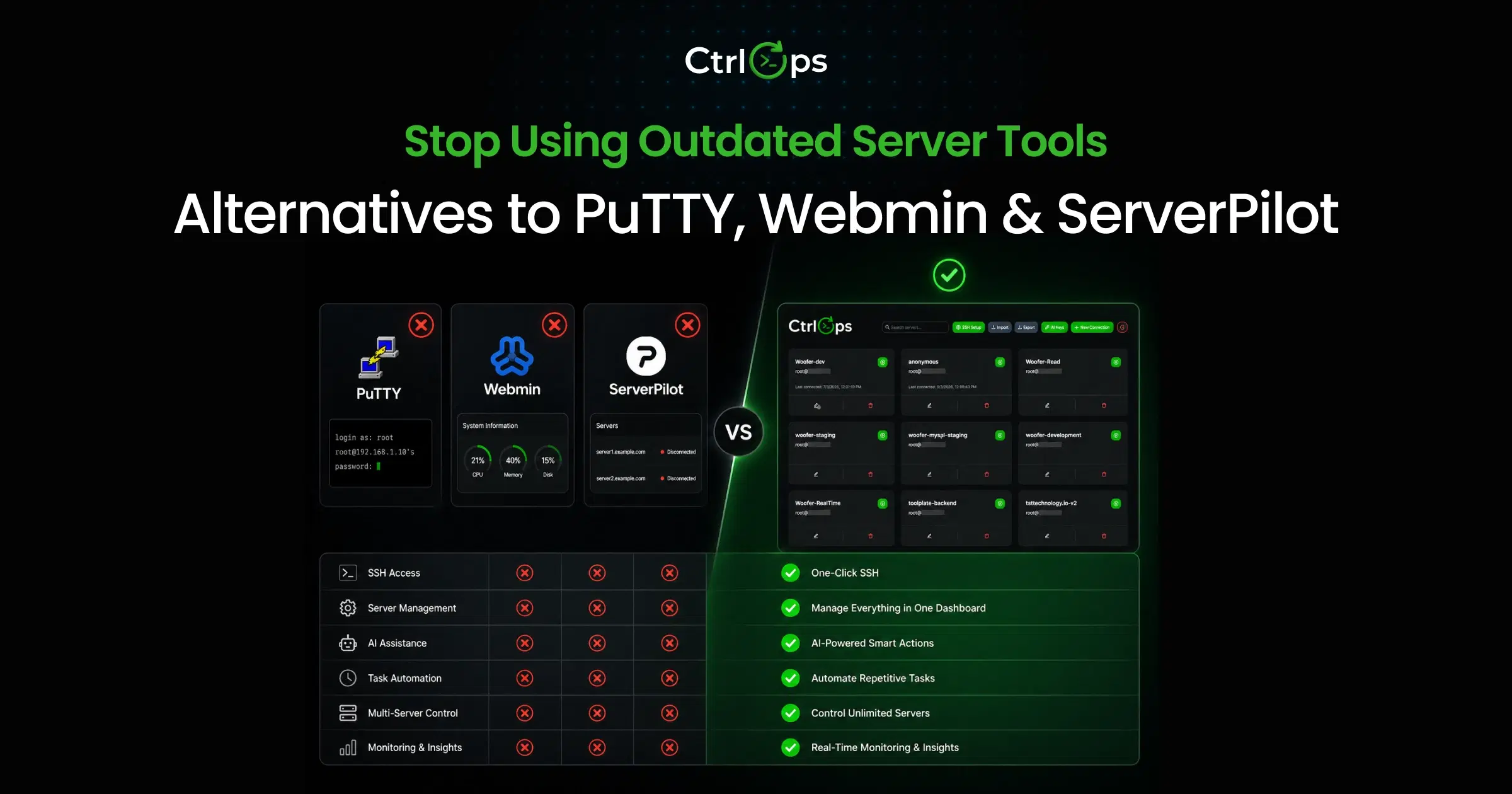
For freelancers and agencies whose clients have data residency requirements - financial services, healthcare, government work - local-first is not a preference. It is a contract clause. Read our comparison of PuTTY, Webmin, and ServerPilot alternatives for a longer security-focused breakdown.
You can also review CtrlOps' SSH security model documentation for the technical architecture details. For a deeper dive into SSH key hygiene - passphrases, per-machine keys, cloud-sync risks - see our guide on SSH key management best practices.
To check how hardened the servers themselves are, CtrlOps Security Audit runs 25 audits over SSH and gives each server a hardening score and a PDF report.
What Happens When These Tools Are Not Enough
There is a ceiling each of these tools hits, and no comparison article talks about it honestly.
PuTTY hits its ceiling the day you manage more than 3 servers. No tabs, no fleet view, no file transfer - you are building workarounds before you have started real work.
MobaXterm hits its ceiling the moment you switch to a Mac or a Linux workstation. There is no version for you. It also hits the ceiling when a client asks about their credential security and you have no answer about where the connection config lives.
Warp hits its ceiling when your work is more "managing remote infrastructure" than "writing local code." The AI does not have context about what is actually running on your production server unless you SSH in and paste the output back manually.
CtrlOps hits its ceiling at the enterprise edge - no mobile app yet for phone-based incident response and no native Kubernetes orchestration. For a solo freelancer or a 2 to 10 person engineering team managing VPS servers, none of those limits apply.
Choosing the right tool means matching it to the work you actually do, not the work you imagine doing. If you spend more time managing remote servers than writing local code, a terminal emulator is the wrong category of tool.
For teams already thinking beyond SSH clients and toward full DevOps automation, read our guide on DevOps automation tools and our piece on managing multiple servers without losing control.
How to Migrate From PuTTY or MobaXterm to CtrlOps in 10 Minutes
You have saved sessions in PuTTY or MobaXterm. Switching tools feels like a project. It is not. Here is the full migration in three steps - done in under 10 minutes. For the PuTTY-only angle, see CtrlOps vs PuTTY.
Step 1: Download and Activate CtrlOps (2 minutes)
Go to ctrlops.io, click Download, and choose your platform: Apple Silicon, Apple Intel, Windows, or Linux. Install the app and open it. On first launch it asks for a license key. Sign in with Google or email at ctrlops.io, copy your trial key from the dashboard, and paste it into the app. You are in.
Step 2: Add Your Servers (5 minutes)
Click New Connection. For each server you currently have saved in PuTTY or MobaXterm:
- Enter a readable name (for example, "Client-A-Prod" or "DB-Primary")
- Paste the IP address
- Enter your username
- Choose SSH key or
.pemfile authentication
CtrlOps uses your existing local SSH keys. Nothing changes on the server side. No agent to install. If you have 10 servers, adding all of them takes about 5 minutes. Once added, every server appears as a named card on your dashboard - no more raw IP lists.
Migrating from MobaXterm on Windows? Your saved sessions in MobaXterm use the same SSH keys you already have. Point CtrlOps at the same keys. Connection works identically, just with a modern UI. Your tunnels come across too: paste each ssh -L command into Port Forwarding to save it as a named forward, with no 2-tunnel cap.
Step 3: Connect and Verify (1 minute)
Click the play button on any server card. CtrlOps opens three tabs instantly: File Manager, Console, and Infra Details. Your SSH session is live. The file system is browsable. CPU, RAM, and disk are visible without typing a single command.
That is the full migration. Your old tool can stay installed as a backup. Most users stop opening it within a week.
Conclusion
PuTTY, MobaXterm, and Warp are each excellent at the specific problem they were designed for in their own era. PuTTY solved "I need SSH from Windows" in 1999. MobaXterm solved "I need every Windows network tool in one place" in 2008. Warp solved "I want AI in my local terminal" in 2020.
The 2026 problem is different. A freelance developer manages 8 client servers. A startup CTO keeps a 12-server fleet alive with no dedicated DevOps hire. An agency developer deploys to 6 staging environments per week. None of PuTTY, MobaXterm, or Warp - alone or stacked together - handles that workflow end-to-end. You still end up with PuTTY plus WinSCP plus ChatGPT plus a Google Sheet.
CtrlOps was built for the 2026 version of this problem. Named server cards instead of spreadsheets. A GUI file manager in the same window as your SSH terminal. An AI that knows your actual server and asks before running anything. A real-time infra dashboard. One-click app deployment. All at $7 per month per user on Mac, Windows, and Linux, with a 1 month free trial, and credentials that never leave your machine.
If you have been searching for a real PuTTY vs MobaXterm vs Warp alternative, stop looking for a better terminal. Look for a different category. Then test it on the same six tasks in this article. The contrast does the work. And if Termius was on your shortlist too, see how it compares against the best Termius alternatives in 2026.
FAQs
For Windows-only sysadmins, yes - MobaXterm bundles SSH, RDP, VNC, SFTP, and X11 into one app while PuTTY is SSH-only with no tabs or file transfer. The MobaXterm Home edition is free but capped at 12 sessions and 2 SSH tunnels. The Professional edition costs $69 per user as a one-time fee. PuTTY remains completely free with no session limits, just fewer features. The trade-off is feature depth against simplicity and cost.
PuTTY does run on macOS but feels dated. Most Mac developers use the built-in Terminal or iTerm2 for SSH sessions. For a unified server management experience on Mac that includes a file manager, AI terminal, and infrastructure dashboard, CtrlOps is built natively for Apple Silicon and Intel Macs. It offers 1 month free with no credit card needed. Read the full comparison at our best SSH client for Mac guide.
Warp can connect via SSH like any terminal but was not designed as a fleet manager. There is no named-server directory, no GUI file browser, and no live infrastructure monitoring dashboard. Warp excels for local development with AI assistance. If you manage 5 or more remote servers regularly, you will need to layer a dedicated server manager on top of Warp, or replace both with CtrlOps directly.
CtrlOps is a local-first desktop application for macOS, Windows, and Linux that combines a named server directory, a GUI file manager, an approval-gated AI terminal with BYOK support, real-time infrastructure monitoring, automated backups, a script directory, and one-click app deployment for Node.js, React, and Next.js. PuTTY is a 1999 SSH terminal. MobaXterm is a Windows-only network toolbox. Warp is a local AI coding terminal. CtrlOps is a server fleet management platform built for SMB developers.
CtrlOps is $7 per month per user for unlimited servers, $70 per year per user, or $149 per user one-time for lifetime access. Warp's Build plan is $20 per user per month and the Business plan is $50 per user per month. MobaXterm Professional is $69 per user as a one-time purchase. CtrlOps offers a 1-month free trial with no credit card required, the longest trial period of any tool in this comparison.
No. MobaXterm is Windows-only. There is no native macOS or Linux build and Mobatek has not announced cross-platform support. Mac developers searching for a MobaXterm equivalent typically end up with iTerm2 plus FileZilla, or CtrlOps for a unified server management experience on Apple Silicon or Intel Macs.
Yes. PuTTY is actively maintained and patched. The current release supports modern SSH ciphers, Ed25519 keys, and the SSH-2 protocol. The security risk is not the tool itself - it is in how users store key files, manage saved sessions, and avoid logging sensitive credentials. For higher-security workflows, tools with local-only credential storage and no cloud sync, such as CtrlOps, offer a stronger security posture.
Three clear cases. First, if you need a mobile SSH client to manage servers from your phone - CtrlOps is desktop-only, so a dedicated mobile SSH app is a better fit. Second, if your infrastructure is primarily serverless (AWS Lambda, Cloud Functions) - CtrlOps is designed for VPS and bare-metal servers. Third, if you manage large Kubernetes clusters at enterprise scale - pair CtrlOps with kubectl or Lens, or use a dedicated k8s orchestration tool.
Warp uses a cloud account for sync features, and advanced agentic capabilities rely on Warp's cloud platform infrastructure. Warp states it is SOC 2 compliant with zero data retention on contracted LLM providers. If you enable sync, settings flow through their platform. For client work under NDAs or compliance requirements where credentials must never leave your machine, a local-first tool like CtrlOps is the appropriate choice.
Neither PuTTY nor MobaXterm has built-in AI features as of 2026. Both products focus on protocol support and stability rather than AI integration. Getting AI help while using either tool requires switching to ChatGPT or another AI tool in a separate browser window, pasting in your logs, copying commands back, and then running them. CtrlOps and Warp both integrate AI directly into the terminal workflow, with the key difference being that CtrlOps AI operates in context of your actual remote server session.
Manually, a first-time Next.js deployment to a VPS takes 30 to 45 minutes and involves Node.js setup, PM2, Nginx reverse proxy configuration, environment variable management, and SSL via Certbot. CtrlOps reduces this to a guided form - paste your GitHub repo, select Next.js, add your .env, set your domain, toggle SSL, and click Create. The full stack is deployed in 5 to 8 minutes with no Nginx knowledge required.
Yes - that is the stated design goal. The GUI handles the most common server tasks without typing any commands. The AI terminal lets you describe what you need in plain English. Every AI-generated command is shown with an approval gate before execution, so you see exactly what will run and learn what each command does in the process. The primary audience CtrlOps targets is the freelance developer or technical founder who builds software but does not want to become a Linux or DevOps specialist just to manage deployments.
MobaXterm has a free Home Edition that is fully usable for personal use. The free version is limited to 12 simultaneous SSH sessions and 2 SSH tunnels. For commercial use or teams needing more sessions, the Professional Edition costs $69 per user as a one-time purchase with no annual subscription. There is no time limit on the free tier - the restriction is session count, not duration.
Yes. PuTTY runs without issues on Windows 11. The current release is 0.85, released on August 16, 2026. It works on Windows 7 through Windows 11 in both 32-bit and 64-bit versions, and the portable build runs with no installation required. Version 0.81 previously addressed a critical vulnerability (CVE-2024-31497) affecting 521-bit ECDSA keys - if you used that key type with any version before 0.81, treat the private key as compromised and generate a new pair. Always download PuTTY from the official source at chiark.greenend.org.uk to avoid malware-laced fake downloads.
PuTTY has not been "replaced" because it still works for its original purpose: a raw SSH session on Windows. What has changed is the category of problem developers face. Modern freelancers and small teams managing multiple servers now use tools like CtrlOps (server fleet management with AI and file manager) or Warp (AI-native local terminal). Each serves a different use case rather than replacing PuTTY directly.
They are built for different jobs. MobaXterm is a Windows-only network toolbox - SSH, RDP, VNC, X11, Serial, and an SFTP browser in one app - ideal for Windows sysadmins who juggle multiple protocols and never touch a Mac. Warp is a cross-platform, AI-native terminal built for local development, with natural-language command generation and a block-based UI. Choose MobaXterm for multi-protocol remote administration on Windows; choose Warp for local coding with AI help. If your real job is managing a fleet of remote servers - connecting, deploying, transferring files, and monitoring health - neither is built for that, and CtrlOps covers the full workflow on Mac, Windows, and Linux.
SuperPuTTY is a free, open-source tabbed wrapper for PuTTY on Windows. It adds tabs, session management, and an SFTP browser on top of PuTTY's raw SSH. MobaXterm goes further with built-in X11, RDP, VNC, macros, and a Cygwin shell. SuperPuTTY is the right choice if you want tabbed PuTTY with no new learning curve. MobaXterm is the right choice if you need multi-protocol support beyond SSH. Neither includes AI features or cross-platform support.
No. MobaXterm is Windows-only. Mobatek has not released a Linux build or announced plans for one. Linux developers looking for a similar all-in-one experience can use CtrlOps, which runs natively on Linux (Debian/Ubuntu .deb package) and includes a GUI file manager, AI terminal, and server dashboard. For a free terminal-only option on Linux, Terminator or tmux provide tabbed and split-pane SSH sessions.
Warp is a local AI-native terminal focused on coding workflows with block-based editing and natural-language command generation. Termius is a cross-platform SSH client with cloud sync, team sharing, and SFTP. Warp excels for developers who write code locally. Termius excels for teams that share SSH credentials across members. Neither provides one-click deployment, a live infrastructure dashboard, or approval-gated AI execution on remote servers.
MobaXterm includes a built-in SFTP browser that opens alongside SSH sessions - the closest to PuTTY with file management added. For a full GUI file manager with drag-and-drop, upload, download, rename, and search, CtrlOps opens a visual file browser as the default view on every server connection. Both options eliminate the need for WinSCP or FileZilla as separate tools.
MobaXterm has no macOS build. The closest equivalent on Mac is CtrlOps, which provides tabbed SSH sessions, a built-in file manager, multi-server management, and an AI terminal - all natively on Apple Silicon and Intel Macs. For a free Mac-native terminal, iTerm2 covers SSH with split panes and tmux integration but lacks file management and server monitoring. See our full MobaXterm alternatives for Mac guide.