Visual File Manager for Linux Servers
Your server's filesystem as folders you click - upload, download, edit, and unzip over the SSH connection you already have. No scp flags, no separate SFTP client.
How the File Manager Works
Step 01 - File Manager
Browse.
Connect and you're already here - it's the default tab. Your server's filesystem as folders you click, not paths you type.
Step 02 - Transfer Engine
Drop.
Drag files in, pull files out, unzip archives where they sit. Progress tracked per file - cancel any time.
Step 03 - Built-in Editor
Edit.
Open nginx.conf or .env right on the server, change the line, hit Save. The download-edit-reupload loop is gone.
Retire the scp ritual.
Both sides put release.zip live in /var/www/html on the same server. One does it with flags, key hunts, and a second window. The other is the CtrlOps File Manager. Watch which one is still typing.
The old way - terminal + scp
5 commands · 1 permission error · 2 windowsCtrlOps File Manager
1 drag · 1 click · 0 commandsGo on, click around.
A working replica of the File Manager, preloaded with a Linux filesystem. Reveal the hidden .env, unzip release.zip, edit nginx.conf - or drop in a file of your own. Nothing leaves your browser.
The moments this actually saves you.
Not a feature list. The situations where the file you need is on the server and getting to it is the whole job, and what changes in each one.
You download the config, edit it locally, upload it back, and hope.
Open nginx.conf on the server, change the line, hit Save
Flip Hidden Items on and dotfiles like .env are there too. Open any text file in the built-in editor, make the change, save it straight back. The download-edit-reupload loop stops existing.
- Edit in place over SSH
- Dotfiles one toggle away
- Saves straight back to the server
scp, wrong flag, Permission denied, scp again, then ssh in to unzip it.
Drag the release in and expand it where it lands
Drop the archive into the folder you want it in and watch the progress per file. Every zip carries an Expand action, so it unpacks in place without a second window or a single command.
- Drag both directions
- Unzip on the server
- Per-file progress, cancel any time
A separate login, a separate window, a separate headache, per client.
The terminal and the files, on the same box, in the same window
The File Manager is the default tab on every connection you open, over the SSH session already in front of you. No second app to configure, no host list to keep in step with the one you already have.
- No separate SFTP client
- Same session as your terminal
- Nothing installed on the server
The disk is filling up and du -sh is your only way to ask what.
Ask a folder how big it is, without composing a pipeline
Folder sizes compute on demand - a spinner while it counts, then the real number. Sort the answer, find the log directory or the backup nobody cleaned up, and deal with it from the same screen.
- Sizes on demand
- Five ways to view a folder
- Download several files as one zip
Way more than drag and drop.
Bulk zip downloads, five layouts, folder sizes on demand, git along the bottom - and a straight line into the AI Terminal and one-click deploys.
Move many, not one
Select a handful of files and CtrlOps compresses them into a single zip before downloading. One archive, one save dialog.
A straight line to the AI Terminal
Hit Terminal in the toolbar and a shell opens right in the folder you are browsing. Copy Path on any file to paste it straight into the AI Terminal, or right-click and Open in Terminal. The file manager and the AI work the same box.
Five ways to see a folder
Grid, list, compact, columns, gallery. Color-coded file cards in every one of them.
Sizes when you ask
Folder sizes compute on demand - a live spinner while it counts, the real number when it's done.
From folder to live app
The Add Application button opens the deploy form right from the toolbar - point it at a repo and this folder becomes a running app.
Git along the bottom
The status bar knows when the folder you are in is a repository. Branch, ahead and behind, fetch, pull, push, commit, switch branch, all without a shell. Point it at a folder that is not one yet and it offers to initialize or clone. Git runs on the server as your SSH user, on the credentials already there.
The boring feature everyone uses most.
What people managing real client servers say once they stop juggling a separate SFTP client.

ok so the file manager sounds boring, I know. But I was doing everything through a separate SFTP client before this. separate login, separate window, separate headache every time. now i just open it inside CtrlOps and edit configs directly. for someone managing multiple client servers, this is honestly the feature i use the most. more than the AI stuff even.
the file manager feature is the one nobody talks about but everyone needs. separate SFTP client is such a pain when you just want to edit one config file.
This gonna be the best experience for someone like me who don't like tinkering around CLIs 🫠

Been exploring the product recently, and it already includes: • AI-assisted terminal with command approval • Real-time server monitoring • SSH management • Remote file manager • Backups & automation scripts • Multi-server management • One-click GitHub deployments Everything works directly over SSH, and credentials stay local 🔐
as a solo founder wearing the devops hat, this fills a gap i didnt know i needed filled. one dashboard to rule them all.

Honestly didn't expect much. But my DevOps workflow has genuinely shifted... I'm doing in 10 minutes what used to take an hour. If you manage servers, just try it.

I use CtrlOps to manage multiple servers with ease. Its GUI-based file manager saves me a lot of time, and the AI terminal helps me troubleshoot server issues quickly.
Your files move point to point.
One SSH connection from your machine to your server. No relay, no staging bucket, no CtrlOps cloud in the path - and your credentials stay encrypted on your device.
One hop, no relay
Files move over your SSH connection, machine to server. They are never staged on a CtrlOps server - there is nothing in the middle to breach.
Credentials stay home
SSH keys and passwords live on your device, AES-256 encrypted in the OS keychain. Nothing syncs, nothing uploads.
Root when you need it
The file manager sees exactly what your SSH user sees. Connect as root and system files like nginx.conf are one click away.
More you can do with CtrlOps.
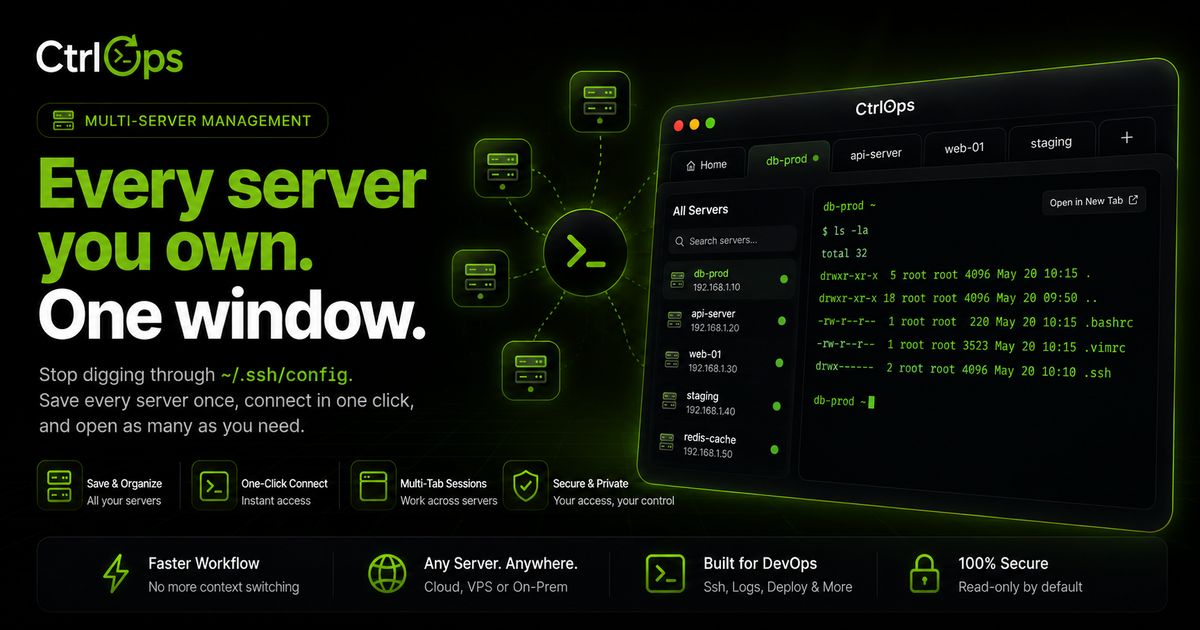
Multi-Server Management
Your whole fleet in one app. Switch servers by alias, forget IPs, and never lose your place.
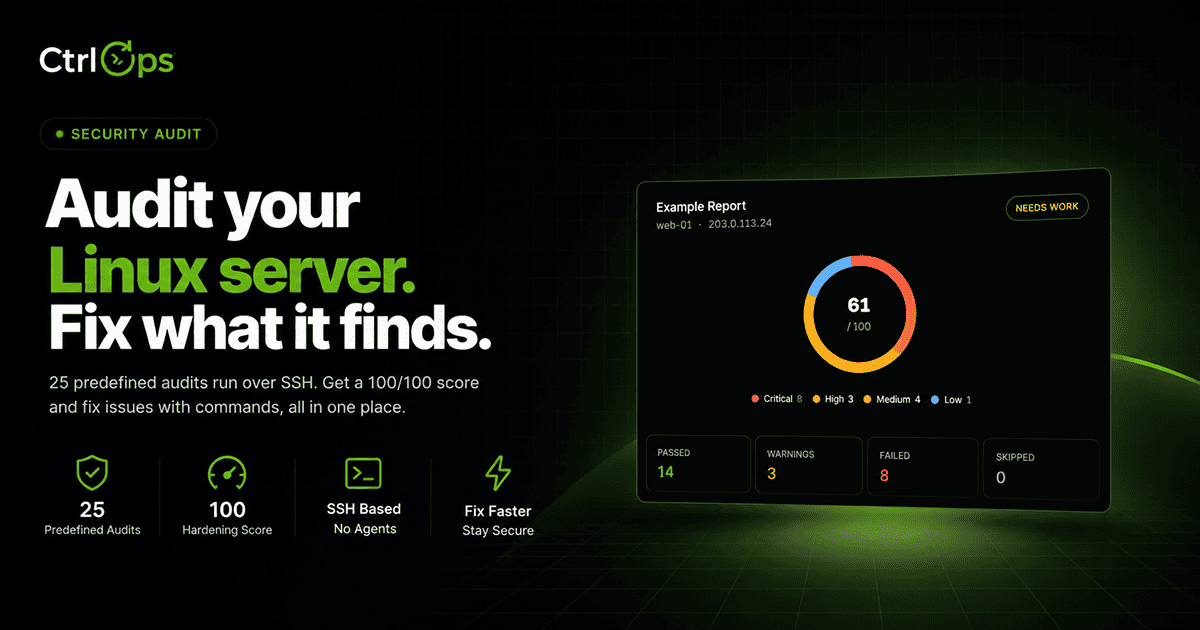
Security Audit
Run 25 security audits over SSH for a hardening score and a PDF report, then fix findings with approval-gated AI.
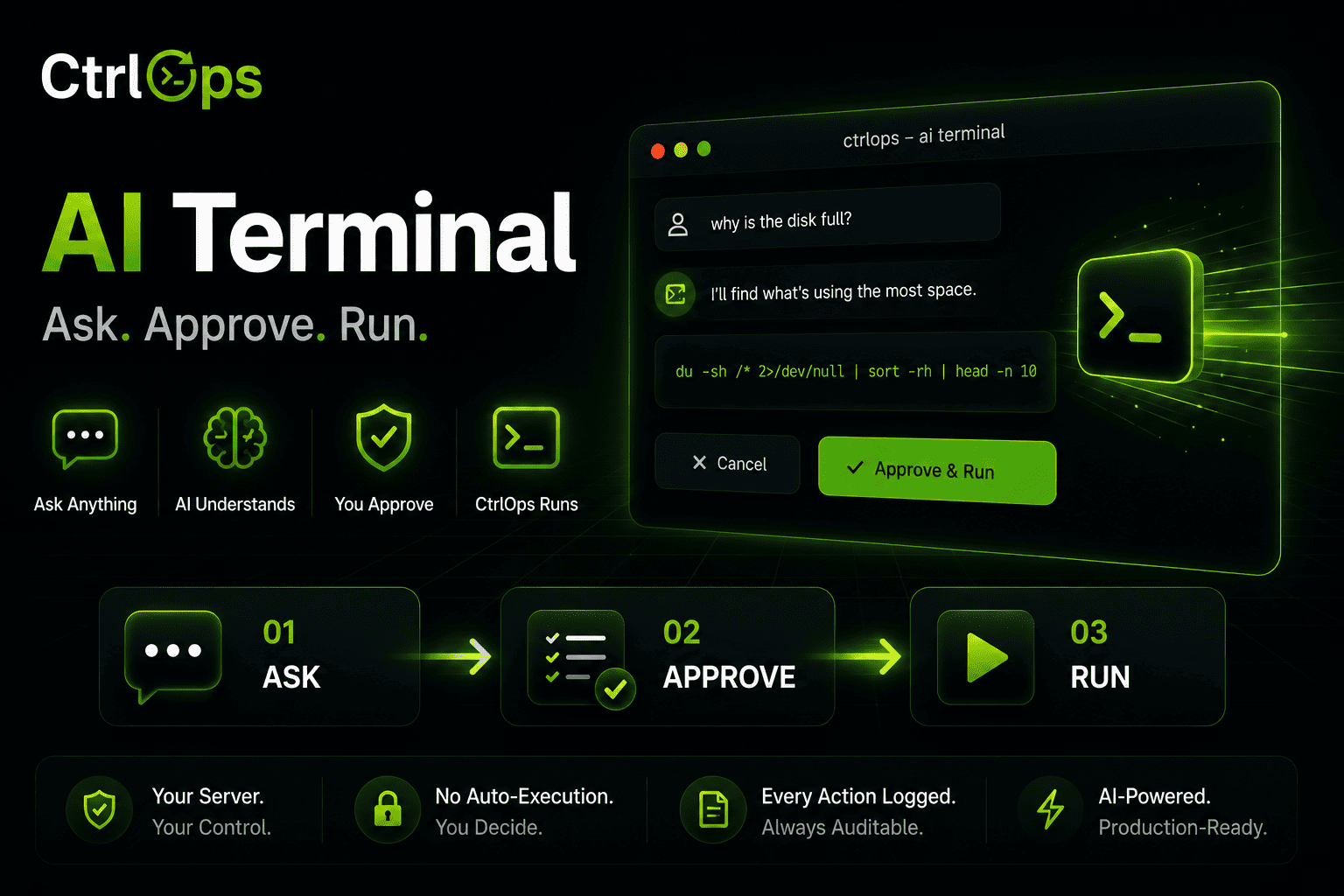
AI Terminal
Describe what you need in plain English. Review and approve every command before it runs.
Questions developers ask first.
Stop typing paths. Start clicking.
Browse, upload, edit, and unzip on any Linux server you can SSH into - no agent, no separate SFTP client. 1-month free trial, no credit card.
✓ Start instantly·✓ No credit card·✓ No sneaky autorenewals