Your commands, saved once. One click on every server.
You already know the command. You have typed it forty times. Save it once with a {{variable}} where the bit that changes goes, and it follows you to every connection you open.
How it works
Step 01 - You
Save.
Paste the command you keep retyping. Name it, tag it, and mark the bits that change.
Step 02 - CtrlOps
Fills.
Every {{variable}} you wrote becomes a prompt at run time. One script covers every service.
Step 03 - It
Runs.
One click on whichever server you have open. Output lands live in the terminal.
Typing it once is fine. It is the third time that stings.
Both sides are tailing the nginx error log on three different boxes. Left: remember the path, get it slightly wrong, search your shell history, then do the whole thing again on the next server, and again on the one after that. Right: one saved script, three clicks. Watch how much of the left lane is work you have already done.
This one is real. Go on, drive it.
A working copy of the Scripts panel, running in your browser. It starts empty, exactly like a fresh install. Create a script, watch it find your variables as you type, then run it - and try to break it, because it will fail for real.
No scripts yet
Output appears here when you run a script.
There is no Schedule button in here because there is not one in the app either. Scripts run when you click Run, on the one server you have open - and the library itself lives on your machine, not on any of them.
The library is on your machine. That is the whole trick.
Scripts are not installed on a server, so they are not stuck on one. They sit in the app's data folder on your computer, which means every connection you open already has them - the box you set up this morning included.
App data folder
root@203.0.113.17
root@198.51.100.23
root@192.0.2.44
Nothing was copied to any of them.
What that gets you
- A new server is useful the moment you connect to it - the library is already there.
- Nothing is installed on the server, so there is nothing to clean up when you stop using it.
- Your commands are not sitting in someone else’s database.
What it costs you
- A teammate does not get your library. There is no sharing today.
- A fresh install starts empty - the app data folder is worth backing up.
The same local-first stance runs through the rest of the app - see how the AI Terminal handles your server data.
The moments this actually saves you.
Not a feature list. The situations where you already know the command and typing it again is the entire cost, and what changes in each one.
Third box, same command, and there is a fourth.
Save it once, then it is a click on whichever server you have open
Typing it the first time is fine. It is the third time, with a typo in the middle of a path you half remember, that stings. Save it once and running it on the next server is switching connection and clicking Run.
- Saved once, kept forever
- One click per server
- No shell history to search
One script per service, so four services means four scripts.
Wrap the bit that changes in braces and one script covers them all
Write {{service}} where the variable goes and CtrlOps spots it as you type. When you hit Run it asks for the value, substitutes it, and executes. One tail-log script then covers nginx, php-fpm, mysql and the rest.
- Variables detected as you type
- Prompted at run time
- One script per job, not per service
New server, and none of your shortcuts are on it.
A box you connected to five minutes ago already has your whole library
Scripts live in the app data folder on your machine, not on any server, so nothing had to be installed for a new connection to have them. The trade is honest: a teammate does not get your library, and a fresh install starts empty.
- Stored on your machine
- Every connection already has them
- Nothing to clean up on the server
Small things that add up when you have forty of them.
A library of five scripts needs nothing. A library of forty needs tags, a search box, and some way of telling which one you actually ran last week.
One script per job, not per server
Wrap the bit that changes in {{ }} and CtrlOps asks for it when you hit Run. The rest of the command never changes.
tail -f /var/log/{{service}}/error.log
Covers
Findable at forty scripts
The box searches name, description and tag at once. Group by domain - nginx, db, monitoring - and filter to it.
Colour-coded cards
Pick a colour per script so the destructive ones do not look like the harmless ones at a glance.
Knows when it last ran
Each card carries its own run count, so the one you have never used is obvious - and so is the one you lean on daily.
For the commands you do not know
Scripts are for what you already know by heart. When you do not, the AI Terminal writes the command, shows it to you, and waits for approval - and that is usually where the next script comes from.
Set it up once, then it is one click.
Nobody was asked about saved commands. It is just what people mention once they have stopped retyping the same thing on every box.

CtrlOps Scripts feature is a huge DevOps productivity boost. Save, reuse & run scripts directly from the panel. 🚀

finally something that replaces my mess of ssh tabs and random bash scripts. the playbook feature is underrated, set up my common fixes once and now its just one click. great launch guys..
Your commands stay yours. And nothing fires on its own.
A saved-command library is a fair picture of how you run your infrastructure. It sits on your machine, it moves over your own SSH connection, and it does precisely nothing until you click Run.
Where do the scripts live?
In the app’s data folder on your computer. They are not uploaded anywhere, and they are not written to your servers - which is exactly why they are available on all of them.
What runs on its own?
Nothing. A script executes when you click Run, on the one connection you have open, and the output goes to the terminal in front of you. There is no daemon and no agent installed on the server.
What can CtrlOps see?
The connection is a plain SSH session from your machine to your server. Your commands and their output do not route through a CtrlOps server on the way.
More you can do with CtrlOps.
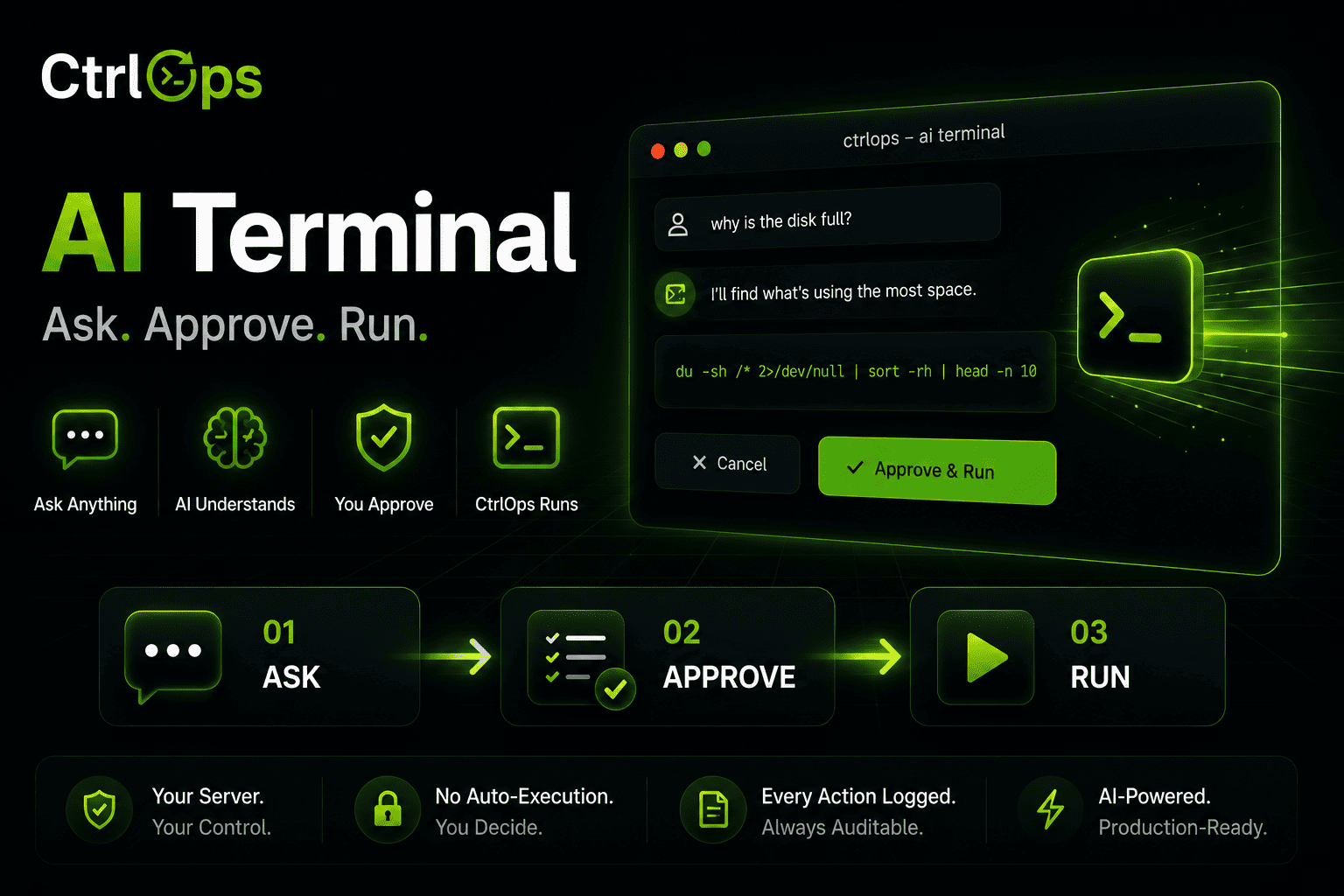
AI Terminal
Describe what you need in plain English. Review and approve every command before it runs.
 Soon
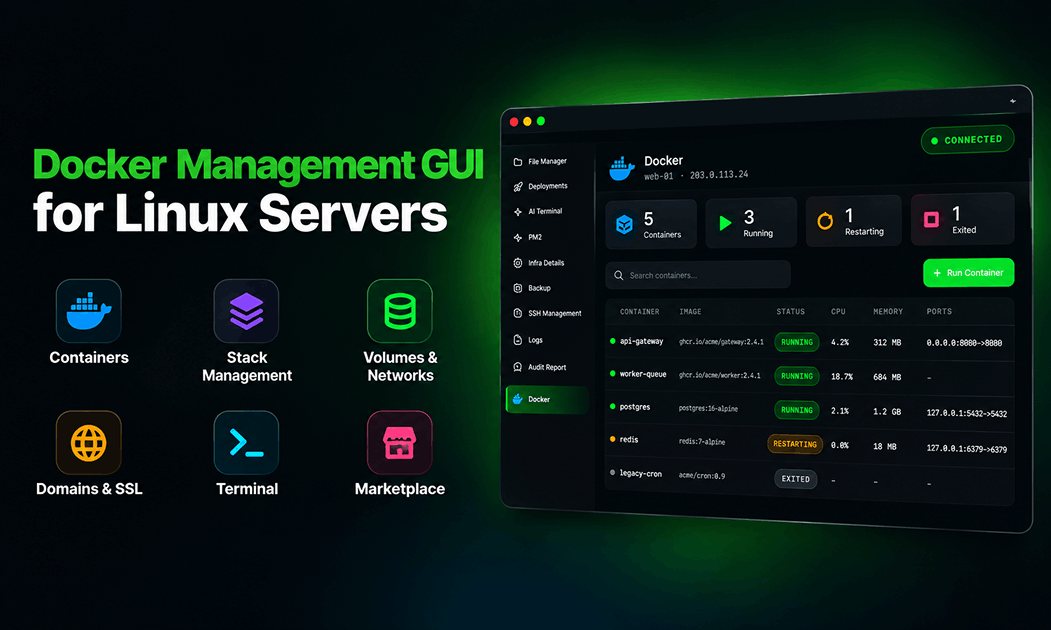
SoonDocker Manager
Every container on every server in one list, with nothing installed on the host. Logs, shells, and Compose stacks included.
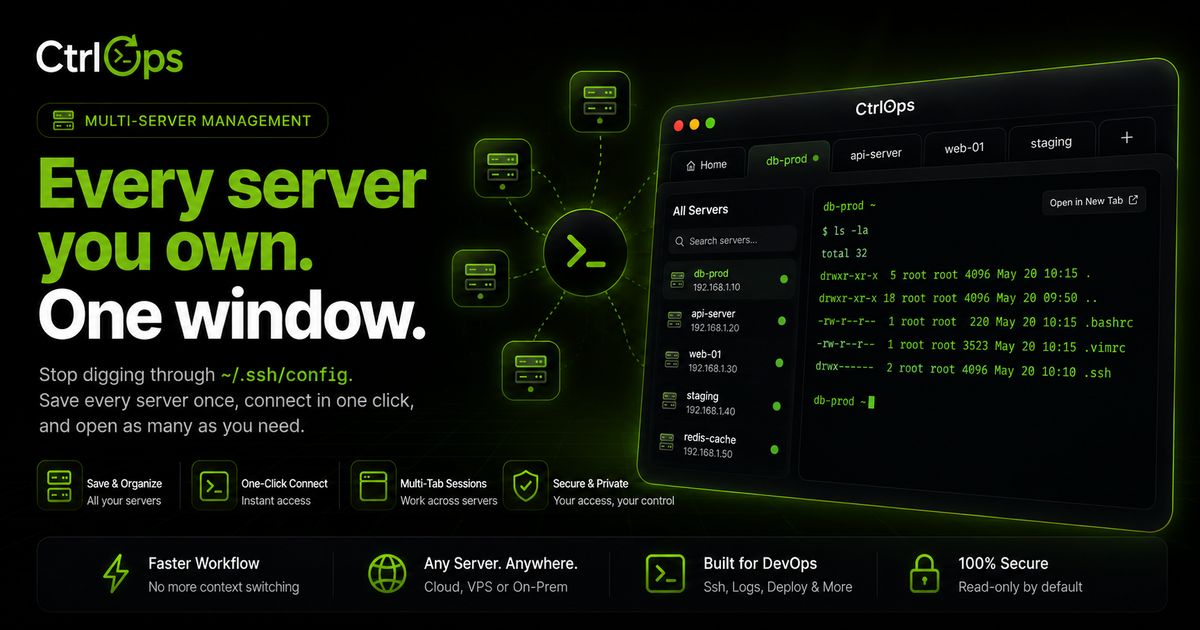
Multi-Server Management
Your whole fleet in one app. Switch servers by alias, forget IPs, and never lose your place.
Questions worth asking before you save one.
Stop retyping it. Save it once.
Take the three commands you type most this week and turn them into one-click scripts that work on every server. 1-month free trial, no credit card.
✓ Start instantly·✓ No credit card·✓ No sneaky autorenewals