Every person. Every server. One screen.
Scan your whole fleet and see exactly who can log in where, and who has sudo. Then offboard someone from all of it - in one confirmed action.
How Access Management Works in CtrlOps
Step 01 - CtrlOps
Scan.
Point it at the servers you already have saved. CtrlOps reads the authorized users on each one and builds the map. It is read-only: nothing on your servers changes until you say so.
Step 02 - You
See.
Every person who can reach your fleet, in one list. How many servers each of them can log in to, how many give them sudo, and the exact login they land on.
Step 03 - You
Offboard.
Someone leaves? Open them, click Remove from all servers, type their name to confirm. Their key is gone from every box at once. You never open a single server by hand.
Fifteen SSH sessions - and one you'll forget.
Someone leaves. Now you open every server, read authorized_keys, find their line, delete it, and move on to the next one. Fifteen times, from memory, with no list to check yourself against.
Miss a single server and that person still has a way in.
Go on, scan the fleet.
This is the real Access screen running on demo data. Scan it, open somebody up, take one server off them, onboard a new hire to five boxes at once, and offboard the contractor who never gave his laptop back.
One server, or all of them.
CtrlOps manages SSH access at two altitudes, and they do different jobs. Use them together.
One server
SSH Management
The key registry on a single box. Every authorized key, the roles you create, and one-click revoke - all scoped to the server you are looking at.
- Every key in that server’s authorized_keys
- Create read-only and read/write roles
- Revoke one key on one server
Whole fleet
Access
The people map across every server you have. Who can reach what, who has sudo, and one confirmed action to take someone off all of it.
- Every person, every server, one screen
- Onboard to many servers at once, role per server
- Offboard from all servers in one action
One more bit of vocabulary: access grants count key-to-server pairs, not people. One person on five servers is five grants - which is exactly why offboarding by hand goes wrong.
The moments this actually saves you.
Not a feature list. The situations where "who can reach what?" stops being a question anyone can answer from memory, and what changes in each one.
Fifteen SSH sessions, from memory, and one you will forget.
Take someone off every server in one confirmed action
Open the person, click Remove from all servers, and type their name to confirm. Their key goes from every box at once. New logins stop immediately, though a session already open runs until it ends - so re-scan afterwards and confirm nothing is left.
- Every server at once
- Type-to-confirm before it fires
- Re-scan to prove it took
A new dev's first day is spent waiting for access to ten boxes.
Onboard one person to ten servers, with a different role on each
Paste their public key once, tick the servers they need, and set the role per server. Root on the box they own, read-only on the one they are only meant to look at. One action writes the key everywhere you picked.
- One key, many servers
- A different role per server
- Read-only without touching visudo
A client asks who can reach production, and you start opening servers.
Answer it with an export instead of an afternoon
Export a snapshot of every person, every server, and whether the grant carries sudo. It lands on your own disk rather than in somebody else's cloud, and it is the answer to the questionnaire you have been putting off.
- Every person, every grant
- Sudo shown per server
- Written to your disk, never uploaded
A key leaked, so somebody loses access while you sort it out.
Rotate one person everywhere without taking their access away
Replace a key across every server that person can reach. The old one stops working everywhere at once, the new one is already in place, and their day carries on while it happens.
- Old key dead everywhere
- No downtime for the person
- One action, every server
Everything else the map gives you.
An audit you can hand to a client, a key you can rotate without taking anyone's access away, and a scan that tells you what it could not read.
When someone asks who can reach prod
Export a snapshot of every person, every server, and whether the grant carries sudo. It is the answer to the security questionnaire you have been dreading, in one click.
A key leaked. Nobody has to lose access.
Rotate a person's key across every server they can reach. The old key stops working everywhere at once; their access, and their day, carry on.
A snapshot, and we say so
Access is not watching your servers around the clock. If someone edits a key directly on a box, re-scan and the map catches up.
It admits what it missed
A server it could not reach is flagged, never quietly counted as clean. A false all-clear is worse than no answer.
Zoom into one box
One-off key work, custom roles and the full registry for a single server still live in the SSH Management tab.
Offboarding, in two minutes.
What changes when who-can-reach-what stops being a question only one person on the team can answer.

HR person commenting on a server tool, I know. But whenever someone leaves the team, we need their server access gone immediately. Before this it was a whole back and forth with tech. Now I check SSH management myself and flag it in 2 minutes. Offboarding got so much easier, honestly.
100% local and credentials never leave your machine positioning is doing a lot of trust work here and it's the right call.

The AI Terminal with an Approval Gate: being able to ask for a fix in plain English is great, but the fact that it shows you the command and asks for approval before running it on live infrastructure is a massive safety net.

SSH into 10 servers, debug a crash, and deploy a fix - all without leaving one app? CtrlOps is a local-first desktop DevOps tool that translates plain English into bash, manages fleets, and keeps your credentials 100% on-device.
the fact that i dont need to install any agent on my servers sold me immediately. got it running on our staging env and already caught 2 issues before they became outages. will be moving prod over soon
Your org chart of who can reach prod.
That is what an access map really is - and it is the last thing you should be uploading to somebody else's cloud. CtrlOps builds it on your machine and leaves it there.
The map is built on your machine
CtrlOps reads each server over your own SSH connection and assembles the picture locally. The list of who can reach production is never sent to CtrlOps or any third party - there is no copy of it anywhere to breach.
Scanning changes nothing
A scan is read-only. It looks at authorized_keys and puts the answer on screen. Not one key is added, moved or revoked until you click something and confirm it.
What it is not
It is a snapshot, not surveillance - re-scan after anyone edits a key directly on a box. Revoking blocks new logins, but a session already open stays open until it ends. Unreachable servers are flagged, not guessed at. Windows servers are not supported.
More you can do with CtrlOps.
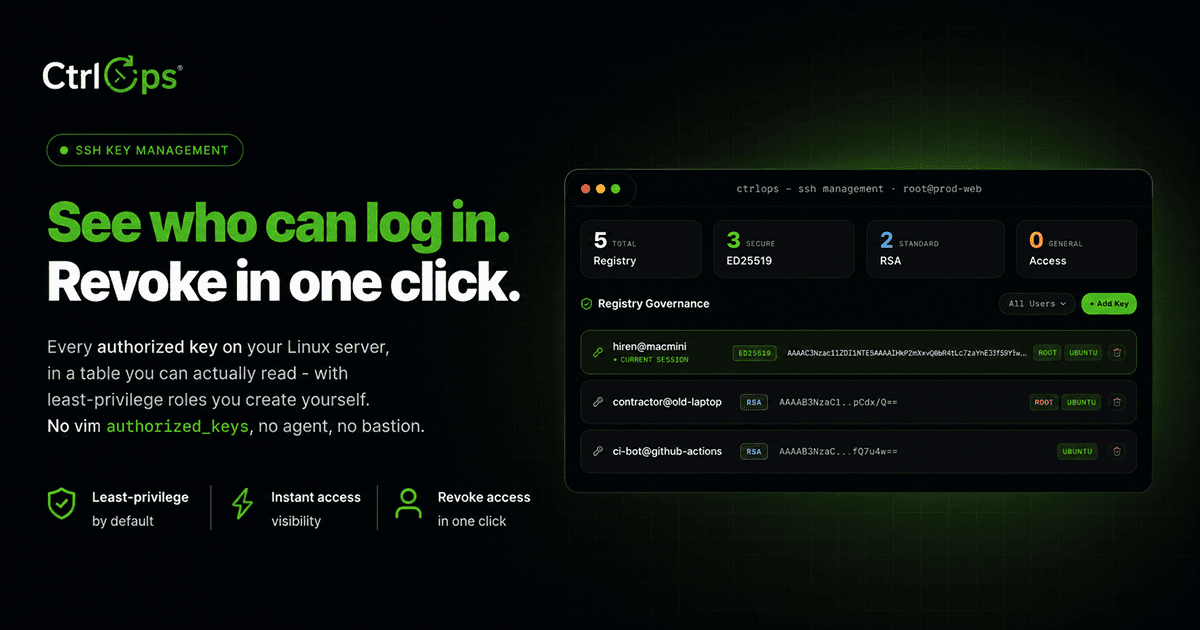
SSH Management
Manage SSH keys, configs, and connections per server, all from one place - no ~/.ssh/config editing.
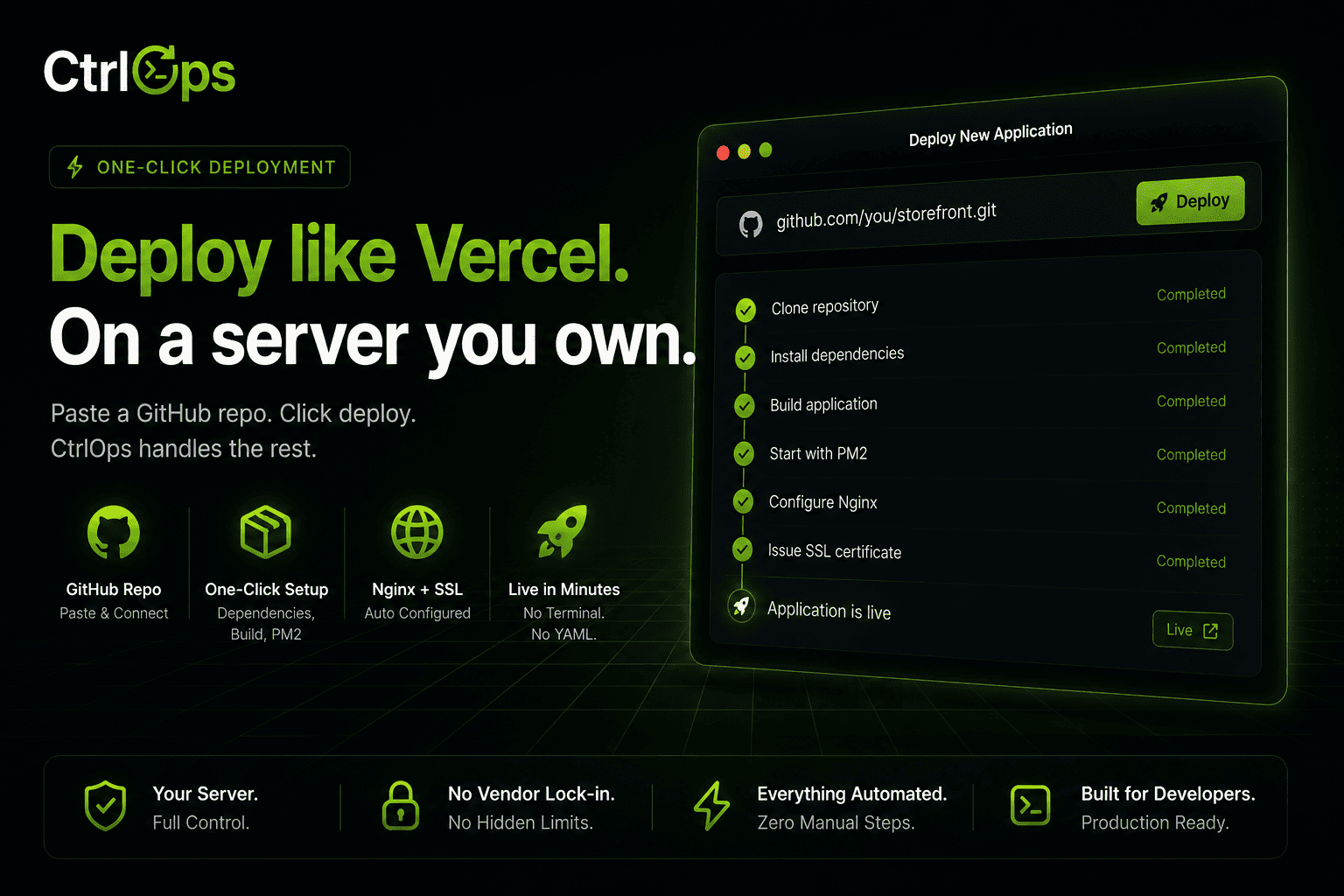
Single-Click Deployment
No scripts, no CI/CD setup. Fill one form and it goes live with PM2, Nginx, and SSL handled for you.
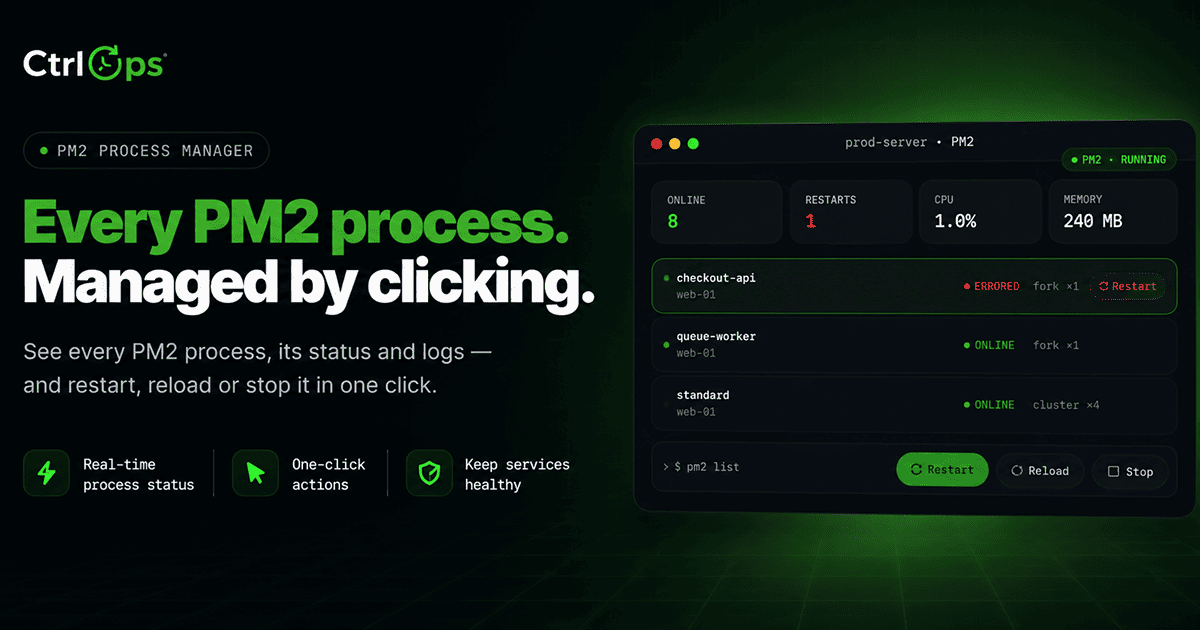
PM2 Process Manager
Every PM2 process with live CPU, memory, and restart counts. Restart, reload, or stop any of them in one click.
Questions before someone resigns.
Find out who can reach your servers.
Scan your fleet, see every person and every grant, and offboard someone from all of it in one confirmed action. 1-month free trial, no credit card.
✓ Start instantly·✓ No credit card·✓ No sneaky autorenewals