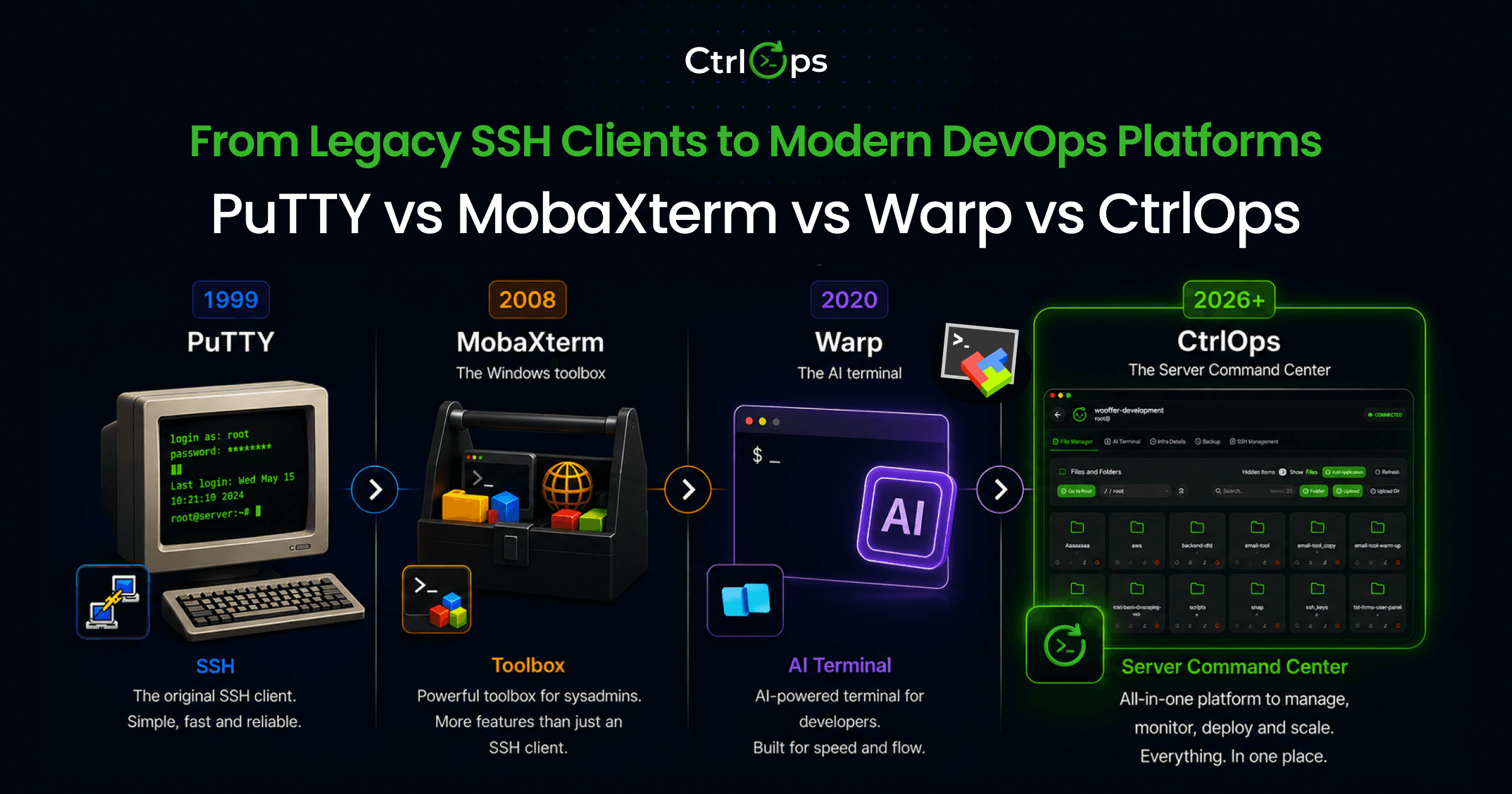

PuTTY is a free, open-source SSH client for Windows that is ideal for simple SSH, Telnet, and serial connections. It works well for managing individual server sessions but lacks built-in tools for centralized multi-server management. MobaXterm is a Windows-only terminal toolbox that combines SSH, RDP, VNC, X11 forwarding, and a graphical SFTP browser into a single application. It offers both a free Home Edition and a paid Professional Edition. Both tools handle SSH connections.
Neither tool includes AI assistance, one-click deployment, or infrastructure monitoring. MobaXterm is Windows-only, while PuTTY primarily targets Windows and has limited support on other platforms. For developers managing multiple servers in 2026, platforms like CtrlOps aim to address limitations by offering features such as AI assistance, centralized server management, deployment workflows, and monitoring in a single interface.
Key Takeaways
PuTTY and MobaXterm are both reliable SSH tools for Windows, but they were designed for a different era of server management. PuTTY handles single SSH connections with zero overhead. MobaXterm adds multi-protocol access, tabs, and file transfers. Neither tool offers AI diagnostics, deployment automation, or real-time server monitoring.
If your workflow has outgrown manual terminal commands and constant tool-switching, neither PuTTY nor MobaXterm solves the full problem.
TL;DR
PuTTY and MobaXterm both connect you to servers. Neither helps you manage them.
- Quick single-server SSH on Windows - PuTTY (free, 25+ years of trust, zero setup)
- Multi-protocol Windows power user - MobaXterm (SSH + RDP + VNC + X11 + SFTP in one app)
- Managing 5+ servers with deployments, monitoring, and AI - CtrlOps ($7/user/month after a 1 month free trial, local-first)
| Feature | PuTTY | MobaXterm (Pro) | CtrlOps |
|---|---|---|---|
| Price | Free | $69 one-time | $7/user/mo or $70/user/yr (1 mo free) |
| Platforms | Windows (primary), Linux, macOS | Windows only | macOS, Windows, Linux |
| Tabs / multi-session | No (separate windows) | Yes | Yes |
| File manager | No | Yes (SFTP browser) | Yes (full GUI) |
| AI terminal | No | No | Yes (approval-gated) |
| Deployment automation | No | No | Yes (one-click) |
| Infrastructure monitoring | No | No | Yes (real-time dashboard) |
| Session/credential storage | Windows Registry (session metadata, plain text) | Local (master password) | Local (AES-256 encrypted) |
| X11 forwarding | Yes (manual config) | Yes (built-in X server) | No |
| Multi-protocol (RDP, VNC) | No | Yes | No (SSH-focused) |
What Is PuTTY and Who Still Uses It in 2026?
PuTTY is a free, open-source SSH and Telnet client created by Simon Tatham in 1999. It remains the most widely recognized SSH client for Windows, with a 17.29% market share in the SSH category according to 6sense.
Its latest release is version 0.84 (May 2026), which patched a remotely triggerable double-free vulnerability in RSA key exchange.
PuTTY's primary purpose is establishing SSH connections, although it also supports Telnet, serial, raw TCP, and Rlogin connections. Enter an IP address, click Open, and you're connected. No account required. No installation necessary (portable .exe available). For 25+ years, that simplicity was enough.
In 2026, it's not.
Here's what PuTTY still does well. It's lightweight (under 3 MB). It supports SSH, Telnet, SCP, and raw serial connections. It runs as a standalone executable from a USB drive. It has 25+ years of security audits behind it. The source code is open and inspectable.
Here's where PuTTY breaks down for modern server management:
No tabs: Every server opens in a separate window. Managing 5 servers means 5 floating PuTTY windows. At 10 servers, your taskbar is unusable.
No file manager: Need to upload a config file? Close PuTTY (or minimize it), open WinSCP, re-enter credentials, navigate to the right directory, upload. That's 3 - 5 minutes and a full context switch for a 10-second task.
No server directory: PuTTY stores saved sessions in the Windows Registry rather than providing a modern searchable server inventory or team workspace. While you can give sessions descriptive names, managing a large collection becomes less convenient than using tools with built-in organization and filtering.
No AI, no monitoring, no deployment: You're alone with a blank cursor. When something breaks, your diagnostic tools are Google and Stack Overflow.
Plain-text credential storage: PuTTY stores session data (hostnames, usernames, ports) in the Windows Registry in plain text. Any process running under the same Windows user account, or a user with sufficient access to that profile, can read the stored session information.
For developers handling client servers or regulated data, storing server metadata in plain text can be a security concern, depending on your organization's security policies or compliance requirements.
Reality check: PuTTY stores your saved sessions, including server addresses and usernames, in the Windows Registry in plain text (HKEY_CURRENT_USER\Software\SimonTatham\PuTTY\Sessions). Any process with user-level access can read that data. If you manage client servers with NDAs or regulated data, this is a real security gap, not a theoretical one.
Who Still Uses PuTTY in 2026?
Developers who connect to one or two servers occasionally. IT professionals in locked-down corporate environments where PuTTY is the only approved tool. Students learning SSH for the first time. Anyone who needs a quick, disposable SSH connection without installing anything.
If you regularly manage multiple servers each day, PuTTY's lack of built-in tabs, integrated file transfers, centralized session management, and automation can make workflows less efficient compared to more modern tools. For a deep look at modern replacements, see our guide to PuTTY alternatives for Windows.
What Is MobaXterm and What Does It Actually Include?
MobaXterm is a Windows-only enhanced terminal and remote computing toolkit created by Mobatek (France) in 2008. It bundles SSH, RDP, VNC, FTP, SFTP, X11, Telnet, and MOSH into a single portable executable. It holds a 13.10% market share in the SSH client category according to 6sense.
Think of MobaXterm as "PuTTY plus everything PuTTY doesn't have." Tabs. A graphical SFTP browser. A built-in X11 server for running remote GUI apps on your Windows desktop. Built-in Unix commands (bash, grep, awk, rsync) that work out of the box.
MobaXterm Free vs Professional: What Do You Actually Get?
| Feature | Home (Free) | Professional ($69/user) |
|---|---|---|
| Sessions | Max 12 | Unlimited |
| SSH tunnels | Max 2 | Unlimited |
| Macros | Max 4 | Unlimited |
| Network daemons | 360 seconds max | Unlimited |
| Customization | Limited | Full (branding, startup scripts) |
| Commercial use | Not permitted | Permitted |
| License type | Free | One-time, lifetime right to use |
| Updates | Included | 12 months included |
Pricing verified on mobaxterm.mobatek.net, June 2026.
Where MobaXterm shines:
- Tabbed interface: Multiple SSH sessions in one window. Split panes, horizontal and vertical.
- Graphical SFTP browser: Connect via SSH and an SFTP panel opens automatically. Drag and drop files between local and remote.
- Built-in X11 server: Run remote Linux GUI applications on your Windows desktop. No separate Xming or VcXsrv install needed.
- Multi-protocol: SSH, RDP, VNC, FTP, SFTP, Telnet, MOSH, serial, all from one app.
- Portable version: Run from a USB drive without installing. Carry your sessions with you.
- Session management: Save, organize, and group connections with folders.
- Master password: Encrypt stored credentials locally.
Where MobaXterm falls short:
- Windows only: No macOS version. No Linux version. MobaXterm's X11 server is unnecessary on Linux (X11 runs natively), and there's no equivalent for Mac users. If your team uses mixed operating systems, MobaXterm can't follow.
- No AI features: Manual commands and macros only. No command generation, no diagnostics, no error explanation.
- No deployment automation: Deploy a Node.js app? You're running
git pull,npm install,pm2 restart, and configuring Nginx by hand. - No infrastructure monitoring: No CPU, RAM, or disk dashboard. Run
htopin a terminal tab. - Free edition is restricted: 12 sessions max, 2 SSH tunnels, 4 macros. Developers managing multiple client environments may quickly reach those limits.
- No cloud sync: Sessions are local files. Moving to a new machine means exporting and importing configs manually.
Bottom line: MobaXterm solves PuTTY's biggest pain points: it adds tabs, file transfers, and multi-protocol support. But it's still a connection tool, not a management tool. It gets you to the server. What you do once connected is still entirely manual.
PuTTY vs MobaXterm: Head-to-Head Feature Comparison
PuTTY is a lightweight remote access client focused primarily on SSH, with support for Telnet, serial, and other connection types. MobaXterm is a multi-protocol terminal toolbox with tabs, file transfers, and an embedded X server. MobaXterm wins on features.
PuTTY wins on simplicity and cross-platform availability. Neither tool offers AI, deployment automation, or server monitoring.
Here's the complete side-by-side across every capability that matters for daily server work.
| Capability | PuTTY | MobaXterm |
|---|---|---|
| SSH support | Yes | Yes |
| Telnet / Serial | Yes | Yes |
| RDP (Remote Desktop) | No | Yes |
| VNC | No | Yes |
| FTP / SFTP | No built-in GUI (PSCP/PSFTP available separately) | Yes (auto SFTP browser) |
| X11 forwarding | Yes (manual config, external X server needed) | Yes (built-in X11 server) |
| Tabs / multi-session | No (separate windows per session) | Yes (tabbed + split panes) |
| Session management | Basic (Windows Registry) | Advanced (folders, groups, INI files) |
| Portable version | Yes (.exe, no install) | Yes (.exe, no install) |
| Built-in Unix commands | No | Yes (bash, grep, awk, rsync) |
| Macros / scripting | No | Yes (macros + custom scripts) |
| Plugin support | No | Yes (MobaXterm plugins) |
| Session/credential storage | Windows Registry (session metadata, plain text) | Local files (master password encryption) |
| Platforms | Windows, Linux, macOS | Windows only |
| AI terminal | No | No |
| Infrastructure monitoring | No | No |
| Deployment automation | No | No |
| File manager (GUI) | No | Yes (SFTP browser) |
| Price | Free (MIT-0 license) | Free Home / $69 Pro (one-time) |
| Open source | Yes | No (proprietary, free Home edition) |
| Latest version | 0.84 (May 2026) | v26.x (2026) |
Two patterns stand out from this table.
MobaXterm dominates on connection features. If your job involves SSH, RDP, VNC, and file transfers on a Windows machine, MobaXterm replaces 3 - 4 separate tools. PuTTY needs WinSCP for file transfers, a separate X server for GUI forwarding, and mstsc.exe for RDP. That's 4 apps versus 1.
Both tools hit the same wall. Neither has AI assistance, deployment automation, or infrastructure monitoring. Once you're connected, both tools give you a blank terminal and leave the rest to you. The difference between them stops at the connection layer.
Is MobaXterm Better Than PuTTY? 7 Real-World Tests
MobaXterm wins 6 out of 7 real-world server management tests against PuTTY. PuTTY wins on simplicity and cross-platform availability. Both tools draw on Test 4 (production diagnostics) because neither tool offers built-in troubleshooting or log analysis.
We tested both tools against the same 7 scenarios that freelance developers, startup CTOs, and agency engineers face daily. Here's how each performed.
Test 1: Connecting to 5 Servers in Under 60 Seconds
PuTTY: Open 5 separate PuTTY windows. Load each saved session individually. No way to group by project or environment. With 5 servers, you're clicking through the session list 5 times. Time: ~90 seconds. The taskbar is now cluttered with 5 identical PuTTY icons.
MobaXterm: Open MobaXterm once. Click saved sessions from the sidebar, each opens in a new tab. Group sessions by folder (Production, Staging, Client-A). Time: ~30 seconds. Everything in one window.
Winner: MobaXterm. Tabs and session folders cut connection time in half and keep your workspace organized.
Test 2: Uploading a Config File Mid-Session
PuTTY: Minimize PuTTY. Open WinSCP. Re-enter the same server credentials (or load a saved session). Navigate to the target directory. Upload the file. Switch back to PuTTY. Time: 3 - 5 minutes. Two tools, one context switch.
MobaXterm: The SFTP panel appears automatically when you connect via SSH. Drag the file from Windows Explorer to the remote directory. Done. Time: ~30 seconds. Zero context switches.
Winner: MobaXterm. Built-in SFTP eliminates the single biggest friction point in PuTTY's workflow.
Test 3: Managing SSH Keys Across a Small Team
PuTTY: Use PuTTYgen to generate key pairs. Manually copy public keys to each server's authorized_keys. Each team member repeats this process independently. No centralized key directory. Keys are .ppk format (PuTTY-specific), which can cause confusion with standard OpenSSH keys.
MobaXterm: Slightly better. MobaXterm can use standard OpenSSH keys or .ppk keys. Master password protects stored credentials. But still no centralized team key management, no key rotation automation, no audit trail.
Winner: Slight edge to MobaXterm (master password, standard key support), but neither tool solves team-scale SSH key management. For a deeper breakdown of this challenge, see our guide on SSH key management and security.
Test 4: Diagnosing a Production Incident at 2 AM
PuTTY: Connect to the server. Blank terminal. Run htop, journalctl -xe, tail -f /var/log/nginx/error.log from memory. If you don't know the right diagnostic commands for this stack, open a browser, Google the error, find a Stack Overflow post from 2019 and hope it applies.
Time: 20 - 40 minutes.
MobaXterm: Same manual process. Better organized (you can see all your sessions and quickly switch between servers), but still no diagnostic help. You're alone with the same blank terminal. Time: 20 - 35 minutes.
Winner: Draw. Neither tool helps you diagnose problems. Both leave you Googling at 2 AM.
Test 5: Running Graphical Linux Apps on Windows (X11)
PuTTY: Enable X11 forwarding in PuTTY settings. Install a separate X server on Windows (Xming, VcXsrv, or X410). Configure the DISPLAY variable. Hope the versions are compatible.
Time: 15 - 30 minutes for first-time setup.
MobaXterm: X11 server is built in. Connect via SSH, run firefox or gedit and the GUI window appears on your Windows desktop. Zero configuration.
Time: immediate.
Winner: MobaXterm. This is MobaXterm's strongest differentiator. If you run remote GUI apps regularly, this alone justifies choosing MobaXterm over PuTTY.
Test 6: Deploying a Node.js App on a VPS
PuTTY: SSH in. Run git clone, npm install, configure Nginx, set up PM2, run Certbot for SSL. 12+ commands, each with potential failure points. If you miss the PM2 ecosystem config, your app won't survive a reboot.
Time: 30 - 45 minutes.
MobaXterm: Same manual process. You can use the SFTP browser to upload .env files without a second tool. Macros can save frequently-used command sequences. But deployment is still manual, step-by-step.
Time: 25 - 40 minutes.
Winner: Marginal edge to MobaXterm (SFTP + macros save a few minutes), but neither tool automates deployment. Both require you to know and execute every command.
Test 7: Credential Security and Storage
PuTTY: Stores saved sessions in the Windows Registry in plain text. Hostnames, usernames, and port numbers are readable by any process or user with access to HKEY_CURRENT_USER. No encryption. No master password.
MobaXterm: Stores credentials in local files protected by a master password. Credentials don't leave your machine. Not cloud-synced.
Winner: MobaXterm. Master password protection is a real improvement over PuTTY's unencrypted registry storage. For teams handling client data, this matters.
Scorecard
| Test | PuTTY | MobaXterm | Winner |
|---|---|---|---|
| Multi-server connection | Slow (separate windows) | Fast (tabs + folders) | MobaXterm |
| File upload mid-session | Requires WinSCP | Built-in SFTP | MobaXterm |
| SSH key management | Basic (PuTTYgen-based key management) | Standard keys + master password | MobaXterm (slight) |
| 2 AM incident diagnosis | Manual | Manual | Draw |
| X11 GUI forwarding | Needs external X server | Built-in X server | MobaXterm |
| Node.js deployment | Fully manual | Mostly manual (SFTP + macros help) | MobaXterm (marginal) |
| Credential security | Session metadata stored in Windows Registry | Master password protected | MobaXterm |
Final score: MobaXterm 6, PuTTY 0, Draw 1.
MobaXterm is the better tool for Windows power users who manage multiple connections, transfer files, and run remote GUI apps. PuTTY is the simpler choice when you need a quick, zero-install SSH connection.
But both tools share the same blind spots. No AI. No deployment. No monitoring. The gap isn't between PuTTY and MobaXterm. The gap is between connection tools and management tools.
Where Both PuTTY and MobaXterm Fall Short in 2026
Both PuTTY and MobaXterm were built to solve a 2005 problem: "How do I connect to a remote server from Windows?" In 2026, the problem has changed. The bottleneck isn't the connection. It's everything that happens after you connect: diagnosing errors, deploying code, monitoring resources, managing files across a fleet.
Here are the four capabilities neither tool offers:
1. AI-assisted diagnostics: Your Node.js app throws a 502 error at 2 AM. With PuTTY or MobaXterm, you open a browser, Google the error, read Stack Overflow posts from 2019, and try commands one at a time.
2. One-click deployment:
Deploying a Node.js or Next.js app on a VPS requires 12+ manual commands: git clone, npm install, PM2 config, Nginx setup, Certbot SSL. Both PuTTY and MobaXterm require you to run every command individually. Miss one step and the deployment fails silently.
3. Infrastructure monitoring:
Neither tool shows CPU load, RAM usage, or disk space. You run htop in a terminal tab and watch numbers scroll. No alerts. No historical trends. No "your disk is 92% full" warning before it's too late.
4. Cross-platform support (MobaXterm-specific): MobaXterm runs on Windows only. No macOS version. No Linux version. If your team includes Mac or Linux users, MobaXterm can't be a team-wide standard. PuTTY at least has Linux and macOS ports, though its main strength remains Windows.
For developers who hit these walls with MobaXterm specifically, our CtrlOps vs MobaXterm comparison covers the full gap analysis across platforms, AI, and deployment workflows.
Bottom line: PuTTY and MobaXterm are connection tools. They get you to the server. What you do once connected, diagnosing problems, deploying code, monitoring health, managing files across 10 servers, is where the real time goes. And it's where both tools leave you on your own.
What Does a Modern SSH Workspace Look Like in 2026?
A modern SSH workspace in 2026 combines terminal access, file management, infrastructure monitoring, AI diagnostics, and deployment automation in a single desktop app, without sending your credentials to the cloud.
CtrlOps is the only tool in the PuTTY/MobaXterm category that does this across macOS, Windows, and Linux at $7/user/month (or $70/user/year), with a 1 month free trial.
PuTTY and MobaXterm are connection tools. CtrlOps is a server management workspace.
Here's how CtrlOps handles the same 7 tests from the comparison above:
| Test | PuTTY | MobaXterm | CtrlOps |
|---|---|---|---|
| Connect to 5 servers | 5 windows, ~90 seconds | 5 tabs, ~30 seconds | 5 named cards, ~15 seconds |
| Upload config file | WinSCP required | Built-in SFTP | Drag-and-drop in File Manager |
| SSH key management | Session configuration in Windows Registry | Local files, master password | AES-256 encrypted, local-only |
| 2 AM incident diagnosis | Google + manual commands | Google + manual commands | AI Terminal: describe the problem, review commands, approve |
| X11 GUI forwarding | External X server needed | Built-in X server | Not supported (SSH-focused) |
| Node.js deployment | 12+ manual commands | 12+ commands + SFTP help | One-click deployment: form, click, done |
| Credential security | Session metadata stored in Windows Registry | Master password | AES-256 encrypted, never leaves your machine |
What CtrlOps adds that neither PuTTY nor MobaXterm has:
- Named server cards: Connect to "Prod-Backend" or "Client-XYZ-Staging" with one click, not by remembering IP addresses.
- Full GUI file manager: Upload, download, rename, edit, and delete remote files with drag-and-drop. No second app required.
- Approval-gated AI terminal: Type "why is my server slow?" and CtrlOps generates diagnostic commands based on your server's live context (CPU, memory, running processes, recent logs). Every command shows before it runs. You approve, then it executes. Human-in-the-loop, not auto-run.
- MCP Server integration: Connect Context7 for official documentation, GitHub for your repo, Filesystem for local files, or any custom MCP server via JSON config. The AI reads your actual codebase and documentation before generating commands, not just its training data. MCP does not bypass the approval gate.
- Script Directory: Save command sequences as reusable one-click scripts with
{{variable_name}}placeholders. Reuse the same deployment on any server you open, without retyping. - One-click deployment: Choose your framework (Node.js, Next.js, React), paste your GitHub repo URL, set environment variables, toggle SSL. CtrlOps handles
git clone, dependencies, PM2 config, Nginx, and Certbot. This can reduce a typical manual deployment from dozens of steps to just a few guided inputs, depending on the application and server configuration. - Real-time infrastructure monitoring: CPU load, RAM usage, disk space, and running processes in a dashboard. No
htopin a separate tab. - Web search integration: The AI terminal searches the latest documentation and error messages before suggesting commands. When you're debugging a framework version that shipped after the AI model's knowledge cutoff, this catches outdated answers before they reach your server.
- BYOK AI model: Bring your own OpenAI, Anthropic Claude, or Google Gemini API key. You control the model, the cost, and the data.
- Cross-platform: macOS (Apple Silicon + Intel), Windows, Linux. One tool for the whole team.
- SSH user and key management: Create a server user, set its role (Restricted, Standard, or Sudo), and authorize their key in one form. Add or rotate SSH keys per server. Give a contractor Restricted access to debug, revoke it with one click when the contract ends.
- Fleet-wide Access Management: Scan your entire server fleet to see who can log in to every server, from one screen. Onboard a new developer to 10 servers at once, or offboard a departing contractor from all 19 servers in a single confirmed action. Export audit snapshots for compliance records. No more checking
authorized_keysserver by server. - Security Audit: Run 25 audits over SSH and get a hardening score, a PDF report, and AI-written fixes you approve before they run.
- Automated server backups: Schedule backups to AWS S3, Cloudflare R2, Backblaze B2, DigitalOcean Spaces, Wasabi, or MinIO. Live progress tracking from the backup tab. No cron scripts needed.
- Cron Jobs: Schedule jobs on the server itself without writing cron syntax, and get a Slack or Telegram alert the moment one fails.
Pricing: $7/user/month or $70/user/year. Unlimited servers. All features included. 1 month free trial, no credit card required.
Platforms: macOS (Apple Silicon + Intel), Windows, Linux.
For teams evaluating broader DevOps automation tools alongside SSH clients, CtrlOps fits as the deployment and monitoring layer. For a direct breakdown against other modern tools, see our comparisons: CtrlOps vs Termius, CtrlOps vs Warp, and CtrlOps vs SecureCRT.
Which Tool Should You Pick? (Decision Framework)
The right SSH tool depends on your daily workflow, team size, and operating system. PuTTY fits lightweight SSH workflows, especially on Windows. MobaXterm fits multi-protocol Windows power users. CtrlOps fits developers managing 5 - 25 servers who need deployment, monitoring, and AI in one cross-platform app.
Here's a quick decision matrix by role.
You need a quick SSH connection on Windows, nothing else: PuTTY. Free, portable, zero setup. Connect, do your work, close. Don't overthink it.
You manage multiple remote protocols (SSH + RDP + VNC) on Windows: MobaXterm. The built-in X11 server and multi-protocol support are among its biggest strengths on Windows. If you also need file transfers, the auto SFTP browser saves real time.
You manage 5+ servers, deploy apps, and need AI diagnostics: CtrlOps - Named servers, one-click deployment, approval-gated AI, infrastructure monitoring, and cross-platform support. The workflow advantage shows up the first time you deploy in 5 minutes instead of 45, which can significantly reduce deployment time by automating common setup tasks.
You work on macOS or Linux: MobaXterm is Windows-only, while Linux and macOS already include OpenSSH clients. As a result, many users on those platforms rely on the built-in SSH tools or choose modern cross-platform alternatives. PuTTY works on Linux but adds nothing over built-in OpenSSH.
You need cross-device sync (phone + laptop + desktop): Neither PuTTY nor MobaXterm syncs across devices. Termius is the strongest option for mobile SSH. See how it compares in our CtrlOps vs Termius breakdown.
| Your Situation | Best Pick | Why |
|---|---|---|
| Quick SSH on Windows, 1 - 2 servers | PuTTY | Free, zero install, zero learning curve |
| Windows power user, SSH + RDP + VNC | MobaXterm Pro ($69) | Multi-protocol, tabs, X11 server |
| Freelancer, 5 - 15 client servers | CtrlOps ($7/user/mo) | Named servers, AI, deployment, monitoring |
| Startup CTO, team of 3 - 5 | CtrlOps ($7/user/mo) | Cross-platform, local credentials, one-click deploy |
| Agency engineer, 10+ client environments | CtrlOps ($7/user/mo) | Server organization, script reuse, fleet monitoring |
| Enterprise / compliance requirement | SecureCRT (~$116/license) | FIPS 140-2, advanced scripting, 31-year track record |
| Mac or Linux primary OS | CtrlOps or OpenSSH | MobaXterm is Windows-only. Most Linux users already have OpenSSH available, so PuTTY is less commonly needed. |
The cost math is straightforward. PuTTY is free, but workflows that rely on multiple companion tools for file transfers, deployments, and monitoring can introduce additional manual steps. MobaXterm Pro is $69 one-time and cuts file transfer friction, but deployment and monitoring are still manual.
CtrlOps is $7/user/month after a 1 month free trial and replaces your terminal, SFTP client, monitoring dashboard, and deployment workflow with one app.
For a look at how AI is changing DevOps workflows beyond just SSH, we break down the full approval-gated model and where human oversight fits in production operations.
Conclusion
PuTTY vs MobaXterm in 2026 comes down to simplicity versus features, but both tools share the same ceiling.
PuTTY is free, portable, and connects you to a server in 10 seconds. It's the right choice for a quick SSH session on Windows when you don't need anything else. Twenty-five years of trust behind it.
MobaXterm wraps SSH, RDP, VNC, X11, and SFTP into one Windows app. It replaces 3 - 4 separate tools. For Windows power users managing mixed protocol environments, it's the better choice.
But neither tool helps you deploy code, monitor server health, or diagnose problems with AI. Neither provides the same cross-platform experience as tools designed specifically for Windows, macOS, and Linux together. Neither provides the integrated credential management, deployment workflows, and monitoring available in CtrlOps. Neither saves your team 30 - 40 minutes of tool-switching overhead per session.
For developers and teams managing 5 - 25 servers who need SSH, file management, monitoring, deployment, and AI diagnostics in one local-first app, CtrlOps fills the gaps both tools leave open. $7/user/month (or $70/user/year). 1 month free trial, no credit card required. If you're also evaluating Termius as a modern upgrade, see the full Termius alternatives comparison.
Pick the tool that matches your biggest friction today. Outgrow it? Switch. The best SSH client is the one you stop fighting.
Frequently Asked Questions
For most Windows users managing multiple servers, yes. MobaXterm adds tabbed sessions, a built-in SFTP browser, an embedded X11 server, and multi-protocol support (SSH, RDP, VNC). PuTTY is better when you need a quick, zero-install SSH connection and nothing else. Neither tool offers AI, deployment automation, or infrastructure monitoring.
For occasional single-server SSH connections on Windows, PuTTY still works fine. Its latest release (version 0.84, May 2026) patched critical security vulnerabilities. But PuTTY stores sessions in the Windows Registry in plain text, has no tabs, no file manager, and no AI. For anything beyond basic SSH, modern tools like MobaXterm or CtrlOps are more capable.
Several. MobaXterm adds tabs, SFTP, and X11 on Windows. Termius adds cross-device sync and mobile apps. CtrlOps adds AI diagnostics, one-click deployment, infrastructure monitoring, and a full GUI file manager at $7/user/month, with a 1 month free trial. For a full breakdown, see our guide to PuTTY alternatives for Windows.
On Windows, yes. MobaXterm does everything PuTTY does (SSH, Telnet, serial) and adds tabs, SFTP, X11, RDP, VNC, macros, and session folders. The Free Home Edition has a 12-session limit; the Professional Edition ($69 one-time) removes that cap. On macOS and Linux, MobaXterm is unavailable, while most users rely on the built-in OpenSSH client or other native SSH tools instead of PuTTY.
No. MobaXterm is a Windows-only application. There is no native macOS or Linux version. On Mac, alternatives include iTerm2, Termius, or CtrlOps. On Linux, OpenSSH is pre-installed on most distributions, and CtrlOps offers full cross-platform support. See our CtrlOps vs MobaXterm comparison for the cross-platform breakdown.
PuTTY stores saved session data (hostnames, usernames, port numbers) in the Windows Registry under HKEY_CURRENT_USER\Software\SimonTatham\PuTTY\Sessions in plain text. Any process with user-level access can read this data. PuTTY itself doesn't store passwords, but session metadata is unencrypted. For client work or regulated environments, this is a real security gap.
Two tools offer AI command generation for server management: CtrlOps (approval-gated, shows commands before execution) and Warp (auto-run, executes commands immediately). CtrlOps also connects to MCP servers like Context7 and GitHub so the AI works from your real documentation and codebase, not just training data. Both support BYOK (bring your own API key).
Skip MobaXterm if your team uses macOS or Linux (it's Windows-only), if you need AI-assisted server diagnostics, if you need automated deployment, if you manage infrastructure monitoring, or if you need to sync sessions across devices. MobaXterm is a connection tool, not a management platform. It excels at getting you to the server. What you do once connected is still entirely manual.
CtrlOps replaces the terminal, SFTP client, monitoring dashboard, and deployment workflow with one desktop app. It adds named server cards, a full GUI file manager, approval-gated AI terminal, one-click deployment, real-time infrastructure monitoring, and AES-256 encrypted local credential storage. It costs $7/user/month (or $70/user/year) after a 1 month free trial, and runs on macOS, Windows, and Linux. PuTTY and MobaXterm handle the connection. CtrlOps handles the connection plus everything after it.
MobaXterm adds tabs, a built-in file browser, and one-click X11 support - things PuTTY doesn't have at all. You get more done without switching between apps. PuTTY still wins on simplicity and cross-platform use, but for daily multi-server work, MobaXterm is the easier tool.
Yes. MobaXterm adds tabs and file transfers. Termius adds mobile access. CtrlOps adds AI diagnostics, one-click deployment, and server monitoring for teams managing multiple servers. The best pick depends on what you need beyond a basic SSH connection.
MobaXterm includes its own SSH client and does not require PuTTY. However, MobaXterm can import PuTTY saved sessions from the Windows Registry, so you don't lose your existing server configurations when switching. MobaXterm also supports standard OpenSSH key formats alongside PuTTY's .ppk format.