
The best SSH client for Windows in 2026 is CtrlOps for anyone managing more than one server - it combines SSH, a GUI file manager, live monitoring, approval-gated AI, and one-click deployment at $7/user/month. PuTTY is the lightest free option, MobaXterm the best free all-in-one toolkit, Termius the pick for cross-device sync, and Warp the strongest AI-first terminal.
9 Best SSH Clients for Windows in 2026
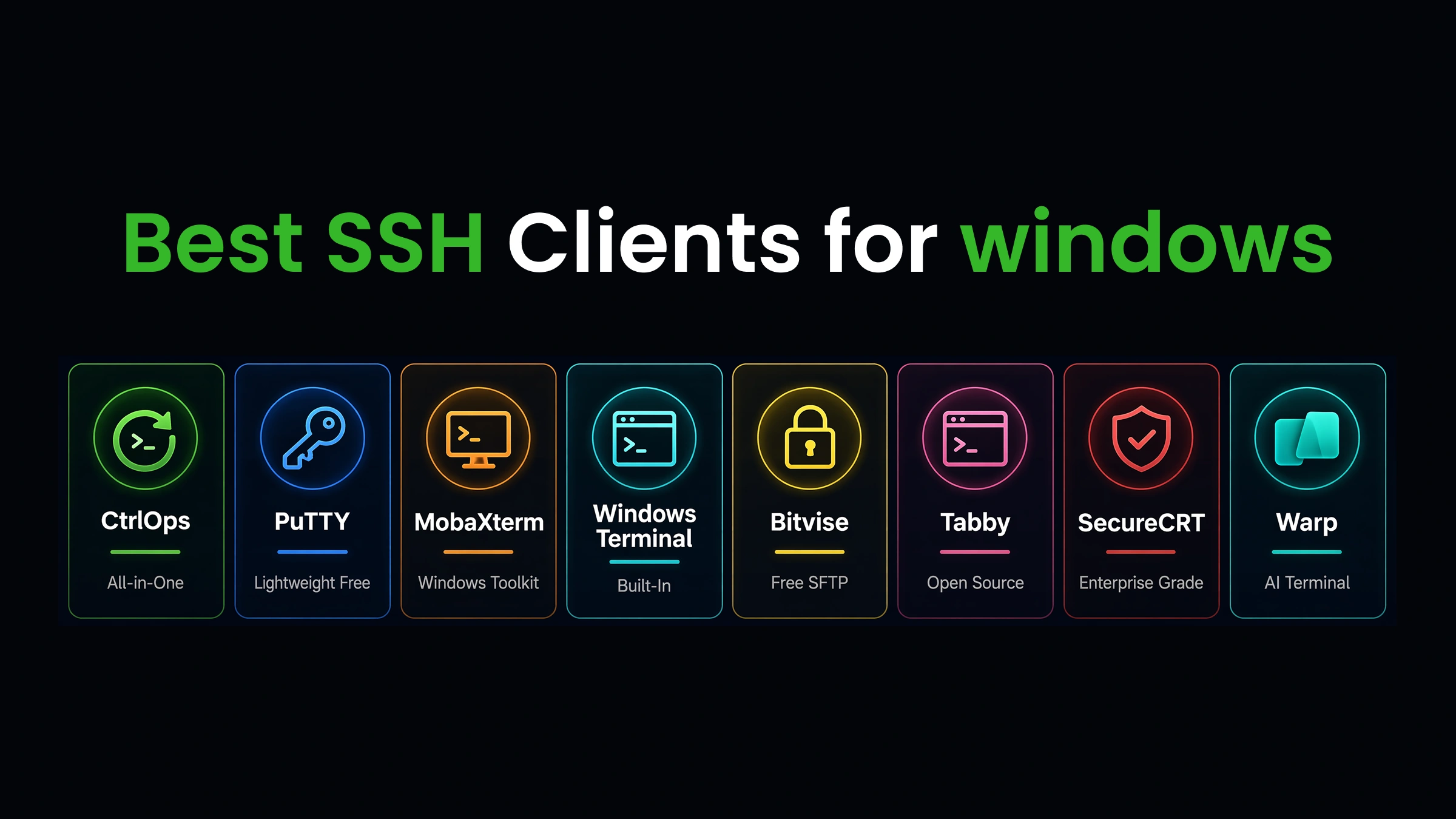
The 9 best SSH clients for Windows in 2026 are CtrlOps (all-in-one server management), PuTTY (free lightweight), MobaXterm (Windows power users), Windows Terminal + OpenSSH (built-in), Termius (cross-device sync), Bitvise (free SFTP), Tabby (open-source), SecureCRT (enterprise compliance), and Warp (AI-first terminal). We tested each against the same real-world scenarios.
| Tool | Best For | Price | AI | File Manager | Local Credentials |
|---|---|---|---|---|---|
| CtrlOps | All-in-one server management | $7/user/mo | ✓ Approval-gated | ✓ Full GUI | ✓ Local-only |
| PuTTY | Lightweight SSH basics | Free | ✗ | ✗ | ✓ Local |
| MobaXterm | Windows power users | Free / $69 one-time | ✗ | ✓ Basic SFTP | ✓ Local |
| Windows Terminal + OpenSSH | No-install SSH | Free (built-in) | ✗ | ✗ | ✓ Local |
| Termius | Cross-device sync | $10/user/mo | Partial (autocomplete) | ✓ SFTP | ✗ Cloud |
| Bitvise | Free SSH + SFTP | Free | ✗ | ✓ SFTP GUI | ✓ Local |
| Tabby | Open-source terminal | Free | ✗ | ✓ SFTP/Zmodem | ✓ Local |
| SecureCRT | Enterprise compliance | ~$119/license | ✗ | ✗ (SecureFX separate) | ✓ Local |
| Warp | AI-first coding terminal | $20/mo | ✓ Auto-run | ✗ | ✗ Cloud |
Prefer to watch instead? The full comparison - all nine tools, the deploy race, and the SSH key security question - in under 8 minutes:
1. CtrlOps: Best for AI-Powered Server Management
CtrlOps takes a fundamentally different approach from every other tool on this list.
Instead of being a better terminal, it replaces your entire server management stack: terminal, file manager, monitoring dashboard, and deployment system, all in one desktop app. If you have been managing servers through a web-based panel like aaPanel, see how the best aaPanel alternatives compare - CtrlOps handles the same jobs without exposing a web UI to the internet.
Pros of CtrlOps:
- Named server cards. Connect to "Prod-Backend" or "Client-XYZ-Staging" in one click instead of remembering raw IPs.
- Full GUI file manager. Upload, download, edit remote files with drag-and-drop. No SCP commands, no separate SFTP tool.
- Approval-gated AI terminal. Ask "why is my server slow?" and get diagnostic commands shown before execution. You approve, then it runs.
- Modern terminal UX. Several terminals per server, each tab named after the command you ran. Block view keeps every command with its own output for copying, filtering, or re-running, and suggestions are configurable down to what Tab does.
- One-click app deployment. Pick your framework, paste GitHub repo, add env variables. CtrlOps handles git clone, npm install, PM2, Nginx, and SSL.
- Infrastructure monitoring + Script Directory. Live CPU, RAM, disk for every server. Save reusable command scripts with
{{variable_name}}placeholders. Local-first security with AES-256 encryption, no cloud sync.
CtrlOps Limitations:
- No mobile app, Termius wins for phone-based SSH
- No serverless or Kubernetes support
Pricing: $7/user/month (unlimited servers). 1 month free trial, no credit card required.
Platforms: Windows, macOS (Apple Silicon + Intel), Linux.
2. PuTTY: Best Free Lightweight SSH Client
PuTTY has been the default SSH client for Windows since 1999. It does exactly one thing well: opens SSH connections.
For quick one-off connections to a single server, nothing is faster to download and use.
Pros of PuTTY:
- Quick download with zero learning curve - just grab the .exe, enter an IP, and connect
- Supports SSH, Telnet, SCP, and raw serial connections
- Tiny footprint, runs from a single executable, no install required
- 25+ years of security audits and community trust
- Completely free, open-source
PuTTY Limitations:
- No named server directory. Sessions stored by raw IP in the Windows registry, in plain text. No aliases, no grouping.
- No file transfer. Upload a config? Open WinSCP separately, re-enter credentials.
- No AI, no monitoring, no deployment. You're alone with a blank terminal.
- No tabs. Each server is a separate PuTTY window. Five servers means five windows.
- Registry storage is a security risk. Session data lives in
HKEY_CURRENT_USER\Software\SimonTatham\PuTTY\Sessions, unencrypted, accessible to any process on the machine.
Pricing: Free, open-source.
Platforms: Windows (primary), with unofficial Unix ports.
PuTTY is a reliable SSH client for Windows if you only need a free, no-frills connection and nothing else.
It's the wrong tool if you manage more than 2 servers or transfer files regularly.
Most developers who still use PuTTY in 2026 have outgrown it. They just haven't switched yet. See the full CtrlOps vs PuTTY comparison or browse PuTTY, Webmin, and ServerPilot alternatives.
Migrating? Convert .ppk keys to OpenSSH format with our browser-based PPK to OpenSSH converter.
Reality check: PuTTY saves your sessions, including server addresses and usernames, in the Windows registry in plain text. That data is accessible to any process or user on your machine. For developers handling client servers or regulated data, this is a compliance concern, not just an inconvenience.
3. MobaXterm: Best All-in-One Windows Toolkit
MobaXterm is PuTTY with everything Windows administrators actually need bolted on.
One executable. No installation. SSH, RDP, VNC, FTP, SFTP browser, X11 server, and a built-in Unix terminal, all included.
Pros of MobaXterm:
- Tabbed sessions: manage multiple connections in one window
- Built-in SFTP browser: opens automatically alongside your SSH session
- Embedded X11 server: run graphical Linux applications remotely (unique on Windows)
- Multi-protocol: SSH, RDP, VNC, FTP, SFTP, Telnet, serial in one app
- Portable mode: runs from a USB drive
- Macro recording: automate repetitive command sequences
MobaXterm Limitations:
- Windows only. One Mac user on the team creates tool fragmentation.
- No AI features. You type every command manually.
- No cloud sync or team collaboration.
- No infrastructure monitoring. You run
htopmanually. - No one-click deployment.
- Free edition limits to 12 sessions: enough for solo work, tight for teams.
Pricing: Free (Home edition, 12 sessions max). Professional: $69/user one-time.
Platforms: Windows only.
MobaXterm is the best free upgrade from PuTTY on Windows.
Tabbed interface, built-in SFTP, and X11 server solve real problems without spending a dollar.
Hard to beat at $0 for Windows-only shops.
4. Windows Terminal + OpenSSH: Best Built-In Option
Windows 10 and 11 ship with OpenSSH pre-installed. Combined with Windows Terminal, Microsoft's modern tab-based console, it serves as a built-in SSH terminal without requiring any third-party downloads.
Pros of Windows Terminal:
- Already on your machine. Open Terminal, type
ssh user@ip, done. - Tabs and profiles: multiple connections, split panes, custom styling
- SSH config file: save named hosts in
~/.ssh/configfor one-command connections - GPU-accelerated rendering: Windows Terminal is fast and modern
- WSL integration: full Linux shell alongside SSH connections (if you live inside WSL or dual-boot, our best SSH clients for Linux roundup covers that side too)
Windows Terminal Limitations:
- No GUI file manager. SCP or rsync commands only.
- No server directory. You maintain SSH config manually.
- No AI. Same blank-cursor experience as PuTTY in a nicer window.
- No monitoring dashboard. Diagnostic commands one at a time.
- No deployment automation.
Pricing: Free (built into Windows 10/11).
Platforms: Windows only.
The right choice if you don't want to install anything.
Surprisingly capable, better than PuTTY in many ways. But still just a terminal.
Managing 5+ servers and transferring files daily will push you toward additional tools.
5. Termius: Best for Cross-Platform Teams
Termius is the most polished dedicated SSH client on the market.
It syncs your servers, credentials, and command snippets across Mac, Windows, Linux, iOS, and Android. It's the only tool on this list with genuinely usable mobile apps.
Pros of Termius:
- Cross-device sync: servers and credentials follow you everywhere, E2E encrypted
- Clean UI: named hosts, groups, tags, one-click connect
- Built-in SFTP: file transfers without a separate tool
- AI-powered autocomplete: suggests commands as you type
- Mobile apps: SSH from your phone during a production incident
- Team vault: shared server access with role-based controls
Termius Limitations:
- SSH keys sync to Termius's cloud. E2E encrypted, yes, but they live on third-party infrastructure. Some client contracts prohibit this.
- No infrastructure monitoring. You SSH in and run
htopmanually. - No one-click deployment. Manual repo clones, PM2, Nginx setup.
- AI is autocomplete, not diagnostics. Suggests completions, doesn't understand server state.
- Pricing scales per user. Pro: $10/user/month. Team: $20/user/month. 5-person Team plan costs $100/month ($1,200/year).
Pricing: Free (Starter, local vault only). Pro: $10/user/month. Team: $20/user/month. Business: $30/user/month.
Platforms: Windows, macOS, Linux, iOS, Android.
Termius wins if you need the same SSH setup on every device. Mac users on the team can also check the best SSH clients for Mac for a deeper comparison - and if the cloud key storage is what's pushing you away, we've rounded up the best Termius alternatives for 2026 separately.
The trade-off is cloud credential storage and per-user pricing that gets expensive at team scale. Already decided to switch? The Termius migration guide covers the built-in importer, which reads your saved hosts, ports, usernames and SSH keys straight from your local Termius install in about 30 seconds, with no export file.
6. Bitvise: Best Free SFTP + SSH Combo
Bitvise is a Windows-native SSH and SFTP client that's been quietly excellent for years.
Free for all use: personal, commercial, enterprise. No session limits. No feature gates. No per-user pricing.
Pros of Bitvise:
- Completely free: personal and commercial use, no restrictions
- Graphical SFTP browser: split-pane file transfer view alongside your terminal
- Strong tunneling: SSH port forwarding, SOCKS proxy, FTP-to-SFTP bridge
- Windows-native: not Electron. Fast and lightweight.
- Automatic reconnection: reconnects after dropped connections
Bitvise Limitations:
- Windows only. No Mac, Linux, or mobile.
- No AI features. Terminal only.
- No server directory. Connection profiles exist, but no fleet view.
- No monitoring, no deployment, no automation.
- UI feels dated. Functional, not modern.
Pricing: Free (SSH Client). SSH Server: paid separately.
Platforms: Windows only.
The best free SSH client for Windows if file transfers are core to your workflow.
The graphical SFTP browser eliminates WinSCP from your toolchain entirely.
7. Tabby: Best Open-Source Modern Terminal
Tabby is a cross-platform, open-source terminal that modernizes SSH with tabs, split panes, a plugin ecosystem, and a built-in connection manager.
No subscription. No account required.
Pros of Tabby:
- Free and open-source (MIT license), no feature gates, no accounts
- Cross-platform: Windows, macOS, Linux with identical interface
- Built-in SSH client with profiles, SFTP, Zmodem transfers, key management
- Plugin ecosystem: extend with community-built plugins
- Split panes and workspaces: save complex layouts as profiles
- Encrypted password manager: local storage with master passphrase
- Modern UI: themes, ligatures, GPU-accelerated rendering
Tabby Limitations:
- Resource-heavy. Electron-based, uses more RAM than PuTTY or Bitvise.
- No AI features. No command generation, no diagnostics.
- No monitoring or deployment.
- Learning curve. Extensive config options, strength for power users, barrier for beginners.
- Occasional stability issues with certain plugin combinations.
Pricing: Free, open-source (MIT license).
Platforms: Windows, macOS, Linux.
Best choice for developers who want open-source with no vendor lock-in.
Significantly more capable than PuTTY. The trade-off is higher memory usage and zero AI or server management features.
8. SecureCRT: Best for Enterprise & Compliance
SecureCRT by VanDyke Software has been the enterprise SSH client since 1995.
FIPS 140-2 validated. Advanced scripting in Python, VBScript, and Perl. Likely already on your organization's approved software list if you work in government, defense, or healthcare IT.
Pros of SecureCRT:
- 31 years of reliability: enterprise trust built over decades
- FIPS 140-2 compliance: meets government security requirements
- Advanced scripting: automate workflows with Python, VBScript, Perl
- Multi-protocol: SSH, Telnet, Serial, RDP
- Session management: tabbed sessions, saved layouts, detailed logging
- Smart card and PKI support: hardware-based authentication
SecureCRT Limitations:
- No AI features. Manual command execution only.
- Legacy UI. Functional but dated.
- Expensive for small teams. ~$119/license one-time, plus optional annual maintenance. SecureFX (file transfer) sold separately.
- No monitoring, no deployment.
- Overkill for most developers. If you don't need FIPS or scripting, you're paying for unused features.
Pricing: ~$119/license one-time (includes 1 year of updates).
Platforms: Windows, macOS, Linux.
The right tool if your organization requires FIPS 140-2 or advanced scripting.
For freelancers and startup CTOs, you're paying enterprise prices for enterprise features you won't use.
9. Warp: Best AI-First Coding Terminal
Warp is the most well-funded AI terminal in the market. Backed by Sequoia Capital with $73M+ in funding, built in Rust.
It reimagines the terminal with block-based output, IDE-like editing, and an AI Agent Mode that converts natural language into shell commands.
Pros of Warp:
- AI Agent Mode: type natural language, get shell commands generated and executed
- Block-based output: each command is a selectable, searchable block
- IDE-like editing: select, copy, edit previous commands like text
- Rust-based performance: GPU-accelerated, no Electron lag
- Warp Drive: save and share command sequences across teams
- BYOK support: bring your own OpenAI, Anthropic, or Google API key
Warp Limitations:
- It's a coding terminal, not a server manager. No server directory, no file manager, no monitoring, no deployment.
- AI auto-runs commands by default. On production, one misinterpreted prompt can cause real damage. No approval gate.
- Cloud account required. Can't use Warp without signing in.
- Free tier is limited. 150 AI credits for 2 months, then 75/month. Build plan: $20/month.
- Not designed for multi-server fleet management.
Pricing: Free (75 - 150 AI credits/month). Build: $20/month. Business: $50/user/month.
Platforms: Windows, macOS, Linux.
Warp is the best terminal experience on Windows, for local development.
The AI and editing features are excellent for writing and running code. For managing remote servers, Warp's AI doesn't have your server's context. And auto-executing commands on production is a risk most teams shouldn't take.
Reality check: Any AI terminal that auto-runs commands without a review step is a developer-machine feature, not a server-management feature. On a production server with real traffic, CtrlOps acts as a safety gate: its AI analyzes server logs and resource usage to generate the exact commands you need, but nothing runs until you manually review and click approve. This human-in-the-loop approach keeps you in full control, preventing accidental keystrokes or 2 AM debugging mistakes from turning into site-wide incidents.
"The approve before execute thing is what sold me. Every other AI tool just runs stuff, and you find out what happened after."
- Bhautik Kapadiya, Product Hunt review
How Do All 9 SSH Clients Compare Feature-by-Feature?
CtrlOps is the only SSH client for Windows that includes a GUI file manager, infrastructure monitoring, AI command generation, and one-click deployment in one app. PuTTY and Windows Terminal handle basic SSH only. Termius and Warp add AI features but lack monitoring and deployment.
| Feature | CtrlOps | PuTTY | MobaXterm | Win Terminal | Termius | Bitvise | Tabby | SecureCRT | Warp |
|---|---|---|---|---|---|---|---|---|---|
| Named server directory | ✓ | ✗ | Partial | ✗ | ✓ | Partial | ✓ | ✓ | ✗ |
| One-click connect | ✓ | ✗ | ✓ | ✗ | ✓ | ✓ | ✓ | ✓ | ✗ |
| Built-in file manager | ✓ Full GUI | ✗ | ✓ SFTP | ✗ | ✓ SFTP | ✓ SFTP | ✓ SFTP | ✗ | ✗ |
| Infrastructure monitoring | ✓ Dashboard | ✗ | ✗ | ✗ | ✗ | ✗ | ✗ | ✗ | ✗ |
| AI command generation | ✓ Approval-gated | ✗ | ✗ | ✗ | Partial | ✗ | ✗ | ✗ | ✓ Auto-run |
| One-click deployment | ✓ | ✗ | ✗ | ✗ | ✗ | ✗ | ✗ | ✗ | ✗ |
| Local credential storage | ✓ | ✓ (registry) | ✓ | ✓ | ✗ Cloud | ✓ | ✓ | ✓ | ✗ Cloud |
| Cross-platform | ✓ Win/Mac/Linux | Windows | Windows | Windows | All + Mobile | Windows | Win/Mac/Linux | Win/Mac/Linux | Win/Mac/Linux |
| Mobile app | ✗ | ✗ | ✗ | ✗ | ✓ | ✗ | ✗ | ✗ | ✗ |
| Price (individual/mo) | $7 | Free | Free | Free | $10 | Free | Free | ~$119 one-time | $20 |
| 5-user team (monthly) | $35 | $0 | $0 | $0 | $100 | $0 | $0 | ~$580 one-time | $100 |
Team pricing based on each vendor's standard team tier as of June 2026: Termius Team at $20/user, Warp Build at $20/user (Warp Business is $50/user).
The pricing difference compounds at team scale. Termius jumps from $10 to $20/user on Team tiers. Warp jumps from $20 to $50/user on Business. CtrlOps stays at $7/month/user with no team markups. The per-seat math is worked through in CtrlOps vs Termius.
How We Evaluated 9 SSH Clients for Windows
We tested 9 SSH clients for Windows against four real-world tasks: connecting to a 5-server fleet, deploying a Node.js app, debugging a production incident, and transferring config files mid-session. This guide covers how each tool performed, not what the marketing page promises.
You're managing six client servers from your Windows laptop. It's 11 PM. A staging server is returning 502 errors.
You open PuTTY, dig through a notepad for the IP, connect, realize you need to upload a config fix. So you open WinSCP, re-enter the same credentials. Then you check a browser tab for CPU spikes.
Three tools. Four context switches. Twenty minutes. The actual problem is still unfixed.
If you're a freelance developer juggling client servers, a startup CTO tired of 45-minute deployments, or an agency engineer managing staging and production across projects: you've lived this.
We compared each tool across those four tasks. Here's what we found.
What Makes a Great SSH Client for Windows in 2026?
When evaluating different SSH tools for Windows, a great client does more than open a secure shell connection. It reduces the total number of tools you need to manage production servers, without creating new security problems.
Six criteria separate a useful SSH client from another window on your taskbar:
1. Multi-server organization. Find and connect to the right server in under 10 seconds. Named hosts, one-click connect, visual grouping by environment, not raw IPs in a text file.
2. Integrated file management. Uploading a config file shouldn't require opening WinSCP in a separate window. A built-in file browser eliminates one full tool from your stack.
"the file manager feature is the one nobody talks about but everyone needs. separate SFTP client is such a pain when you just want to edit one config file."
- Abhishek Akbari, Senior Full-Stack Developer at Torinit, Product Hunt review
3. Credential security. Where do your SSH keys live? On your machine, or on a vendor's cloud server? For client work and regulated industries, the answer matters.
4. AI assistance. Something that generates diagnostic commands on an unfamiliar stack saves 20 - 40 minutes per incident. Critical question: does the AI auto-run commands or show them first for approval?
5. Deployment and automation.
If you manually run git pull, npm install, pm2 restart, and configure Nginx every time you deploy, your SSH client isn't doing enough. And if you are still running htop in a separate terminal to check server health, a built-in infrastructure monitoring dashboard saves you the context switch.
6. Real price transparency. Per-user pricing adds up fast. A $10/user/month tool costs $600/year for a 5-person team. Know the true cost at your team size before committing.
Bottom line: The best SSH clients for Windows in 2026 are not just SSH clients. They're server management tools. Evaluating them purely on "can it open an SSH connection?" solves the wrong problem.
How to Choose the Right SSH Client for Windows?
The "best SSH client for Windows" depends entirely on what you actually need to do with it.
No single tool wins every scenario. Here's a decision framework by role and friction.
You're a developer managing client servers and deploying apps: CtrlOps.
Named servers keep client environments organized. Local credentials satisfy NDAs. The AI terminal diagnoses unfamiliar stacks without Googling.
One-click deployment replaces 12 manual commands with a single form. If you're evaluating broader DevOps automation tools, CtrlOps fits as the deployment and monitoring layer.
You're a beginner learning SSH: PuTTY.
Free, simple, 25 years of tutorials. When you start managing 3+ servers and opening separate tools for file transfers, it's time to upgrade.
You're a Windows power user or sysadmin: MobaXterm.
SSH, RDP, VNC, X11, SFTP in one app. Free Home edition handles 12 sessions. $69 one-time Pro removes that limit.
You don't want to install anything: Windows Terminal + OpenSSH.
Already on your machine. Add an SSH config file for named hosts and you've got a respectable setup with zero downloads.
Your team needs the same setup on every device: Termius.
Cross-device sync across Mac, Windows, Linux, iOS, Android. Accept the cloud credential trade-off or verify compatibility with your security requirements first.
You need enterprise compliance certifications: SecureCRT.
FIPS 140-2 validated, advanced scripting, 31 years of enterprise trust.
You want open-source with no vendor lock-in: Tabby.
Free, MIT-licensed, cross-platform, plugin ecosystem. Heavier on RAM, but far more capable than PuTTY.
You live in the terminal writing code locally: Warp.
AI agent features and IDE-like editing are the best available, for local development. Be careful with Agent Mode on production.
| Your Situation | Best Pick | Runner-Up |
|---|---|---|
| Freelancer, 5 - 15 client servers | CtrlOps | Termius |
| Beginner, 1 - 2 servers | PuTTY | Windows Terminal |
| Windows-only sysadmin | MobaXterm | Bitvise |
| Cross-platform team | Termius | CtrlOps |
| Open-source advocate | Tabby | Windows Terminal |
| Enterprise/compliance | SecureCRT | Termius Business |
| AI-first terminal power user | Warp | CtrlOps |
| Free SSH + SFTP | Bitvise | MobaXterm |
Why Does the AI Terminal Gap Matter?
Every SSH client for Windows focuses on tabs, SFTP, and session management. But they all ignore the ultimate test: what happens when something goes completely wrong and you don't know what to do next?
To see why this gap matters, look at what happened to me recently:
I was out of the office, visiting a friend's wedding, when I suddenly got a call from a client. The entire application was taking too long to load. Everything had been working fine the day before, so I was shocked.
I immediately called my DevOps guy and asked him to investigate, thinking it might be a memory leak or a hung server. After 50 minutes, he called me back, completely helpless - he couldn't identify the exact problem.
At that point, I opened my laptop, launched CtrlOps, and opened the AI Terminal. I asked it to check for slowness and analyze all processes. Within a few minutes, it identified something shocking: a crypto miner was running on my server.
Here is where the gap between traditional terminals and CtrlOps became a lifesaver:
- With PuTTY or MobaXterm: I would have logged into a blank prompt, run standard diagnostic commands from memory, and likely ended up googling CPU usage metrics on my phone while sitting at a wedding reception. My DevOps guy and I would have lost hours to downtime.
- With Warp: I could have asked its AI, but auto-running generated commands on a slow, compromised server in production is incredibly risky. One wrong execution could have corrupted active databases or logs.
- With CtrlOps: I didn't know the exact commands to safely clean a compromised server, so I asked the AI Terminal to remove the miner and release the server load. It generated 3 - 4 cleanup commands. I reviewed them, clicked Approve, and the miner was completely removed.
Next, I needed to investigate the root cause. I asked the AI Terminal: "I didn't install this miner. Check who did this and how they got access."
The AI Terminal ran multiple system audits and provided a detailed report showing:
- The exact SSH session that was activated.
- The timestamps of when the miner was installed.
- When the session logged out.
The root cause: My DevOps guy had mistakenly added a GitLab public SSH key directly inside the server to run CI/CD, and hackers took advantage of this exposed key.
If I hadn't had the approval-gated AI Terminal with me, there is zero chance I could have investigated, resolved, and secured my server so quickly.
CtrlOps' AI Terminal also connects to real-time web search to read the latest documentation before suggesting commands. This helps when you're debugging a framework version that shipped after the AI model's knowledge cutoff.
Conclusion
The best SSH clients for Windows in 2026 are the ones that consolidate workflows into fewer tools.
CtrlOps does that at $7/user/month with a 1-month free trial. The workflow speaks for itself the first time you deploy in 5 minutes instead of 45.
Pick the tool that matches your biggest pain point today. Switch if it stops fitting.
The best SSH client is the one you actually use without fighting it.
"After using CtrlOps for the past few months, troubleshooting and managing servers has become much faster. I spend less time hunting for issues and more time on development. If you're a developer who also handles DevOps work, give CtrlOps a try - it quietly saves hours without you realizing it."
- Amit Khichar, LinkedIn
Frequently Asked Questions
It depends on your workflow. For managing multiple servers with file transfers, monitoring, and deployments in one app, CtrlOps is the most complete option at $7/user/month. For cross-device sync, Termius is the most mature. For free and no-install, Windows Terminal + OpenSSH is already on your machine. For the lightest free download, PuTTY remains reliable.
Yes, several strong options. PuTTY is the most well-known, lightweight and reliable. MobaXterm Home bundles SSH, SFTP, RDP, and X11 free (12 session limit). Bitvise SSH Client is free for all use with a graphical SFTP browser. Tabby is free and open-source with a modern UI. Windows Terminal + OpenSSH requires no download. It's built into Windows 10 and 11.
PuTTY still works reliably as a basic SSH client. But it hasn't evolved meaningfully in over a decade. No tabs, no file manager, no AI, no monitoring. Sessions stored in the Windows registry in plain text. For connecting to one server occasionally, it's fine. For managing 3+ servers daily, modern alternatives like MobaXterm, Termius, or CtrlOps solve problems PuTTY doesn't acknowledge.
Yes, but quality varies by tool. PuTTY stores sessions by IP, no grouping, no overview. Termius and CtrlOps offer named server directories with one-click connect and environment grouping. CtrlOps adds a fleet view showing live CPU, RAM, and disk for all servers without connecting individually. For 5+ servers, a proper directory saves roughly 10 minutes of daily connection overhead.
Yes. Both Windows 10 and 11 include OpenSSH Client pre-installed. Verify by opening Terminal and typing ssh. If missing, enable via Settings → Apps → Optional Features → OpenSSH Client. Combined with Windows Terminal, you get tabs, profiles, and a functional SSH workflow with zero downloads.
CtrlOps is a desktop app for Windows, macOS, and Linux that combines SSH access, a GUI file manager, real-time infrastructure monitoring, an approval-gated AI terminal, and one-click deployment in one local-first app. Unlike pure SSH clients (PuTTY, Termius), it replaces 3 - 4 separate tools. Unlike Warp, it shows every command before execution, nothing runs without approval. All credentials stay local with AES-256 encryption. $7/user/month, 1 month free trial, no credit card.
Yes. CtrlOps runs natively on Windows, macOS (Apple Silicon and Intel), and Linux. It connects to servers over standard SSH, no agents or plugins needed on your servers. If you can SSH into a server from your Windows machine, CtrlOps can manage it.
CtrlOps stores all credentials locally with AES-256 encryption. Tabby uses a local vault with a master passphrase. SecureCRT stores sessions locally. PuTTY stores in Windows registry in plain text. Termius and Warp sync to cloud servers (E2E encrypted for Termius). For maximum security, choose local-only encrypted storage.
Yes, MobaXterm is a direct and significant upgrade. It adds tabbed sessions, built-in SFTP browser, X11 server, RDP/VNC support, macro recording, and portable mode, all free. The main limitation: MobaXterm is Windows-only. If your team includes Mac or Linux users, it creates fragmentation. For Windows-only environments, MobaXterm replaces PuTTY and WinSCP in one App.