Scheduled work. That tells you when it breaks.
Pick a frequency and CtrlOps writes the crontab entry for you. Every run is kept with its full output, and the moment one fails the server sends a Slack message, whether or not CtrlOps is open. Or start from a ready-made alert for CPU, disk, services, or SSL.
How it works
Step 01 - You
Schedule.
Connect a server and a Cron Jobs tab appears in the sidebar. Click New cron job, name it, and pick how often it should run. There is no expression to write: choose daily at 02:00 and CtrlOps shows you the line it will add and the next few times the job will fire.
Step 02 - You
Run.
Point the job at what it should do. A shell command you write once for this server, a script you already saved in the Script Directory, or an HTTP request to a URL. Then set the guard rails: a timeout, what happens when a run overlaps the last one, and how many runs to keep.
Step 03 - The server
Tells you.
Failure and timeout alerts are already ticked, so pick a channel and save. From then on the job reports for itself: every run kept with its full output, and a Slack, Telegram or webhook message the moment one fails. The server sends it, so it arrives with CtrlOps closed.
Did it run last night? Go and find out.
Writing a cron line is the easy part, and it is the part everybody focuses on. The hard part starts the moment you save it, because from then on the job is the only one who knows how it is doing.
| What you do | What it costs you | What you still do not know |
|---|---|---|
| Write the schedule | Five fields, in an order you look up again | Whether it means 2am or 2 minutes past every hour |
| Keep the output | Append a redirect and pick somewhere to put it | Whether anyone will ever open that file |
| Confirm it fired | Grep the cron log, or check what the job touched | Whether it ran and did nothing, or never ran |
| Notice a failure | Nothing. Cron exits quietly and moves on | Nothing, until something downstream breaks |
| Pause it for an hour | Comment the line out, and remember to put it back | Whether the commented line is still there next month |
| A job in CtrlOps | Pick a frequency and a channel, once | Its next run, its last run, and its full output |
None of the first five rows is wrong, and plenty of good engineers live in them for years without incident. It is just that every one of them ends in a question, and the only way to answer it is to go and look.
This is the Cron Jobs tab. Nothing here is a video.
A working copy of the real panel, with the same four-step flow. Build a schedule, adopt the job that was already on the server, and run one until it fails the way cron jobs actually fail.
/bin/sh -c 'sync; echo 3 > /proc/sys/vm/drop_caches'
1 job on checkout-prod. Hover a mission above for a hint.
Mission four fails on purpose. A job that works when you run it by hand and dies on a schedule is almost always the same thing: cron runs with a minimal PATH and does not load your shell profile. The run output says so, which is the difference between a five-minute fix and an afternoon.
The alert comes from the server, not from the app.
A scheduled job that only reports back while you happen to be watching has not solved anything. The reason this works when nobody is looking is that the reporting was put inside the job.
The job carries its own rules
The crontab line points at a small wrapper script rather than straight at your command. That wrapper is what times the run out, skips it when the last one is still going, and decides what counts as a failure. The guard rails live on the server, next to the work, not in a dashboard that has to be open.
The server sends the alert
Your channel details are written into that wrapper when you save the job, so the message to Slack, Telegram or your webhook is sent by the server the moment a run fails. Close CtrlOps, shut the laptop, go on holiday: the alert does not travel through the app and does not need it running.
Every run is kept, in full
The wrapper captures stdout and stderr together and keeps as many runs as you asked it to. So the answer to "what did it actually print at 3am" is a click rather than an expedition through a log file you hope somebody redirected to somewhere sensible.
One consequence worth knowing before you rely on it: because the details are baked into the job when you save it, editing a channel later does not reach jobs that were already saved. Open those jobs and save them again, and the new details go out with them.
The moments this actually saves you.
Not a feature list. The times a job you set up months ago quietly stops mattering, or quietly stops running, and nothing on the server is going to bring it up.
The backup has not run since March and nobody noticed.
Find out the day a job fails, not the day you need what it produced
A cron line writes to a log nobody opens and exits with a code nobody reads. Tick The job fails when you create the job and the server sends a Slack message the first time it happens, with the exit code and the tail of the output already in it.
- Alerts on failure and timeout by default
- Slack, Telegram or a webhook
- Sent by the server, not the app
There are jobs on this box and I do not know what they do.
See every job already on the server, then take them over one at a time
CtrlOps reads the crontab and lists what it finds with a NATIVE badge, reading NOT TRACKED because it has no history for them yet. Adopt one and it keeps its schedule exactly, but starts recording every run so you can finally see which of them still work.
- Nothing hidden, nothing rewritten
- Adopt without changing the schedule
- History starts from the first run after
That cleanup script is pasted into four different crontabs.
Schedule a script you already saved, on whichever server needs it
Save the work once in the Script Directory and pick it as the task instead of retyping the command. Each server still gets its own job with its own schedule, which is honest about what cron is, but there is one script to fix when the path changes.
- One script, scheduled per server
- Runtime variables come with it
- No copy pasted into four crontabs
Everything a scheduled job needs that a crontab line does not have.
The scheduling itself is ordinary cron. What is not ordinary is knowing what happened afterwards, and being told when it did not.
Say when, not how to spell it
Nobody remembers whether day-of-week runs from zero or one, and getting it wrong is the classic way to find out a month later that the job never fired. Pick the frequency and CtrlOps writes the expression, then shows the next few run times so you can check it means what you think.
Hear about it the first time
Failure and timeout are ticked for you, so a new job is never silent by accident. Pick a Slack, Telegram or webhook channel once and reuse it everywhere. The server sends the message, so it arrives with CtrlOps closed.
Take over what is there
Jobs CtrlOps did not create are listed anyway, badged and untracked. Adopt one and it keeps its schedule but starts keeping its history.
What it actually printed
Every run kept with its full output, stdout and stderr together. Search it, follow a run in progress, or download the lot.
No more flock and hope
A timeout that stops a hung run, an overlap rule so a slow job cannot collide with itself, and a limit on how many runs to keep.
A scheduler you can see, not a pipeline engine.
This is the honest version of the boundary. Cron Jobs is where you put one job on one server on a schedule, and find out how it went. It is not a workflow engine, it is not fleet-wide, and it never claims to be either.
What it does
- Writes the crontab entry from a frequency you pick, and shows the next run times.
- Lists the cron jobs already on the server and adopts them without changing their schedule.
- Runs a shell command, a saved script from your Script Directory, or an HTTP request.
- Keeps every run with its full output, and lets you search, follow or download it.
- Sends a Slack, Telegram or webhook alert on failure, timeout, success or a matched pattern.
- Enforces a timeout, an overlap rule and a log retention limit on every run.
What it does not
- It is not an orchestratorThere are no DAGs, no job that waits for another job to finish, and no backfills. One server, one schedule, one command, which is what cron is and what most scheduled work actually needs. When jobs genuinely depend on each other and you need retries and a run graph, that is Airflow, Dagster or Temporal.
- It does not fan out across serversA job belongs to the server you created it on, so the same work on five servers is five jobs. Saving the command in the Script Directory means there is still only one script to fix, but the schedules stay per-server. If you need one action to reach a whole fleet, that is configuration management, and Ansible does it properly.
- It cannot tell you a job never startedThe alert is raised by the job while it runs, so a job that never fires at all has nothing to report with. Cron being stopped, or the machine being off, is exactly the case this does not cover. A dead-man switch service like Healthchecks.io or Cronitor exists for that, and it is a genuinely different job.
- It does not replace cronCtrlOps writes and watches the crontab, and cron on the server is still what fires the work. Nothing new is installed and no daemon of ours runs alongside it, which is the point: uninstall CtrlOps tomorrow and your jobs keep running exactly as they are.
It runs over the SSH connection you already have, so nothing is installed on the server beyond a small wrapper script next to each job, and the crontab stays a crontab you can read. See where CtrlOps puts your cron jobs, or the Cron Jobs documentation for every control in detail.
More you can do with CtrlOps.
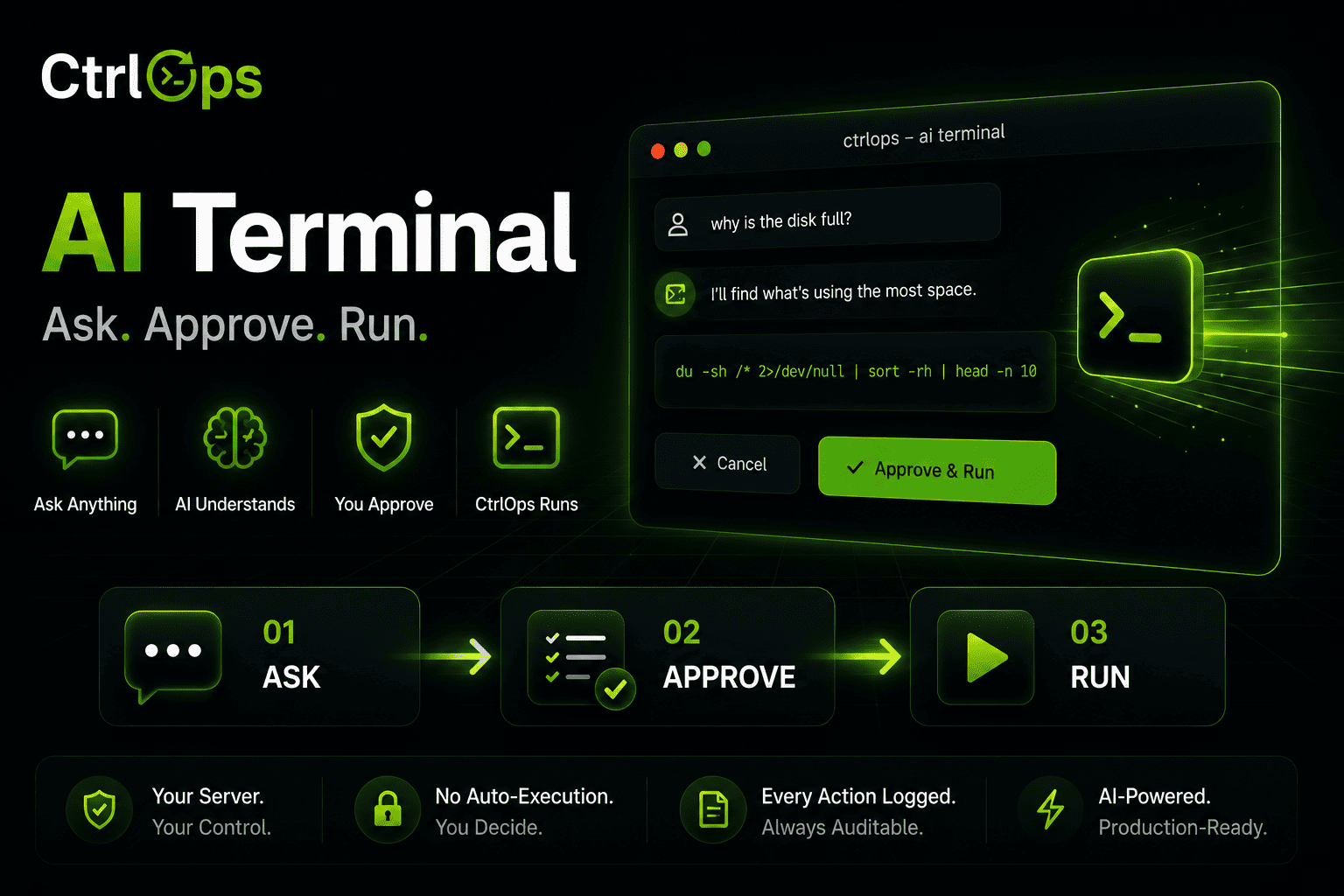
AI Terminal
Describe what you need in plain English. Review and approve every command before it runs.
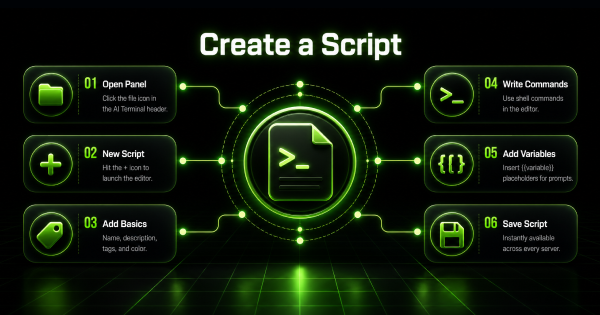
Script Directory
Save the commands you retype every week, with variables filled in at run time. One click on any server.
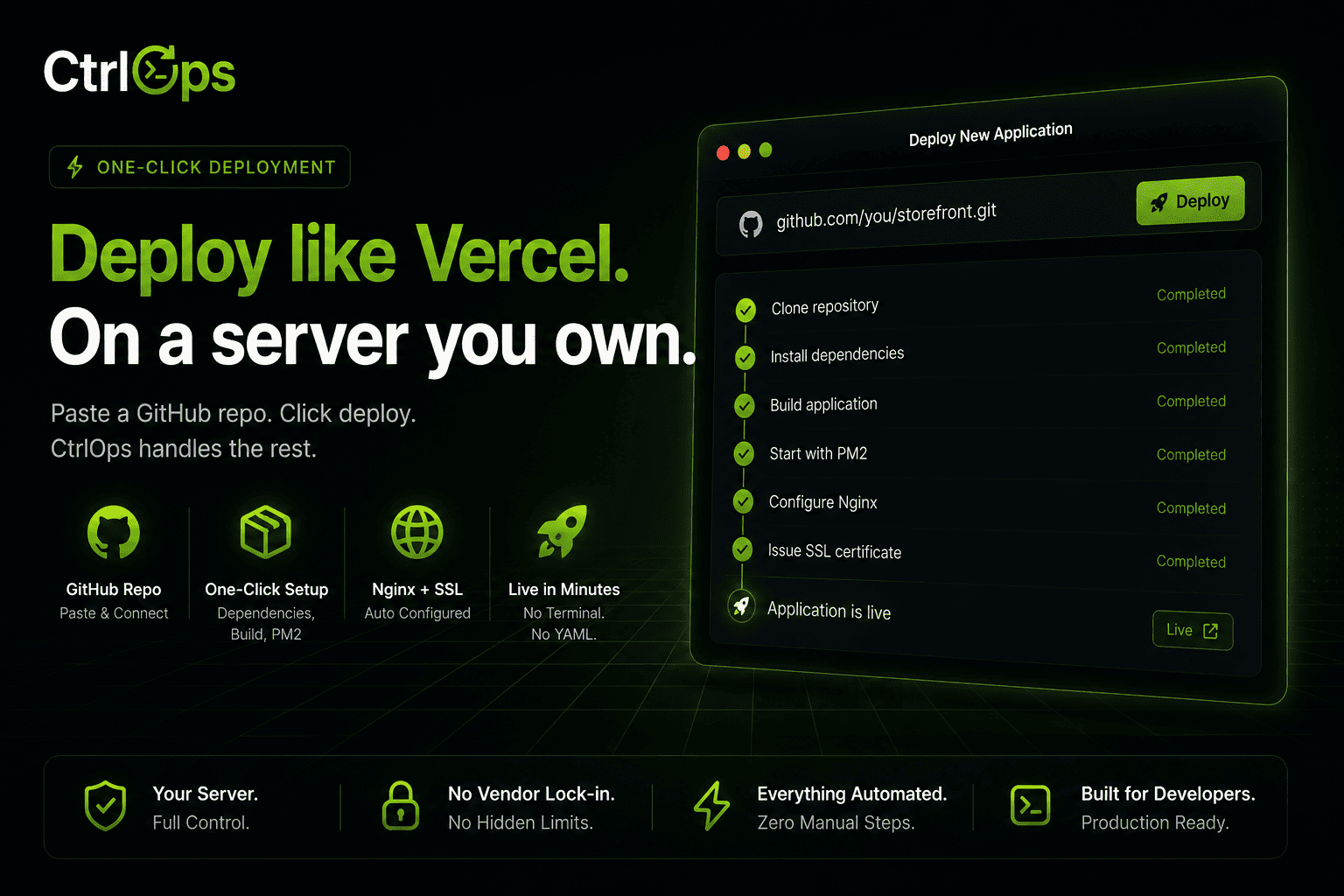
Single-Click Deployment
No scripts, no CI/CD setup. Fill one form and it goes live with PM2, Nginx, and SSL handled for you.
Questions people ask before trusting a schedule.
Scheduled work, with the receipts.
Pick a frequency instead of writing an expression, keep every run with its output, and hear about a failure the moment it happens. Free for a month, no credit card.
✓ Start instantly·✓ No credit card·✓ No sneaky autorenewals