Audit your Linux server. Fix what it finds.
25 predefined audits run over the SSH session you already have. You get a hardening score out of 100, a report you can send to a client, and fix commands that wait for you to click Run.
Example report - server audit
web-01 · 203.0.113.24
Hardening score 61 out of 100. Open findings by severity: 0 critical, 3 high, 4 medium, 1 low.
- Critical 0
- High 3
- Medium 4
- Low 1
Passed
14
Warnings
5
Failed
3
Skipped
9
Coverage 74% - some checks needed sudo and reported why.
- SSH Root LoginRoot login is allowed - set PermitRootLogin noFAILED
- Firewall StateNo active firewall detected - enable ufw or firewalldFAILED
- Sudo NOPASSWD2 NOPASSWD rules widen escalation riskFAILED
An example report, not a live scan. In the app, Fix selected findings copies a prompt to your clipboard for the AI Terminal - this one does not touch it.
How it works
Step 01 - You
Pick.
Connect a server and an Audit tab appears in the sidebar. Filter the catalog of 25 to Server, Database, Web Servers or Docker. Every card says what it looks at, how long it takes, and whether it needs sudo, before you commit to anything.
Step 02 - You
Scope.
Hit Generate and every check in that audit is a checkbox, all of them already ticked. Untick what does not apply to this host. Nothing outside your selection runs, and nothing has touched the server yet.
Step 03 - CtrlOps
Reports.
It runs over the SSH session you already have and streams the log live. What comes back is a hardening score out of 100, a severity breakdown, every finding written as an instruction, and a PDF you can download.
You checked nine things. Now write that up.
Auditing a server by hand is not hard, it is just tedious and easy to abandon halfway. Every question costs a command, the answers land in a scrollback buffer, and at the end you have notes rather than a report - then you start again on the next server.
| Doing it by hand | The check that replaces it |
|---|---|
| grep -E 'PermitRootLogin|PasswordAuthentication' /etc/ssh/sshd_config | SSH Root Login, SSH Password Auth |
| ufw status verbose, then check iptables because this box uses that | Firewall State |
| ss -tulpn | grep LISTEN, and judge each line yourself | Open Ports, External Listeners |
| find / -perm -4000 -type f 2>/dev/null | SUID/SGID Files |
| openssl x509 -enddate -noout -in /etc/letsencrypt/live/*/cert.pem | SSL Certificate Expiry |
| curl -sI https://example.com | grep -i strict-transport, six times | Security Headers |
| docker inspect --format '{{.HostConfig.Privileged}}' $(docker ps -q) | Privileged Containers |
| Write the findings up by hand afterwards | A score, a severity split, and a PDF |
The audit is the checklist, and it runs in seconds rather than an afternoon. Every check by name is in the documentation, and the SSH and access checklist publishes the exact pass and fail thresholds for the first row of this table.
25 audits, four categories.
Every audit is named for what it looks at, so you can tell before you run one whether it applies to this server. Times are for a single host on a normal connection.
Server
7The box itself - access, network, patches and permissions.
- SSH & Access~14s
- Firewall & Network~14s
- Services & Processes~11s
- File System~10s
- Application Security~10s
- Logging & Monitoring~9s
- System Updates~8s
Database
6MySQL and MariaDB, PostgreSQL, MongoDB and Redis.
- Configuration & Hardening~19s
- Authentication~14s
- Network Isolation~12s
- Least-Privilege Permissions~12s
- Transport Encryption~11s
- Credential Storage~10s
Web Servers
6Nginx and Apache - what they expose and how they are configured.
- Content Exposure~14s
- TLS Configuration~12s
- Logging & Monitoring~12s
- Configuration Hardening~11s
- Security Headers~10s
- Identification & Patching~9s
Docker
6Images, containers, volumes and the daemon socket.
- Image Vulnerabilities~16s
- Volume Permissions~13s
- Daemon & Socket~12s
- Network & Supply Chain~12s
- Container Hardening~10s
- Runtime & Resources~10s
The scripts are plain POSIX sh and work out the distribution and package manager themselves, so the same audit runs everywhere without you picking a variant.
- Ubuntu
- Debian
- RHEL
- Rocky
- AlmaLinux
- Amazon Linux
- Fedora
- Oracle Linux
- SUSE
- Alpine
The full catalog lists every check inside every audit, by name.
The moments this actually saves you.
Not a feature list. The situations where you do not actually know how exposed a server is, and what changes in each one.
You inherited a server and nobody can tell you what is open on it.
Find out what is actually exposed, in about fourteen seconds
Run SSH and Access first. It is the fastest audit and needs the least privilege, and root login left on with password authentication beside it is the single most common thing it finds. You get the answer as a list, not as a scrollback buffer.
- 25 audits, four categories
- Read-only, nothing installed
- Safe to run on production
A client asks for a security report and you send them a screenshot of a terminal.
Reply with a PDF that has a score on it
Every run is kept and downloads as a PDF, with the host, the date and the audit version in the header, so it still means something when somebody opens it three months later. It is a hardening record you can hand over, not attested evidence for SOC 2 or ISO 27001.
- A score out of 100
- Severity split per finding
- Coverage stated on every run
The scan gave you a list of problems and no idea what to type.
Turn a finding into a command you read before it runs
Select the findings and CtrlOps builds a prompt for the AI Terminal. It writes the command and explains why it chose it, then waits. Nothing runs until you press Run, and re-running the audit afterwards moves the score, so the fix is measured rather than assumed.
- Written as an instruction
- Nothing runs without your click
- Cancel and nothing changed
Fifteen servers, and no idea which one is the weakest.
Run the same audit everywhere and let the scores rank them
Open Audit Reports from the Home screen, pick the audit, and tick the hosts. Each server is audited separately and gets its own report. Because the same checks ran on all of them, a gap in the scores is a gap in the servers rather than a gap in how carefully somebody looked.
- Pick the hosts, one pass
- A report per server
- The same checks everywhere
What you get that a scan alone does not.
A finding is only useful if something happens next. These are the parts that turn a list into a fixed server, and a fixed server into something you can prove.
A finding is not a fix
Select findings and CtrlOps builds a prompt for the AI Terminal. It writes the command and explains why it chose it, then waits. Nothing runs until you press Run, and a command you cancel leaves the server exactly as it was.
Sorted by how bad it is
Every finding carries a status and a severity, both sortable and filterable, so the failed high-severity ones come to the top. The recommendation is written as an instruction, not a diagnosis.
Nothing runs unscoped
Every check is a checkbox and all of them start ticked. Untick what does not apply to this host before a single command leaves your machine. Checks that need elevated access are marked sudo.
Something you can send
Every run is kept under Reports and downloads as a PDF, with the host, the date and the audit version in the header. That is the reply to the client email, instead of a screenshot of a terminal.
The whole fleet, one pass
Audit Reports on the Home screen runs the same audit across every server you pick, one report each. Same checks everywhere is what makes a difference in the scores mean something.
Nobody minds the AI writing it. They mind it running it.
These are about the approval gate rather than the audit itself - it shipped too recently for anyone to have reviewed it. But the gate is what stands between a finding and a change on your server, and it is the part people bring up unprompted.

"From 1 hour of server chaos to 10 minutes of calm." The best part about CtrlOps is how it eliminates the 'terminal tab chaos' and condenses multiple tools into one clean app. The AI Terminal with an Approval Gate: being able to ask for a fix in plain English is great, but the fact that it shows you the command and asks for approval before running it on live infrastructure is a massive safety net. It completely stops accidental mistakes on production servers. 100% Local Privacy: as an agency founder, security is critical. Knowing our SSH keys and credentials stay entirely on my local machine, never touching a third-party cloud, gave me the confidence to adopt it. No More App Juggling: having the terminal, file manager, and deployments in a single desktop app has cut down on constant context switching.

The preview step is the whole game when AI touches live infra. CtrlOps gets it right: ask in plain English, see the exact command before it runs, approve. Been running it alongside ClawMetry and the fit is natural.
The approve before execute thing is what sold me. Every other AI tool just runs stuff, and you find out what happened after.

What stands out from an engineering perspective is the approval gate on the AI terminal. Most AI tooling here either runs blind or needs too much manual intervention to be useful. This sits in the right place: the AI does the thinking, the engineer makes the call.
Safe to point at production.
The whole data path in one picture - what runs on the server, which way the results travel, and what can never happen without you.
What runs on the server
Read-only shell checks, inside the SSH session you already opened. No agent, no daemon, nothing installed and nothing left behind. Every check reads configuration, file permissions and process state - none of them writes, restarts or installs, which is why running one on production is safe.
Which way the data moves
The scripts come to you, not the other way round. CtrlOps fetches them over HTTPS from ctrlops.io, runs them in your session, and parses the output on your machine. Findings, scores and PDF reports are written to your own disk and are never uploaded anywhere.
What can never happen without you
No finding is fixed automatically, ever. Selecting findings copies a prompt to your clipboard - it does not touch a server. The AI Terminal writes the command, explains why, and waits behind the approval gate for your Run click. Cancel and the server is exactly as it was.
More you can do with CtrlOps.
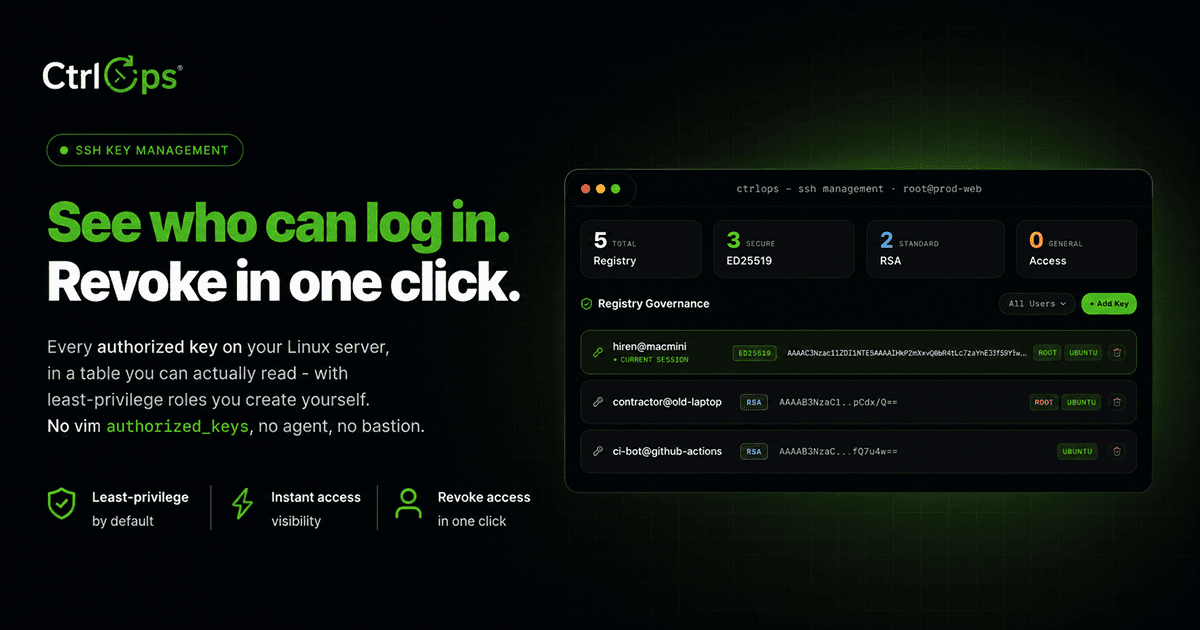
SSH Management
Manage SSH keys, configs, and connections per server, all from one place - no ~/.ssh/config editing.
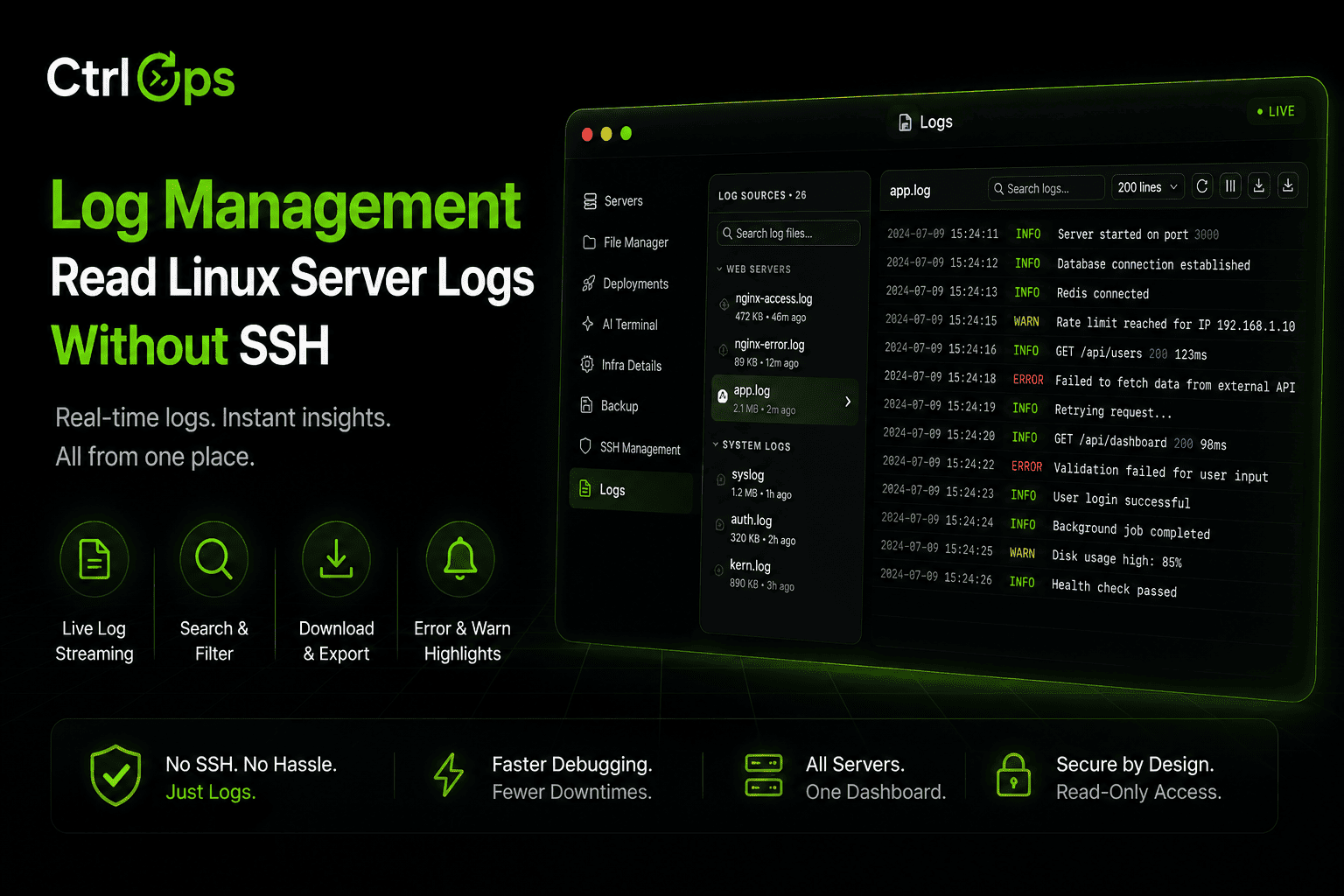
Log Management
Every log file on the server, found and grouped for you. Search it, tail it live, download it - no SSH.
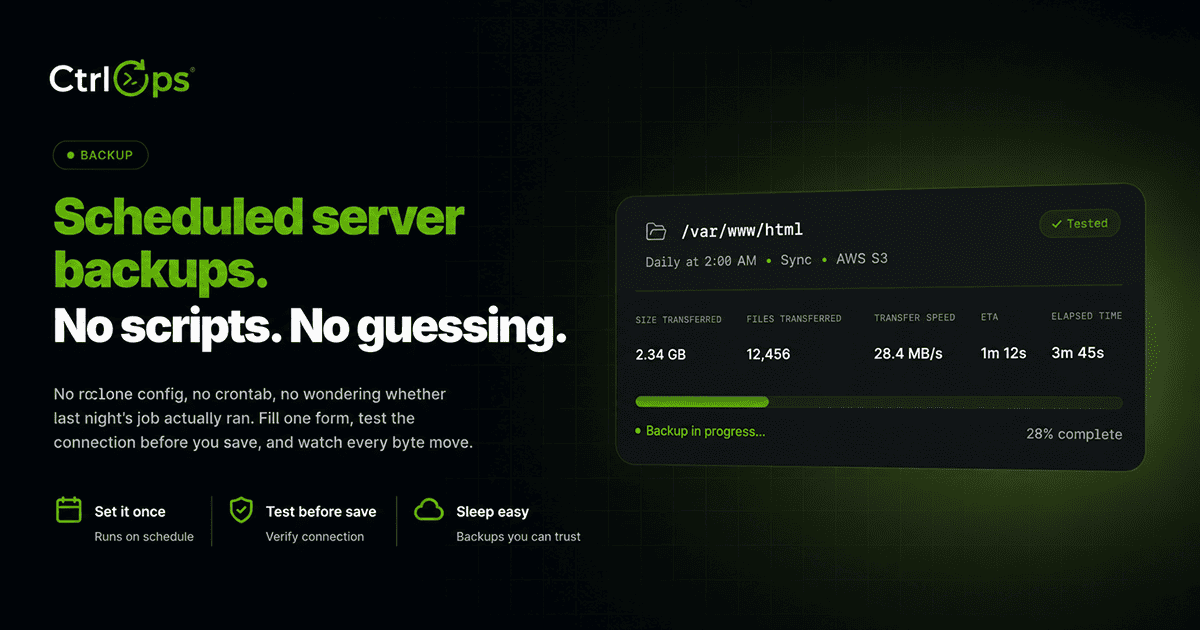
Backup
Scheduled copies of any folder to S3, without writing rclone configs or cron. Watch every run live.
Questions before the first scan.
Find out what is actually open.
Connect a server and the Audit tab appears. 25 audits, a hardening score, and a PDF in under twenty seconds each - then fix what it found without leaving the app. 1-month free trial, no credit card.
✓ Start instantly·✓ No credit card·✓ No sneaky autorenewals