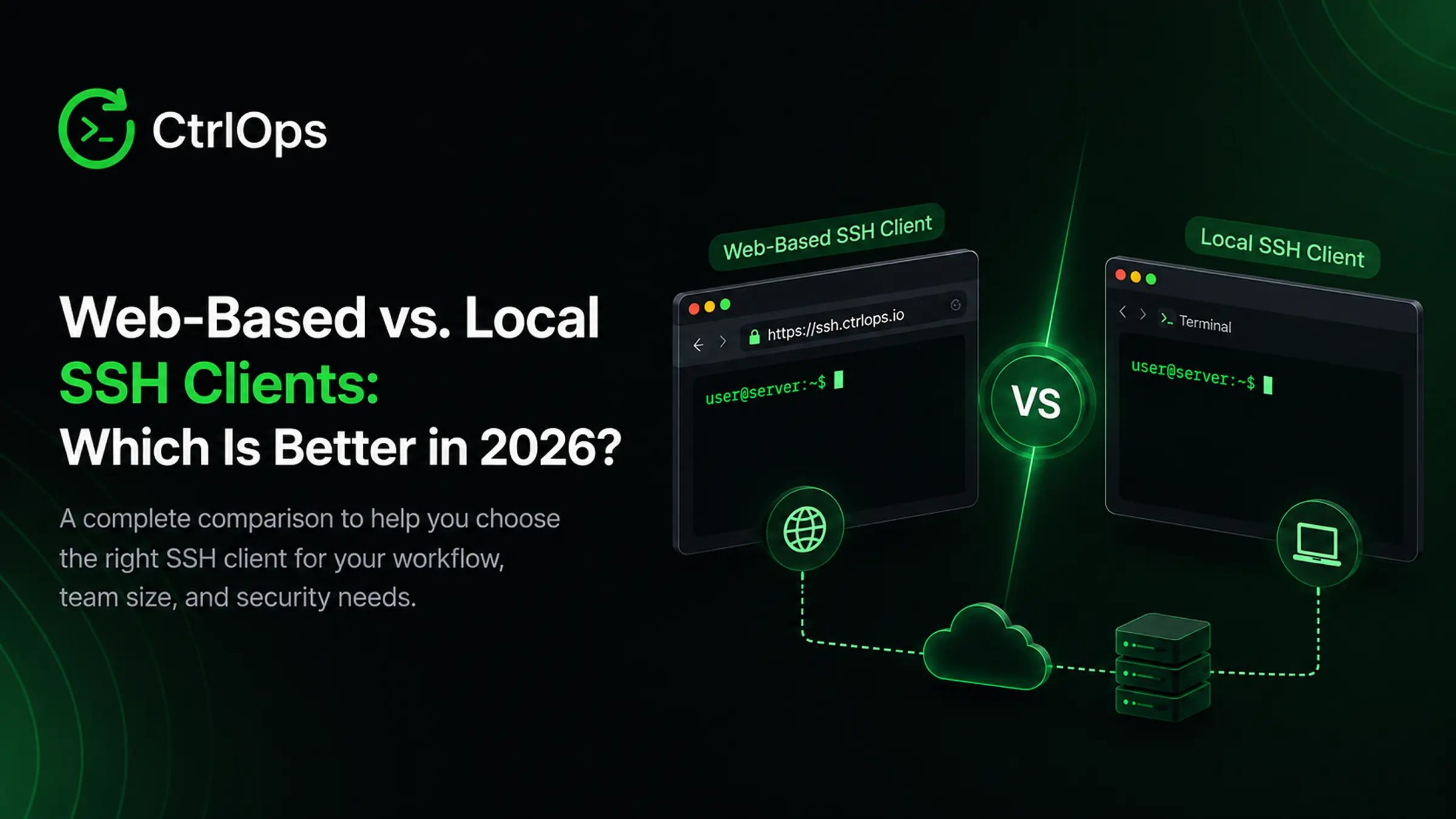

Web-based and local SSH clients use the same protocol, but they differ in where the client runs, how credentials are stored, and what sits between you and the server. Local clients connect directly through a single hop. Web-based clients route through a two-hop proxy. Neither is universally better. Your daily workflow, team size, and security needs decide the right choice.
Key Takeaways
Neither web-based nor local SSH clients are universally preferred. Local clients win on latency, private key control, and terminal customization. Web-based clients win on device flexibility, centralized access revocation, and built-in audit logging. Most production teams run a local client as the daily driver and keep a web-based path as a documented emergency fallback.
TL;DR: which client type fits your situation
- Solo developer working hands-on daily - Local SSH client. Low latency, full key control, deeper customization.
- Team that needs high security and granular individual access - Local SSH client. Keys stay on user devices or hardware tokens, with no third-party web proxy in the connection path.
- Large team sharing 2 to 3 servers with moderate security needs - Web-based SSH client. Browser access for everyone without distributing key files, when proxy latency is acceptable.
- Developer managing 3+ servers who wants SSH, file management, monitoring, and AI diagnostics in one tool - CtrlOps, a local-first desktop app at $7/user/month after a 1 month free trial - no credit card required.
| Factor | Local SSH Client | Web-Based SSH Client |
|---|---|---|
| Installation | Requires software on your device | None, runs in any browser |
| Connection path | Direct to server (1 hop) | Via proxy or backend (2 hops) |
| Latency | Low, more responsive | Higher, extra hop adds delay |
| Private key storage | Your device or a hardware token | Managed by the provider, or session-based |
| Centralized audit logging | Requires separate tooling | Often already in place |
| Access from any device | Only devices with the client installed | Any device with a browser |
| Best for | Everyday hands-on work | Emergency access, compliance teams |
Prefer to watch? The short version - the two-hop architecture, the seven differences, and how to pick - in under 7 minutes:
What Is an SSH Client and Why Does Its Type Matter?
An SSH client is software that initiates an encrypted connection to a remote server. It handles authentication (password or key pair), opens a secure channel, and gives you a shell to run commands, transfer files, or forward ports. Every SSH client performs the same core functions. The difference is where the client runs and what happens between you and the server.
A local SSH client is installed on your computer. The connection goes directly from your machine to the server. One hop. Your keys never leave your device.
A web-based SSH client runs inside your browser. A backend service translates your keystrokes into SSH commands and streams the output back over HTTPS or WebSocket. Two hops. Your browser talks to a proxy, and the proxy talks to the server.
That architectural difference creates real trade-offs in latency, security, key management, and what happens when something breaks between you and the server.
How Does a Local SSH Client Work?
A local SSH client connects directly from your device to the target server through an encrypted tunnel. There are no intermediary services in between. Your private key sits on your hard drive (or on a hardware security key like a YubiKey), and the connection is point-to-point.
Your laptop --( encrypted SSH )--> Remote serverCommon local SSH clients include:
- CtrlOps - a local-first desktop app combining SSH, file management, monitoring, and AI diagnostics
- OpenSSH - the
sshcommand built into macOS, Linux, and modern Windows - PuTTY - long-standing free GUI client for Windows
- Termius - a cross-platform native app with an encrypted credential vault and cross-device sync
- Warp - a Rust-built AI terminal (coding-focused, not server management)
- MobaXterm - a Windows-only SSH client bundled with SFTP, RDP, and X11
A typical connection looks like this:
ssh -i ~/.ssh/id_ed25519 deploy@203.0.113.10That command tells your local OpenSSH client to authenticate using the private key and connect directly to the server. Nothing passes through a third-party service.
If you are shopping for a local client, we compared the best SSH clients for Mac in 2026 and the best SSH clients for Windows on real deployment tasks.
Bottom line: Local SSH clients offer the lowest latency, complete control over your private keys, and zero dependence on a third-party service being online. The trade-off is that the client must be installed and configured on every device you use.
How Does a Web-Based SSH Client Work?
A web-based SSH client (also called a browser SSH client) runs inside your browser. You open a URL, log in, and a terminal appears on the page, usually rendered with a JavaScript library like xterm.js. But your browser cannot speak raw SSH. A backend proxy handles the actual SSH connection on your behalf.
Your browser --( HTTPS / WebSocket )--> Proxy server --( SSH )--> Remote serverCommon web-based SSH clients include:
- AWS Systems Manager Session Manager - built into the AWS console, uses IAM-based credentials instead of SSH keys, and does not require inbound port 22
- GCP SSH-in-Browser - Google Cloud's built-in browser terminal for Compute Engine instances
- Apache Guacamole - a free, self-hosted gateway supporting SSH, RDP, VNC, and Telnet via browser (Apache License 2.0, latest stable release 1.6.0)
- Shellngn - a commercial web-based platform for SSH, SFTP, RDP, and VNC, available as hosted cloud or self-hosted via Docker
- Wetty, ttyd, WebSSH2 - open-source self-hosted alternatives built on xterm.js
A typical connection works like this: you log in to the AWS console, click "Connect" next to the EC2 instance, select "Session Manager," and a terminal opens directly in your browser tab. No SSH key file on your device. No terminal app required.
Bottom line: Web-based SSH clients trade direct control for accessibility. You can connect from any device with a browser, but you are adding a proxy layer, along with its uptime, security practices, and latency, between you and your server.
What Are the 7 Main Differences Between Web-Based and Local SSH?
The architectural gap between browser-based and locally installed SSH clients creates seven measurable differences that show up in daily work. Understanding each one helps you pick the right tool for the situation instead of the one you used last time.
1. Connection Path and Latency
Local SSH clients connect directly to the server. One network hop. Round-trip latency is the natural distance between you and the host.
Web-based clients add a second hop through a proxy or backend service. For most commands the extra delay is barely noticeable (10 to 50ms). It becomes obvious during interactive work: editing files in vim, watching logs scroll with tail -f, or typing quickly and expecting immediate feedback.
2. Private Key Storage and Control
With a local client, your private key stays on your device. You control the passphrase, the SSH agent, and whether to use a hardware token. No third party ever touches the key.
Web-based clients handle credentials differently. Cloud-native tools like AWS Session Manager skip SSH keys entirely and use temporary, IAM-governed credentials. Self-hosted tools like Apache Guacamole store connection credentials in their own database. Either way, you hand some credential management to another system.
3. Installation and Device Access
A local client requires software installed on every device. Switching to a borrowed laptop, a hotel business-center computer, or a locked-down corporate machine means no SSH access unless the client is already there.
Web-based clients need only a browser and valid login credentials. That makes them appealing for emergency access, contractor onboarding, and restricted environments.
4. Offline Flexibility
If the proxy service behind the web-based SSH client goes down, you lose access. Your server can be running fine, but if something breaks in the AWS console or your self-hosted Guacamole instance crashes, you cannot connect.
The local client has no such dependency. If you can reach the server's IP on port 22, you are in.
5. Centralized Audit Logging
Web-based tools often include session logging out of the box. AWS Session Manager logs every command to CloudTrail, S3, or CloudWatch. Apache Guacamole records sessions for playback. That matters in compliance-heavy environments (HIPAA, SOC 2, PCI DSS).
Local clients provide no centralized audit trail by default. Equivalent logging for local SSH requires extra tooling, such as Teleport or a bastion host with session recording.
6. Large-Scale Key Management
When SSH keys are scattered across every developer's laptop, revoking access after someone leaves means finding every key they hold. According to Verizon's 2025 DBIR, credential abuse accounts for 22% of all data breaches, making it the single most common breach vector. Orphaned SSH keys are a real attack surface.
Web-based access centralizes this. Disable one account and the person loses access everywhere at once. There is no need to hunt through authorized_keys files on 19 servers.
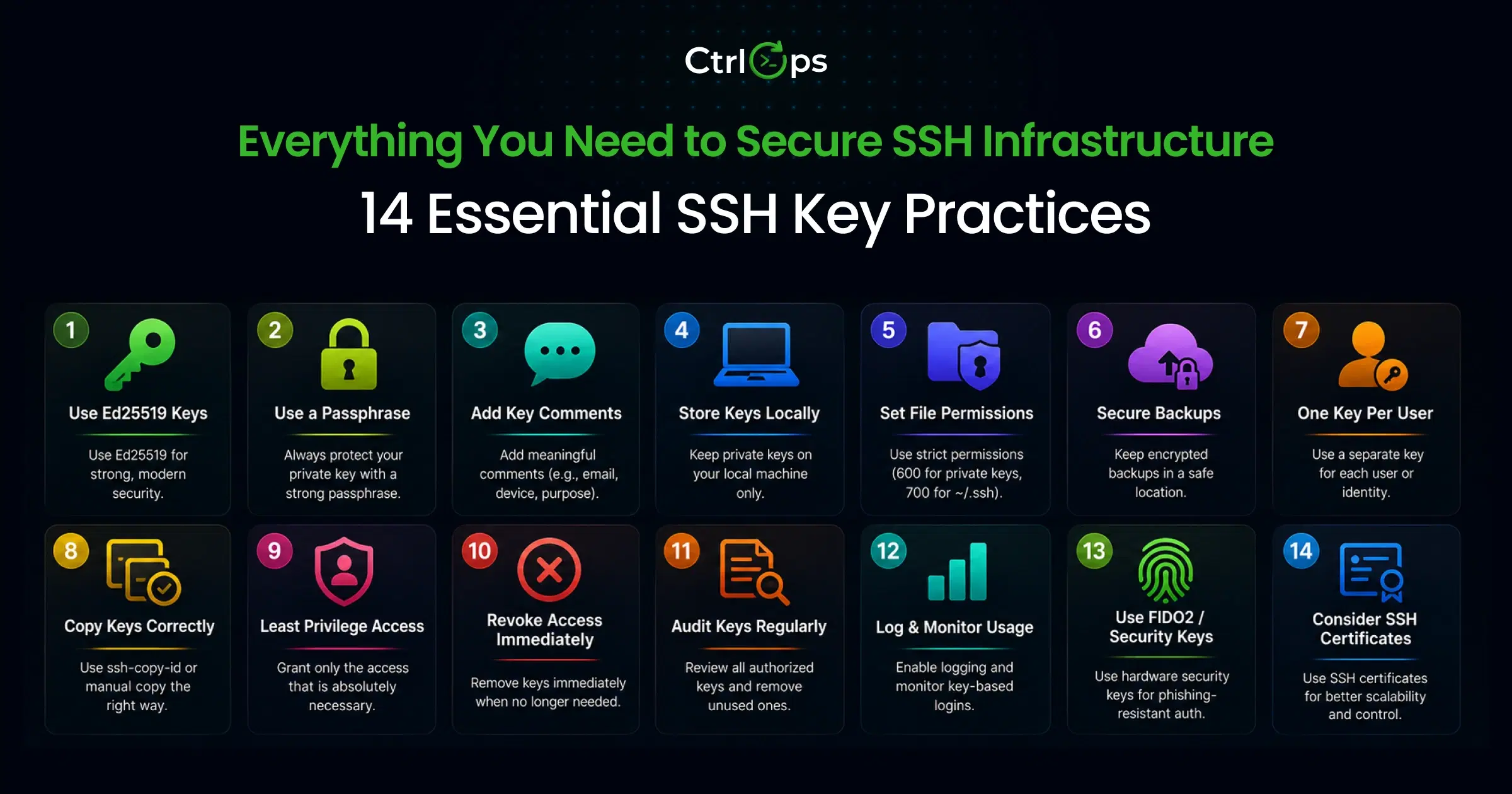
For teams on local clients, disciplined SSH key management practices mitigate the risk, but they depend on that discipline holding.
7. Customization and Terminal Experience
Local clients offer deep customization: themes, keyboard shortcuts, split panes, GPU-accelerated rendering (Warp), multiplexing (tmux), and native clipboard support. The terminal experience is polished and responsive.
Web-based clients are limited by what the browser allows. Copy and paste can be awkward. Scrollback may be capped. Color rendering and font choice depend on the xterm.js configuration.
Reality check: Neither approach eliminates risk. Local clients leave you exposed if a laptop holding an unprotected key file is stolen. Web-based clients leave you exposed if the provider's backend is compromised or misconfigured. The right choice depends on which risks you can actually control in your environment.
Which SSH Client Type Is More Secure?
Neither web-based nor local SSH clients are inherently more secure. Security depends on how you configure authentication, store credentials, and manage access across your team. Each model offers protections the other lacks.
Local SSH client security features:
- Private keys never leave your device (when used correctly)
- No third-party backend in the connection path
- Compatible with hardware security keys (YubiKey, FIDO2)
- Mature, well-audited protocol implementation (OpenSSH has 25+ years of security hardening)
Web-based SSH client security features:
- Centralized access revocation (disable one account, lock out everywhere)
- No long-lived SSH keys to manage, distribute, or forget
- Session logging and audit trails already in place
- Can eliminate inbound port 22 entirely (AWS Session Manager uses the SSM agent with outbound connections only)
The overlooked risk with local clients is key proliferation. A developer joins, gets SSH keys for 15 servers, and leaves after six months. Did someone revoke every key from every server? According to Forbes, 2.8 billion credentials were stolen throughout 2025. Orphaned access credentials, SSH keys included, are a growing attack surface.
The overlooked risk with web-based clients is provider trust. You route every keystroke through a backend service. Well-known cloud providers handle this well. Self-hosted or less mature tools may not isolate sessions properly, may log sensitive output, or may store credentials insecurely.
Bottom line: For individual developers, local key-based SSH with Ed25519 keys and a hardware token is the most secure option. For teams of 5+ where people join and leave often, centralized web-based access reduces the surface area for forgotten credentials. Many teams run both.
Which Gives Better Performance for Daily Work?
Local SSH clients give the best interactive performance. A direct connection means latency equals the natural round-trip time between your device and the server. That matters for work where you expect immediate keystroke feedback: editing config files in vim, running tail -f on a production log, or firing off a rapid sequence of diagnostic commands during an incident.
Web-based clients have measurable delay. The extra hop through the proxy adds 10 to 50ms per interaction, depending on the provider and network path. For a one-off command it is invisible. It gets grating at 2 a.m., 45 minutes into debugging a Node.js process that keeps crashing.
Web-based clients also introduce a single point of failure that local clients do not have. If the proxy goes down, you lose access to every server behind it, even servers that are running perfectly. Local SSH has one failure mode: can you reach port 22? Web-based SSH has two: can you reach the proxy, and can the proxy reach the server?
When Should You Use a Local SSH Client?
A local SSH client is the right choice when you need the fastest, most responsive terminal and you are comfortable managing your own keys. Typical scenarios where local pays off:
Solo developer managing a personal VPS. Simple, fast, and you have complete control over your one or two keys. OpenSSH with ~/.ssh/config is all you need.
An engineer doing heavy hands-on work every day. Editing configs, tailing logs, running builds, chasing memory leaks. Lower latency and better ergonomics compound over an 8-hour day.
A developer working across multiple servers at once. Local clients with multi-tab support keep SSH sessions open on several servers simultaneously. No re-authentication, no session timeouts.
Security-sensitive environments where keys must never leave the device. If your compliance requirements forbid passing credentials to third-party services, local key storage is the only option.
The manual multi-server workflow with a traditional local SSH client looks like this:
- Open Terminal (or PuTTY on Windows)
- Type
ssh user@server1-ipand authenticate (30 seconds) - Run the diagnostic command, read the output
- Open another terminal tab, SSH into server 2 (30 seconds)
- Open a third tab for server 3 (30 seconds)
- Need a file? Open a separate SFTP client, re-enter credentials (1 to 2 minutes)
- Need CPU or memory data? Open a browser tab with your monitoring dashboard (1 minute)
- Context switch between 4 to 5 windows for the next 30 minutes
Total setup time for a 3-server debugging session: 5 to 8 minutes. Total tools open: 4 to 5.
When Should You Use a Web-Based SSH Client?
A web-based SSH client is the right choice when accessibility, centralized access control, or compliance logging outweigh the latency trade-off. Typical scenarios where web-based wins:
Emergency access from an unknown device. Your laptop died. You are at a coffee shop with a borrowed Chromebook. A web-based client gets you to the server from any browser with nothing to install.
Enterprise teams with strict compliance requirements. AWS Session Manager logs every command to CloudTrail. Apache Guacamole records sessions for playback. If auditors need proof of who accessed what and when, built-in session logging saves weeks of tooling work.
Onboarding a contractor or temporary team member. Instead of distributing SSH keys and hoping they get revoked later, you create a web-based account with scoped permissions. When the contract ends, you disable the account. Done.
Servers locked behind private networks with no direct SSH access. Some infrastructure is deliberately kept off the public internet. A web-based bastion or session manager endpoint may be the only permitted path in.
Locked-down corporate environments. If your company laptop blocks outbound connections on port 22 but allows HTTPS, a web-based SSH client tunneled over port 443 is your only option.
Bottom line: Many production teams use both: a local client for day-to-day work, and a web-based client as a documented fallback for emergencies, compliance, and restricted environments.
Can You Get the Best of Both Worlds?
The real problem is not "web vs. local." It is the tool sprawl that both paths produce. Even with the best local SSH client, you end up with a terminal in one window, an SFTP client in another, a monitoring dashboard in a browser tab, and a mental map of which server is where.
CtrlOps takes a local-first approach (direct SSH, credentials stored only on your device, no cloud sync) and wraps it in a single desktop app that covers what usually takes 3 to 4 separate tools.
"As an agency founder, security is critical. Knowing our SSH keys and credentials stay entirely on my local machine, never touching a third-party cloud, gave me the confidence to adopt it."
- Chintan P., Co-founder & CEO of BytezTech, G2 review
What it actually looks like:
- Open CtrlOps. Your servers are listed on the dashboard as named cards, not raw IP addresses.
- Click a server. You get tabbed access to the SSH terminal, file manager, infrastructure monitoring (CPU, memory, disk, processes), and an AI assistant.
- Need to check another server? Open a second tab. Both stay live. Follow Nginx error logs in one tab while watching memory usage on the database server in the other.
- Need to upload a config file? Use the built-in file manager. No separate SFTP client. No re-entering credentials.
- Not sure which command to run? Type the question into the AI terminal in plain English: "Why is memory increasing and not decreasing?" The AI reads your server's actual state, generates the diagnostic commands, shows them to you, and waits for your approval before executing anything.
- Need to reach a database that isn't public? Save a port forward and it appears on
localhost, something a browser tab cannot open on your machine.
No web-based SSH client and no traditional local SSH client in the current top search results offers AI-assisted command generation for server management. The standard workflow is still: Google the command, copy it, paste it into the terminal, hope it is correct. CtrlOps is the only local-first SSH tool where you can describe a problem in plain English and get executable commands back, reviewed before anything runs.
The AI terminal is approval-gated by default. It shows each command before execution, explains what it does, flags whether it is safe, and only runs after you click "Run." It supports BYOK (bring your own key) for OpenAI, Anthropic, Google Gemini, or any OpenAI-compatible provider. With MCP server integration it can also pull context from GitHub repositories, local files, or official documentation via Context7 before generating commands.
For teams, CtrlOps includes fleet-wide access management. See everyone logged in across your entire server fleet from a single screen. Onboard a new teammate to multiple servers at once, or offboard a departing one from all servers with a single confirmation. No more checking authorized_keys server by server.
"HR person commenting on a server tool, I know. But whenever someone leaves the team, we need their server access gone immediately. Before this it was a whole back and forth with tech. Now I check SSH management myself and flag it in 2 minutes. Offboarding got so much easier, honestly."
- Chandni, Product Hunt review
Read more about how AI is changing DevOps workflows and where approval-gated execution fits in.
How to Choose: A Decision Framework
Your choice between web-based and local SSH comes down to three questions.
1. What is your primary daily workflow?
If you SSH into servers daily for hands-on work (debugging, deploying, editing configs), a local client gives you the speed and customization you need. If you connect occasionally or need an emergency fallback, a web-based client removes the setup burden entirely.
2. How many people need server access?
For a solo developer or a team of two, managing local SSH keys is easy. For teams of five or more with regular joiners and leavers, centralized access control prevents orphaned credentials, either through a web-based tool or through a local-first tool like CtrlOps that manages SSH keys across the whole fleet.
3. What are your compliance requirements?
If auditors need session recordings and access logs, web-based tools with built-in logging (AWS Session Manager, Apache Guacamole) save a lot of engineering time. If credentials must never pass through third-party infrastructure, local storage is the only path that qualifies.
| Your Situation | Suggested Approach |
|---|---|
| Solo dev, 1 to 3 servers, daily SSH work | Local client (OpenSSH + ~/.ssh/config) |
| Developer managing 3 to 15 servers with file transfer and monitoring needs | Local-first all-in-one tool (CtrlOps, $7/user/mo, 1 mo free) |
| Enterprise team, 50+ servers, SOC 2 or HIPAA compliance | Web-based (AWS Session Manager) plus a local fallback |
| Emergency access from untrusted devices | Web-based client as a documented backup |
| Contractor or temporary team member | Web-based, with scoped, time-limited accounts |
Conclusion
There is no single winner in the web-based versus local SSH client debate. Local clients offer low latency, complete key control, and zero third-party dependencies. Web-based clients offer instant access from any device, centralized audit logging, and one-click access revocation.
For most teams the answer is not one or the other. It is a local client as the daily driver and a web-based option as the safety net. Understanding how each approach handles connections, credentials, and failure modes lets you pick deliberately instead of defaulting to whatever you used last time.
If you manage 3+ servers and you are tired of switching between a terminal, an SFTP client, and a monitoring dashboard, CtrlOps combines local-first SSH with a file manager, live infrastructure monitoring, and an approval-gated AI terminal in one desktop app, at $7/user/month after a 1 month free trial - no credit card required.
It depends on the provider. Well-built platforms like AWS Session Manager use short-lived, IAM-driven credentials and never store long-lived SSH keys, which can be more secure overall than local keys scattered across a dozen laptops. The downside is that you depend on a third-party backend sitting in your connection path, a dependency local clients simply do not have.
Some web-based clients let you import an SSH key, but many use other authentication methods instead. AWS Session Manager relies on IAM policies and the SSM agent rather than traditional SSH keys. Apache Guacamole stores credentials in its own database. The trend is moving toward session-based or identity-provider credentials instead of long-lived key files.
You lose access to that tool even though your servers are running fine. This is the biggest risk of relying on a web-based client as your only access path. Production teams should keep a local SSH fallback for critical systems so a provider outage does not lock them out mid-incident.
Local SSH is faster for interactive work. It connects directly to the server with no extra hop. Web-based clients add 10 to 50ms per interaction through the proxy layer, which compounds during long debugging sessions or file editing. For a quick one-off command or status check, the difference is barely noticeable.
Local clients handle file transfers natively with scp, sftp, or rsync. Web-based clients vary widely. AWS Session Manager has no built-in file transfer, so you need S3 or a separate tool. Apache Guacamole supports drag-and-drop transfers over SSH sessions. Shellngn includes a built-in SFTP panel.
Do not use web-based SSH as the only access method for production servers. If the provider has an outage, you are locked out during an incident. Also avoid it for latency-sensitive interactive work such as editing files in Vim or watching real-time logs for long stretches. The extra proxy hop slows those tasks down noticeably.
CtrlOps is a local-first desktop app for macOS, Windows, and Linux that combines SSH terminal access, a GUI file manager, live infrastructure monitoring, automated backups, and an approval-gated AI terminal in a single interface. Unlike traditional SSH clients, it removes the need to switch between 3 to 4 different tools. It costs $7/user/month after a 1 month free trial - no credit card required - and includes unlimited servers.
No. CtrlOps is a desktop application that connects directly to your server over standard SSH. Credentials are stored locally on your device and never synced to the cloud, which makes it a local-first SSH client rather than a web-based one. If you specifically need browser-based access, AWS Session Manager or Apache Guacamole are the better fit.
AWS Systems Manager Session Manager provides shell access to EC2 instances without SSH keys, open inbound ports, or bastion hosts. Access is controlled through IAM policies. The SSM agent on the instance communicates outbound with the Systems Manager service, so inbound port 22 is not required. Sessions can be logged to CloudTrail, S3, or CloudWatch for compliance.
Apache Guacamole is a free, open-source remote desktop gateway licensed under the Apache License 2.0. It supports SSH, RDP, VNC, and Telnet through the browser using HTML5, and you can host it yourself on your own infrastructure. It includes centralized authentication (LDAP, SAML, TOTP), session recording, and multi-user access control. The latest stable release is 1.6.0.
For personal projects with one or two servers, a single local client is enough. For production teams, keeping both is the safer setup. Use the local client as the daily driver for speed and responsiveness, and keep a web-based client configured as a documented emergency fallback for when your primary machine is unavailable or compromised.
You can manage team SSH keys locally with per-user key pairs, consistent naming conventions, and regular rotation. CtrlOps adds fleet-wide access management, showing every user across all servers on a single screen so you can onboard or offboard across the whole fleet in one action. See our guide to SSH key management best practices for the full checklist.