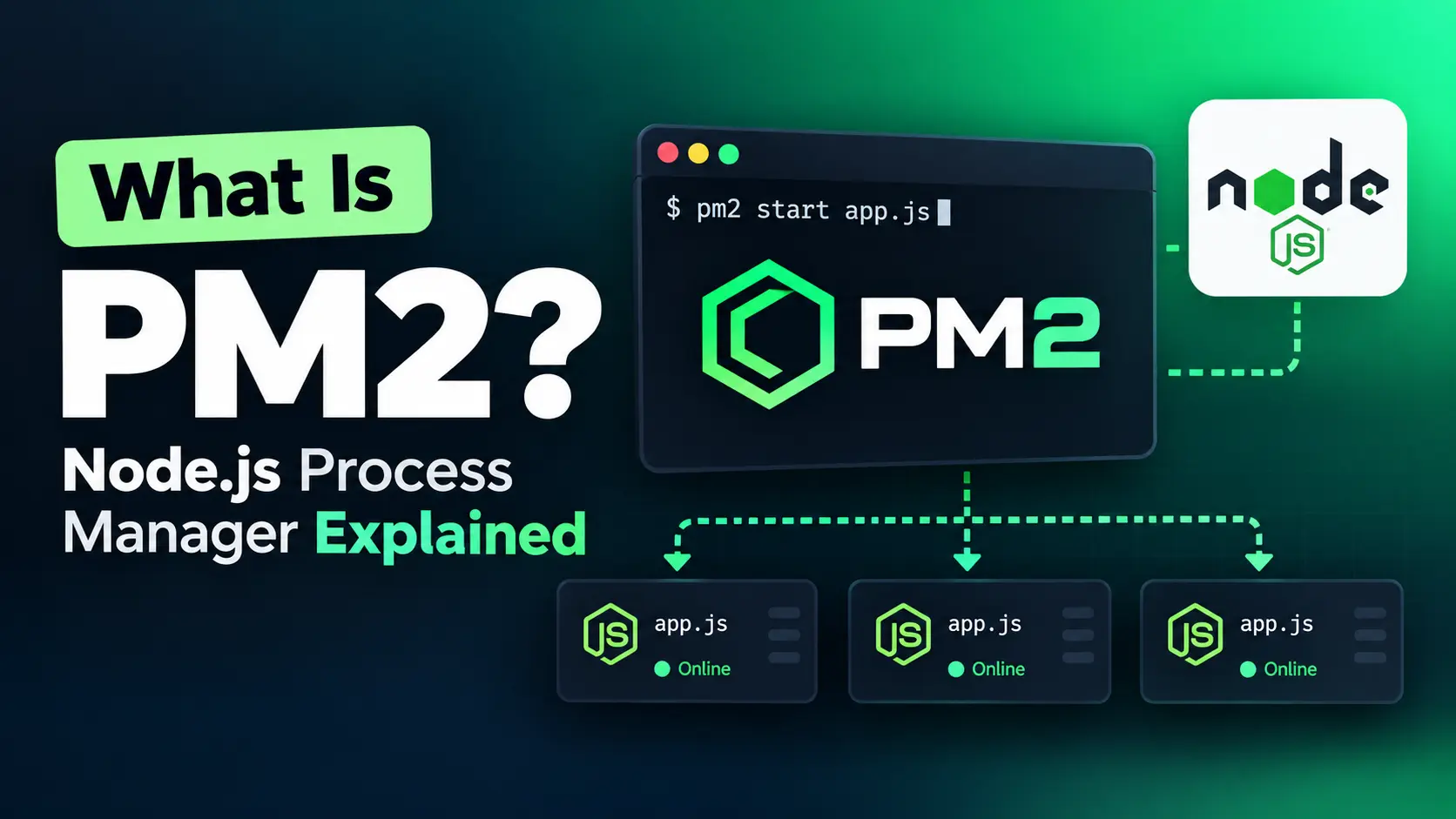

PM2 is a production process manager for Node.js that keeps apps alive, restarts them on crash, scales them across CPU cores, and brings them back after a server reboot. Its own README describes it as "a production process manager for Node.js/Bun applications with a built-in load balancer."
It is also widely used. The pm2 package was downloaded about 4 million times in the last week of September 2026, according to npm's download stats, roughly 15 times the downloads of forever, an older Node.js process manager. The PM2 GitHub repository has more than 43,000 stars.
Key Takeaways
PM2 is a free, open source (AGPL-3.0) process manager that supervises Node.js apps on Linux servers. Install it with npm install pm2@latest -g, start an app with pm2 start app.js, then run pm2 save and pm2 startup so it survives a reboot. Use cluster mode (-i max) to use every CPU core, and pm2 reload in cluster mode for zero-downtime deploys.
Which setup fits:
- Single VPS with 1-3 apps: PM2 with an ecosystem file. Fast setup, reliable restarts.
- Several servers running PM2: PM2 plus the CtrlOps PM2 panel, to restart, reload, and read live metrics without typing
pm2commands on each server. - Container-native stacks: Docker or Kubernetes health checks. The orchestrator already restarts containers, so PM2 is usually redundant there.
| Feature | PM2 (CLI) | PM2 Plus (pm2.io) | CtrlOps PM2 panel |
|---|---|---|---|
| Restart on crash | Yes | Yes | Yes (PM2 restarts, CtrlOps shows the count) |
| Cluster mode | Yes | Yes | Yes, expand a cluster to manage each instance |
| Live CPU and memory | pm2 monit in the terminal | Web dashboard | Desktop panel with live sparklines |
| Per-process log streaming | pm2 logs | Cloud log viewer | Built-in live log viewer |
| Save the process list | pm2 save | pm2 save | Save list button |
| Crash alerts | No | Email and Slack notifications | No, the PM2 tab shows restart counts but does not alert |
| Process data sent to a third-party cloud | No | Yes, to pm2.io | No, read over your own SSH connection |
| Price | Free (AGPL-3.0) | From $39/month | $7/user/mo (1 mo free), or $149 lifetime |
PM2 Plus pricing verified October 2, 2026 against the pm2.io pricing page, which shows Plus as "Starts at $39/Month" in its plan summary and $79/Month in its feature breakdown. Check that page for the current price before you buy.
What is PM2 and why does it matter for Node.js?
PM2 (Process Manager 2) is an open source production process manager for Node.js applications with a built-in load balancer. It supervises your app process, restarts it on crash, scales it across CPU cores, and restores it after a server reboot.
The PM2 quick start guide calls it "a daemon process manager that will help you manage and keep your application online." That explains its value: it sits between your app and the server, adding controls that a plain node app.js command does not provide.
PM2 does two jobs at once. It manages the app process lifecycle. It also adds production-grade controls around that process: logging, monitoring, clustering, and persistence.
PM2 can also run some non-Node processes (Python, Ruby, shell scripts), but its primary use case remains Node.js on Linux servers.
| PM2 capability | What it does | Why it matters |
|---|---|---|
| Process supervision | Starts and monitors app processes | Keeps services running without manual checks |
| Auto restart | Restarts crashed apps immediately | Cuts downtime from minutes to seconds |
| Cluster mode | Runs multiple instances across CPU cores | Uses all available server resources |
| Zero-downtime reload | Rotates instances without dropping connections | Safer production deploys |
| Startup hook | Restores apps after a server reboot | Survives unplanned restarts |
| Ecosystem file | Stores app config in a single file | Repeatable, version-controlled setup |
| Watch mode | Restarts on file changes | Useful for staging and development |
Why do developers use PM2 in production?
Developers use PM2 in production because running a Node.js app with node app.js gives you no crash recovery, no multi-core scaling, and no persistence after a reboot. PM2 solves all three with a single install.
Running Node directly works for local development. It fails in production the moment any of these happen:
- The app crashes from an unhandled exception. No restart. The process is gone.
- The server reboots after a kernel update. Your app does not come back.
- Traffic grows beyond what a single CPU core handles. Node runs your JavaScript on one thread by default.
- You need to deploy a code update without dropping active connections.
PM2 handles each scenario. A crashed app is restarted immediately by default. A rebooted server restores every saved process. Cluster mode spreads your app across all available cores. Reload rotates instances gracefully during deploys.
Teams typically choose PM2 for these practical reasons:
- Solo developers on a VPS: quick setup, reliable restarts, log access without extra tooling
- Startup CTOs scaling an API: cluster mode uses 4-8 CPU cores without code changes
- Agency developers managing client apps: one tool for many app processes across multiple servers
- Lean DevOps teams: fast crash recovery and simpler deployment workflows
How do you install and start PM2?
Install PM2 globally with npm in one command, then start your first app with a second command. Total setup time: under 60 seconds.
Step 1: Install PM2 globally
npm install pm2@latest -gStep 2: Start your app
pm2 start app.js --name "my-api"Your app is now running under PM2 supervision. If it crashes, PM2 restarts it automatically.
Step 3: Save the process list and enable startup persistence
pm2 save
pm2 startup
The pm2 startup command generates a startup script for your init system (systemd, upstart, or launchd). Run the command it prints, and your apps will survive server reboots.
pm2 startup prints a command you must copy and run yourself with sudo. If you skip this step, your apps will not come back after a reboot. It is the most commonly missed step in PM2 setup.If you use CtrlOps, you can skip the install command. Open the PM2 tab on a connected server, and if PM2 is not installed yet, an Install PM2 button installs it globally for you. PM2 needs Node.js on the server, so install Node first.
Your processes appear in the panel as soon as PM2 is running them, and the Save list button does the pm2 save step in one click.
For teams connecting to these servers regularly, pairing this with proper SSH key management keeps access secure across the fleet.
What are the essential PM2 commands?
The 8 PM2 commands below cover most day-to-day process management. You do not need to memorize the full CLI reference to use PM2 well.
# Start an app
pm2 start app.js --name "api"

# List all running processes
pm2 list

# Restart a specific app
pm2 restart api

# Reload (zero downtime in cluster mode)
pm2 reload api

# Stop an app (keeps it in the PM2 list)
pm2 stop api

# Delete an app from PM2 entirely
pm2 delete api

# View real-time logs
pm2 logs api

# Monitor CPU and memory live
pm2 monit
These commands map directly to what developers do most: start an app, check status, restart after a deploy, and read logs when something breaks.
The manual workflow for managing PM2 across servers
Here is roughly what a PM2 check looks like on 3 servers without a GUI:
- Open a terminal, SSH into server 1 (~15 seconds)
- Run
pm2 listto check process status (~5 seconds) - Run
pm2 logs api --lines 50to check for errors (~20 seconds) - Run
pm2 restart apiif needed (~5 seconds) - Disconnect, SSH into server 2, repeat steps 2-4 (~45 seconds)
- Disconnect, SSH into server 3, repeat steps 2-4 (~45 seconds)
Total: roughly 4-6 minutes for 3 servers. With 8 servers, the same routine runs 15-20 minutes.
The commands themselves are quick. Switching between servers is what eats the time, as one CTO put it on Product Hunt:
"The AI-assisted debug loop for Linux servers is something we've wanted at RetainSure for a while. Chasing down intermittent issues across multiple EC2 instances usually means a lot of context switching between logs, metrics, and SSH sessions."
- Anand Thakkar, Co-Founder and CTO at RetainSure (original comment on Product Hunt)
The same workflow with a visual PM2 panel
With the CtrlOps PM2 Process Manager, the same 3-server check works differently:
- Open CtrlOps. Each server opens in its own tab. Click server 1. Its PM2 processes are already listed with live CPU, memory, and restart counts.
- Click the server 2 tab. Same view, no SSH command. Server 1 stays connected.
- Click the server 3 tab. Spot the process with 120 restarts (a crash loop), open it, and read the last lines of its Logs tab.
Total: roughly 90 seconds. The restart counter makes crash loops visible at a glance instead of buried in pm2 list output. Each server also supports multiple terminal tabs, so you can tail pm2 logs in one tab while running commands in another, without losing either session.
One Product Hunt reviewer summed up the appeal:
"The one-click server actions caught my attention. Being able to manage users, PM2 processes, and logs without writing commands could save a lot of repetitive work."
- Julian Ting (original comment on Product Hunt)
Prefer to watch? This walkthrough shows the PM2 tab end to end, from the process list to restarting a process and streaming its logs:
How does PM2 cluster mode work?
PM2 cluster mode starts multiple instances of the same app across CPU cores and spreads incoming connections between them. This gives a Node.js application multi-core scaling without changing application code.
Start cluster mode with:
pm2 start app.js -i maxThe -i max flag tells PM2 to start one instance per available CPU core. On a 4-core server, PM2 starts 4 worker processes sharing the same port.
The PM2 cluster mode documentation explains that it uses the Node.js cluster module, so the scaled app's child processes "can automatically share server ports." Each request goes to an available worker. If one worker crashes, PM2 restarts it while the others keep serving traffic.
Cluster mode also enables zero-downtime reloads. When you run pm2 reload api, PM2 rotates workers one at a time: start a new worker, wait for it to be ready, then shut down the old one. Active connections are not dropped.
| Scaling method | How it works | Best for |
|---|---|---|
pm2 start app.js | Single instance, single core | Development, low-traffic apps |
pm2 start app.js -i 2 | 2 instances across 2 cores | Medium-traffic APIs |
pm2 start app.js -i max | One instance per core | Production workloads that need full CPU use |
-i max uses all of them with zero code changes.What is the difference between PM2 restart and PM2 reload?
PM2 restart kills the process and starts a new one. PM2 reload rotates instances gracefully so active connections are not dropped, but only in cluster mode. Use reload for production deploys. Use restart for quick resets.
As the cluster mode docs put it: "As opposed to restart, which kills and restarts the process, reload achieves a 0-second-downtime reload."
Here is the practical difference:
pm2 restart api- stops the process and starts a fresh one. Brief downtime during the switch. Works in fork and cluster mode.pm2 reload api- in cluster mode, starts new workers one at a time and retires old ones after they finish active requests. No dropped connections. In fork mode there is only one process, so reload behaves much like a restart.pm2 stop api- stops the process but keeps it in PM2's list. Useful for temporary maintenance.pm2 delete api- removes the process from PM2 entirely.
If your team serves live traffic and runs cluster mode, pm2 reload is the safer choice for production deployments. If you are resetting a single-instance development app, pm2 restart is simpler.
How do you persist PM2 processes after a server reboot?
PM2 persists processes after a reboot with a startup hook that plugs into your system's init system (systemd, upstart, or launchd). Without it, every PM2 process disappears on reboot.
The PM2 startup hook guide documents this as a two-step process:
Step 1: Save your current process list
pm2 saveThis writes your running processes to ~/.pm2/dump.pm2.
Step 2: Generate and install the startup script
pm2 startupPM2 detects your init system and prints a command like:
sudo env PATH=$PATH:/usr/bin /usr/lib/node_modules/pm2/bin/pm2 startup systemd -u deploy --hp /home/deployCopy the exact command it prints and run it. PM2 now restores every saved process on boot.
pm2 save, you must run pm2 save again. The startup hook restores whatever was saved last. Forgetting this is the number one reason apps "mysteriously disappear" after a reboot.How do you use a PM2 ecosystem file?
A PM2 ecosystem file keeps process configuration, environment variables, instance counts, and watch settings in a single JavaScript file. It replaces long CLI commands with a repeatable, version-controlled setup.
Create ecosystem.config.js in your project root:
module.exports = {
  apps: [{
    name: "api",
    script: "./server.js",
    instances: "max",
    exec_mode: "cluster",
    env: {
      NODE_ENV: "production",
      PORT: 3000
    },
    max_memory_restart: "500M",
    log_date_format: "YYYY-MM-DD HH:mm:ss"
  }]
};
Start every app defined in the file:
pm2 start ecosystem.config.jsThe ecosystem file is most useful when you run more than one app on a server, or need the same configuration across staging and production.
Ecosystem file options worth knowing:
instances: "max"- cluster mode across all coresmax_memory_restart- restart if memory goes past a threshold (catches memory leaks)watch: true- restart on file changes (staging only, not production)ignore_watch- exclude directories from file watchingenv/env_production- environment-specific variables, withenv_productionapplied bypm2 start ecosystem.config.js --env production
PM2 monitoring, logs, and day-to-day operations
PM2 shows what your processes are doing through CLI commands for log streaming, resource monitoring, and process status. That visibility matters most when a deploy fails, memory climbs, or a process starts crash looping.
View live logs:
pm2 logs api --lines 100Monitor CPU and memory in real time:
pm2 monitCheck process status:
pm2 listFor solo developers with 1-2 servers, these commands work well. The friction appears at scale. Managing PM2 across several servers means keeping multiple SSH sessions open, running pm2 list on each one, and switching between terminal tabs to read logs.
The PM2 Process Manager in CtrlOps shows live CPU, memory, restart counts, and logs for every PM2 process on a server. Restart, reload, stop, and delete are one click each. No pm2 commands, and no pm2 logs in a separate terminal.
CtrlOps reads PM2 data over your existing SSH connection. No agent on the server, no pm2.io subscription, and no process data shipped to a third-party cloud. When a process keeps crashing, the AI Terminal can search the web for the error before it suggests a fix, and every command it proposes waits for your approval.
You can sign in with ChatGPT or OpenRouter, or bring your own key for OpenAI, Anthropic Claude, or Gemini.
There is also a separate Logs tab that works independently from the PM2 panel. CtrlOps scans the server, finds the log files on it, and groups them by source: Nginx access and error logs under Web Servers, PM2 process logs under Runtime & Apps, and whatever else is running. Each log shows its file size and how long ago it was last written to.
Open any file in the built-in viewer to search it, follow it live, download it, or clear it. The difference from pm2 logs: you do not need to know the file path, and you get every log on the server in one list, not just the PM2 processes.
PM2 vs running Node.js directly
The clearest way to understand PM2 is to compare it with the plain node app.js command most developers start with.
| Running method | What you get | What you miss |
|---|---|---|
node app.js | Direct execution, simple | No restart on crash, no clustering, no boot persistence |
| PM2 | Full process lifecycle management | Slightly more setup (1-2 minutes) |
| systemd service | OS-level service control | Less app-focused tooling than PM2, no cluster mode |
| Docker only | Containerized runtime | May still need process-level controls inside the container |
Running node app.js directly has no fault tolerance. If the process crashes at 3 AM, it stays dead until someone restarts it by hand. PM2 adds automatic restart, and the total setup cost is a few commands: pm2 start, pm2 save, and pm2 startup.
For developers deploying Node.js apps on VPS instances, cloud VMs, or traditional Linux servers, PM2 is the fastest path from "app runs manually" to "app runs reliably in production." If you are still using PuTTY or Webmin for those servers, the manual overhead compounds at every step.
Can PM2 manage non-Node.js applications?
Yes, PM2 can manage Python, Ruby, and other interpreted language processes alongside Node.js apps, and its README now lists Bun next to Node.js. However, cluster mode and zero-downtime reload are built for Node.js.
You can start a Python script with PM2:
pm2 start app.py --interpreter python3PM2 will supervise the process and restart it on crash, but cluster mode will not work the way it does with Node.js. For non-Node stacks, dedicated process managers (Gunicorn for Python, Puma for Ruby) are usually a better fit.
The shortest accurate answer to "what is PM2" remains: a Node.js process manager. That matches how people search, how the official docs describe it, and how it is used in production.
When is PM2 the right choice?
PM2 is the right fit when you need reliable process control for Node.js apps on Linux servers without the overhead of container orchestration or a managed platform.
PM2 fits well for:
- Single VPS deployments: 2-minute setup, automatic restarts, log access
- Growing Node.js APIs: cluster mode scales across 2-16 cores without code changes
- Agency and multi-client hosting: one process manager for all client apps
- Teams deploying on VMs: PM2 plus Nginx covers most deployment needs
PM2 is not the right choice when:
- Your stack is fully containerized on Kubernetes (use container health checks instead)
- You run serverless functions (Lambda and Cloud Functions manage their own lifecycle)
- You want a full PaaS experience (Vercel and Railway handle process management internally)
For teams running PM2 on 5-25 servers, the CLI works but creates friction. Running pm2 list, pm2 logs, and pm2 restart on each server by hand takes roughly 15-20 minutes per check.
A desktop tool like CtrlOps with a visual PM2 panel cuts that same check to a couple of minutes, with live metrics visible at a glance.
What to remember about PM2
PM2 is a Node.js process manager built to keep applications running on real servers. Its most important strengths are automatic crash recovery, multi-core clustering, zero-downtime reloads, and startup persistence after reboots.
That combination is why PM2 keeps appearing in production Node.js stacks. It solves the operational problems that surface the moment an app moves from a laptop to a live Linux server.
For solo developers, PM2's CLI is all you need. For developers and DevOps teams running PM2 on several servers, pairing it with a visual tool like CtrlOps removes the SSH round trips and makes crash loops, memory spikes, and restart counts visible without typing a single command.
Frequently Asked Questions
PM2 is an open source process manager for Node.js applications. It keeps apps running by restarting them automatically on crash, scales them across CPU cores with cluster mode, manages their logs, and restores them after a server reboot. Install it with npm install pm2@latest -g and start any app with pm2 start app.js.
Yes. PM2's core process manager is free and open source under the AGPL-3.0 license. The free version includes process management, cluster mode, log access, ecosystem files, and startup persistence. PM2 Plus, the paid monitoring dashboard at pm2.io, starts at $39/month according to its pricing page as checked on October 2, 2026, and adds web dashboards, error tracking, and email or Slack notifications.
Run pm2 start app.js --name "my-app" to start your app under PM2 supervision. Then run pm2 save to store the process list and pm2 startup to restore it after a reboot, running the command pm2 startup prints. These three commands give you a production-ready PM2 setup in under a minute.
pm2 restart kills the process and starts a new one, causing brief downtime. pm2 reload rotates instances gracefully, starting new workers before retiring old ones, so active connections are not dropped. That zero-downtime behavior needs cluster mode; on a single fork-mode process, reload behaves much like a restart. Use reload for production deployments and restart for quick resets.
No. PM2 manages your application process: starting, stopping, restarting, and scaling it. Nginx handles HTTP traffic, TLS termination, and reverse proxying. In a typical production setup, Nginx sits in front and routes requests to your PM2-managed Node.js app. They work together.
Yes. PM2 can manage Python, Ruby, and other interpreted language processes using the --interpreter flag, for example pm2 start app.py --interpreter python3. However, cluster mode and zero-downtime reload are designed for Node.js. For Python production deployments, Gunicorn or uWSGI are usually better choices.
PM2 cluster mode starts multiple instances of your app across CPU cores and spreads incoming connections between them. On a 4-core server, pm2 start app.js -i max starts 4 workers sharing the same port. Your app gets multi-core scaling without any code changes, using up to 4 times the CPU capacity of a single-instance setup.
Yes. CtrlOps has a PM2 tab that reads PM2 data over your existing SSH connection and lists every process with live CPU, memory, restart counts, and a live log stream. Restart, reload, start or stop, and delete are one click each, and Save list does the same job as pm2 save. No agent is installed on the server, there is no pm2.io subscription, and process data is never sent to a third-party cloud.
CtrlOps costs $7/user/month after a 1 month free trial - no credit card required, or $149 once for lifetime access, with unlimited servers. PM2 Plus starts at $39/month according to the pm2.io pricing page as checked on October 2, 2026, and links each server's PM2 to the pm2.io cloud, which receives your process data. CtrlOps keeps that data between your machine and your servers, and adds SSH management, a file manager, deployments, cron scheduling, port forwarding, and monitoring beyond PM2 process control.
Avoid PM2 when your stack runs on Kubernetes (the orchestrator handles the process lifecycle), on serverless platforms like AWS Lambda (they manage execution automatically), or on managed PaaS services like Vercel or Railway (they handle process management internally). In these environments the platform already handles restarts, scaling, and health checks, so PM2 adds a second layer doing the same job.
No. PM2 supports zero-downtime reloads in cluster mode, rotating workers one at a time during a deploy. Your application still has to shut down gracefully (close database connections, finish pending requests) for this to work reliably. PM2 provides the mechanism; your app code has to cooperate.
Run pm2 logs app-name --lines 100 to see the last 100 lines of your app's stdout and stderr. To follow logs in real time, run pm2 logs app-name without the lines flag. PM2 stores logs in ~/.pm2/logs/ by default. On several servers, the CtrlOps Logs tab finds and groups PM2 logs automatically, so you do not need to remember file paths.
Yes. CtrlOps Cron Jobs is a visual cron scheduler: pick a frequency from a dropdown, point the job at a shell command, a saved script, or a URL, and get a Slack, Telegram, or webhook alert if the job fails or times out. The job runs on the server, so it fires and alerts even when the CtrlOps app is closed. You can schedule nightly PM2 restarts, log cleanups, or health-check scripts without editing crontab.
CtrlOps Security Audit runs 25 predefined audits (157 checks) across Server, Database, Web Servers, and Docker categories, covering SSH access, firewall rules, file permissions, database configuration, and security headers. It returns a hardening score with every finding rated by severity. Select the findings you want fixed and hand them to the AI Terminal, which proposes each fix and waits for your approval before running it. Re-run the audit afterward to confirm the score improved. Everything runs over your existing SSH connection with no agent on the server.