VPS Deployment17 min read
What Is a VPS? A Developer's Guide to Server Setup (2026)
What a VPS is, how it works, and how to set one up in 7 steps: SSH, security, runtime, build, PM2, Nginx and SSL, with real terminal commands.

- Manual setup
- 35-45 min
- Steps
- 7
- VPS cost
- $5-24 a month
- Last updated
- Nov 22, 2026
A Virtual Private Server (VPS) offers developers a cost-effective alternative to PaaS providers like Vercel, with a flat monthly bill from about $6/month instead of per-seat and usage charges. This comprehensive guide covers the complete VPS workflow for developers from understanding what a VPS is and making your first SSH connection, to deploying a live production app with SSL and maintaining the server easily without becoming a full-time sysadmin.
A VPS gives you an isolated server slice with root access, dedicated CPU and RAM, and full control over your stack. You pay a flat $5-24/month, while a PaaS bill grows with every seat and with traffic past the included limits.
- Solo developers - Start with 1 vCPU / 1-2GB RAM ($6-12/mo), deploy Node.js/React/Next.js with full root access
- Startup teams - Use a VPS with a management tool like CtrlOps to skip hiring a DevOps engineer
- Agency developers - One VPS per client, local-first credential security, no shared spreadsheets
| Feature | Shared Hosting | VPS | Dedicated Server | PaaS (Vercel/Railway) |
|---|---|---|---|---|
| Root Access | No | Yes | Yes | No |
| Dedicated Resources | No | Yes | Yes | Managed |
| Monthly Cost | $3-10 | $5-24 | $80-300+ | Free tier, then per seat + usage |
| Stack Control | Limited | Full | Full | Limited |
| Scaling | Provider-limited | Vertical + horizontal | Hardware-bound | Automatic (expensive) |
| Best For | Static sites, blogs | Production apps, APIs | High-traffic enterprise | MVPs, early-stage startups |
A VPS (Virtual Private Server) is an isolated slice of a physical server that behaves like your own dedicated machine. CPU, RAM, and storage are guaranteed to you. No other user on the same hardware touches your allocation.
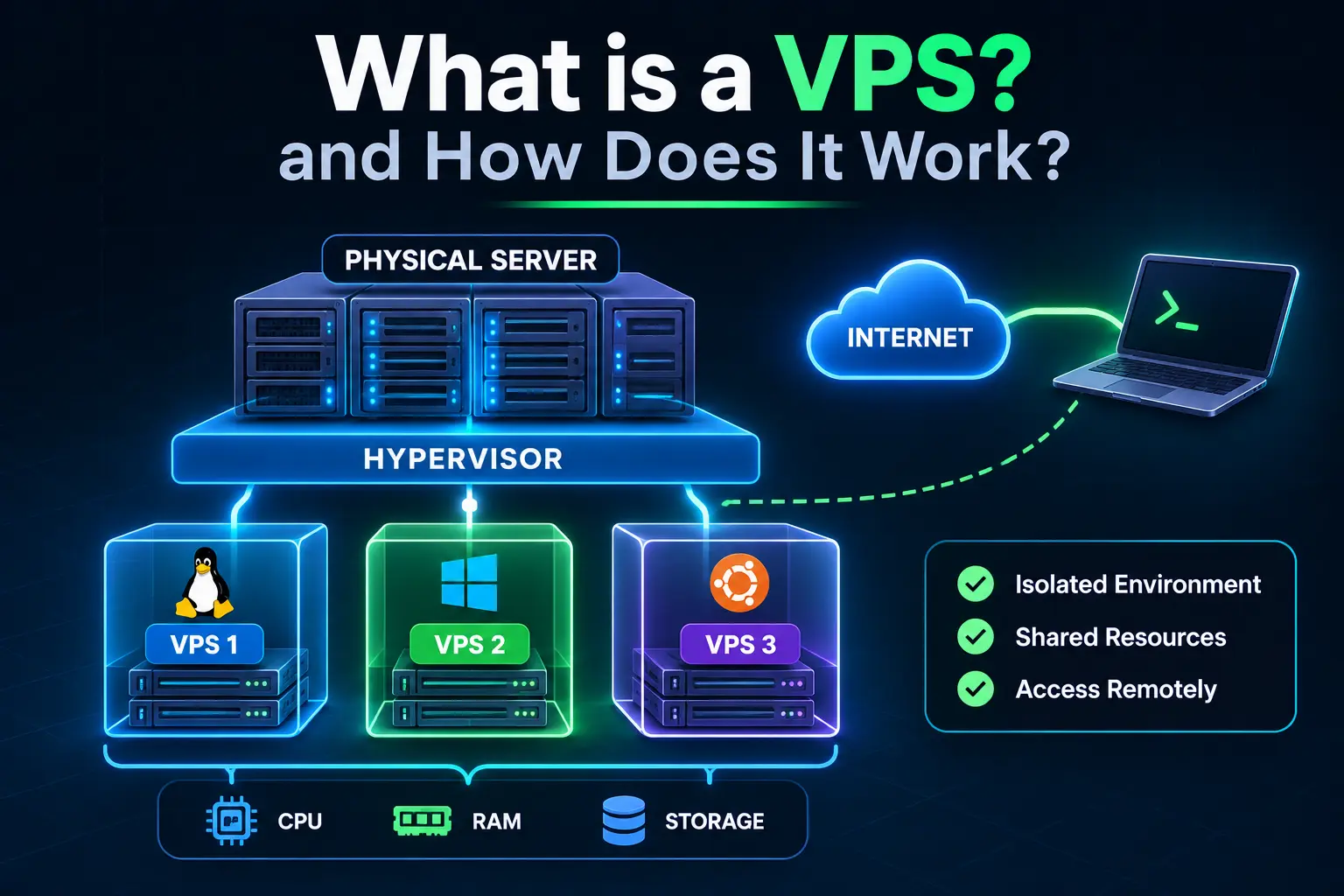
The underlying mechanism is a hypervisor. A physical server in a data center runs this software, which carves the hardware into multiple isolated virtual machines. Each VM gets a separate operating system, dedicated resources, and full root access. IBM defines a VPS as "a form of multitenant cloud hosting in which virtualized server resources are made available to a user over the internet through a cloud or hosting provider."
According to a Dynamic Market Insights report, the global virtual private server market was worth US$5.4 billion in 2023 and is expected to reach US$15.4 billion by 2031, a growth rate (CAGR) of 13.3% from 2024 to 2031.
A simple analogy works here. Shared hosting is a co-working desk. Everyone shares the same Wi-Fi and power outlets. A VPS is a private office in the same building. Same building, but your space, your resources, and your locks belong to you.
What that means in practice: install any software, run any framework, configure Nginx or Apache your way, SSH in whenever you want. No control panel gatekeeping. No support tickets just to install a package.
A VPS for developers works because of four things: root access, cost control at scale, full stack freedom, and zero vendor lock-in.
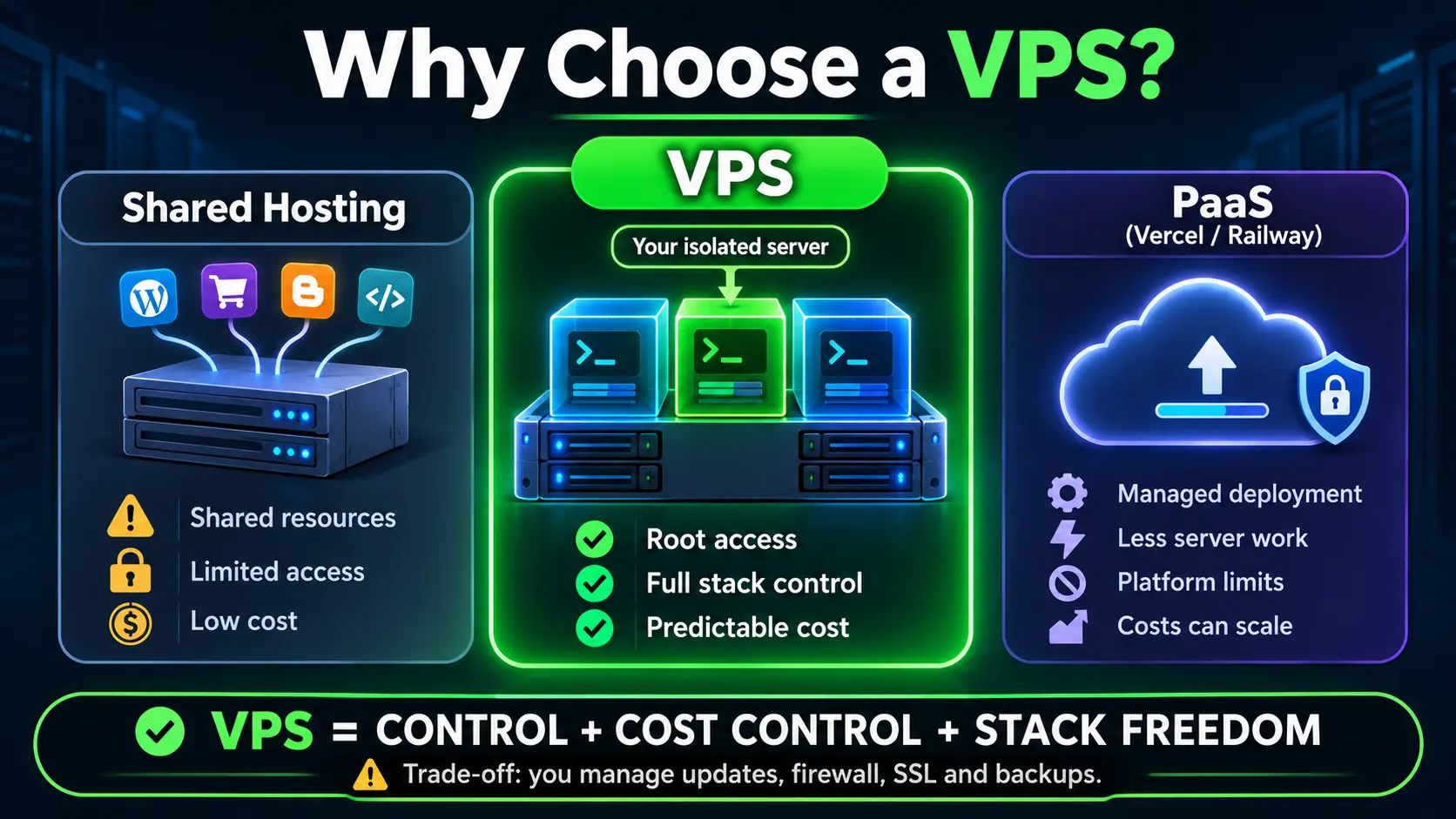
Root access puts you in charge of your software stack. Node.js (LTS), Python 3, Redis, PM2, Nginx, Certbot. Install what you need, when you need it. No waiting on a hosting provider. No "that package isn't available on our plan" emails.
Cost control at scale matters most. Vercel's Hobby plan costs $0/month for a Next.js app with low traffic. Move to Pro and you pay $20 a month for each developer seat, plus usage past the included 1 TB of data transfer and 10M requests. That same app on a $12/month VPS with 2GB RAM handles the same traffic. Flat bill. No surprises.
Stack freedom removes platform opinions from your decisions. Run a Next.js frontend, a FastAPI backend, and PostgreSQL on a single server. Add Redis caching later in 30 seconds. On a PaaS, each of those is a separate billable service.
Zero vendor lock-in keeps your deployment scripts portable. Switching from DigitalOcean to Hetzner takes an afternoon. No rewrites.
| Decision Factor | Shared Hosting | VPS | PaaS (Vercel/Railway) |
|---|---|---|---|
| Root/SSH Access | No | Full | No |
| Custom Software | Limited | Anything | Platform-supported only |
| Monthly Cost | $3-10 | $5-24, flat | Free tier, then per seat + usage |
| Migration Effort | High (provider-specific) | Low (standard Linux) | High (platform-specific) |
| DevOps Knowledge Needed | None | Basic Linux + SSH | None |
Four things: a provider account, an SSH client, a domain name (optional but recommended), and basic comfort with the Linux terminal.
Picking a VPS provider. The top three for developers in 2026: DigitalOcean ($6/mo for 1 vCPU/1GB), Hetzner (from €5.99/mo excl. VAT for 2 vCPU/4GB in Germany and Finland, when in stock), and Vultr. Choose based on which data center sits closest to your users. All three support Ubuntu 24.04 or 26.04 LTS, the go-to OS choices for most developer workloads.
Recommended starting specs:
| Use Case | vCPU | RAM | Storage | Monthly Cost (DigitalOcean) |
|---|---|---|---|---|
| Single Node.js/React app | 1 | 1-2GB | 25-50GB SSD | $6-12 |
| Next.js SSR + database | 2 | 4GB | 80GB SSD | $24 |
| Multiple client apps | 4 | 8GB | 160GB SSD | $48 |
Hetzner's EU plans cost less for the same size: €5.99 for 2 vCPU/4GB and €8.99 for 4 vCPU/8GB, excl. VAT. Prices checked November 22, 2026 on each provider's pricing page.
SSH client. macOS and Linux ship with ssh in the terminal. On Windows, use Windows Terminal with OpenSSH (built-in since Windows 10). Or grab a dedicated tool like CtrlOps that bundles SSH connections, file management, and server monitoring in one window.
Generate your SSH key before creating the VPS:
ssh-keygen -t ed25519 -C "your-email@example.com"This creates a key pair in ~/.ssh/. Add the public key (id_ed25519.pub) to your VPS provider during server creation. Disable password authentication after setup.
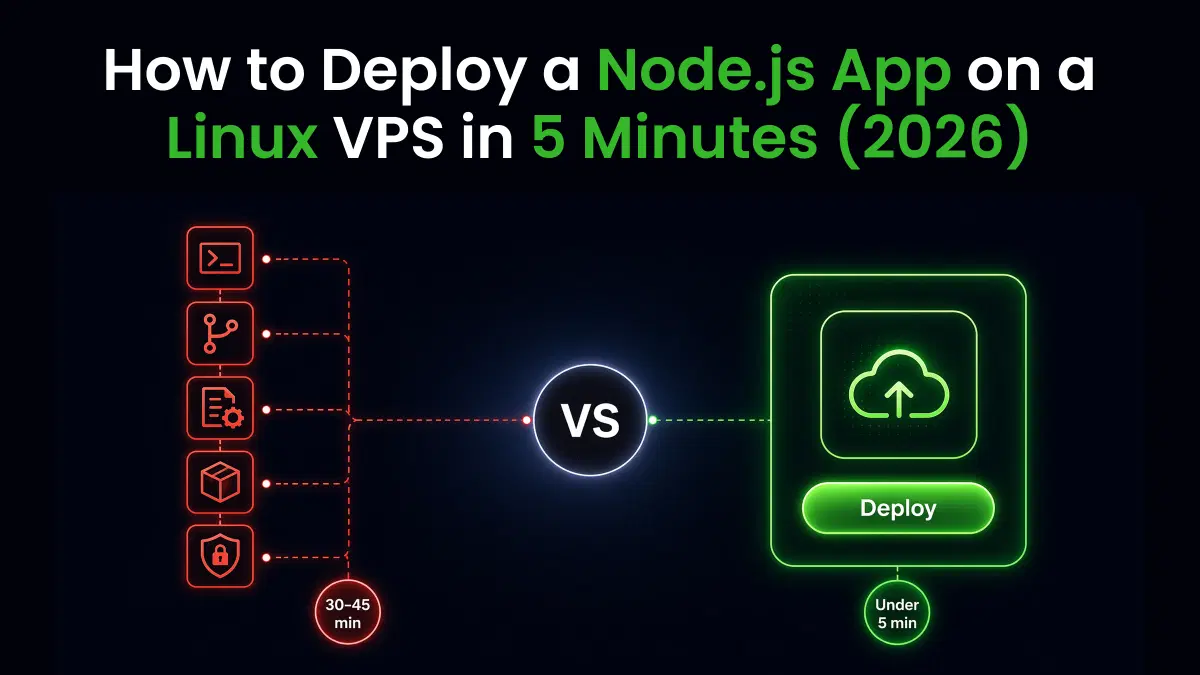
Below is the full manual setup process for deploying an app on a fresh VPS. Real commands at every step. Total time: 35-45 minutes on your first server.
Before you start: once your VPS is created, point your domain's A record to its IP address. DNS can take anywhere from a few minutes to a few hours, and it needs to be ready by Step 7.
Step 1: SSH Into Your Server (~1 minute)
After your VPS is provisioned, SSH in with the IP address from your provider's dashboard:
ssh root@your-server-ipAdded your SSH key during creation? You are in. Otherwise, use the root password from the provider's email or dashboard.
Step 2: Secure the Server (~10 minutes)
Start here. You are logged in as root for this step. Update the system packages first:
apt update && apt upgrade -yCreate a non-root user named deploy and give it sudo access:
adduser deployusermod -aG sudo deployCopy your SSH key to the new user:
rsync --archive --chown=deploy:deploy ~/.ssh /home/deployOpen the SSH config:
nano /etc/ssh/sshd_configFind these two lines (uncomment them if needed) and set them as shown:
PermitRootLogin noPasswordAuthentication noMany Ubuntu images ship an extra file in /etc/ssh/sshd_config.d/ (often 50-cloud-init.conf) that overrides your edit and keeps password login on. Check for it:
grep -ri "PasswordAuthentication" /etc/ssh/sshd_config /etc/ssh/sshd_config.d/If any line in that folder says PasswordAuthentication yes, change it to no in that file too. Then test the config and restart SSH:
sshd -tsystemctl restart sshConfirm the settings are active:
sshd -T | grep -i -E "passwordauthentication|permitrootlogin"You should see passwordauthentication no and permitrootlogin no.
Turn on the firewall. Allow SSH first, or you will lock yourself out. When ufw enable asks "Proceed with operation (y|n)?", type y:
ufw allow OpenSSHufw allow 80ufw allow 443ufw enableufw statusInstall fail2ban to stop brute-force attempts. The --now flag starts it immediately and enables it on boot:
apt install fail2ban -ysystemctl enable --now fail2banTurn on automatic security updates:
apt install unattended-upgrades -ydpkg-reconfigure --priority=low unattended-upgradesYou can now close the root session. From here on, work as the deploy user. Every remaining step assumes you are logged in as deploy, and commands that need admin rights use sudo.
Step 3: Install Your Runtime (~5 minutes)
For Node.js (most popular among web developers), install via NVM. Check the NVM releases page for the latest version and use it in place of v0.41.0 if it is newer:
curl -o- https://raw.githubusercontent.com/nvm-sh/nvm/v0.41.0/install.sh | bashsource ~/.bashrcnvm install --ltsnode -vFor Python (Ubuntu usually ships with Python 3 already):
sudo apt install python3 python3-pip python3-venv -yStep 4: Clone Your Repo and Build (~3 minutes)
The /var/www folder does not exist on a fresh server (Nginx creates it later), so create it and give deploy ownership:
sudo mkdir -p /var/wwwsudo chown -R deploy:deploy /var/wwwClone your repo and install dependencies:
cd /var/wwwgit clone https://github.com/your-username/your-app.gitcd your-appnpm installPrivate repos need a deploy key or a personal access token in the clone URL.
Create your environment file before building. Most Next.js and Node apps read these variables at build time:
nano .envThen build:
npm run buildStep 5: Set Up PM2 Process Manager (~3 minutes)
PM2 keeps your Node.js app alive after you close the terminal. It also auto-restarts crashed processes:
npm install -g pm2pm2 start npm --name "my-app" -- startpm2 startuppm2 startup prints a command that starts with sudo env PATH=.... Copy that exact command, paste it into the terminal, and run it. Then save the process list:
pm2 saveCheck that the app is running:
pm2 statusYour app should now answer on its local port (3000 by default for Next.js). Test it with curl http://localhost:3000.
Step 6: Configure Nginx Reverse Proxy (~8 minutes)
Install Nginx and create a config for your app:
sudo apt install nginx -ysudo nano /etc/nginx/sites-available/my-appPaste this config. Swap in your domain, and change 3000 if your app uses a different port:
server { listen 80; server_name yourdomain.com www.yourdomain.com; location / { proxy_pass http://localhost:3000; proxy_http_version 1.1; proxy_set_header Upgrade $http_upgrade; proxy_set_header Connection 'upgrade'; proxy_set_header Host $host; proxy_set_header X-Real-IP $remote_addr; proxy_set_header X-Forwarded-For $proxy_add_x_forwarded_for; proxy_set_header X-Forwarded-Proto $scheme; proxy_cache_bypass $http_upgrade; }}Enable your site, remove Nginx's default site so it does not interfere, test the config, and reload:
sudo ln -s /etc/nginx/sites-available/my-app /etc/nginx/sites-enabled/sudo rm /etc/nginx/sites-enabled/defaultsudo nginx -tsudo systemctl reload nginxOpen http://yourdomain.com in a browser. You should see your app (without HTTPS for now).
Step 7: Set Up SSL with Certbot (~5 minutes)
Make sure your domain's A record already points to the server IP (see the note at the top). Certbot fails if DNS has not propagated yet. You can check with dig +short yourdomain.com.
sudo apt install certbot python3-certbot-nginx -ysudo certbot --nginx -d yourdomain.com -d www.yourdomain.comCertbot installs a timer that renews the certificate automatically. Confirm that renewal works:
sudo certbot renew --dry-runYour app is now live at https://yourdomain.com.
Total time: 35-45 minutes on your first deployment. Second server? Still 25-30 minutes because every step stays manual.
That manual 7-step process forces you into four separate tools: a terminal for SSH, a file transfer client (SCP or SFTP), a monitoring command (htop or top), and a browser for documentation. Constant context switching.
CtrlOps is a desktop app that rolls SSH connections, file management, deployment, infrastructure monitoring, and an AI-powered terminal into a single interface. It connects to any VPS over standard SSH. Nothing gets installed on your server.
Same deployment, different experience:
Connect: Open CtrlOps, click your server's name. Done. No IP lookups, no key file paths, no terminal commands.
Deploy: Open the Deployments tab and click Deploy new app. Paste your GitHub repo URL, pick Next.js or Node.js, drop in your .env variables, add your domain, flip SSL on. One click. CtrlOps runs the clone, build, PM2 setup, Nginx config, and Certbot in a single flow.
Monitor: The Infra Details tab shows live CPU, RAM, and disk usage. No htop. No df -h. Just one screen.
Debug: Ask "why is my server slow?" in the AI Terminal. CtrlOps runs diagnostics and gives you a plain-English breakdown. Every command appears on screen for your approval before anything executes.
Manage files: Upload configs, edit files, browse directories. No SCP. No SFTP clients.
Time difference: Manual setup runs 35-45 minutes. CtrlOps runs steps 3 to 7 in under 5 minutes (4 min 32 sec in our timed test). By your tenth server, the gap is dramatic.
PaaS makes sense when you are validating an idea and need to ship in hours. A VPS wins when you need cost control, custom infrastructure, or you have blown past free tier limits.
Seats and traffic drive the decision. Here are the numbers:
| Scenario | Vercel Pro | VPS |
|---|---|---|
| 1 app, 1 developer | $20/month + usage | $6-12/month |
| 1 app, team of 3 | $60/month + usage | $6-24/month |
| Traffic past 1 TB a month | From $15 per 100 GB | Included (1,000-4,000 GiB on DigitalOcean) |
Vercel Pro costs $20 a month per developer seat, with $20 of usage credit, 1 TB of data transfer and 10M requests included. Verified November 22, 2026 on the Vercel pricing page.
To manage the VPS from a desktop app, CtrlOps is free for up to 2 servers, then $349 once for Lifetime or $9 a month, with unlimited servers. See CtrlOps pricing.
For a single developer with low traffic, Vercel's free Hobby plan is cheaper. Once you need Pro, or add teammates, a VPS usually costs less every month.
PaaS still works when: you are a solo developer with one app, you want zero server thinking, you are pre-revenue with minimal traffic. The convenience tax is worth it at that stage.
VPS is the clear pick when: your PaaS bill crossed $50/month, you juggle multiple projects, you need custom server software (Redis, background workers, cron jobs), or you want data on infrastructure you control.
Already on a PaaS and thinking about the move? The CtrlOps deployment guides walk through it step by step: deploy a Next.js app on your VPS, deploy a Node.js app on your VPS or deploy without becoming a DevOps engineer.
Leaving default configurations untouched after provisioning is the top VPS security mistake. Five specific errors cause most breaches on developer-managed servers.
1. Running everything as root
Every command runs with unrestricted access. A wrong rm -rf or a compromised dependency wipes your entire server. Fix: create a deploy user with sudo access and reserve root for initial setup only.
2. No firewall active
Many fresh VPS images ship with no firewall enabled, so any service you start on a public port is reachable by anyone. Bots scan for exposed ports within minutes of provisioning. Fix: enable UFW and allow only ports 22, 80, and 443.
3. Storing SSH credentials in cloud-synced tools
Some SSH clients sync your keys through their cloud. Termius does on its paid plans (the free Starter plan keeps a local vault). Synced keys leave your machine, so their safety also depends on that vendor. Fix: use a local-first SSH client that keeps credentials on your machine and nowhere else.
4. No automated backups
"I will set up backups next week" is the priciest sentence in server management. Disk failure or a botched deployment with no backup means total data loss. Fix: schedule automated backups on day one.
5. Ignoring OS updates
Unpatched Ubuntu servers are low-hanging fruit for attackers. Run sudo apt update && sudo apt upgrade weekly, or configure unattended-upgrades for automatic security patches.
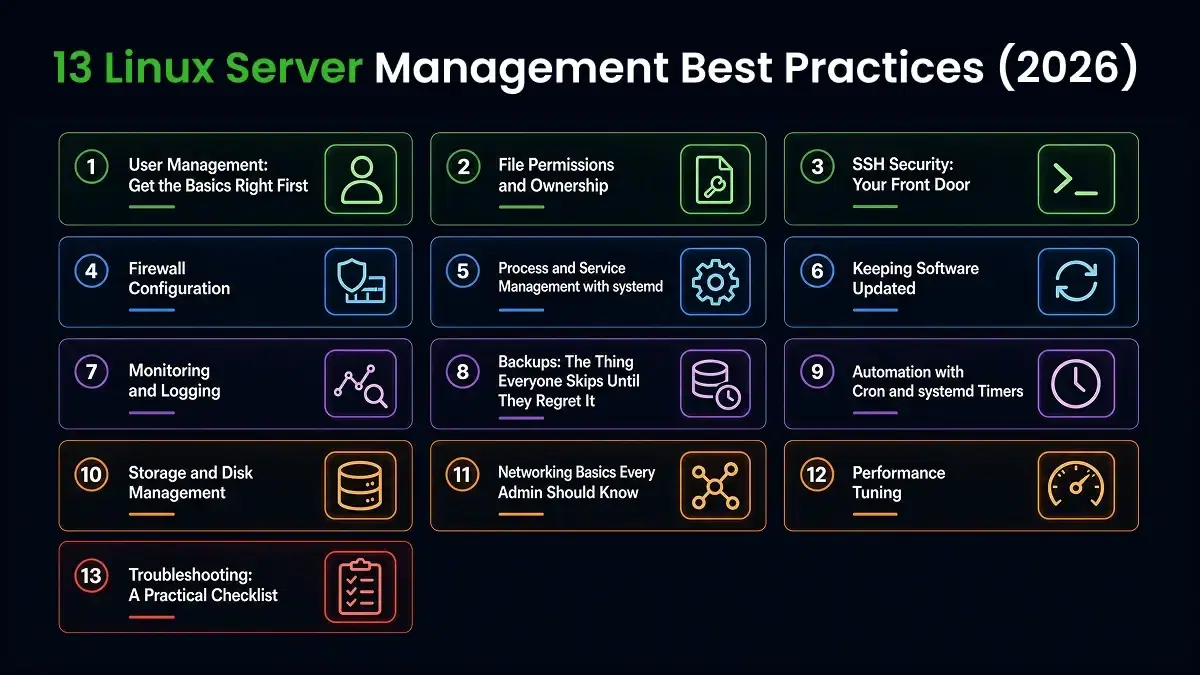
The CtrlOps security audit runs 25 checks on your server over SSH. It scores the server, ranks issues by severity, and generates fix commands you approve individually. To check these settings by hand, follow the VPS security checklist. For a broader view, follow these Linux server management best practices.
Getting the app live is step one. The real work is keeping it running. Three priorities after deployment: monitoring, SSH key management, and scaling decisions.
Monitoring. Watch CPU, RAM, and disk usage at least once a week. A server sitting above 80% memory consistently is due for an upgrade. Disks that fill up silently cause the most unexpected downtime. CtrlOps shows real-time infrastructure monitoring in a visual dashboard without any terminal commands.
SSH key rotation. The moment a team member leaves or a contractor wraps up, revoke their SSH key. Most teams skip this. CtrlOps Access Management scans your server fleet and maps who has access where. One action removes a person from every server.
Scaling decisions. Go vertical first. If your 2GB RAM VPS maxes out consistently, bump it to 4GB before spinning up a second server. Horizontal scaling (load balancer across multiple servers) only makes sense after vertical scaling hits the ceiling, usually around 8GB RAM and 4 vCPUs for typical web apps.
One-click deployment handles the first setup. For later code updates, pull and build in the terminal, then restart the app in the PM2 tab.
A VPS hands you server control and cost savings that shared hosting and PaaS platforms cannot touch once traffic grows. The 7-step manual setup is doable. Ongoing management is where the real time drain lives.
Two options from here. Handle every terminal command yourself. Or use a tool like CtrlOps to cover SSH, deployments, monitoring, backups, and security audits in one place while keeping full SSH access for the moments you need it.
You now know what a VPS is, how to set one up, and what to track after your app goes live.
- A VPS (virtual private server) is an isolated chunk of a physical server with its own operating system, dedicated CPU, RAM, and full root access. Other VPS users share the same hardware, but your resources stay guaranteed and separate. Pricing runs $5-24/month depending on specs.
- A data center's physical server runs hypervisor software (KVM, VMware, or similar). That hypervisor carves the hardware into isolated virtual machines. Each VM runs its own OS and applications independently. Your VPS cannot see other instances on the same hardware, and they cannot see yours.
- For production apps, yes. Shared hosting offers no root access, no custom software installation, and no resource guarantees. A VPS provides all three. That extra $5-10/month is worth it for any app serving real traffic or requiring custom server configs.
- Absolutely. A 2GB RAM VPS handles a Next.js SSR app at moderate traffic. Install Node.js through NVM, configure PM2 as a process manager, and set up Nginx as a reverse proxy. Manual setup takes 35-45 minutes. CtrlOps runs the deploy steps in under 5 minutes with a guided deployment flow.
- Not really. Basic Linux terminal skills are enough: SSH connections, moving through directories, running package install commands. For the rest (Nginx config, PM2 setup, SSL, firewall rules), guides or a VPS management tool with a visual interface handle the complexity.
- Unmanaged gives you a blank server with an OS installed. Security patches, software setup, backups, and monitoring fall on you. Managed VPS includes provider-handled updates, monitoring, and often backups. Managed runs $20-50/month versus $5-24/month for unmanaged, trading money for admin time.
- Yes, with proper configuration. Disable root SSH login, activate a firewall, use SSH keys instead of passwords, install fail2ban, and keep packages current. A hardened VPS matches the security of any managed hosting. The real risk is misconfiguration, not the platform.
- Depends on the specs. A 2GB RAM VPS comfortably runs 1-2 Node.js apps. 4GB handles 3-5 lightweight apps. 8GB supports 8-10 apps as long as none are resource-heavy. Track RAM and CPU usage to know when to upgrade or split workloads across servers.
- Once your PaaS bill passes $50/month, when you need custom server software (Redis, background workers, cron jobs), when you run multiple projects, or when you want full ownership of your data and infrastructure. A $6-24/month VPS keeps a flat bill, while a PaaS adds per-seat and usage costs as you grow.
- CtrlOps is a desktop app built for VPS management. It packs SSH connections, file management, one-click app deployment, live infrastructure monitoring, an AI-powered terminal, and security auditing into one interface. Connection runs over standard SSH with zero agents on your server. Credentials stay local and never sync to any cloud. The Free plan covers up to 2 servers. For unlimited servers, pay $349 once for Lifetime or $9 a month, with a 14-day free trial and no credit card.
- Yes. CtrlOps saves all your servers by name. Connect to any one with a single click. Open multiple servers in separate tabs, each with its own SSH session, file manager, and monitoring dashboard. No IP spreadsheets. No re-entering credentials.
- The app slows down or crashes outright. High memory usage triggers the OS OOM (out-of-memory) killer, which terminates processes without warning. Full disk space causes write failures and risks data corruption. Monitor usage regularly. Most VPS providers let you upgrade CPU and RAM within minutes, no data loss.